Flylib.com
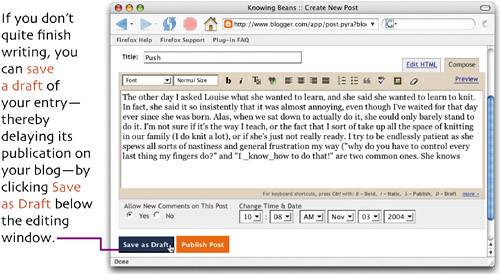
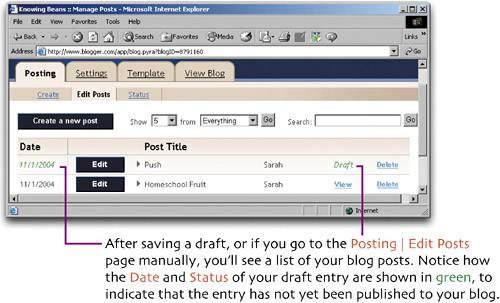
save a draft
Previous page
Table of content
Next page
Previous page
Table of content
Next page
Publishing a Blog with Blogger: Visual QuickProject Guide (2nd Edition)
ISBN: 0321637526
EAN: 2147483647
Year: 2004
Pages: 135
Authors:
Elizabeth Castro
BUY ON AMAZON
Project Management JumpStart
Developing Project Management Skills
Initiating the Project
Defining the Project Goals
Budgeting 101
Executing the Project
OpenSSH: A Survival Guide for Secure Shell Handling (Version 1.0)
Step 1.2 Install SSH Windows Clients to Access Remote Machines Securely
Step 3.1 Use PuTTY as a Graphical Replacement for telnet and rlogin
Step 4.4 How to Generate a Key Using PuTTY
Step 4.5 How to use OpenSSH Passphrase Agents
Conclusion
CISSP Exam Cram 2
The Ideal CISSP Candidate
Identification, Authentication, and Authorization
Telecommunications and Network Security
Business Continuity Planning
Practice Exam Questions
Documenting Software Architectures: Views and Beyond
P.2. Uses of Architecture Documentation
Stakeholders and Their Documentation Needs
Two Examples
UML
Allocation Implementation View
PostgreSQL(c) The comprehensive guide to building, programming, and administering PostgreSQL databases
Summary
Using PostgreSQL from an ODBC Client Application
Introduction to PostgreSQL Administration
Creating a Replication Set
Contributed Modules
Sap Bw: a Step By Step Guide for Bw 2.0
Creating an InfoSource for Transaction Data
Maintaining Characteristic Data
Summary
Section B.2. Dispatcher, Work Processes, and Services
Section B.3. Memory Management
flylib.com © 2008-2017.
If you may any questions please contact us: flylib@qtcs.net
Privacy policy
This website uses cookies. Click
here
to find out more.
Accept cookies