| A caption is a numbered label that you can attach to a table, graphic, equation, or other item. It consists of three parts (Figure 23): Figure 23. A Word table with a caption attached. 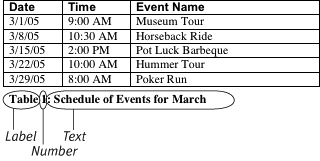
Caption label is text that identifies the type of item. Word comes preconfigured with three caption labelsEquation, Figure, and Tablebut you can add others. Caption number is the number assigned to the caption. This number is dynamic and can change when other labels are inserted or deleted before it. Caption text is text that you type for the caption. This is optionala caption can consist of just the label and number.
There are two ways to add captions: Manually add captions to items in your document using the Caption command under the Insert menu. Set up Word to automatically insert captions when you insert a table, graphic, or equation in your document.
This part of the chapter explains how to manually insert, modify, and delete captions, as well as how to set up Word to automatically insert them for you.  Tips Tips
Although this book wasn't written in Word, each of its figure captions follows the standard format used by Word. (Unfortunately, I had to numberand renumberthem manually.) Note that Word maintains separate numbering for each caption label. For example, if your document contains captions using the Figure and Table labels, Word numbers each type of caption starting with 1 (or A or i). Captions are formatted using the Caption style. You can change the formatting of all captions in a document by modifying the Caption style. I explain how to use styles in Chapter 5.
To insert a caption 1. | Select the item for which you want to insert a caption (Figure 24).
Figure 24. Select the item you want to insert the caption for. 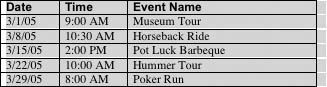
or
Position the insertion point where you want the caption to appear.
| 2. | Choose Insert > Caption (Figure 1) to display the Caption dialog (Figure 25).
Figure 25. Use the Caption dialog to set options for the captions you insert. 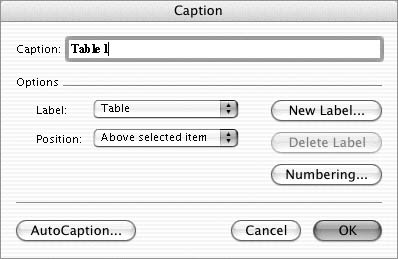
| 3. | Set basic options for the caption:
Label is the caption label. The predefined choices are Equation, Figure, or Table. Position is the position of the caption in relation to the selected item: above it or below it.
| 4. | To change numbering options for the caption, click the Numbering button. The Caption Numbering dialog (Figure 26) appears. Set options and click OK:
Figure 26. The Caption Numbering dialog. 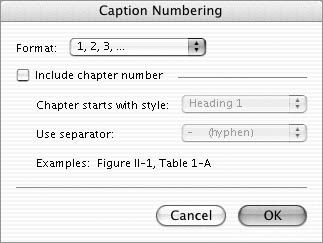
Format is the number format. You can choose among Arabic, alphabetical, and Roman numeral styles (Figure 27). Figure 27. The Format pop-up menu lets you choose from among number formats. 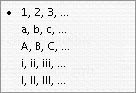
Include chapter number automatically inserts the chapter number as part of the caption number. If you enable this option, you must choose a heading level from the "Chapter starts with style" pop-up menu and a separator from the Use separator pop-up menu (Figure 28). Figure 28. The Use separator pop-up menu. 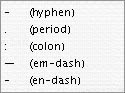
| 5. | If desired, enter caption text after the caption label and number that appears in the Caption box.
| 6. | Click OK. The caption is inserted to your specifications (Figure 23).
|
Tips In step 3, to create a new label, click the New Label button (Figure 25), enter the desired label in the New Label dialog that appears (Figure 29), and click OK. The new label appears in the Label pop-up menu (Figure 30). Figure 29. The New Label dialog. 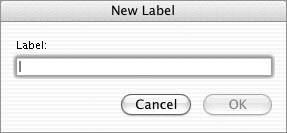
Figure 30. The new label is added to the Label pop-up menu. 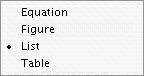
You can delete a custom label. In the Caption dialog, select the label you want to delete from the Label pop-up menu (Figure 31). Click Delete Label. The label is removed from the list. If the deleted label is used in a document caption, it is not deleted where it appears in the document. Figure 31. When a custom label is selected from the Label pop-up menu, the Delete Label button can be clicked. 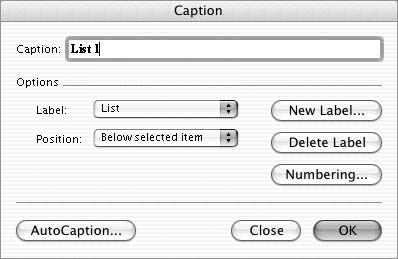
In step 3, if you choose Above selected item from the Position pop-up menu, Word automatically formats the caption so that it stays with the next paragraph. This ensures that the caption and the item to which it applies are always on the same page. In step 4 (Figure 26), you can only include the chapter number in the caption number if the chapter name and number is formatted with a heading style and you have set up that heading style with automatic numbering. If you want a colon or other punctuation to appear between the caption number and the caption text as shown in Figure 23, you must type that punctuation as part of the caption text in step 5.
To modify a caption 1. | Select the caption you want to modify (Figure 32).
Figure 32. When you select an entire caption, it turns black. 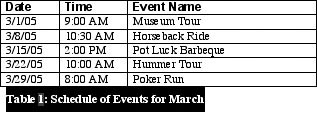
| 2. | Choose Insert > Caption (Figure 1). The Caption dialog appears with the caption settings displayed (Figure 33).
Figure 33. The Caption dialog for the caption selected in Figure 32. 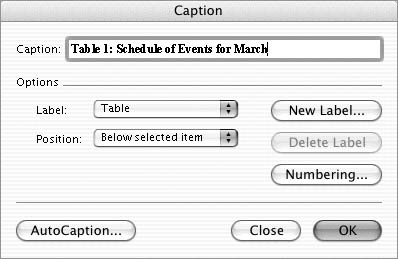
| 3. | Change settings as discussed in the section titled "To insert a caption."
| 4. | Click OK. The caption changes accordingly.
|
Tip
To delete a caption 1. | Select the caption you want to delete (Figure 32).
| 2. | Press  . The caption disappears. . The caption disappears.
|
Tip
To automatically insert captions 1. | Choose Insert > Caption (Figure 1) to display the Caption dialog (Figure 25).
| 2. | Click the AutoCaption button to display the AutoCaption dialog (Figure 34).
Figure 34. The AutoCaption dialog. In this illustration, the automatic caption feature is enabled for several types of items. 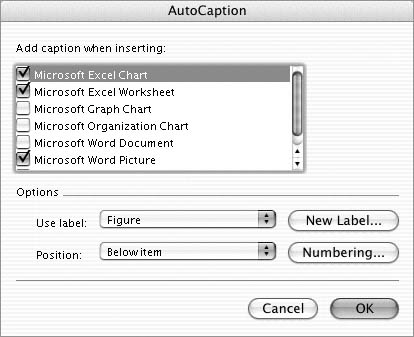
| 3. | Turn on the check box beside a type of item you want to automatically insert captions for.
| 4. | With the item you enabled in step 3 selected, set options in the bottom half of the window:
Use label enables you to choose a caption label for that type of item. Position enables you to specify whether the caption should appear above or below the item. New Label displays the New Label dialog (Figure 29), which you can use to create a new label. I explain how to use this dialog earlier in this section. Numbering displays the Caption Numbering dialog (Figure 26), which you can use to set numbering options. I explain how to use this dialog earlier in this section.
| 5. | Repeat steps 3 and 4 for each type of item you want to automatically insert captions for.
| 6. | Click OK. From that point forward, each time you use Insert menu commands to insert a type of item for which you enabled automatic captions, a caption appears for that item (Figure 35).
Figure 35. An automatically inserted caption beneath an Excel chart inserted in a Word document. 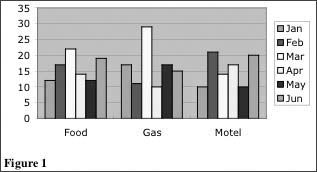
|
Tips To add caption text to an automatically inserted caption, position the insertion point at the end of the caption in the document window and type the text you want to appear (Figure 36). Figure 36. You can add caption text to an automatically inserted caption by simply typing it in. 
To disable the automatic caption feature for a type of item, follow steps 1 and 2 to display the AutoCaption dialog (Figure 34), turn off the check box beside the item, and click OK. The automatic caption feature for that item is disabled. Changes you make in the AutoCaption dialog are saved in the document template, not the document itself. I tell you more about templates in Chapter 2.
|
