13.6 Programmatically Change the Connection String for All Pages in a Database
5.5 Programmatically Control the Paper Source
5.5.1 Problem
You'd like to be able to print the first page of your reports from a paper tray containing letterhead paper and then print the rest on normal paper stock. Is there some way in Access to switch paper trays programmatically from within your application?
5.5.2 Solution
The paper source is one of the properties of the Printer object associated with a report (see Section 5.4.2 for a description of the Printer object) that you can programmatically control. Given the information in Section 5.4.2, it's relatively easy to change the paper source for a report so that the first page prints from one paper bin and the rest prints from another.
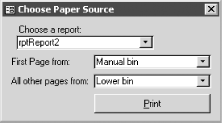
Load and run frmPaperSource in 05-05.MDB (Figure 5-5).
Figure 5-5. frmPaperSource allows you to print from different paper sources
-
With frmPaperSource loaded, choose a report. The report will load, minimized, in preview mode.
-
Choose a paper bin for the first page and a bin for the rest of the pages. Note that the lists of paper bins contain all the possible paper sources; your printer may not support all of the options listed in the combo boxes. You'll need to find the bins that work correctly with your printer driver.
-
Click the Print button. Access should print the first page of the report from the bin chosen for the first page and the rest from the bin chosen for the other pages.
To use this technique in your own applications, you'll need to add code that supports printing the first page, then the rest of the pages, as the result of some action (such as clicking a command button). In reaction to this event, call the PrintPages procedure, shown here:
Private Sub PrintPages(strReport As String, _ FirstPagePaperBin As AcPrintPaperBin, _ AllPagesPaperBin As AcPrintPaperBin) Dim rpt As Report On Error GoTo HandleErrors DoCmd.OpenReport strReport, acViewPreview, WindowMode:=acIcon Set rpt = Reports(strReport) rpt.Printer.PaperBin = FirstPagePaperBin ' Unfortunately, you have to select the report in order to print it. ' Who wrote the PrintOut method this way, anyway? DoCmd.SelectObject acReport, strReport DoCmd.PrintOut acPages, 1, 1 ' Define the paper source. rpt.Printer.PaperBin = AllPagesPaperBin ' Print all the rest of the pages (up to 32000). DoCmd.PrintOut acPages, 2, 32000 ExitHere: DoCmd.Close acReport, strReport, acSaveNo Exit Sub HandleErrors: MsgBox "Error: " & Err.Description & " (" & Err.Number & ")" Resume ExitHere End Sub In the sample form, this code is called from the Click event of the Print button, like this:
Private Sub cmdPrint_Click( ) Call PrintPages(Me.cboReportList, Me.cboFirstPage, Me.cboAllOther) End Sub
5.5.3 Discussion
As you saw in Section 5.4.2, you can use a form or report's Printer property to change its paper source. Printing one page of a report from one bin and the rest from another is easy. First, open the report in preview mode and get a reference to the open report:
DoCmd.OpenReport strReport, acViewPreview, WindowMode:=acIcon Set rpt = Reports(strReport)
Then set the PaperBin property of the report's Printer object, select the report, and print the first page, like this:
rpt.Printer.PaperBin = FirstPagePaperBin DoCmd.SelectObject acReport, strReport DoCmd.PrintOut acPages, 1, 1
Set the PaperBin property for the rest of the pages, and print them (the report is already selected, so you don't need to select it again):
rpt.Printer.PaperBin = AllPagesPaperBin ' Print all the rest of the pages (up to 32000). DoCmd.PrintOut acPages, 2, 32000
The PrintOut method's implementation is somewhat unfortunate. It's the only way you can control the specific pages you want printed, yet it requires you to select the object to be printed before printing it. This combination of requirements means that you must first open the report in preview or design view and set its properties, then select and print it. You cannot select a hidden report (Access will unhide it before selecting it), so your best bet is to open it with the WindowMode parameter of the DoCmd.OpenReport method set to acIcon. That way, the report is minimized. If this behavior truly bothers you, you can use Application.Echo to turn off screen display before you open the report and then turn it back on when you're done. In addition, if you specify the first page to be printed, you must also specify the last page. Therefore, even if you don't know how many pages your report contains, you must specify an upper bound (32,000, in our example) when you print. Hopefully, your report won't contain more than 32,000 pages. If it does, bump up that number.
If you're going to provide this functionality in an application to be distributed to users who have printers on which it hasn't been tested, you'll need to make it clear that some of the bins listed in the combo boxes may not work with their printers. It may require some experimentation on their part to determine which settings are correct.

EAN: 2147483647
Pages: 174