Recipient Limits
|
|
Another useful configuration property is the ability to restrict the maximum number of recipients per e-mail message. This is useful when helping to prevent misuse of the mail system. After all, the typical user in your organization probably does not need to send messages to all 100,000 users in your global address list, right?
Like Exchange 2003, by default Exchange 2007 restricts the maximum number of recipients to 5,000. That will include all recipients in the To, Cc, and Bcc lines of the message as well as the total number of members of a distribution lists that are included in the address lines. So if a user addresses a message to a distribution group that has 5,001 members, the message will be returned with an non-delivery report. Figure 9.7 shows an example of the undeliverable report that was sent to a user who tried to send to a distribution group that has more members than the user is permitted to send to.
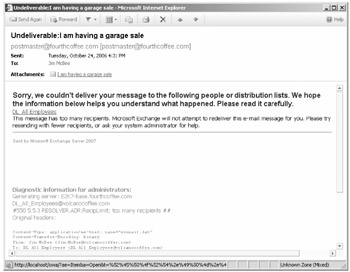
Figure 9.7: Report of undeliverable mail issued when recipient limit is reached
In most organizations (especially large ones), typical users probably do not need to send to 5,000 recipients. We recommend finding a more reasonable value that would apply globally (such as 50, 100, or 250, for example) and then override the recipients limit for users that would need to send to more than the global limit. If you want to view the current maximum recipients limit, here is an example of how you would do that:
Get-TransportConfig | FL MaxRecipientEnvelopeLimit MaxRecipientEnvelopeLimit : 5000
To change the transport limit to 250, you would type this:
Set-TransportConfig -MaxRecipientEnvelopeLimit:250
Once the global limit is set, you can override it on a mailbox-by-mailbox basis using the EMC. Locate the user's mailbox in the Recipient Configuration work center, display the properties of the mailbox, view the Mail Flow Settings property page, and double-click the Delivery Options selection to see the Delivery Options dialog box (shown in Figure 9.8). Enable the check box next to Maximum Recipients and then provide the maximum number of recipients in the text box.
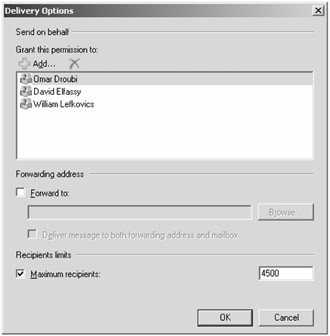
Figure 9.8: Overriding the maximum number of recipients for a single mailbox
Once this value is overridden, this mailbox will be able to send messages with more recipients than the global defaults (if the global default is smaller) or fewer than the global defaults (if the global default is larger).
If you need to do this in bulk, you can use the EMS. Like many other bulk operations that are applied to a group of objects, you need some method of finding these objects. In this example, we will assume we have a distribution group called E-Mail Entire Company. We will use the Get-DistributionGroupMember and the Set-Mailbox cmdlets to accomplish this. The following command will set all members of the E-Mail Entire Company distribution group's RecipientLimits property to 10,000.
Get-DistributionGroupMember "E-Mail Entire Company" | Set-Mailbox -RecipientLimits:10000
That was pretty simple, wasn't it? Once you know just a few of the basic functions in the PowerShell and the EMS, you can start to do things that would have been very difficult in Exchange 2000/2003. You can even create a PowerShell script and schedule it to run periodically and ensure that the limit is always enforced.
|
|

EAN: 2147483647
Pages: 198