Flylib.com

Books Software


Boosting Color


Boosting Color

Another simple and effective use of Hue/Saturation is to boost a key color. Usually the effect should be subtle, but distinct enough to give the image an extra punch. If your image will be printed in CMYK, you might find it useful to turn on your Gamut Warning (View > Gamut Warning or Command/Ctrl-Shift-Y) to make sure that you don't introduce nonprintable colors into your image. Depending on whether the color you're affecting is spread throughout your image or isolated, you may or may not need to use a layer mask to restrict the adjustment layer to specific areas.

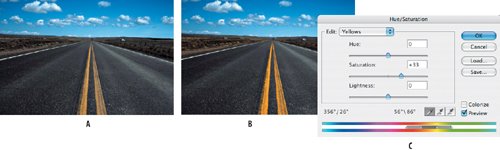
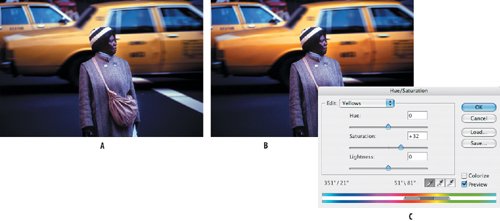
In the first two examples, the yellow was boosted easily without needing to use a layer mask.

Figure 5.18. Boosting the yellow of the road markings (examples A and B ) with a Hue shift (example C ).


Figure 5.19. Boosting the yellow of the taxi (examples A and B ) with a Hue shift (example C ).


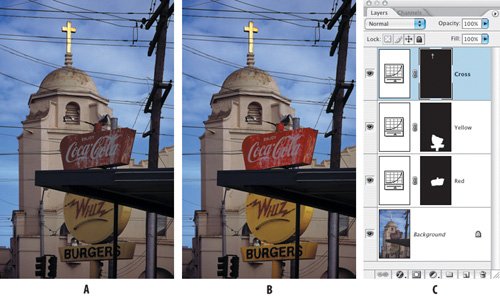
In the next example of a church and a sign, it's necessary to target the Hue shifts of the reds and the yellows with separate adjustment layers . While I could have made both changes on one adjustment layer, I separated the steps, making it clearer (to me at least) how the image was edited should I revisit it in the future. Because I wanted to reveal the color boost on less than 50% of the image, I then filled the layer mask with black, masking the effect of the adjustment layer. Then I switched my foreground color to white and painted on the layer mask with a soft-edged brush to reveal the boosted color in the signs.

Figure 5.20. Boosting the red and yellow in the signs (examples A and B ) and restricting the color shifts to specific areas using layer masks (example C ).


Colorizing Images

For maximum control when colorizing grayscale images, use Hue/Saturation adjustment layers. Select the area to which you want to add color, and then choose Hue/Saturation from the adjustment layers pop-up menu at the bottom of the Layers palette. The selection becomes a layer mask on the adjustment layer, restricting the color to that area. In the Hue/Saturation dialog box, click the Colorize check box and experiment with the Hue slider (and possibly the Saturation and Lightness sliders).

Figure 5.21. Colorizing using Hue/Saturation adjustment layers and layer masks to specify where the color is applied.


Here are a few tips for using this technique:

  • You must begin with an image in a color mode even if it looks black and white. If necessary choose Image > Mode > RGB or CMYK. If the image is already in a color mode, it helps to desaturate the image to remove any yellowing.

  • Your currently chosen foreground color will determine your starting hue. So before creating the adjustment layer, choose a color that is within the range of what you're after. You must be on the image layer itself to choose colors.

  • You can double-click the layer thumbnail to return to Hue/Saturation and adjust the color as necessary. Because the color is so easy to change, don't worry too much about finding the exact color right away. You may need to see the whole image in context of the colorizing to be able to determine the correct hue for each area.

  • If you need to extend or restrict the effect of the color, you can paint on the layer mask in white or black, respectively.

  • Where colors overlap, you can remove one from the other by Command/Ctrl-clicking the layer mask of the color you want to remove and (on the layer mask of the color you want to remove it from), filling or painting the selection with black. This means that you don't need to be accurate in painting an edge that meets another color, since you can subtract the selection of an existing mask from the paint you add.

  • Occasionally viewing the layer mask by itself (Option/Alt-click on the layer mask) may be helpful to see exactly where the color is being applied.

Combining Color and Grayscale

Here's a technique that's fast, easy, economical, and effective: combine grayscale and color in the same image as a way of focusing attention on your subject. Feel free to use any of your own color images that needs focus in a particular area.

Figure 5.22. The original image (example A ) and with the background desaturated (example B ).


1.

Make a selection of your subject.

2.

Inverse the selection (Command/Ctrl-Shift-I or Select > Inverse).

3.

Choose a Hue/Saturation adjustment layer and move the Saturation slider all the way to the left.

As an alternative to the first three steps, skip making the selection, desaturate the whole image with the adjustment layer, and then paint in black on the layer mask where you want to restore the color.

4.

If you want the background to be in color and the subject in grayscale, target the layer mask of the Hue/Saturation adjustment layer and press Command/Ctrl-I to invert its values.

Figure 5.23. Use a Hue/Saturation adjustment layer to desaturate the color (example A ), and then restore the areas of color by painting in black on the layer mask (example B ).