| Traditionally, true databases have used numeric codes instead of text labels for fields that can take on only a fairly restricted set of values. For example, the label "Ford" might be represented by the number 1, "Chrysler" by the number 2, and "Toyota" by the number 3. This approach had a special advantage when the availability of storage media was at a premium. If you have 1,000 records, you can store 1,000 byte values (1, 2, or 3, for example) in 1000 bytes. But if you store the car make in a text field, the value "Chrysler" forces that field to be at least seven characters 8 bytes, or 8000 bytes for 1,000 records. Years ago, that was a significant amount of space. The idea just as in chess was to trade time for space. It takes the processor a little more time to look up what label is associated with a number, and return that label: give it a 1, for example, and wait for it to figure out that the associated label is "Ford" and to return the label. If you could afford to wait that long, you'd save a significant amount of space. Today, though, storage space is relatively cheap and readily available, so perhaps there's less reason to associate labels with codes. On the other hand, processors are very much faster now. They're so fast that our eyes and brains can't tell, when viewing a record, whether they're seeing a label that's part of the record or one that has been returned by looking up a code. That seems to make it tough to decide, when you're designing either a workbook or a true database, whether to use lookups or to store labels directly with their associated records. The benefits and drawbacks are covered more fully in Part II, "Managing Data Inside Excel." For now, the next section shows what can happen when you make the wrong choice or, when you make what might be the right choice at the outset but it turns wrong as more and more data comes in. Setting Up a Lookup Here's an example of advice you might have received or given in 1996. Suppose that you want to enter, by hand, sales results in an Excel worksheet. You might want the result to appear as shown in Figure 1.8. Figure 1.8. Using the lookup functions can save time and prevent typing errors. 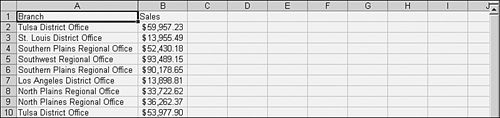
The main drawback to the setup shown in Figure 1.8 is that someone has to type some fairly long labels in column A, and that can bring about a couple of problems. One is that it might take a long time to do all that typing. Another problem is that the typist is likely to make keystroke errors. If and when you want an analysis of the data, such as calculating total sales by branch, the North Plans regional office will be treated separately from the North Plains regional office. Excel's Cell AutoComplete feature helps out with some of these problems, but not all of them. NOTE The AutoComplete feature can finish cell entries for you. For example, if you've already entered Lenny in a worksheet, under some circumstances Excel will finish it for you if you begin to enter it again. You must have the option selected choose Tools, Options, click the Edit tab, and fill the AutoComplete check box. The entry must be text (not numbers or dates), must be in the same column, and usually cannot be separated from other data in the column by a blank cell. So, if Lenny is in A6, typing L or l in A7 causes Excel to supply the remaining four characters.
Way back then, long before the Y2K kerfuffle focused everyone's attention on storage space, you might have arranged things as in Figure 1.9. Figure 1.9. In Excel, a lookup range functions much as a lookup table in a database. 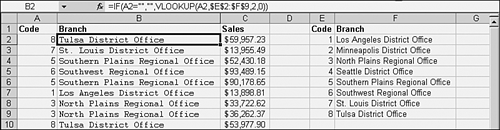
Notice the use of the VLOOKUP function in Figure 1.9 (see the Formula Bar, found right above the worksheet's column headers). The VLOOKUP function largely solves the problems of typographical errors and wasted time entering data. Chapter 2 has much more on the VLOOKUP function, but this is its effect as it's used in Figure 1.9: The typist looks at the table of region names and finds the appropriate code. That code is entered in column A; for example, 8 to represent the Tulsa district office. The VLOOKUP function finds the label associated with the code in column A and displays that label in column B.
Mission accomplished? Well, yes and no. You've saved time and you've largely prevented errors (and there's a spinoff benefit from this approach, which is discussed in the next section). But nothing's free. You've avoided lots of typing, and in so doing you've created the need for a lengthy set of VLOOKUP formulas. Furthermore, what if there's nothing in column A for some of the formulas to look up? Those formulas are going to return #N/A error values in any row that has no value in column A. And what of a nonexistent code? That is, what if the typist enters a 9 as the code in Figure 1.9? That causes an #N/A error as well. Yes, you can get around one of those problems by modifying the VLOOKUP formulas to follow this pattern: =IF(A1="","",VLOOKUP(A1,$J$1:$K$10,2,0))
This minor modification causes Excel to display nothing if A1 itself is blank, and to display the result of the lookup otherwise. That disposes of one cause of the annoying problem of rampant #N/A error values on the worksheet, but it doesn't help you decide how many rows should contain the formula. Suppose that you put it in B1:B200. Periodically, someone has to check to see whether the person entering the data has gotten past the 200th row, and if so to extend the range as far as necessary. You could, of course, extend the formula all the way to row 65,536. But that significantly increases the space required to store the file: from perhaps 500KB to well over 7MB a 14-fold increase. That's a fairly large file, even on a standalone computer. If yours is a workstation on a network, it's not a good idea to force the network to transmit all those bytes every time you want to open the file. Using Data Validation If you've used versions of Excel released since 1996, you might have used data validation to speed up data entry and to better ensure its accuracy (see Figure 1.10). Figure 1.10. A data validation list limits your choices to the elements in the list. 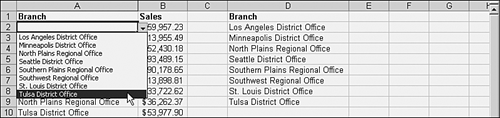
As Figure 1.10 shows, you can arrange things so that a cell, or range of cells, has a dropdown whose contents depend on a list. (You'll see how to set up this arrangement in Chapter 2.) You don't need to get formulas involved, and by setting up the data validation for an entire column, you don't need to worry about the extent of the range of cells as you do using the VLOOKUP approach. It takes only trivially more file space to apply data validation to 65,536 cells than to 65 cells. But suppose that at some point you want or need to move the data to a true database manager: Access, say, or SQL Server, or Oracle, or some similar application. In that environment, you almost surely want to use a numeric code or at least a very brief alphanumeric one to identify each branch office. Database management systems like those are designed to make efficient use of codes and labels. But using data validation, you no longer have a one-to-one correspondence on your worksheet between a concise code and a descriptive label. The VLOOKUP approach forces you to let some code value represent Northwest Seattle, another value represent Northwest Boise, and so on. But the data validation approach doesn't require codes, and so if you want to move the data to a relational database and take advantage of its power, you'll need to develop codes for your labels. In turn, this means you'll need to associate codes with your validation list, create VLOOKUP formulas to put a code with each record, and finally move the records with their codes to the database. Figure 1.11 gives an example of how you might set this up. Figure 1.11. This reverses the situation shown in Figure 1.9; now, VLOOKUP returns codes instead of labels. 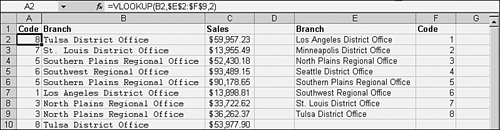
After you've put codes representing branch locations together with data such as sales figures, you can move the sales data into a table in the database. You'll also want to move the lookup table, which pairs the codes with the labels, into the database then the database can associate branch location sales values with the appropriate branch name. All this implies that you should give real thought before deciding to rely on Excel's data validation feature. If you have perhaps 100 records or so, and something like 10 possible labels, data validation might well be the right approach. This is especially true if you don't expect your data set to grow to several hundred or even thousands of records. But if you have, or know that you will eventually have, a much larger data set, it probably makes sense to start out with the code-and-label VLOOKUP approach. Eventually you're likely to decide to move the data to a true database and keep the analysis in the Excel workbook. When you make that decision, you'll already have the codes associated with the proper labels, and it will be easy to move them into the database. | 