Composite Pattern: Parents and Children
Composite Pattern Parents and Children
According to [Gamma95], the Composite pattern is intended to facilitate building complex (composite) objects from simpler (component) parts by representing the part-whole hierarchies as tree-like structures. This must be done in such a way that clients do not need to distinguish between simple parts and more complex parts that are made up of (i.e., contain) simpler parts.
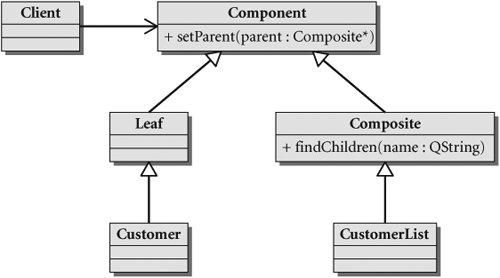
In Figure 9.1 there are two distinct classes for describing the two roles.
- A composite object is something that can contain children.
- A component object is something that can have a parent.
Figure 9.1. Components and composites
In Figure 9.2, we can see that QObject is both composite and component. We can express the whole-part relationship as a parent-child relationship between QObjects. The highest level (i.e., most "composite") QObject in such a tree (i.e., the root of the tree) will have lots of children but no parent. The simplest QObjects (i.e., the leaf nodes of this tree) will each have a parent but no children. Client code can recursively deal with each node of the tree.
Figure 9.2. QObject

For an example of how this pattern might be used, let's look at Suffolk University. In 1906 the founder, Gleason Archer, decided to start teaching the principles of law to a small group of tradesmen who wanted to become lawyers. He was assisted by one secretary and, after a while, a few instructors. The organizational chart for this new school was quite simple: a single office consisting of several employees with various tasks. As the enterprise grew, the chart gradually became more complex with the addition of new offices and departments. Today, 100 years later, the Law School has been joined with a College of Arts and Sciences, a School of Management, a School of Art and Design, campuses abroad, and many specialized offices so that the organizational chart has become quite complex and promises to become more so. Figure 9.3 shows an abbreviated and simplified subchart of today's Suffolk University.
Figure 9.3. Suffolk University organizational chart
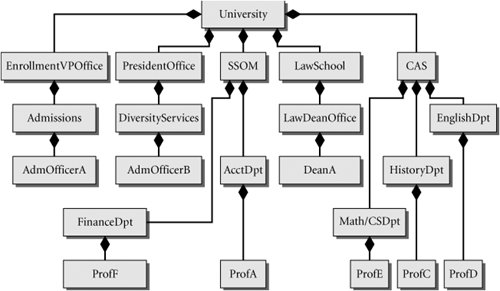
Each box in the chart is a component. It may be composite and have sub-components which, in turn, may be composite or simple components. For example, the PresidentOffice has individual employees (e.g., the President and his assistants) and sub-offices (e.g., DiversityServices). The leaves of this tree are the individual employees of the organization.
We can use the Composite pattern to model this structure. Each node of the tree can be represented by an object of
class OrgUnit : public QObject {
 public:
 QString getName();
 double getSalary();
 private:
 QString m_Name;
 double m_Salary;
};
The QObject public interface allows us to build up a tree-like representation of the organization with code that instantiates an OrgUnit and then calls setParent() to add it to the appropriate child list.
For each OrgUnit pointer ouptr in the tree, we initialize its m_Salary data member as follows:
- If ouptr points to an individual employee, we use that employee's actual salary.
- Otherwise we initialize it to 0.
We can implement the getSalary() method somewhat like this:
double OrgUnit::getSalary() {
 QList childlst = findChildren();
 double salaryTotal(m_Salary);
 if(!childlst.isEmpty())
 foreach(OrgUnit* ouptr, childlst)
 salaryTotal += ouptr->getSalary();
 return salaryTotal;
}
A call to getSalary() from any particular node returns the total salary for the part of the university represented by the subtree whose root is that node. For example, if ouptr points to University, ouptr->getSalary() returns the total salary for the entire university. But if ouptr points to EnglishDpt, then ouptr->getSalary() returns the total salary for the English Department.
9.2.1. Finding Children
QObject provides convenient and powerful functions named findChildren() for finding children in the child list. The signature of one of its overloaded forms looks like this:
QList parentObj.findChildren ( const QString & name ) const
If name is an empty string, findChildren() works as a class filter by returning a QList holding pointers to all children, which can be typecast to type T.
To call the function, you must supply a template parameter after the function name, as shown in Example 9.4.
Example 9.4. src/findchildren/findchildren.cpp
[ . . . . ]
/* Filter on Customer* */
 QList custlist = parent.findChildren();
 foreach (Customer* current, custlist) {
 qDebug() << current->toString();
 }
[ . . . . ]
|
Part I: Introduction to C++ and Qt 4
C++ Introduction
- C++ Introduction
- Overview of C++
- A Brief History of C++
- Setup: Open-Source Platforms
- Setup: Win32
- C++ First Example
- Input and Output
- Identifiers, Types, and Literals
- C++ Simple Types
- C++ Standard Library Strings
- Streams
- The Keyword const
- Pointers and Memory Access
- const* and *const
- Reference Variables
- Points of Departure
- Review Questions
Classes
- Classes
- Structs
- Class Definitions
- Member Access Specifiers
- Encapsulation
- Introduction to UML
- Friends of a Class
- Constructors
- Subobjects
- Destructors
- The Keyword static
- Copy Constructors and Assignment Operators
- Conversions
- const Member Functions
- Review Questions
Introduction to Qt
- Introduction to Qt
- Example Project: Using QApplication and QLabel
- Makefile, qmake, and Project Files
- Getting Help Online
- Style Guidelines and Naming Conventions
- The Qt Core Module
- Streams and Dates
- Points of Departure
- Review Questions
Lists
Functions
- Functions
- Function Declarations
- Overloading Functions
- Optional Arguments
- Operator Overloading
- Parameter Passing by Value
- Parameter Passing by Reference
- References to const
- Function Return Values
- Returning References from Functions
- Overloading on const-ness
- Inline Functions
- Inlining versus Macro Expansion
- Review Questions
Inheritance and Polymorphism
- Inheritance and Polymorphism
- Simple Derivation
- Derivation with Polymorphism
- Derivation from an Abstract Base Class
- Inheritance Design
- Overloading, Hiding, and Overriding
- Constructors, Destructors, and Copy Assignment Operators
- Processing Command-Line Arguments
- Points of Departure
- Review Questions
Part II: Higher-Level Programming
Libraries
- Libraries
- Code Containers
- Reusing Other Libraries
- Organizing Libraries: Dependency Management
- Installing Libraries: A Lab Exercise
- Frameworks and Components
- Review Questions
Introduction to Design Patterns
QObject
- QObject
- QObjects Child Managment
- Composite Pattern: Parents and Children
- QApplication and the Event Loop
- Q_OBJECT and moc: A Checklist
- Values and Objects
- tr() and Internationalization
- Point of Departure
- Review Questions
Generics and Containers
- Generics and Containers
- Generics and Templates
- Containers
- Managed Containers, Composites, and Aggregates
- Implicitly Shared Classes
- Generics, Algorithms, and Operators
- Serializer Pattern
- Sorted Map Example
- Review Questions
Qt GUI Widgets
- Qt GUI Widgets
- Widget Categories
- QMainWindow and QSettings
- Dialogs
- Images and Resources
- Layout of Widgets
- QActions, QMenus, and QMenuBars
- QActions, QToolbars, and QActionGroups
- Regions and QDockWidgets
- Views of a QStringList
- Points of Departure
- Review Questions
Concurrency
- Concurrency
- QProcess and Process Control
- Threads and QThread
- Summary: QProcess and QThread
- Review Questions
Validation and Regular Expressions
- Validation and Regular Expressions
- Validators
- Regular Expressions
- Regular Expression Validation
- Review Questions
Parsing XML
Meta Objects, Properties, and Reflective Programming
- Meta Objects, Properties, and Reflective Programming
- Anti-patterns
- QMetaObject: The MetaObject Pattern
- Type Identification and qobject_cast
- Q_PROPERTY Macro: Describing QObject Properties
- QVariant Class: Accessing Properties
- DataObject: An Extension of QObject
- Property Containers: PropsMap
- Review Questions
More Design Patterns
- More Design Patterns
- Creational Patterns
- Serializer Pattern Revisited
- The Façade Pattern
- Points of Departure
- Review Questions
Models and Views
- Models and Views
- M-V-C: What about the Controller?
- Dynamic Form Models
- Qt 4 Models and Views
- Table Models
- Tree Models
- Review Questions
Qt SQL Classes
Part III: C++ Language Reference
Types and Expressions
- Types and Expressions
- Operators
- Evaluation of Logical Expressions
- Enumerations
- Signed and Unsigned Integral Types
- Standard Expression Conversions
- Explicit Conversions
- Safer Typecasting Using ANSI C++ Typecasts
- Run-Time Type Identification (RTTI)
- Member Selection Operators
- Point of Departure
- Review Questions
Scope and Storage Class
- Scope and Storage Class
- Declarations and Definitions
- Identifier Scope
- Storage Class
- Namespaces
- Review Questions
Statements and Control Structures
Memory Access
- Memory Access
- Pointer Pathology
- Further Pointer Pathology with Heap Memory
- Memory Access Summary
- Introduction to Arrays
- Pointer Arithmetic
- Arrays, Functions, and Return Values
- Different Kinds of Arrays
- Valid Pointer Operations
- What Happens If new Fails?
Chapter Summary
Inheritance in Detail
- Inheritance in Detail
- Virtual Pointers and Virtual Tables
- Polymorphism and virtual Destructors
- Multiple Inheritance
- Point of Departure
- public, protected, and private Derivation
- Review Questions
Miscellaneous Topics
Part IV: Programming Assignments
MP3 Jukebox Assignments
- MP3 Jukebox Assignments
- Data Model: Mp3File
- Visitor: Generating Playlists
- Preference: An Enumerated Type
- Reusing id3lib
- PlayListModel Serialization
- Testing Mp3File Related Classes
- Simple Queries and Filters
- Mp3PlayerView
- Models and Views: PlayList
- Source Selector
- Persistent Settings
- Edit Form View for FileTagger
- Points of Departure
Part V: Appendices
MP3 Jukebox Assignments
- MP3 Jukebox Assignments
- Appendix A. C++ Reserved Keywords
- Appendix B. Standard Headers
- Appendix C. The Development Environment
- Section C.1. The Preprocessor: For #including Files
- Section C.2. Understanding the Linker
- Section C.3. Debugging
- Section C.4. Qt Assistant and Designer
- Section C.5. Open-Source IDEs and Development Tools
Bibliography
MP3 Jukebox Assignments

EAN: 2147483647
Pages: 268
