Accessing Methods and Properties on Other Pages
Now that we have created page methods and properties by using the PageObject DTC, we can access those methods and properties from another page, either in server script or client script. To use the properties or methods of another page, you must create a reference from the current page to the page that contains the PageObject DTC and the methods and properties that we want to use. This process is similar to creating a reference to a Microsoft ActiveX component—we are telling the application where the other component/page is located. The following steps show you how to create a reference to another page containing a PageObject DTC:
- Open the ASP file that will use properties or methods of another page in the code editor. The page must contain a PageObject DTC.
- Display the PageObject DTC's Properties dialog box by right-clicking the DTC and selecting Properties from the context menu.
- Click the References tab. This will display the property page shown in Figure 4-10.
- Enter the name of the PageObject DTC you want to reference in the Name column. You can click the … button beside the Name space to display the Create URL dialog box shown in Figure 4-11. Using this dialog box, you can point to the page you want to reference, and Visual InterDev will insert the PageObject DTC name.
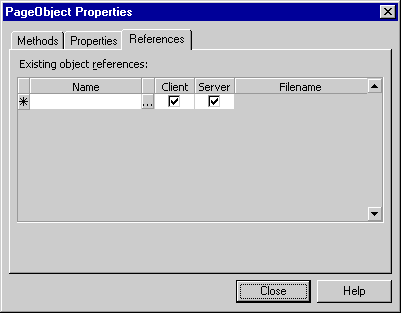
Figure 4-10. The PageObject DTC must have a reference to other pages that your application will use as objects.
The Client and Server columns in Figure 4-10 control whether the page properties and methods can be accessed from either client or server script. The default is to allow access by both. You can also set these properties per page, allowing you to have certain pages that can be used by client and server script and others that can be used by only one or the other.
The Create URL dialog box shown in Figure 4-11 assists you in preparing the reference to the correct PageObject DTC.
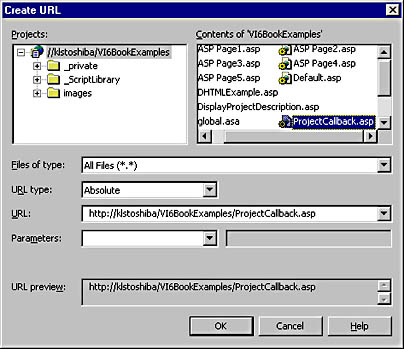
Figure 4-11. You can use the Create URL dialog box to search for the page and create the reference.
You can set other properties on the Create URL dialog box to control what happens when a property or method on the page is fired or when the page is navigated to. These properties are useful for controlling the various actions you take in the referenced page. For instance, you can use the Parameters field to add parameters to the URL that is generated for the page.
Now that you have a reference to the page containing the methods and properties, you can use them in your application. For this example, the following code is contained in the file ASP Page7.asp. The OrderNumber property and the TotalInventory method are contained in the ASP Page4.asp file. You can access both the property and the method by using the following syntax:
<% ASP_Page4.setOrderNumber = "98-001" ASP_Page4.navigate.TotalInventory("10") %> I used the navigate method in this example because the method I want to use (that is, TotalInventory) is exported as a Navigate method. Figure 4-12 shows a portion of the editor with this code and the IntelliSense display for the remote page. To use either the navigate or execute method, you should use IntelliSense to display the object and methods for you. Then you can type either navigate or execute and then select the appropriate method from the IntelliSense list. This will ensure that you have both the correct method of execution and the correct syntax.
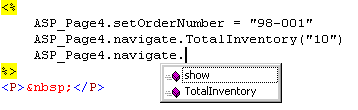
Figure 4-12. The IntelliSense list for the ASP Page4.asp page.
PageObject Methods and Properties
The PageObject run-time scripting object that underlies the PageObject DTC has several methods and properties that are useful in applications. These properties and methods can be used for various purposes in your application.
What's going on behind the scenes when you use the Scripting Object Model? When you insert a DTC on a page or enable the SOM for a page, Visual InterDev inserts the following code at the start of the file:
<%@ Language=VBScript %> <% ' VI 6.0 Scripting Object Model Enabled %> <!--#include file="_ScriptLibrary/pm.asp"--> <% if StartPageProcessing() Then Response.End() %> <FORM name=thisForm METHOD=post>
This code calls the StartPageProcessing routine in the pm.asp file. StartPageProcessing performs the startup activities for the page, including the creation of the page object thisPage. You can access thisPage's events, methods, and properties for your own purposes. For instance, later in the chapter when we cancel the server processing, we'll cancel the action with thisPage.cancelEvent = True.
The thisPage page object also contains the firstEntered property, which can be used to determine whether a user is visiting a page with a browser or whether the page is being executed as the result of some type of posting action. This is handy when you are referencing a page repeatedly and want to determine when the user is coming to the page for the first time so that you can set the initial state of the page by setting its variables and properties. You do not need to do this with your own code by setting Session variables; instead, you can check the firstEntered property, and if it is True, the user has just entered that page via a browser.
The startup code also creates an HTML form and names it thisForm. You can access this form directly in your code. When you want to access an HTML field on a page that is in another form, you can use this syntax: document.thisForm.fieldname.
Figure 4-13 shows the Script Outline window and the file ASP Page6.asp with an empty thisPage_onenter event handler. I created this event handler by opening the Server Objects & Events folder in the Script Outline window, clicking the plus sign beside thisPage to open it, and then double-clicking onenter to insert an empty thisPage_onenter event in ASP Page6.asp.
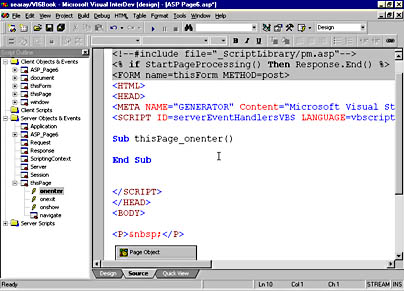
Figure 4-13. The Script Outline window is the easiest way to insert any type of script events into a file.
Now that we have the onenter event handler, we can use the PageObject object to determine how the user entered the page. Figure 4-14 demonstrates how onenter and the firstEntered property work. I added the code shown in Figure 4-14 to the onenter event from Figure 4-13. Then I started the page in debug mode to track the execution of the code. You can see how the cursor has stopped on the Company = "" line. This is the section of code that is executed when the user first enters the page.
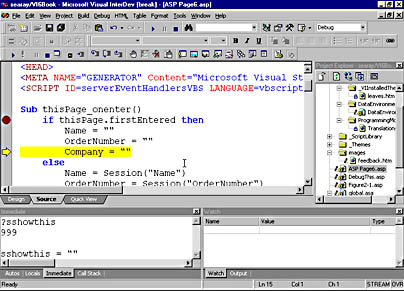
Figure 4-14. The debug features of Visual InterDev 6 make it easy to understand how the various parts of your application are executing. This figure demonstrates how the firstEntered property is used.
You can also use the location property to obtain the URL of the current page:
<% Response.Write "URL: " & thisPage.location %>
The thisPage object also provides the onbeforeserverevent event, which is fired before posting a page for server processing. You can use this event to check values and other tasks that must occur before the page is sent back to the server. The onbeforeserverevent event is fired in the client before the server event executes. You can take advantage of your client script to check values and such before allowing the server event to execute.
<SCRIPT ID=clientEventHandlersJS LANGUAGE=javascript> <!-- function ASP_Page9_onbeforeserverevent() { alert(document.thisForm.txtNumber.value) if (document.thisForm.txtNumber.value == "") thisPage.cancelEvent = true; } //--> </SCRIPT> This JScript code runs in the client browser and executes before any server events. The first line in the event code displays the value from the HTML text box txtNumber. Then the if statement checks the value—if it is zero, it cancels the server processing by setting the cancelEvent property of thisPage. The result is the cancellation of a needless round-trip to the server.
Working with the Scripting Object Model
As you have seen in this chapter, the Scripting Object Model adds a powerful set of capabilities to the Web development environment. You can perform all types of tasks, work with objects, and use object syntax with pages.
The Script Outline window is a key feature of this object environment: it shows a list of all the scriptable objects on the page along with the events that you can use to script against. The Script Outline window displays the objects in a page only when you have a page containing script open in the code editor.
The Script Outline window contains both client and server objects. You can see some objects that show up in both categories. For instance, thisPage will show as both a server object and a client object. Although it shows up in both client and server, the events that are available for thisPage are specific to one or the other. You saw this earlier when we used the onenter event in server script and the onbeforeserverevent event for client script. You should use the Script Outline window and the IntelliSense command completion feature wherever possible to cut down on the introduction of possible bugs in your applications.
You can now use command completion in script in HTML and ASP files as mentioned in the last paragraph. To use command completion, type the first part of the name for an object and press Ctrl+Space. This will drop the IntelliSense list. You can also display the IntelliSense list at any time by pressing Ctrl+J.

EAN: 2147483647
Pages: 143