Completing the Installation
|
| < Day Day Up > |
|
At this point, the installation will run unattended for several minutes. Depending on the speed of your PC’s processor and the number of packages you selected, this could take anywhere from a few minutes up to 30 minutes or more. At some point the CD-ROM door will open and you will be prompted to insert disk two. When that disk is done, there are just a few basic configuration items you need to take care of. As your disk is installing, you will see a screen displaying the progress of the installation. That screen is shown in Figure 2.17.
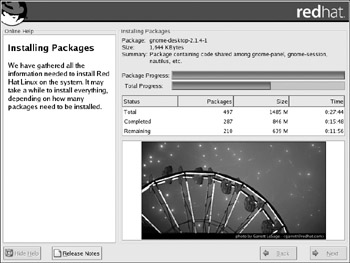
Figure 2.17: Installation progress.
| Note | The more packages you select, the longer the installation will take. An installation that includes all available packages can take over two hours. |
You will be asked to set the current time zone. This is relatively easy; there is a list of major cities around the world, and you should pick the one closest to you. You also can select your time zone from a map of the world. You will be asked if you want to create a boot disk. This is highly recommended. This is an emergency disk that can get your machine up and running in the event of a catastrophic failure. You also will be asked whether you want Linux to boot to graphical mode automatically or to a shell. You should choose graphical mode. Finally, you will be prompted to remove any disks from your system, and the PC will restart. You have successfully installed Linux and are ready to start using it.
| Note | In normal operations it is not recommended that you log on as the root user. Remember that the root is the same thing as an administrator in Windows. However, for the purposes of this book, you should log on as root. That way, you will have access to all the features of Linux, including administrative tools. This will be critical when we cover administrative tools later in this book. |
|
| < Day Day Up > |
|

EAN: 2147483647
Pages: 247