Inserting Functions
 The easiest way to locate and insert built-in functions is by clicking the Insert Function button. This button has two versions-one is the little fx button that appears on the formula bar, and the other is located in the Function Library group on the Formulas tab on the Ribbon. Either way, when you click Insert Function, the dialog box shown in Figure 13-2 appears. If you're not sure what function you need, type a description of what you are trying to do in the Search text box. For example, if you type how many cells contain values and then click the Go button, the Insert Function dialog box returns a list of recommended functions, similar to the list shown in Figure 13-5. As it turns out, the first function in the list of suggestions fills the bill. If you don't find the function you're looking for, try rewording your query.
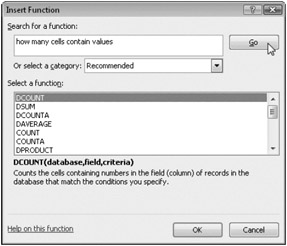
Figure 13-5: Ask a question in the Search text box, and Excel suggests some possible functions you can try.
You can also select a function category from the Or Select A Category drop-down list to display all the applicable functions available. Function categories include Financial, Date & Time, Lookup & Reference, Text, and more. The Recommended category keeps track of any functions returned as a result of using the Search text box.
When you select a function, the syntax and a brief description appear at the bottom of the dialog box. You can obtain help on a function selected in the Select A Function list by clicking the Help On This Function link at the bottom of the dialog box. When you select a function and click OK, Excel enters an equal sign to start a formula in the active cell, inserts the function name and a set of parentheses, and displays the Function Arguments dialog box, shown in Figure 13-3.
The Function Arguments dialog box contains one text box for each argument of the selected function. If the function accepts a variable number of arguments (such as SUM), the dialog box gets bigger as you type additional arguments. A description of the argument text box currently containing the insertion point appears near the bottom of the dialog box. To the right of each argument text box, a display area shows the current value of the argument. This display is handy when you are using references or defined names, because the value of each argument is calculated for you. The current value of the function (Formula Result) appears at the bottom of the dialog box.
Some functions, such as INDEX, have more than one form. When you select a function from the Insert Function dialog box that has more than one form, Excel presents the Select Arguments dialog box, shown in Figure 13-6, in which you select the form you want to use.
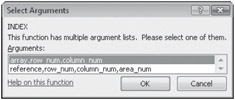
Figure 13-6: If a function has more than one form, the Select Arguments dialog box appears.
You can also use the Function Library group on the Formulas tab on the Ribbon to insert functions. Each of the categories listed in the Insert Function dialog box has a button or menu in the Function Library group. For example, clicking the More Functions button reveals a menu containing additional categories of functions, as shown in Figure 13-7. When you click one of the functions listed on any of these menus, Excel inserts the selected function in the formula bar, and the Function Arguments dialog box appears.
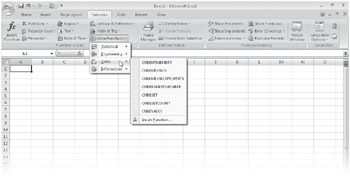
Figure 13-7: The Function Library group on the Formulas tab provides direct access to the built-in functions in Excel.
| TROUBLESHOOTING | I get a #NAME? error. You might get the #NAME? error for a few reasons, but one of the more common is typing the function name incorrectly. Here's a good habit to acquire if you type functions: Use lowercase letters. When you press Enter, Excel converts the name of the function to uppercase letters if you typed it correctly. If the letters don't change to uppercase, you probably typed the name of the function incorrectly. If you're not sure of the exact name or if you continue to get an error, perhaps it's time to consult Help or use the Insert Function dialog box. |
Inserting References and Names
As with any other formula, you can insert cell references and defined names into your functions easily using the mouse. For example, to enter a function in cell C11 that averages the cells in the range C2:C10, select cell C11, type =average( and then select the range C2:C10. A marquee appears around the selected cells, and a reference to the selected range appears in the formula. Then type the closing parenthesis. If you define named ranges, constants, or formulas in your worksheets, you can insert them in your formulas. To do this, click the Formulas tab, click the Use In Formula button in the Defined Names group, and then select the name you want to use. When you click the name, it appears at the insertion point in the formula.

EAN: 2147483647
Pages: 260