Finding and Replacing Stuff
 Suppose you've built a large worksheet and you now need to find every occurrence of a specific string of text or values in that worksheet. (In computerese, a string is defined as any continuous series of characters-text, numbers, math operators, or punctuation symbols.) You can use the Find & Select menu in the Editing group on the Home tab to locate any string, cell reference, or range name in cells or formulas on a worksheet. In addition to finding strings, you can now also find formatting, with or without strings attached. You can then click Replace to overwrite the strings or formatting you locate with new strings or new formatting.
When you click the Find command on the Find & Select menu (or press Ctrl+F), the Find And Replace dialog box appears, as shown in Figure 8-34. (If yours looks different, click Options to expand the dialog box.)
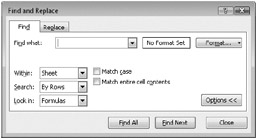
Figure 8-34: Use the Find tab to locate a character string.
Use the options on the Find tab in the following ways:
-
Find What Type the string of characters you want to find. Be exact. Excel will find exactly what you type, including spaces-nothing more, nothing less.
-
Match Case Distinguish capital letters from lowercase letters, finding only those occurrences that exactly match the uppercase and lowercase characters of the Find What string. If you leave this check box unselected, Excel disregards the differences between uppercase and lowercase letters.
-
Match Entire Cell Contents Find only complete and individual occurrences of the string. Ordinarily, Find searches for any occurrence of a string, even if it is part of another string.
-
Within Search only the active worksheet or the entire workbook.
-
Search Search by rows or by columns. Ordinarily, your search will take place in the blink of an eye either way, but use this option if you have a large spreadsheet and have some clue where to look. When you select the By Rows option, Excel looks through the worksheet horizontally, row by row, starting with the currently selected cell. Select this option if you think the string is located to the right of the selected cell. The By Columns option searches through the worksheet column by column, beginning with the selected cell. Select this option if you think the string is below the selected cell.
-
Look In Choose formulas, values, or comments. When you click Formulas, Excel searches only in formulas. When you select Values, Excel searches any constant values as well as the displayed results of formulas. When you select Comments, Excel examines only text attached as a comment to a cell.
| Note | If you want to search the entire workbook or worksheet to locate a string of characters (depending on the selection you make in the Within drop-down list), select a single cell before clicking the Find command. Office Excel 2007 begins its search from that cell and travels through the entire worksheet or workbook. To search only a portion of a worksheet, select the appropriate range before choosing Find. |
The nuances of the Look In options, Formulas and Values, can be confusing. Remember that the underlying contents of a cell and the displayed value of that cell are often not the same. When using these options, you should keep in mind the following:
-
If a cell contains a formula, the displayed value of the cell is usually the result of that formula.
-
If a cell contains a numeric value, the displayed value of the formatted cell may or may not be the same as the cell's underlying value.
-
If a cell displays a text value, it is probably the same as the underlying value, unless the cell contains a formula that uses text functions.
-
If a cell has the General format, the displayed and underlying values of the cell are usually the same.
For example, if you type 1000 in the Find What text box and select Values as the Look In option, Excel looks at what is displayed in each cell. If you have an unformatted cell with the value 1000 in it, Excel finds it. If another cell has the same value formatted as currency ($1,000), Excel does not find it because the displayed value does not precisely match the Find What string. Because you're searching through values and not formulas, Excel ignores that the underlying content of the cell is 1000. If you select the Formulas option, Excel finds both instances, ignoring the formatting of the displayed values.
| Note | If you close the Find And Replace dialog box and want to search for the next occurrence of the same string in your worksheet, you can press F4, the keyboard shortcut for repeating the last search action. You can also repeat your last search (even if you have performed other tasks since that search) by pressing Shift+F4. |
Finding Formatting
Excel provides a way to find cells based on formatting in conjunction with other criteria, and even to find and replace specifically formatted cells, regardless of their content. If you click Format in the Find And Replace dialog box shown in Figure 8-35, the Find Format dialog box shown in Figure 8-36 appears. This dialog box has two names-Find Format and Replace Format-depending on whether you clicked the Format button that is adjacent to the Find What text box or the one adjacent to the Replace With text box on the Replace tab. Otherwise, the two dialog boxes are identical. You can select any number of options in this dialog box and, when you are finished, click OK to add them to your criteria.
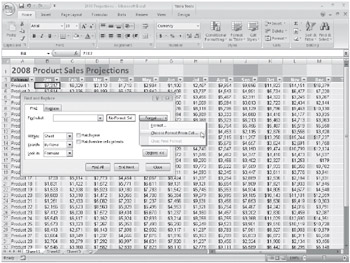
Figure 8-35: Click Choose Format From Cell to use the formatting of a selected cell as search criteria.
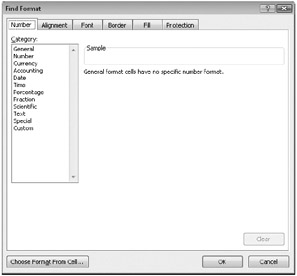
Figure 8-36: Click Format in the Find And Replace dialog box to display the Find Format dialog box.
If you click the arrow button next to the Format button to display the Format menu, you can click Choose Format From Cell, as shown in Figure 8-35. Choose Format From Cell is also available as a button at the bottom of the Find Format (or Replace Format) dialog box shown in Figure 8-36.
On the CD You'll find the 2008 New Projections. xlsx file in the Sample Files section of the companion CD.
When you click Choose Format From Cell, the Find Format (or Replace Format) dialog box disappears, and a small eyedropper appears next to the cursor. Click a cell that is formatted the way you want, and the Find And Replace dialog box reappears with the word Preview* in the box that otherwise displays the message No Format Set. After you set your formatting criteria, Excel will not find the character strings you search for unless the formatting criteria also match. For example, if you search for the word Sales and specify bold type as a formatting criterion, Excel finds any cells containing the word Sales in bold type. Excel will find a cell containing the words Sales Staff with bold, italic, and underlined formatting because it contains both the word Sales and bold formatting, among other things. The more formatting options you set, the narrower the search. Select Clear Find Format in the Format drop-down list shown in Figure 8-35 to remove the formatting criteria.
Specifying Variables Using Wildcard Characters
You can use the wildcard characters ? and * to widen the scope of your searches. Wildcard characters are helpful when you're searching for a group of similar but not identical entries or when you're searching for an entry you don't quite remember. Use them as follows:
-
The ? character takes the place of any single character in a Find What string. For example, the Find What string 100? matches the values 1000, 1001, 100A, 100B, and so on.
-
The * character takes the place of zero or more characters in a Find What string. For example, the string 12* matches the entries 12, 120, 125, 1200000, and even 123 Maple Street.
You can use the wildcard characters anywhere within a Find What string. For example, you can use the string *s to find all entries that end with s. Alternatively, you can use the string *es* to find each cell that contains the string sequence es anywhere in its formula or value.
To search for a string that actually contains a wildcard character (? or *), type a tilde (~) preceding the character. For example, to find the string Who? (including the question mark), type Who~? as your Find What text.
Replacing What You Find
Replace works much like Find-in fact, they open the same dialog box. When you click Replace on the Find & Select menu on the Home tab (or press Ctrl+H), you see a dialog box like the one in Figure 8-37 (if yours looks different, click Options to expand the dialog box).
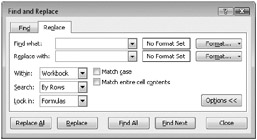
Figure 8-37: You can find and replace character strings and formats by clicking the Replace command on the Find & Select menu.
For example, to replace each occurrence of the name Joan Smith with John Smith, type Joan Smith in the Find What text box and John Smith in the Replace With text box. You can also find and replace formats using the dual Format buttons. For example, you could search for every occurrence of 14-point, bold, italic Times Roman and replace it with 12-point, double-underlined Arial.
To replace every occurrence of a string or formatting, click Replace All. Instead of pausing at each occurrence to let you change or skip the current cell, Excel locates all the cells containing the Find What string and replaces them.
| Note | Although you can use wildcards in the Find What box to aid in your search, if you type wildcard characters in the Replace With box, Excel uses a literal ? or * symbol when it replaces each occurrence of your Find What text. |
 |
The Find And Replace dialog box does a neat trick. After you execute a search, the dialog box expands to list all the cells with contents that match your criteria:
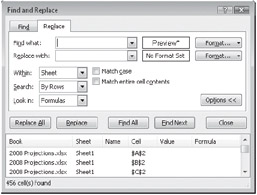
When you select an entry in the list, Excel jumps to that location and selects the cell. You can drag the bottom border of the dialog box to see more of the list. This feature makes it much easier to do extensive find-and-replace tasks because you can see the list at all times; because items remain in the list even after you execute a replacement operation; and because you can keep the dialog box open, change worksheets or workbooks, and utilize the Undo button while you work.
|

EAN: 2147483647
Pages: 260