Logon Scripts and Scheduling
Overview
The Ability to Execute Logon scripts has always been available in the Windows NT networked environment. The scripts relied on batch files, which could perform operations such as connecting to network resources and file operations.
Although you can connect to a networked resource by using a batch file, there is not a way for you to check if you're already connected or for you to test for a specific condition. Batch files cannot perform operations such as checking user group membership or enumerating shared drives and printers.
Batch files provide a very primitive method of using environment variables, simplistic flow control, and limited error handling. Furthermore, they are not very expandable, and they are limited to the command-line programs on the system.
Windows Script Host (WSH) changes all of this. WSH has native support for enumeration and manipulation of network resources such as network shares and printers. The various scripting engines that are available to WSH provide flexible flow control and error handling.
Most important, however, is the expandability of WSH through COM objects. The Windows environment provides interfaces to perform common logon operations. Group membership checking can be performed using Active Directory Services Interface (ADSI), and database operations can be performed through ActiveX Data Objects (ADO). Windows Management Instrumentation (WMI) can be used to query the system information. Graphical logon messages can be implemented using Internet Explorer.
Connecting Network Resources at Logon
Problem
You want to connect a user to a home directory and enable the person to share a public network at logon.
Solution
You can use the WScript.Network object's MapNetworkDrive method:
'get logged on user name to display in greeting. Loop to ensure
Dim objNetwork, strUser
Set objNetwork = CreateObject("WScript.Network")
strUser =""


'get logged on user name to display in greeting. Loop to ensure
' user ID is returned correctly on Win 9x/ME computers
 Do While strUser =""
 strUser = objNetwork.UserName

Loop

'map user to home drive - assumes home drive share is combination of
'user-id and $ sign (hidden share)
objNetwork.MapNetworkDrive "H:", _
 "\THOR" & strUser & "$" , True
'connect to public area
objNetwork.MapNetworkDrive "P:", _
 "\THORPublicArea", True
Discussion
Logon scripts often connect networked file server and printer resources.
WSH scripts have a number of advantages over the corresponding command-line connection programs such as net use. WSH scripts provide more error handling and provide better control flow.
Configuring your network to execute WSH scripts depends on the clients on the network. Windows 2000/XP and Windows 98/ME can execute scripts natively by entering the script name in the User Profile Path field under the User Profiles option, as shown in Figure 3-1, or the Profile dialog box in the Windows 2000/XP Active Directory Users and Computers snap-in (dsa.msc).
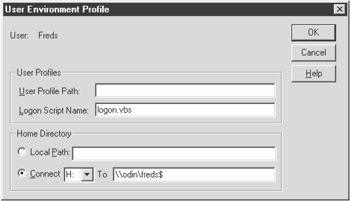
Figure 3-1: Windows NT 4 User Environment Profile dialog box
If you are working in an Active Directory-enabled Windows 2000/XP environment, you can use Group Policies to execute scripts. Group Policies determine settings that apply to objects within Active Directory. Examples of Active Directory objects include groups, containers, and users.
Using Group Policies, scripts can be executed at user logon and logoff as well as at computer start-up and shutdown. Group Policies can be set at the container (organizational unit) level, allowing specific policies to be applied to different groups of users.
For example, users within the finance organizational unit could run a different logon script than users within the accounting organizational unit.
To modify Group Policy properties, follow these steps:
- Start the Windows 2000 Active Directory Users and Computers snap-in.
- Select a container that Group Policies can be applied to, such as a domain level or organizational unit.
- Right-click the object and select Group Policy. A Properties dialog box appears, as shown in Figure 3-2. You can create a new domain policy or select an existing domain policy to modify.
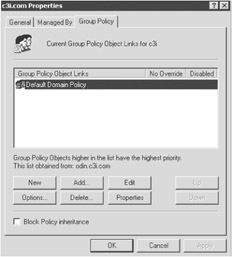
Figure 3-2: Group Policy Object Links list displaying a Default Domain Policy - Click the Edit button. A Group Policy window similar to the one in Figure 3-3 appears, displaying all available policy properties. As you can see, Startup and Shutdown scripts are set under the Computer ConfigurationWindows SettingsScripts (Startup/Shutdown) entry, while user logon and logoff scripts are configured under User ConfigurationWindows SettingsScripts (Logon/Logoff).
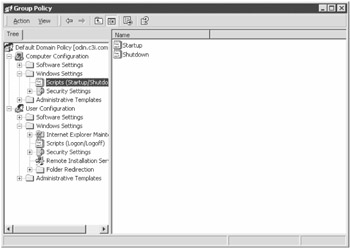
Figure 3-3: Group Policy Startup and Shutdown scripts - After you've set all the properties, exit out of the Group Policy window.
To use Group Policies effectively, you must be using Windows 2000/XP with an Active Directory-enabled domain. The clients must also be running Windows 2000/XP, which limits the application in a mixed Windows client environment. Individual logon scripts assigned to users will execute together with Group Policy scripts.
Windows 2000/XP computers that are not part of an Active Directory domain can apply Group Policies to a local computer. This is done using the Group Policy editor. While you can apply the same script settings (logon, logoff, start-up, and shutdown), you cannot centrally control these settings, so it becomes impractical for a large number of computers. The Group Policy editor usually doesn't appear in the menus of a non-Active Directory computer, but you can access it by executing the gpedit.msc application located in the System32 directory.
If there are Windows NT 4.0 or Windows 9x/ME clients on the network, any WSH logon script must be executed from a batch file. Configure a batch file as the logon script, which calls the WSH script(s) you want to run at logon. Windows 2000 and XP clients do not require this step.
A problem that can occur with Windows 95 and NT 4.0 clients is not having WSH installed, and this can be checked by the logon script and installed if required.
The following logon batch file checks the client type and determines if WSH is already installed by searching for the cscript.exe file:
REM Logon.bat
REM Checks if WSH is installed on client and attempts to install it
REM then executes WSH logon script.
@ECHO OFF

IF "%OS%" == "Windows_NT" goto WIN_NT

IF NOT EXIST %WINDIR%CSCRIPT.EXE %0..WSHBINSTE50EN.EXE /Q
GOTO ENDSCRIPT
:WIN_NT
IF NOT EXIST %WINDIR%SYSTEM32CSCRIPT.EXE %0..WSHBINSTE50EN.EXE /Q
GOTO ENDSCRIPT

:ENDSCRIPT
REM execute WSH script
 cscript login.vbs
If WSH is not found, it is installed. The WSH install file can take a /Q switch that performs a "silent" install, which doesn't display any install information or display any user prompts. The installation file STE50EN.EXE used in the batch is the name of a recent WSH installation-it may be different on newer (or older) installation packages.
| Note |
Depending on the WSH installation version, the user may be prompted to reboot his or her machine after the installation of WSH is complete (even if it's a "silent" installation). This might not be desirable upon logon and may require user education. |
An issue that will arise when providing software distribution in logon scripts is the location of the source files. A central network share is an option, but this might not be as desirable in WAN environments where a computer might reside in a remote location and the data share is only accessible over a low bandwidth connection. A more flexible way to handle this issue is to locate files in the logon directory the script is executed from.
The location of a logon directory can vary (unless you only have a single domain controller), because Windows clients authenticate on the "closest" domain controller it finds. Using NT replication, the logon scripts and any associated support files can be replicated between the domain controllers.
When the logon batch file is executed, the path of the batch file is passed as a "zero" parameter. This can be referenced through the %0 variable in the DOS batch. To pass this to a WSH script, set an environment variable with the value %0..:
REM get path for logon script
SET LDIR=%0..

cscript logon.vbs
The value stored in the temporary LDIR environment variable can be retrieved using the ExpandEnvironmentStrings method in your WSH script:
Set objShell = WScript.CreateObject("WScript.Shell")
strPath = objShell.ExpandEnvironmentStrings("%LDIR%")
The following script copies a number of files to a client's desktop and fonts directory and updates flags identifying that the operation has completed:
'updfiles.vbs
'copy files upon logon
Dim strPath, objFSO, strVal, objShell, strCopyPath

Set objFSO = CreateObject("Scripting.FileSystemObject")
Set objShell = CreateObject("WScript.Shell")

strPath = objShell.ExpandEnvironmentStrings("%LDIR%")
On Error Resume Next
'get reference to registry flag
strVal = _
 objShell.RegRead("HKCUSOFTWAREWSHUpdatesDeskTopShortcutsUpdate1")
'if registry key didn't exist, then copy files to desktop
If IsEmpty(strVal) Then
 strCopyPath = objShell.SpecialFolders("Desktop") & ""
 objFSO.CopyFile strPath & "E-mail Policy.doc.lnk", strCopyPath, True
 objFSO.CopyFile strPath & "Phone List.doc.lnk", strCopyPath, True
 'update registry entry to reflect the operation has been performed
 objShell.RegWrite "HKCUSOFTWAREWSHUpdatesDeskTopShortcutsUpdate1", _
 Date
End If
strVal = Empty
'get reference to font update flag under local machine
strVal = objShell.RegRead("HKLMSOFTWAREWSHUpdatesTreFontUpd")
'if registry key didn't exist, then copy files to desktop
If IsEmpty(strVal) Then
 strCopyPath = objShell.SpecialFolders("Fonts") & ""
 objFSO.CopyFile strPath & "Trebucbd.ttf", strCopyPath, True
 objShell.RegWrite "HKLMSOFTWAREWSHUpdatesTreFontUpd", Date
End If
The script performs the operations and updates a registry entry. This registry entry is checked at the execution of the script and the operations are not performed if a value has been set for the particular key.
The script assumes it has been called from a batch file and the LDIR environment variable has been set to the directory path of the logon script. The files copied to the desktop are stored in this path.
See Also
Solution 4.3, Solution 5.13, Solution 7.1, and Solution 7.2.
Scheduling Scripts
Problem
You want to schedule a WSH script.
Solution
You can use the Scheduled Tasks feature to implement script scheduling. Scheduled Tasks is integrated into Windows 2000/XP and Windows 98/ME. It is also an optional component of Internet Explorer, so it can be installed on Windows 95 and Windows NT. If Schedules Tasks is installed on Windows NT, it replaces the scheduler service.
To schedule a task, follow these steps:
- From My Computer, select the Scheduled Tasks icon.
- Double-click the Add Scheduled Task icon. The Scheduled Task Wizard dialog box appears, as shown in Figure 3-4.
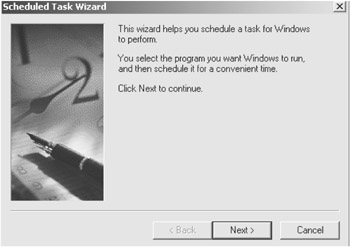
Figure 3-4: Scheduled Task Wizard dialog box - Click the Next button to continue.
- You are prompted to select an application to run, as shown in Figure 3-5.
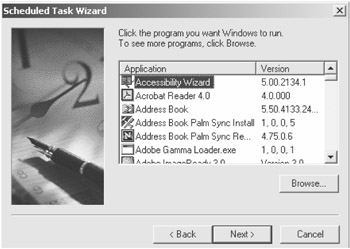
Figure 3-5: Scheduled Task Wizard application selection - Click the Browse button. A file dialog box appears.
- Select the script you want to schedule.
- Enter a name for the scheduled task and select the time to perform the task, as shown in Figure 3-6.
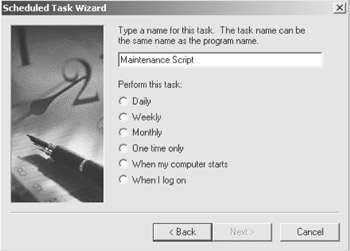
Figure 3-6: Enter a task name and select a performance interval. - The option dialog boxes that appear after you've selected the scheduled option depend on the interval that you select. If you select Daily, Weekly or Monthly, various time options appear that determine the time interval; if you select the "When my computer starts" or "When I log on" option, no additional options appear.
- If you are scheduling a task for Windows NT or Windows 2000/XP, you are prompted for a user name and password. These logon credentials are used to execute the script, as shown in Figure 3-7.
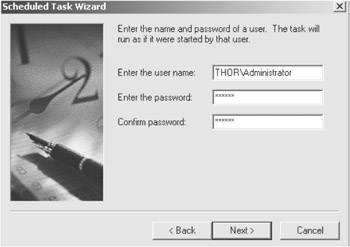
Figure 3-7: Enter a user name and password.
You can now run the script.
Discussion
Scheduled Tasks settings can be modified at any time by double-clicking any task under the Scheduled Tasks folder.
The authentication credentials are important when executing the script under Windows NT/2000. The credentials are used when executing the script, and any resources accessed by the script are authenticated using these credentials. Do not use an account with excess security rights if possible, because the contents of a script could be replaced with a malicious script and executed in a security context where it could perform damaging operations.
Windows NT/2000/XP includes native scheduling capability using the DOS AT command and scheduling service. The native NT scheduling service is less flexible than Scheduled Tasks for scheduling items, especially for executing scripts at mixed intervals. Scheduled Tasks also allows tasks to be executed by different user accounts, whereas the NT scheduling services are limited to the logon account set for the scheduler service, which by default is a local system account. If you install the Scheduled Tasks feature under Windows NT, all existing tasks scheduled using the AT command are kept.
Scripts that are scheduled to run on Windows NT/2000 when the user is not logged on should be executed using cscript.exe; if graphical prompts are displayed while the user is not logged in, unpredictable operations may result. Either set cscript as the default script host or explicitly configure the scheduled script to use cscript.exe, as shown in Figure 3-8.
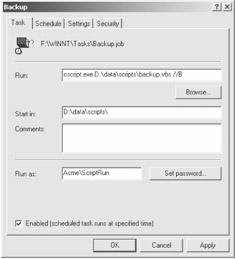
Figure 3-8: Set cscript to execute a scheduled script.
There is no method included with WSH or Scheduled Tasks to automate the creation of tasks. If you wanted to set up scheduled operations on a number of computers, such as at logon, you could distribute the Scheduled Tasks file.
Scheduled Tasks are stored as .job files under the %windir%Tasks folder. If these files are copied to the Tasks folders on remote computers, they automatically appear as scheduled items on that computer.
Scheduled Tasks implemented through this method should be thoroughly tested before being distributed, especially if the tasks are being used by different operating systems, such as Windows 95 and Windows 2000.
The following script copies a .job file from a central location to the WindowsTasks directory:
'updatejob.vbs
'copy job file from logon location to Tasks folder
Const WindowsFolder = 0
Dim objShell, strPath, objFSO, strVal

Set objFSO = CreateObject("Scripting.FileSystemObject")
Set objShell = CreateObject("WScript.Shell")


Set objShell = CreateObject("WScript.Shell")
'set the directory to find the job file to copy
strPath = "\odinjobfiles"

On Error Resume Next
'get reference to registry flag
strVal = _
 objShell.RegRead("HKCUSOFTWAREWSHUpdatesAddJob1")
'if registry key didn't exist, then copy files to Windows Tasks folder
If IsEmpty(strVal) Then
 strCopyPath = objFSO.GetSpecialFolder(WindowsFolder) & "Tasks"

 objFSO.CopyFile strPath & "maintenance.job", strCopyPath , True
'update registry entry to reflect the operation has been performed
 objShell.RegWrite "HKCUSOFTWAREWSHUpdatesAddJob1", Date
End If
The script can be called from a logon script to update clients' Scheduled Tasks. The registry is updated with a flag so the file is not copied again at next logon.
If the Scheduled Task is being used by Windows 2000/XP or Windows NT 4.0 as well as Windows 9x/ME computers, it should be created on the Windows NT/2000/XP platforms. Tasks created by Windows NT/2000 will run under Windows 9x, but tasks created under Windows 9x will be missing the Windows NT/2000 account authentication information that Windows 9x does not require.
Task Scheduler logs the execution of scheduled operations. You can view the log by selecting the View Log option from the Advanced menu under Scheduled Tasks.
See Also
Task Scheduler Help file mstask.chm, which is located under the Windows Help directory.
Displaying a Logon Message
Problem
You want to display a graphical welcome message upon logon. Figure 3-9 shows an example of a "welcome" screen that appears when a user logs on.
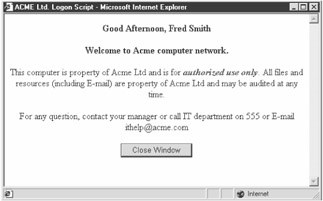
Figure 3-9: Logon "welcome" message
Solution
You can use the ENTWSH.HTMLGen scripting component from Chapter 11 to build a graphical dialog box using Internet Explorer 5.x:
'logon.vbs
Const DOMAIN = "Acme"

Set objShell = CreateObject("WScript.Shell")
Set objNetwork = CreateObject("WScript.Network") [Be consistent.]
Set objFSO = CreateObject("Scripting.FileSystemObject")

'create a ENTWSH.HTMLGen component
Set objHTMLGen = GetObject("script:\odinwsc$htmlgen.wsc")

On Error Resume Next
objHTMLGen.StartDOC "ACME Ltd. Logon Script", True

'get logged on user name to display in greeting. Loop to ensure
' user ID is returned correctly on Win 9x/ME computers
Do While strUser =""
 strUser = objNetwork.UserName
 WScript.Sleep 100
Loop

'get ADSI User object from domain
Set objUser = GetObject("WinNT://" & DOMAIN & "/" & strUser & ",User")
'if no error occurred getting ADSI user object, set user ID to
'user full name
If Not Err Then strUser = objUser.FullName

Set objIE = objHTMLGen.Object
objIE.MenuBar = 0
objIE.Toolbar = 0

strMsg = "Good "

If Hour(Time)>=17 Then
 strMsg = strMsg & "Evening, "
ElseIf Hour(Time)>=12 Then
 strMsg = strMsg & "Afternoon, "
Else
 strMsg = strMsg & "Morning, "
End If

Err.Clear
'if OS Windows 9x/ME map home directory
If Not objShell.Environment("OS") = "Windows_NT" Then
 objNetwork.RemoveNetworkDrive "H:", True
 Err.Clear
 objNetwork.MapNetworkDrive "H:", "\Odin" & objNetwork.UserName _
 & "$", True
End If

objHTMLGen.WriteLine "
" & strMsg & strUser & _ "
" Set objTS = objFSO.OpenTextFile("\odind$datamessageshello.htm") objHTMLGen.WriteLine objTS.ReadAll objHTMLGen.WriteLine "
" objHTMLGen.EndDOC
Discussion
Messages displayed at logon can be used to provide general information to users as well as to display system information.
The Solution script uses Internet Explorer (IE) to build a logon message. An instance of IE is created through the WSHENT.HTMLGen component that is discussed in Chapter 11.
An instance of the HTMLGen component is created using the GetObject method. Windows Script components can use either CreateObject or GetObject to create new instances. Creating new instances by using GetObject only applies to WSC objects and is implemented by calling the method and then passing the path to the component prefixed with script:. The following snippet creates an instance of the HTMLGen component using the script: prefix:
Set objHTMLGen = GetObject("script:\odinwsc$ HTMLGen.wsc")
The path to the component can be a local path or UNC. The advantage of using GetObject over CreateObject is the WSC object does not need to be registered. This is useful in logon scripts because you may not be guaranteed that all clients that log on to the network have the appropriate WSC objects registered.
This method cannot be used with compiled COM components written in languages such as VB or C++. These components must be registered before being used, which can be difficult to guarantee on all client computers.
If you are implementing logon scripts that require the use of components, you can check if the component is registered and install and register it before executing the WSH script. The following sample checks if the regobj.dll registry component exists in the Windows system directory, and if not, copies it over and registers it:
IF "%OS%" == "Windows_NT" goto WIN_NT

IF NOT EXIST %WINDIR%
egobj.dll GOTO REG9X
GOTO ENDSCRIPT
:REG9X
Copy %0..DLL
egobj.dll %WINDIR%system
%0..exe
egsvr32 /s %WINDIR%system
egobj.dll
GOTO ENDSCRIPT

:WIN_NT
IF NOT EXIST %WINDIR%system32
egobj.dll GOTO REGNT
GOTO ENDSCRIPT
:REGNT
Copy %0..DLL
egobj.dll %WINDIR%system32
%0..exe
egsvr32 /s %WINDIR%system32
egobj.dll

:ENDSCRIPT
cscript login.vbs
The logon script checks for the existence of regobj.dll in the client's system directory. If it is not in the directory, it is copied over and registered using regsvr32. The regsvr32 application is not a standard Windows-installed application, so it is executed from the logon directory. The /s (silent) switch is used when registering the component to ensure no prompts appear to the user.
You can check for the existence of and register components through a WSH script upon logon. Additional checking can be performed in the script, such as version checking, error trapping, and logging, which can't be easily implemented through a batch file.
The following script contains the logic to check for the existence of a specific file and copy and register it if it does not exist:
'regit.vbs
'checks for existence of specified DLLs and registers
'them if required
Const ForAppending = 8
Dim objShell, strComputer, strSource, strDest
Dim strLogFile, objNetwork, strUser

Set objNetwork = CreateObject("WScript.Network")

'loop until user id is retrieved, required for Win9x
Do While strUser =""
 strUser = objNetwork.UserName
Loop

'set the log file name - ensure uniqueness by combining
'user id and date and time
strLogFile = "\thore$" & strUser & " "& Month(date) & "-" & _
 Day(date) & "-" & Year(date) & " "& _
 Hour(time) & "_" & Minute(time) & "_" _
 & Second(time) & ".txt"

Set objShell =CreateObject("WScript.Shell")

'set destination directory depending on OS
If objShell.ExpandEnvironmentStrings("%OS%") = "Windows_NT" Then
 strDest = objShell.ExpandEnvironmentStrings("%windir%") _
 & "system32"
Else
 strDest = objShell.ExpandEnvironmentStrings("%windir%") _
 & "system"
End If

'get the source directory to find the components to register
strSource = objShell.ExpandEnvironmentStrings("%LDIR%")

CheckRegister "regobj.dll", False


'CheckRegister
'Checks for existence of specified file and copies and registers it
'if it does not exist.
'Parameters
'strFile Name of file to check for
'bReplace Boolean value. If True then file will be updated if newer
' version exists
Sub CheckRegister(strFile, bReplace)

Dim strPath
Dim objFSO
Dim bRegister, strDstVer, strSrcVer

strComputer = ""

strDest = strDest & strFile
strSource = strSource & strFile

Set objFSO = CreateObject("Scripting.FileSystemObject")
 bRegister = False

'check if specified file exists
If Not objFSO.FileExists(strDest) Then
 objFSO.CopyFile strSource, strDest
 bRegister = True
Else
 'file exists.. replace?
 If bReplace Then

 On Error Resume Next
 'attempt to get file version of specified files
 strSrcVer = objFSO.GetFileVersion(strSource)
 strDstVer = objFSO.GetFileVersion(strDest)
 'error occurred.. unable to get version, use file size instead
 If Err Then
 strSrcVer = objFSO.GetFile(strSource).Size
 strDstVer = objFSO.GetFile(strDest).Size
 End If
 Err.Clear
 'check if the destination file version is less than source
 If Val(strSrcVer) > Val(strDstVer) Then
 'copy over existing file
 objFSO.CopyFile strSource, strDest
 'error copying file?
 If Err Then
 'error copying source to destination..
 LogIt strLogFile, "Error copying file " & strSource & _
 " to " & strDest & " on computer " & strComputer _
 & vbCrLf & Err.Description & " " & Err
 CheckRegister = False
 Exit Sub
 End If
 bRegister = True
 Else
 'more recent version of file, exit function
 LogIt strLogFile, "File " & strSource & _
 " is more recent than " & strDest & " on computer " & _
 strComputer
 Exit Sub
 End If
 End If

End If

'register the file?
If bRegister Then
 objShell.Run strSource & "regsvr32 /s " & strDest, 0, True
End If

End Sub

'Procedure Logfile
'Logs text to specified file
'Parameters
'strFile Path to log file
'strMsg Message to log
Sub LogIt(strFile, strMsg)
Dim objTS, objFSO

Set objFSO = CreateObject("Scripting.FileSystemObject")
Set objTS = objFSO.OpenTextFile(strFile, ForAppending, True)
objTS.WriteLine Now & " " & strMsg

objTS.Close
End Sub
The script also compares versions of the specified component or library and attempts to replace it if the current version is older than the one to be copied. The file version is determined by the File Scripting object's GetFileVersion method.
Operation results are written to a log file, which allows for the rollout and updating of components to be monitored. Because the operating system does not allow more than one process to open and write to a file at the same time, a unique filename is used to ensure that conflicts don't occur. The file name consists of the user ID followed by the date and time-for example, FredS 7-16-2001 20_32_28.txt. An alternative method of logging is to use the event log. This is useful in a Windows NT4/2000/XP-only environment, because it allows for information to be logged in a central location.
WSH version 2.0 and later provides the ability to write events to the Windows NT/2000/XP event log using the WScript.Shell object's LogEvent method. The syntax is as follows:
objShell.LogEvent(intType, strMessage [,strTarget])
Table 3-1 lists the LogEvent method parameters.
|
PARAMETER |
DESCRIPTION |
|---|---|
|
intType |
Type of the event. Table 3-2 lists the event types. |
|
strMessage |
Message to log. |
|
strTarget |
Optional. Applies to Windows NT4/2000/XP only. The name of the system where the event should be logged. Default is local system. Parameter is ignored on Windows 9x/ME. |
|
PARAMETER |
DESCRIPTION |
|---|---|
|
1 |
Success |
|
2 |
Error |
|
4 |
Warning |
|
8 |
Information |
|
16 |
Audit_Success |
On Windows NT4/2000/XP the method logs an event in the event log. The logged message is stored in an application log with the Source as WSH. The following code sample logs an information message to the event log on the remote computer Odin:
Const Information = 8
Set objShell = CreateObject("WScript.Shell")
objShell.LogEvent Information, "Error occurred when sending mail", "Odin"
On Windows 9x/ME the information is logged to the file WSH.log, which will be in the user's Windows directory. The WSH.log file will contain a timestamp, the event type, and the text of the log entry.
The method returns True if the event is successfully logged; otherwise, it returns False.
The Solution script displays a salutation to the user at logon. The salutation displays Good Morning/Afternoon/Evening followed by the user name. The user name is referenced from the Full Name field from NT User Manager, and it is retrieved using ADSI (which must be installed on the client workstation as well as domain controllers). If ADSI is not installed, the user's logon user ID is used instead.
Additional information is stored in an external html file, hello.htm, and loaded into the browser at logon. This makes for easier editing of the logon message.
See Also
Solution 11.2, Solution 14.3, and Solution 14.5.
Performing Operations Based on Group Membership
Problem
You want to check group membership upon logon.
Solution
You can get a reference to the ADSI group object that you want to check and then use the ADSI Group object's IsMember method to determine group membership:
'chkmember.vbs
Const Domain = "ACME"
Dim strUser, objGroup, strGroup, objUser

Set objNetwork = CreateObject("WScript.Network")

'get name of logged on user - loop until user id is retrieved, required for Win9x
Do While strUser = ""
 strUser = objNetwork.UserName
 WScript.Sleep 100
Loop

If CheckGroup(Domain, "Accounting", strUser) Then
 'connect to accounting share
 objWshNetwork.MapNetworkDrive "P:", "\THORAccounting", True
End If

Function CheckGroup(strDomain, strGroup, strUser)
Dim objGroup
'get ADSI User object from domain
Set objGroup = GetObject("WinNT://" & strDomain & "/" _
 & strGroup & ",Group")

If objGroup.IsMember("WinNT://" & strDomain & "/" & strUser) Then
 CheckGroup = True
Else
 CheckGroup = False
End If

End Function
Discussion
Performing actions that are based on user ID or group membership has traditionally been hard to accomplish using normal batch file logon scripts in a Windows NT networked environment.
Active Directory Services Interface (ADSI) provides a mechanism to test for group membership in a WSH script. ADSI must be installed on each client to use this feature. See Chapter 14 for more information on how to use ADSI and the IsMember method.
Testing for group membership for a large number of groups can be timeconsuming. Each reference made to a Group object requires another call to a server. Instead, get a reference to the user that is being checked and enumerate the groups the account is a member of, adding each group account to a string. The following script demonstrates this method and connects drives based on group membership:
Dim strGroups, objGroup, objUser, strUser, objNetwork
Const Domain = "acme"

Set objNetwork = CreateObject("WScript.Network")

'get logged on user name
'get name of logged on user - loop until user id is retrieved, required for Win9x
Do While strUser = ""
 strUser = objNetwork.UserName
 WScript.Sleep 100
Loop

'get ADSI User object from domain
Set objUser = GetObject("WinNT://" & Domain & "/" & strUser & ",User")

strGroups = ";"
'enumerate all user groups
For Each objGroup In objUser.Groups
 strGroups = strGroups & objGroup.Name & ";"
Next

'check if member of Accounting or Finance group
MapGroup "Accounting", "\THORAccounting", "P:"
MapGroup "Finance", "\THORFinance", "O:"
Sub MapGroup(strName, strShare, strDrive)
'check if member of specified group
 If InStr(strGroups, ";" & strName & ";", vbTextCompare) > 0 Then
 objNetwork.MapNetworkDrive strDrive, strShare, True
 End If
End Sub
If you are using Windows 2000/XP with Active Directory enabled and Windows 2000/XP clients, logon scripts can be assigned to organizational units via Group Policies. This allows scripts to be executed depending on the organizational unit to which a user belongs. See Solution 3.2 for information on setting Group Policies.
Login scripts that perform operations based on group membership and/or network user IDs can be tedious to maintain. Whenever a change is made, the script must be replicated to all domain controllers to ensure the script is available when a user logs on.
The following application, Quick and Dirty Network Administration (QADNA), provides an administrative interface that allows user accounts and groups to be assigned network resources and set registry values. Figure 3-10 illustrates the graphical user interface that is used to associate resources to a user.
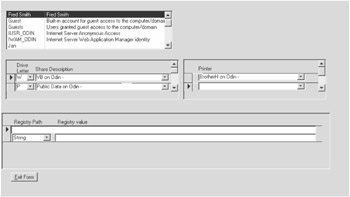
Figure 3-10: QADNA User configuration
QADNA is implemented using Microsoft Access 97 and can be found on the book's companion Web sites at http://www.apress.com/ and http://www.wshenterprise.com/. The application provides a simple interface to associate resources with a particular user or group.
Users and groups are maintained through an administrative screen that uses ADSI to search for all users, groups, and computers on the network. These are added to the Access database. The database must be manually refreshed each time a new resource (user, group, or computer resource) is added.
You can use the following script as a client logon script:
'qadna.vbs
'Quick and Dirty Network Administration interface
Const Domain = "c3i"
Const ForAppending = 8
Const DataFile= "FileDSN=\odinFileDSN$ QADNA.dsn"
Const ConnectShare = 5
Const ConnectPrinter = 4
Const UpdateRegistry = 100

Dim objConn, objRst, objNetwork
Dim strGroups, strUser, objGroup
Dim strQuery, strComputer, objShell, strLogFile

Set objShell = CreateObject("WScript.Shell")

Set objNetwork = CreateObject("WScript.Network")

'set the log filename - ensure uniqueness by combining
'user id and date and time
strLogFile = "\odinlogfiles" & strUser & " "& Month(date) & "-" & _
 Day(date) & "-" & Year(date) & " "& _
 Hour(time) & "_" & Minute(time) & "_" _
 & Second(time) & ".txt"

'get name of logged on user - loop until user id is retrieved
'required for Win9x
Do While strUser = ""
 strUser = objNetwork.UserName
 WScript.Sleep 100
Loop

strComputer = objNetwork.ComputerName

On Error Resume Next
'get ADSI User object from domain
Set objUser = GetObject("WinNT://" & Domain & "/" & strUser & ",User")

If Err Then
 LogIt strLogFile," Error getting ADSI user object for "& strUser & _
 vbCr & Err.Description & ""& Err
 WScript.Quit -1
End If

'build query to execute against QADNA database
strQuery = "Select * From qryLinkAccountsWithActions WHERE "& _
 "(AccountName In ("

'enumerate all user groups
For Each objGroup In objUser.Groups
 strQuery = strQuery & "'" & objGroup.Name & "',"
Next

'add user name to query
strQuery = Left(strQuery, Len(strQuery) - 1) & _
 ")) Or AccountName ='" & strUser & "'"

'create ADO object and open QADNA database
Set objConn = CreateObject("ADODB.Connection")
objConn.Open DataFile

If Err Then
 LogIt strLogFile," Error opening database " & DataFile & _
 " on computer " & strComputer & vbCrLf & _
 Err.Description & " " & Err
 WScript.Quit -1
End If

Set objRst = objConn.Execute(strQuery)

 'loop through each record and perform specified operation
 Do While Not objRst.Eof
 Select Case objRst("ActionType")
 Case ConnectShare
 'remove any existing connected drive
 objNetwork.RemoveNetworkDrive objRst("DriveLetter") & ":", True
 'clear any errors occurred, such as removing nonconnected drive
 Err.Clear
 'connect drive
 strPath = "\" & objRst("ObjectSource") & "" _
 & objRst("ObjectName")
 objNetwork.MapNetworkDrive objRst("DriveLetter") & ":", _
 strPath, True

 If Err Then
 LogIt strLogFile," Error connecting to " & strPath & _
 " on computer " & strComputer & vbCrLf & _
 Err.Description & " " & Err

 End If

Case ConnectPrinter 'add printer
 Err.Clear
 strPath = "\" & objRst("ObjectSource") & "" & _
 objRst("ObjectName")
 objNetwork.AddWindowsPrinterConnection strPath

 If Err Then
 LogIt strLogFile," Error adding printer " & strPath & _
 " on computer " & strComputer & vbCrLf & _
 Err.Description & " " & Err
 End If

Case UpdateRegistry

 'write registry value
 strPath = objRst("Path1")
 'check if DWORD type value

If objRst("DriveLetter") = "D" Then
 objShell.RegWrite strPath, objRst("Path2")," REG_DWORD"
 Else
 objShell.RegWrite strPath, objRst("Path2")
 End If

 If Err Then

 LogIt strLogFile," Error setting registry key " & strPath & _
 " on computer "& strComputer & vbCrLf & _
 Err.Description & " " & Err
 End If
 End Select
 objRst.MoveNext
 Loop

objRst.Close
objConn.Close
When a client logs on and the script is executed, the database is checked for any resources associated with the user or any groups the user belongs to and they are set accordingly. Printer resources are added, network shares are connected, and registry values are set depending on the values set in the QADNA program.
Each client must have ADO version 1.5 or later, as well as ODBC drivers for Microsoft Access 97. The following file DSN, qadna.dsn, is required by the script and stores the information required to connect to the database:
[ODBC]
DRIVER=Microsoft Access Driver (*.mdb)
UID=admin
UserCommitSync=Yes
Threads=3
SafeTransactions=0
PageTimeout=5
MaxScanRows=8
MaxBufferSize=2048
FIL=MS Access
DriverId=281
DefaultDir=\OdinDataQADNA
DBQ=\OdinDataQADNAqadna.mdb
File locations stored in the DSN file need to be changed to reflect locations in your environment. A recent version of ADSI must also be installed on the client machine to use the script.
See Also
Solution 3.1 and Solution 14.15.
Creating an Inventory of Computers at Logon
Problem
You want to inventory a computer at logon and store the details in a database.
Solution
WMI provides a large number of classes that expose system-related information. The following script uses WMI to inventory major system components and stores the information in the Access QADNA database introduced in Solution 3.5 to store and manage the information. ADO is used within the script to populate the database. The SysInfo.ENTWSH Windows script component created in Solution 10.1 is used to query O/S, memory, serial number, and CPU information:
'invcom.vbs
'inventories computer upon logon
Option Explicit

Const DataFile = "FileDSN=\odinFileDSN$QADNA.dsn"

Const adOpenDynamic= 2
Const adLockOptimistic= 3

Dim objSysInfo, objService, objNetwork, objRst, objConn
Dim strComputerName, nCompID, bUpdate, bNew

Set objNetwork = CreateObject("WScript.Network")
strComputerName = objNetwork.ComputerName

'create ADO object and open QADNA database
Set objConn = CreateObject("ADODB.Connection")
Set objRst = CreateObject("ADODB.Recordset")
objConn.Open DataFile

bUpdate = False
bNew = False

'open tblcomputers table and determine if computer exists
objRst.Open "tblComputers", objConn, adOpenDynamic, adLockOptimistic
objRst.Find "ComputerName='" & strComputerName & "'"
bUpdate = False
'if computer does not exist, add to inventory
If objRst.EOF Then
 objRst.AddNew
 objRst("ComputerName") = strComputerName
 bNew = True
Else
 'check if computer record needs updating..
 If Date>= Cdate(objRst("UpdateDate")) Then bUpdate = True
End If


If bUpdate Or bNew Then

Set objService = _
 GetObject("winmgmts:{impersonationLevel=impersonate}!rootcimv2")

'create an instance of the SysInfo object
Set objSysInfo = GetObject("script:\odinwsc$SysInfo.wsc")

objRst("BIOSVersion") = objSysInfo.BIOSVersion
objRst("CPU") = objSysInfo.CPU
objRst("Memory") = objSysInfo.Memory
objRst("OSVersion") = objSysInfo.OS
objRst("RegisteredUser") = objSysInfo.RegisteredUser
objRst("OSSerialNum") = objSysInfo.SerialNumber
objRst("VirtualMemory") = objSysInfo.VirtualMemory
objRst("UpdateDate") = Date + 180
nCompID = objRst("ComputerID")

objRst.Update
objRst.Close

'if new computer record get record ID
If bNew Then
 Set objRst = objConn.Execute("SELECT Max(ComputerID) FROM tblComputers")
 nCompID = objRst(0)
End If

'delete any existing computer inventory
objConn.Execute "Delete From tblComputerItems " & _
 "Where ComputerID = " & nCompID
WMIInv "Select Description, Size From Win32_DiskDrive" _
 , Array("Description" , "Size"),1, nCompID

WMIInv "Select AdapterType, AdapterRAM From " & _
 "Win32_VideoConfiguration" _
 ,Array("AdapterType", "AdapterRAM"), 2, nCompID

WMIInv "Select Description, MacAddress From " & _
 "Win32_NetworkAdapterConfiguration Where IPEnabled = True" _
 , Array("Description", "MacAddress"), 3, nCompID

WMIInv "Select Model, ProviderName From " & _
 "Win32_POTSModem", Array("Model", "ProviderName"), 4, nCompID

WMIInv "Select Description, Manufacturer From " & _
 "Win32_SCSIController" , Array("Description", _
 "Manufacturer"), 5, nCompID

End If

objConn.Close

'WMIInv
'returns specified information from WMI query
'Parameters:
'strQuery SQL query to execute against WMI service
'aFields Array of fields to store
'nType Type of item
'nCompID Unique computer identifier
Sub WMIInv(strQuery, aFields, nType, nCompID)
Dim objInstance, objResults, objProp
Dim nF, strSQL, strText

Set objResults = objService.ExecQuery(strQuery)

'loop through each instance and build the output lines
For Each objInstance In objResults
strSQL=" INSERT INTO tblComputerItems (ComputerID,ItemType, Item1,Item2)" _
 & "Values (" & nCompID & "," & nType & ","

'loop through each property
For nF = LBound(aFields) To UBound(aFields)
 Set objProp = objInstance.Properties_(aFields(nF))
 strText = objProp.Value
 strSQL = strSQL & "'" & strText & "',"
 Next

 strSQL = Left(strSQL, Len(strSQL) - 1) & ");"
 objConn.Execute strSQL
Next
End Sub
Discussion
Keeping an up-to-date inventory of client hardware is a never-ending, time-consuming, but important task for any IT departments.
This Solution uses Windows Management Instrumentation (WMI) to inventory the resources on the client computer. The information is stored in the QADNA Access database that was introduced in Solution 3.4. Figure 3-11 shows the computer information that has been inventoried after running the script.
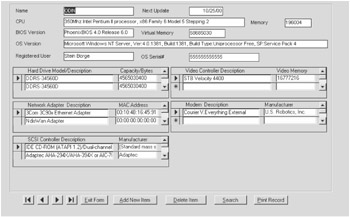
Figure 3-11: QADNA computer inventory screen
Upon logon, the script checks the database to see if a record for the computer exists. If not, the computer is added and inventoried. Each computer record also includes a Next Update date field, which controls when the next update occurs. This can be manually changed to force an update; otherwise, it will reinventory the machine after a 180-day interval. Each client must have ADO version 1.5 or later to read and write the database, ODBC drivers for Microsoft Access 97, and WMI to read system information.
See Also
Solution 3.4, Solution 10.1, Solution 13.8, and Solution 13.13.
Foreword
- Introduction
- Shell Operations
- Logon Scripts and Scheduling
- Networking Resources
- File Operations
- Input/Output Streams
- Registry Operations
- Regular Expressions
- Application Automation
- Network Administration/WMI
- Internet Applications
- Messaging Operations
- Data Access
- System Administration
- Internet Information Server
- Exchange Server
- Security

EAN: 2147483647
Pages: 242
