Multiple Document Interface
Applications that provide multiple documents within the main window's central area are called MDI (multiple document interface) applications. In Qt, an MDI application is created by using the QWorkspace class as the central widget and by making each document window a child of the QWorkspace.
It is conventional for MDI applications to provide a Windows menu that includes some commands for managing the windows and the list of windows. The active window is identified with a checkmark. The user can make any window active by clicking its entry in the Windows menu.
In this section, we will develop the Editor application shown in Figure 6.14 to demonstrate how to create an MDI application and how to implement its Windows menu.
Figure 6.14. The Editor application
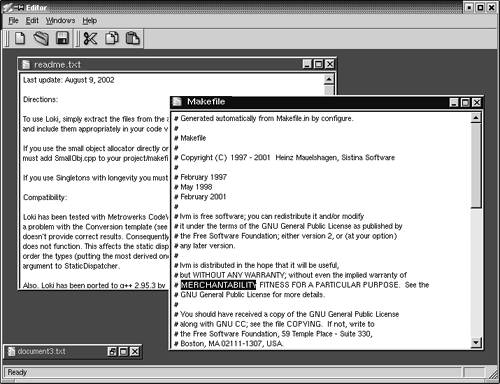
The application consists of two classes: MainWindow and Editor. Its code is on the CD, and since most of it is the same or similar to the Spreadsheet application from Part I, we will only present the new code.
Figure 6.15. The Editor application's menus
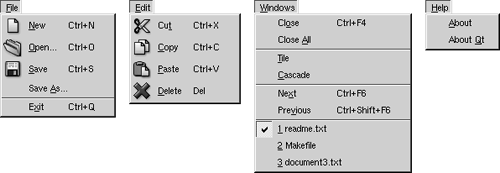
Let's start with the MainWindow class.
MainWindow::MainWindow(QWidget *parent, const char *name)
 : QMainWindow(parent, name)
{
 workspace = new QWorkspace(this);
 setCentralWidget(workspace);
 connect(workspace, SIGNAL(windowActivated(QWidget *)),
 this, SLOT(updateMenus()));
 connect(workspace, SIGNAL(windowActivated(QWidget *)),
 this, SLOT(updateModIndicator()));

 createActions();
 createMenus();
 createToolBars();
 createStatusBar();

 setCaption(tr("Editor"));
 setIcon(QPixmap::fromMimeSource("icon.png"));
}
In the MainWindow constructor, we create a QWorkspace widget and make it the central widget. We connect the QWorkspace's windowActivated() signal to two private slots. These slots ensure that the menus and the status bar always reflect the state of the currently active child window.
void MainWindow::newFile()
{
 Editor *editor = createEditor();
 editor->newFile();
 editor->show();
}
The newFile() slot corresponds to the File|New menu option. It depends on the createEditor() private function to create a child Editor window.
Editor *MainWindow::createEditor()
{
 Editor *editor = new Editor(workspace);
 connect(editor, SIGNAL(copyAvailable(bool)),
 this, SLOT(copyAvailable(bool)));
 connect(editor, SIGNAL(modificationChanged(bool)),
 this, SLOT(updateModIndicator()));
 return editor;
}
The createEditor() function creates an Editor widget and sets up two signalslot connections. The first connection ensures that Edit|Cut and Edit|Copy are enabled or disabled depending on whether there is any selected text. The second connection ensures that the MOD indicator in the status bar is always up to date.
Because we are using MDI, it is possible that there will be multiple Editor widgets in use. This is a concern since we are only interested in responding to the copyAvailable(bool) and modificationChanged() signals from the active Editor window, not from the others. But these signals can only ever be emitted by the active window, so this isn't really a problem.
void MainWindow::open()
{
 Editor *editor = createEditor();
 if (editor->open())
 editor->show();
 else
 editor->close();
}
The open() function corresponds to File|Open. It creates a new Editor for the new document and calls open() on the Editor. It makes more sense to implement the file operations in the Editor class than in the MainWindow class, because each Editor needs to maintain its own independent state. If the open() fails, we simply close the editor since the user will have already been notified of the error.
void MainWindow::save()
{
 if (activeEditor()) {
 activeEditor()->save();
 updateModIndicator();
 }
}
The save() slot calls save() on the active editor, if there is one. Again, the code that performs the real work is located in the Editor class.
Editor *MainWindow::activeEditor()
{
 return (Editor *)workspace->activeWindow();
}
The activeEditor() private function returns the active child window as an Editor pointer.
void MainWindow::cut()
{
 if (activeEditor())
 activeEditor()->cut();
}
The cut() slot calls cut() on the active editor. The copy(), paste(), and del() slots follow the same pattern.
void MainWindow::updateMenus()
{
 bool hasEditor = (activeEditor() != 0);
 saveAct->setEnabled(hasEditor);
 saveAsAct->setEnabled(hasEditor);
 pasteAct->setEnabled(hasEditor);
 deleteAct->setEnabled(hasEditor);
 copyAvailable(activeEditor()
 && activeEditor()->hasSelectedText());
 closeAct->setEnabled(hasEditor);
 closeAllAct->setEnabled(hasEditor);
 tileAct->setEnabled(hasEditor);
 cascadeAct->setEnabled(hasEditor);
 nextAct->setEnabled(hasEditor);
 previousAct->setEnabled(hasEditor);

 windowsMenu->clear();
 createWindowsMenu();
}
The updateMenus() slot is called whenever a window is activated (or when the last window is closed) to update the menu system, thanks to the signalslot connection we put in the MainWindow constructor.
Most menu options only make sense if there is an active window, so we disable them if there isn't one. Then we clear the Windows menu and call createWindowsMenu() to reinitialize it with a fresh list of child windows.
void MainWindow::createWindowsMenu()
{
 closeAct->addTo(windowsMenu);
 closeAllAct->addTo(windowsMenu);
 windowsMenu->insertSeparator();
 tileAct->addTo(windowsMenu);
 cascadeAct->addTo(windowsMenu);
 windowsMenu->insertSeparator();
 nextAct->addTo(windowsMenu);
 previousAct->addTo(windowsMenu);

 if (activeEditor()) {
 windowsMenu->insertSeparator();
 windows = workspace->windowList();
 int numVisibleEditors = 0;

 for (int i = 0; i < (int)windows.count(); ++i) {
 QWidget *win = windows.at(i);
 if (!win->isHidden()) {
 QString text = tr("%1 %2")
 .arg(numVisibleEditors + 1)
 .arg(win->caption());
 if (numVisibleEditors < 9)
 text.prepend("&");
 int id = windowsMenu->insertItem(
 text, this, SLOT(activateWindow(int)));
 bool isActive = (activeEditor() == win);
 windowsMenu->setItemChecked(id, isActive);
 windowsMenu->setItemParameter(id, i);
 ++numVisibleEditors;
 }
 }
 }
}
The createWindowsMenu() private function fills the Windows menu with actions and a list of visible windows. The actions are all typical of such menus and are easily implemented using QWorkspace's closeActiveWindow(), closeAllWindows(), tile(), and cascade() slots.
The entry for the active window is shown with a checkmark next to its name. When the user chooses a window entry, the activateWindow() slot is called with the index in the windows list as the parameter, because of the call to setItemParameter(). This is very similar to what we did in Chapter 3 when we implemented the Spreadsheet application's recently opened files list (p. 54).
For the first nine entries, we put an ampersand in front of the number to make that number's single digit into a shortcut key. We don't provide a shortcut key for the other entries.
void MainWindow::activateWindow(int param)
{
 QWidget *win = windows.at(param);
 win->show();
 win->setFocus();
}
The activateWindow() function is called when a window is chosen from the Windows menu. The int parameter is the value that we set with setItemParameter(). The windows data member holds the list of windows and was set in createWindowsMenu().
void MainWindow::copyAvailable(bool available)
{
 cutAct->setEnabled(available);
 copyAct->setEnabled(available);
}
The copyAvailable() slot is called whenever text is selected or deselected in an editor. It is also called from updateMenus(). It enables or disables the Cut and Copy actions.
void MainWindow::updateModIndicator()
{
 if (activeEditor() && activeEditor()->isModified())
 modLabel->setText(tr("MOD"));
 else
 modLabel->clear();
}
The updateModIndicator() updates the MOD indicator in the status bar. It is called whenever text is modified in an editor. It is also called when a new window is activated.
void MainWindow::closeEvent(QCloseEvent *event)
{
 workspace->closeAllWindows();
 if (activeEditor())
 event->ignore();
 else
 event->accept();
}
The closeEvent() function is reimplemented to close all child windows. If one of the child widgets "ignores" its close event (presumably because the user canceled an "unsaved changes" message box), we ignore the close event for the MainWindow; otherwise we accept it, resulting in Qt closing the window. If we didn't reimplement closeEvent() in MainWindow, the user would not be given the opportunity to save any unsaved changes.
We have now finished our review of MainWindow, so we can move on to the Editor implementation. The Editor class represents one child window. It inherits from QTextEdit, which provides the text editing functionality. Just as any Qt widget can be used as a stand-alone window, any Qt widget can be used as a child window in an MDI workspace.
Here's the class definition:
class Editor : public QTextEdit
{
 Q_OBJECT
public:
 Editor(QWidget *parent = 0, const char *name = 0);

 void newFile();
 bool open();
 bool openFile(const QString &fileName);
 bool save();
 bool saveAs();
 QSize sizeHint() const;

signals:
 void message(const QString &fileName, int delay);

protected:
 void closeEvent(QCloseEvent *event);

private:
 bool maybeSave();
 void saveFile(const QString &fileName);
 void setCurrentFile(const QString &fileName);
 QString strippedName(const QString &fullFileName);
 bool readFile(const QString &fileName);
 bool writeFile(const QString &fileName);

 QString curFile;
 bool isUntitled;
 QString fileFilters;
};
Four of the private functions that were in the Spreadsheet application's MainWindow class (p. 51) are also present in the Editor class: maybeSave(), saveFile(), setCurrentFile(), and strippedName().
Editor::Editor(QWidget *parent, const char *name)
 : QTextEdit(parent, name)
{
 setWFlags(WDestructiveClose);
 setIcon(QPixmap::fromMimeSource("document.png"));

 isUntitled = true;
 fileFilters = tr("Text files (*.txt)
"
 "All files (*)");
}
The Editor constructor sets the WDestructiveClose flag using setWFlags(). When a class constructor doesn't provide a flags parameter (as is the case with QTextEdit), we can still set most flags using setWFlags().
Since we allow users to create any number of editor windows, we must make some provision for naming them so that they can be distinguished before they have been saved for the first time. One common way of handling this is to allocate names that include a number (for example, document1.txt). We use the isUntitled variable to distinguish between names supplied by the user and names we have created programmatically.
After the constructor, we expect either newFile() or open() to be called.
void Editor::newFile()
{
 static int documentNumber = 1;

 curFile = tr("document%1.txt").arg(documentNumber);
 setCaption(curFile);
 isUntitled = true;
 ++documentNumber;
}
The newFile() function generates a name like document2.txt for the new document. The code belongs in newFile(), rather than the constructor, because we don't want to consume numbers when we call open() to open an existing document in a newly created Editor. Since documentNumber is declared static, it is shared across all Editor instances.
bool Editor::open()
{
 QString fileName =
 QFileDialog::getOpenFileName(".", fileFilters, this);
 if (fileName.isEmpty())
 return false;

 return openFile(fileName);
}
The open() function tries to open an existing file using openFile().
bool Editor::save()
{
 if (isUntitled) {
 return saveAs();
 } else {
 saveFile(curFile);
 return true;
 }
}
The save() function uses the isUntitled variable to determine whether it should call saveFile() or saveAs().
void Editor::closeEvent(QCloseEvent *event)
{
 if (maybeSave())
 event->accept();
 else
 event->ignore();
}
The closeEvent() function is reimplemented to allow the user to save unsaved changes. The logic is coded in the maybeSave() function, which pops up a message box that asks, "Do you want to save your changes?" If maybeSave() returns true, we accept the close event; otherwise, we "ignore" it and leave the window unaffected by it.
void Editor::setCurrentFile(const QString &fileName)
{
 curFile = fileName;
 setCaption(strippedName(curFile));
 isUntitled = false;
 setModified(false);
}
The setCurrentFile() function is called from openFile() and saveFile() to update the curFile and isUntitled variables, to set the window caption, and to set the editor's "modified" flag to false. The Editor class inherits setModified() and isModified() from QTextEdit, so it doesn't need to maintain its own modified flag. Whenever the user modifies the text in the editor, QTextEdit emits the modificationChanged() signal and sets its internal modified flag to true.
QSize Editor::sizeHint() const
{
 return QSize(72 * fontMetrics().width('x'),
 25 * fontMetrics().lineSpacing());
}
The sizeHint() function returns a size based on the width of the letter 'x' and the height of a text line. QWorkspace uses the size hint to give an initial size to the window.
Finally, here's the Editor application's main.cpp file:
#include

#include "mainwindow.h"

int main(int argc, char *argv[])
{
 QApplication app(argc, argv);
 MainWindow mainWin;
 app.setMainWidget(&mainWin);

 if (argc > 1) {
 for (int i = 1; i < argc; ++i)
 mainWin.openFile(argv[i]);
 } else {
 mainWin.newFile();
 }

 mainWin.show();
 return app.exec();
}
If the user specifies any files on the command line, we attempt to load them. Otherwise, we start with an empty document. Qt-specific command-line options, such as -style and -font, are automatically removed from the argument list by the QApplication constructor. So if we write
editor -style=motif readme.txt
on the command line, the Editor application starts up with one document, readme.txt.
MDI is one way of handling multiple documents simultaneously. Another approach is to use multiple top-level windows. This approach is covered in the "Multiple Documents" section of Chapter 3.
Part I: Basic Qt
Getting Started
Creating Dialogs
- Creating Dialogs
- Subclassing QDialog
- Signals and Slots in Depth
- Rapid Dialog Design
- Shape-Changing Dialogs
- Dynamic Dialogs
- Built-in Widget and Dialog Classes
Creating Main Windows
- Creating Main Windows
- Subclassing QMainWindow
- Creating Menus and Toolbars
- Implementing the File Menu
- Setting Up the Status Bar
- Using Dialogs
- Storing Settings
- Multiple Documents
- Splash Screens
Implementing Application Functionality
- Implementing Application Functionality
- The Central Widget
- Subclassing QTable
- Loading and Saving
- Implementing the Edit Menu
- Implementing the Other Menus
- Subclassing QTableItem
Creating Custom Widgets
- Creating Custom Widgets
- Customizing Qt Widgets
- Subclassing QWidget
- Integrating Custom Widgets with Qt Designer
- Double Buffering
Part II: Intermediate Qt
Layout Management
- Layout Management
- Basic Layouts
- Splitters
- Widget Stacks
- Scroll Views
- Dock Windows
- Multiple Document Interface
Event Processing
- Event Processing
- Reimplementing Event Handlers
- Installing Event Filters
- Staying Responsive During Intensive Processing
2D and 3D Graphics
Drag and Drop
Input/Output
- Input/Output
- Reading and Writing Binary Data
- Reading and Writing Text
- Handling Files and Directories
- Inter-Process Communication
Container Classes
Databases
Networking
XML
Internationalization
- Internationalization
- Working with Unicode
- Making Applications Translation-Aware
- Dynamic Language Switching
- Translating Applications
Providing Online Help
- Providing Online Help
- Tooltips, Status Tips, and Whats This? Help
- Using QTextBrowser as a Simple Help Engine
- Using Qt Assistant for Powerful Online Help
Multithreading
- Multithreading
- Working with Threads
- Communicating with the GUI Thread
- Using Qts Classes in Non-GUI Threads
Platform-Specific Features

EAN: 2147483647
Pages: 140
