Security Center
With the onslaught of spam and malicious viruses and other code, Microsoft realized that XP users needed a single place to
Figure 24.9. The Security Center provides central access to firewall, Windows updates, and virus protection settings.
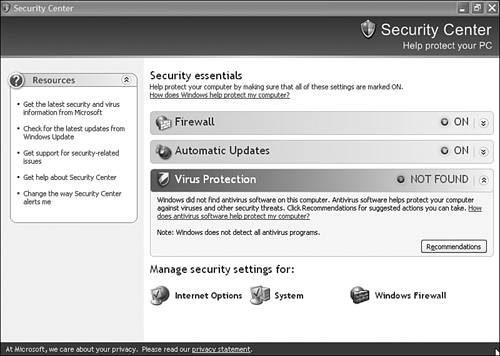
Notice that handy links are also provided for other security concerns such as Internet security (usually only
|
Sounds and Audio DevicesThe Sounds and Audio Devices applet is your stopping place when it comes to adjustments to your sound system and the sounds the computer makes to alert you of errors, new mail, and so on.
NOTE
As you might know, you adjust the volume of your computer
There's a bunch of fun to be had from this applet, should you like to twiddle with your sounds. Most of what people do with this applet is change the goofy sounds their computers make in response to specific events.
If your computer had a sound card (or motherboard-based sound chipset) when you installed
The sounds the system uses are stored on disk in the .WAV format. You can create, purchase, or download just about any sound you can think of from the Internet. I downloaded the sound of Homer Simpson saying "Doh!" and the theme from the original TV show Star Trek the other day, for example.
The Volume Tab
The Volume tab is used to set the master volume. This is the same master volume control which appears in the Volume Control tool and when you
Also on this tab are speaker controls. If you have a special speaker system, such as surround sound or 3-D audio, these controls help you fine-tune your settings. The Sounds Tab
The Sounds tab is used to associate Windows events with sounds. Windows XP comes with tons of sound files, a big improvement over the measly assemblage of WAV files supplied with some earlier versions of Windows. In fact, just as with the
Despite the diverse selection, I still use a few of the sounds I've put together using the Sound Recorder. I have one, for example, that says "New Mail" when I receive email. Sometimes I didn't notice the generic "boop" sound when new mail arrived, so I changed it.
If you want to get fancy, you can record from a CD or tape recorder rather than from a microphone. This way, you can sample bits and pieces from your favorite
TIP
You should make sure that WAV files you intend for system sounds aren't too large. Sound files
can
be super large,
You assign sounds to specific Windows "events" like this:
TIP
The default folder for sounds is \windows\media. If you have a WAV file stored in another folder and want to assign it to an event, use the Browse button to locate it. You don't have to move your sound files to the \windows\media folder for it to work. However, if you're planning on
At the top of the list of available sounds is an option called <none>, which has the obvious effect: No sound will occur for that event. Assigning all events to <none> effectively silences your laptop for use in a library or other silent setting. You can also silence all sounds easily by choosing the No Sounds sound scheme as explained next.
In the same way that the Display Properties page lets you save color schemes, the Sounds and Audio Devices applet lets you save sound schemes. You can set up goofy sounds for your
You can set up your own sound schemes by assigning or reassigning individual sounds, as I've already explained. But unless you save the scheme with the Save As button, it'll be lost the next time you change to a new one. So, the moral is that after you get your favorite sounds assigned to system events, save the scheme. Then you can call it up any time you like. The Audio and Voice Tabs
On both the Audio and Voice tabs, you can declare the default hardware you want to use for audio playback, recording, MIDI playback, voice playback, and voice recording. Most systems offer minimal choices in these departments because typical computers have only a single sound system. You might find something
The Advanced
The Use Only Default Devices option determines which sound card or cards your programs will use. If you use programs that require a specific type of sound card, and that sound card is selected as a default device on this tab, select this check box. That way, if for some reason your preferred devices aren't available, the program doesn't bomb or freak out by trying to use a sound card that Windows thinks is a reasonable replacement. For any situation I've been in, leaving the check box cleared has never been a problem. The Hardware Tab
The Hardware tab of the Sounds and Audio Devices Properties dialog simply lists all the sound, video, DVD, and other multimedia hardware items currently installed. You can check their properties and current status, as well as troubleshoot them. You can get to the same properties dialog boxes
|