History Box
| [ LiB ] |
History Box
Steinberg introduced the offline processing concept with SX/SL 1.0 as a way of offering multiple undo levels. This comes in especially handy when working with audio processing, since sometimes you have to process an audio file in order to free up some memory. But what happens if you change your mind about the effect you applied 15 steps down the road? Read on to find out.
Edit History
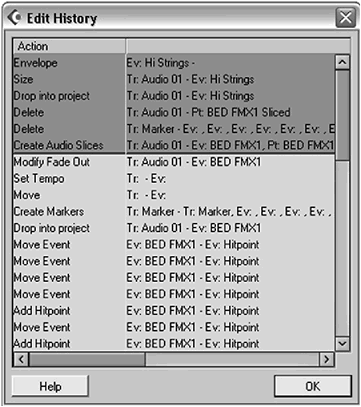
The Edit History dialog box (see Figure 2.34) views, selects, and undoes steps you have performed, giving you some piece of mind when you want to experiment a bit with your current project.
Figure 2.34. The Edit History dialog box.
How To
To view the Edit History dialog box:
-
Select Edit > History from the menu bar.
Offline Process History
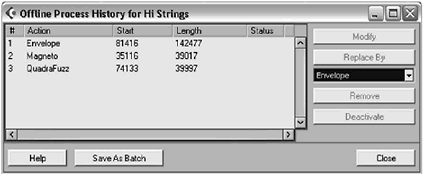
If undoing every step you made is not what you had in mind, maybe the Offline Process History dialog box will help you with going back in time. The history, in this case, corresponds to the processing steps applied on a digital audio event. Furthermore, every digital audio event in your pool that has been, at one point or another, edited through offline processing will keep track of what has been done to it. So for example, in Figure 2.35, we can see that three processes have been applied to an audio file. If you wanted to restore the file as it was before you applied any process in that list, you could simply select it and remove it from this list to go back to where you were.
Figure 2.35. The Offline Process History dialog box.
How To
To view the Offline Process History dialog box:
-
Select Edit > History from the menu bar.
| [ LiB ] |
