Flylib.com

Books Software


Generating JavaBeans Component Code


Generating JavaBeans Component Code

The IDE has a few levels of support for creating JavaBeans components . You can use the following features:

  • Code completion. When you have a field in your class without a corresponding get or set method, you can generate that method by pressing Ctrl-Space and choosing the method from the code completion box.

  • Refactor Encapsulate Fields command. You can use this command to generate get and set methods , change the field's access modifier, and update code that directly accesses the field to use the getters and setters instead.

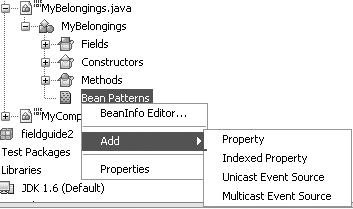
  • Bean Patterns node. In the Projects window, each class has a subnode called Bean Patterns as shown in Figure 5-9. You can right-click this node and choose from a variety of commands that enable you to generate code for bean properties, property change support, and event listening. In addition, you can generate BeanInfo classes.

    Figure 5-9. Bean Patterns node and menu


Creating and Using Macros

You can record macros in the IDE to reduce what would normally involve a long set of keystrokes to one keyboard shortcut. In macros, you can combine the typing of characters in the Source Editor and the typing of other keyboard shortcuts.

To record a macro:

  1. Put the insertion point in the part of a file in the Source Editor where you want to record the macro.

  2. Click the button in the Source Editor's toolbar (or press Ctrl-J and then type s ) to begin recording.

  3. Record the macro using any sequence of keystrokes, whether it is the typing of characters or using keyboard shortcuts. Mouse movements and clicks (such as menu selections) are not recorded.

  4. Click the in the Source Editor's toolbar (or press Ctrl-J and then type e ) to finish recording.

  5. In the Macro field of the Recorded Macro dialog box that appears, fine-tune the macro, if necessary.

  6. Click Add to assign a keyboard shortcut to the macro.

  7. In the Add Keybinding dialog box, press the keys that you want to use for the keyboard shortcut. (For example, if you want the shortcut Alt-Shift-Z, press the Alt, Shift, and Z keys.) If you press a wrong key, click the Clear button to start over.

Be careful not to use a shortcut that is already assigned. If the shortcut you enter is an editor shortcut, a warning appears in the dialog box. However, if the key combination is a shortcut that applies outside of the Source Editor, you will not be warned .

You can assign a new shortcut in the Options window. Choose Tools Options, click the Editor panel, select the Macros tab, and then click the Set Shortcut button.


Creating and Customizing File Templates

You can customize the templates that you create files from in the IDE and create your own templates. This might be useful if you need to add standard elements in all of your files (such as copyright notices) or want to change the way other elements are generated.

You can also create your own templates and make them available in the New File wizard.

There are several macros available for use in templates to generate text dynamically in the created files. These macros are identifiable by the double underscores that appear both before and after the macro name . See Table 5-3 for a list of the macros available.

Table 5-3. Java File Template Macros

Macro

Substituted Information

__USER__

Your username. If you would like to change the value of __USER__, choose Tools Options, click Advanced Options, and select the Editing Java Sources node. Then click the button in the Strings Table property and change the value of USER .

__DATE__

The date the new file is created.

__TIME__

The time the new file is created.

__NAME__

The name of the class (without the file extension). It is best not to use this macro for the class and constructor name in the file (instead, use the filename).

__PACKAGE__

The name of the package where the class is created.

__PACKAGE_SLASHES__

The name of the class' package with slash (/) delimiters instead of periods (.).

__PACKAGE_AND_NAME__

The fully qualified name of the file (such as com.mydomain.mypackage.MyClass).

__PACKAGE_AND_NAME_SLASHES__

The fully qualified name of the file with slash (/)delimiters instead of periods (.).

__QUOTES__

A double quote mark ( " ). Use this macro if you want the substituted text to appear in quotes in the generated file. (If you place a macro within quote marks in the template, text is not substituted for the macro name in the created file.)


To edit a template:

  1. Choose Tools Template Manager.

  2. Expand the appropriate category node and select the template that you want to edit.

  3. Click Open in Editor.

  4. Edit the template and then save it.

Not all of the templates listed in the Template Manager can be modified at the user level. In some cases, the templates are available in the New File wizard but do not represent file constructs (such as those in the Enterprise and Sun Resources categories).


To create a new file template based on another template:

  1. Choose Tools Template Manager.

  2. Navigate to and select the template on which you want to model the new template and click Duplicate.

    A new node appears for the copied template. _1 is appended to the template's name.

  3. Click Open in Editor.

  4. Edit the file, incorporating any of the template macros that you want to use (see Table 5-3), and save it.

    If the template is for a Java class, you can use the filename for the class name and constructor name. These are automatically adjusted in the files you create from the template.

To import a file template:

  1. Choose Tools Template Manager.

  2. Select the category folder for the template.

  3. Click Add to open the Add Template dialog box.

  4. Navigate to and select the file that you want to import as a template. Then click Add.