Flylib.com

Books Software


Viewing the PowerPoint Window


Viewing the PowerPoint Window


Using the Ribbon

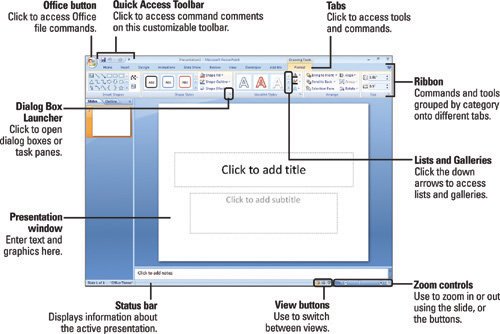
The Ribbon ( New! ) is a new look for PowerPoint 2007. It replaces menus , toolbars , and most of the task panes found in PowerPoint 2003. The Ribbon is located at the top of the presentation window and is comprised of tabs ( New! ) that are organized by task or objects. The controls on each tab are organized into groups , or subtasks . The controls, or command buttons , in each group execute a command, or display a menu of commands or a drop-down gallery. Controls in each group provide a visual way to quickly make presentation changes.

Timesaver

To minimize the Ribbon, double-click the name of the tab that is displayed, or click the Customize Quick Access Toolbar list arrow, and then click Minimize the Ribbon. Click a tab to auto display it (Ribbon remains minimized). Double-click a tab to maximize it .


If you prefer using the keyboard instead of the mouse to access commands on the Ribbon, Microsoft Office provides easy to use shortcuts. Simply press and release the or key to display KeyTips ( New! ) over each feature in the current view, and then continue to press the letter shown in the KeyTip until you press the one that you want to use. To cancel an action and hide the KeyTips, press and release the or key again. If you prefer using the keyboard shortcuts found in previous versions of Microsoft Office, such as Ctrl+P (for Print), all the keyboard shortcuts and keyboard accelerators work exactly the same in Microsoft Office 2007. Office 2007 includes a legacy mode that you can turn on to use familiar Office 2003 keyboard accelerators.

Tabs

PowerPoint provides three types of tabs on the Ribbon. The first type is called a standard tabsuch as Home, Insert, Design, Animations, Slide Show, Review, View, and Add-Insthat you see whenever you start PowerPoint. The second type is called a contextual tab such as Picture Tools, Drawing, or Tablethat appear only when they are needed based on the type of task you are doing. PowerPoint recognizes what you're doing and provides the right set of tabs and tools for you to use when you need them. The third type is called a program tab such as Print Preview, Slide Master, Handout Master, or Notes Masterthat replace the standard set of tabs when you switch to certain views or modes.

Live Preview

When you point to a gallery option, such as WordArt, on the Ribbon, PowerPoint displays a live preview ( New! ) of the option change so that you can see exactly what your change will look like before committing to it.


Choosing Commands

The PowerPoint commands are organized in groups on the Ribbon, Office menu, Quick Access Toolbar, and Mini-Toolbar. The Office button opens to display file related menu commands, while the Quick Access Toolbar and Mini-Toolbar display frequently used buttons that you are already familiar with from PowerPoint 2003. In addition to the Office menu, you can also open a shortcut menu with a group of related commands by right-clicking a PowerPoint element.

Choose a Command from the Office Menu


Click the Office button on the Ribbon.

Click the command you want.

If the command is followed by an arrow, point to the arrow to see a list of related options, and then click the option you want.

Timesaver

You can use a shortcut key to choose a command. Press and hold down the first key and then press the second key. For example, press and hold the Ctrl key and then press S (or Ctrl+S) to select the Save command .


Choose a Command from a Shortcut Menu


Right-click an object (a text or graphic element).

Timesaver

Press Shift+F10 to display the shortcut menu for a selected command .


Click a command on the shortcut menu. If the command is followed by an arrow, point to the command to see a list of related options, and then click the option you want.