Fireworks Panels
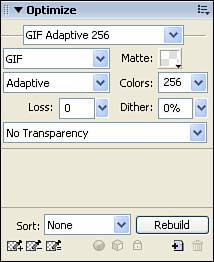
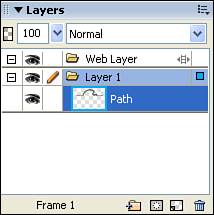
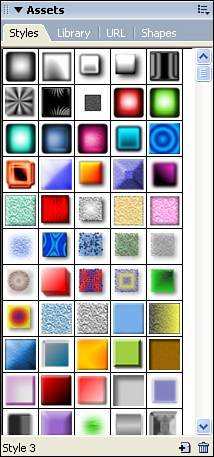
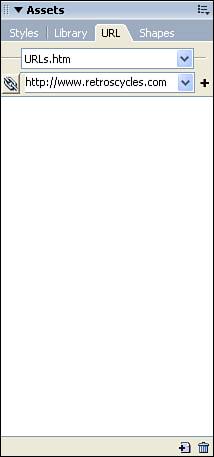
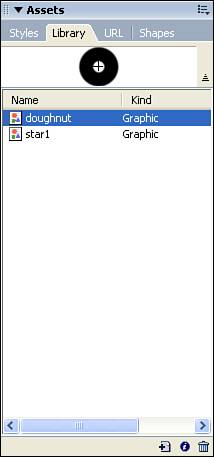
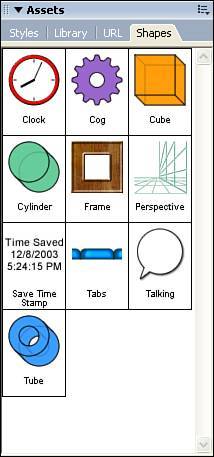
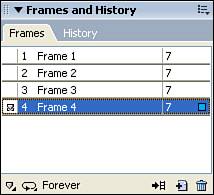
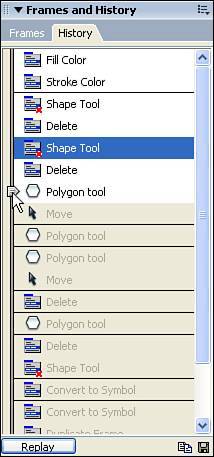
| At first glance, the panels system used in Fireworks (and the other development applications in the Studio) can be a bit overwhelming. After you get used to the system, however, it's just a matter of finding the right panel and you have all the tools you need grouped together. Let's take a look at some of the most commonly used panels. Optimize PanelThe Optimize panel (see Figure 3.48) enables you to choose from the various compression options that are available for use when your image is exported. From the panel, you can choose between the various file types, color depths, and file quality. Figure 3.48. The Optimize panel enables you to select from the various compression options. Layers PanelThe Layers panel (see Figure 3.49) overlays each of the objects that exist within the document. Using the Layers panel, you can adjust the grouping order and choose which layers should be displayed and which should be hidden. You get a more extensive look at the Layers panel in Chapter 4, "Developing Graphics and Animations." Figure 3.49. The Layers panel enables you to stack objects on the canvas and adjust the order in which they are stacked. Assets PanelThe Assets panel provides access to reusable objects such as shading styles, recently used URLs, custom objects, and various shapes. Using the elements stored in any of the subpanels is as easy as dragging them into your workspace. Styles TabThe Styles tab (see Figure 3.50) enables you to easily apply custom fills, gradients, and coloring to your Fireworks objects. To apply a style, simply select your object and click the style you would like applied to it. Figure 3.50. The Styles tab enables you to apply custom shading and gradients. URL TabTyping in the same URL over and over can become a tedious task when developing web objects within Fireworks. Luckily, Fireworks 8 remembers the URLs that you have used in the past and stores them in the URL tab (see Figure 3.51). To apply a URL, simply choose a hotspot or slice and select the URL from the drop-down list. You can even create your own custom URL libraries that contain URLs for different uses. Figure 3.51. The URL tab stores URLs and enables you to create custom URL libraries. Library TabThe Library tab (see Figure 3.52) saves information about symbols that are stored in the current document. Each symbol has a name and a type, and can be reused if you drag it from the panel onto the canvas. The objects in the Library can be sorted by name or by type if you click on the appropriate column header and click the Toggle Sorting button. Figure 3.52. The Library tab stores information about symbols that you have created. Shapes TabThe Shapes tab (see Figure 3.53) stores the Auto Shapes that supplement those available with the Auto Shape tools. You can download additional Auto Shapes by clicking the menu on the Shapes tab and choosing Get More Auto Shapes. Figure 3.53. The Shapes tab enables you to easily access any Auto Shapes that you have added to the panel. Frames and History PanelThe Frames and History panel enables you to track the animation frames that you have created and to also view the actions you have taken in developing your images. Frames TabThe Frames tab (see Figure 3.54) displays information about the frames you have created toward animating your images. For a complete overview of how frames can be used to develop animations, check out Chapter 7, "Putting It All Together: The Images and Page Layout for Retro's Cycles." Figure 3.54. The Frames tab shows information about animation frames and enables you to adjust timings. History TabThe History tab (see Figure 3.55) enables you to review the steps you have taken in developing your images. The number of steps that are stored is based on the preferences you set for Fireworks in the Preferences dialog box (Edit, Preferences). By default, Fireworks 8 stores 20 steps, and you can move through the steps and see them replayed by moving the slider on the left side up or down. If you want to replay a set of steps, select them and click the Replay button. You can also save and reuse steps at a later time by selecting the steps and clicking the Save Steps As Command icon. Figure 3.55. You can easily retrace your steps by moving the slider up or down on the History tab. |

EAN: 2147483647
Pages: 337