Flylib.com

Books Software


Chapter 4 -- Internet Explorer Security Overview

[Previous] [Next] Chapter 4

Internet Explorer Security Overview

In the previous chapter, we looked at the foundation for building secure Web services, Microsoft Windows 2000. In this and the following three chapters, we'll discuss the security capabilities of Microsoft Internet Explorer, Internet Information Services (IIS), Microsoft SQL Server, and COM+.

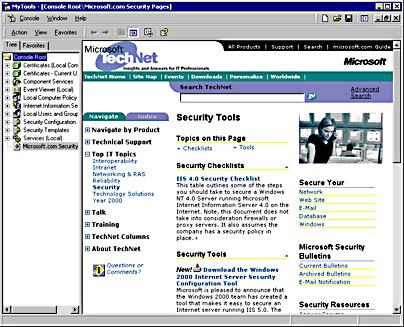
Internet Explorer 5 is the Web-browsing technology incorporated into Windows 2000. It's used to access Web data and FTP data, as well as Windows networking information. Most people think of Internet Explorer as the process called Iexplore.exe; however, you must consider that the Internet Explorer Web-browsing technology is deeply integrated with many aspects of the Windows 2000 graphical shell. This is because the technology is highly componentized. It's possible, for example, to include links to your favorite Web sites in Microsoft Management Console (MMC). One of the authors has a standard set of tools he uses all the time in an MMC console, one of which is a link to the Microsoft security pages at www.microsoft.com/security , as shown in Figure 4-1.

The following sections regarding Internet Explorer security include

  • Privacy
  • Code safety and malicious content
  • Security zones
  • SSL/TLS and certificates
  • Cookie security

click to view at full size.

Figure 4-1. A set of standard tools in MMC, including a link to the Microsoft security pages.

[Previous] [Next]

Privacy

A major threat facing all Web browser users is invasion of privacy; your privacy can be violated by malicious users snooping browser-to-Web-server communications. For example, by default the communication channel from the browser to the server is not encrypted, which might enable malevolent users to "sniff" the channel and possibly gain access to credit card information, passwords, confidential data (such as personal medical records), and the like as it travels across the Internet. The simplest way to defend against this threat is to use a secured channel using the Secure Sockets Layer/Transport Layer Security (SSL/TLS) protocol. This must be configured at the Web server, not at the client, because it is the server's responsibility to determine whether the information being transferred to the client is to be encrypted.

NOTE
Even though a Web site might require SSL/TLS only for handling sensitive information, such as passwords or credit card numbers , you can opt to use SSL/TLS for all aspects of the Web server's operations simply by entering HTTPS rather than HTTP as the protocol. Note, however, that this will not work for Web servers that do not support SSL/TLS.

IP Data and Postcards

Think of Internet traffic, which is composed of IP packets (that is, units of information transmitted from sender to destination network and station), as postcards. Postcards travel from a source to a destination, sometimes through multiple intermediaries, and they can be read by anyone along the way .

You'll know if you're using SSL/TLS because Internet Explorer will display a bright yellow lock at the bottom of the screen. You can also check the strength of the encryption key by positioning the mouse pointer over the lock; a ToolTip will appear and display the information, as shown in Figure 4-2. Double-clicking on the lock displays the Web server's SSL/TLS certificate.

Figure 4-2. Looking at the SSL/TLS encryption strength in Internet Explorer.

SSL/TLS is explained in this chapter in "SSL/TLS and Certificates," in Chapter 5, "Internet Information Services Security Overview," and in Chapter 9, "Practical Privacy, Integrity, Auditing, and Nonrepudiation."

WARNING

You might not see the lock icon if you are invoking Internet Explorer technology from something other than the Internet Explorer process. So be careful not to transfer confidential data over the Web unless you have no doubt that the channel is secured.

In addition, you might not see the lock in Internet Explorer when HTML frames are used, because parts of the frameset might be using HTTP and other parts might be using HTTPS. In this case, the padlock is not shown even though the data is protected by SSL/TLS. However, if you right-click a frame and choose Properties from the context menu, you'll see that the page is using SSL/TLS.