Using an Integrated Development Environment
| In this section, we show you how to compile a program with Eclipse, an integrated development environment that is freely available from http://eclipse.org. Eclipse is written in Java, but because it uses a nonstandard windowing library, it is not quite as portable as Java itself. Nevertheless, versions exist for Linux, Mac OS X, Solaris, and Windows. After starting Eclipse, select File -> New Project from the menu, then select "Java Project" from the wizard dialog (see Figure 2-2). These screen shots were taken with Eclipse 3.0M8. Don't worry if your version of Eclipse looks slightly different. Figure 2-2. New Project dialog in Eclipse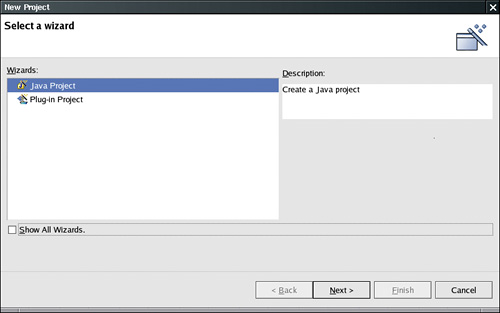 Click the "Next" button. Supply the project name "Welcome" and type in the full path name of the directory that contains Welcome.java; see Figure 2-3. Be sure to uncheck the option labeled "Create project in workspace". Click the "Finish" button. Figure 2-3. Configuring an Eclipse project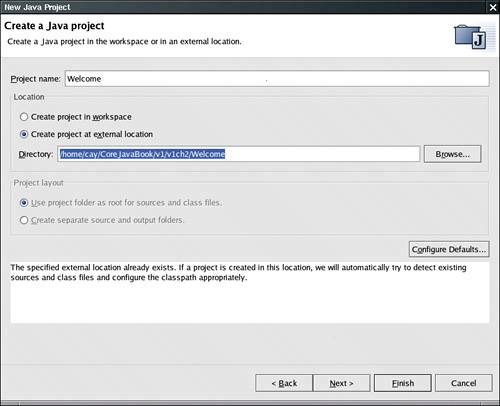 The project is now created. Click on the triangle in the left pane next to the project window to open it, and then click on the triangle next to "Default package". Double-click on Welcome.java. You should now see a window with the program code (see Figure 2-4). Figure 2-4. Editing a source file with Eclipse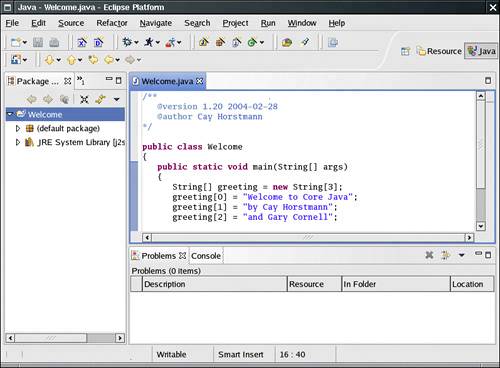 With the right mouse button, click on the project name (Welcome) in the leftmost pane. Select Build Project from the menu that pops up. Your program is compiled. If it compiles successfully, select Run -> Run As -> Java Application. An output window appears at the bottom of the window. The program output is displayed in the output window (see Figure 2-5). Figure 2-5. Running a program in Eclipse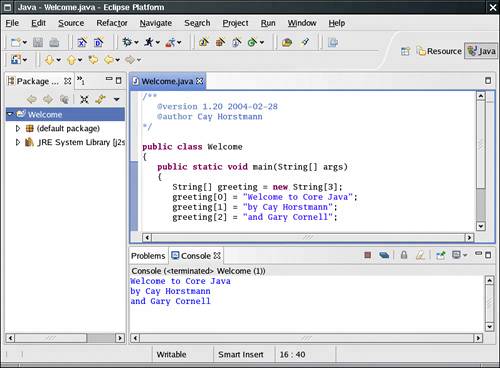 Locating Compilation ErrorsPresumably, this program did not have typos or bugs. (It was only a few lines of code, after all.) Let us suppose, for the sake of argument, that your code occasionally contains a typo (perhaps even a syntax error). Try it out ruin our file, for example, by changing the capitalization of String as follows: public static void main(string[] args) Now, run the compiler again. You will get an error message that complains about an unknown string type (see Figure 2-6). Simply click on the error message. The cursor moves to the matching line in the edit window, where you can correct your error. This behavior allows you to fix your errors quickly. Figure 2-6. Error messages in Eclipse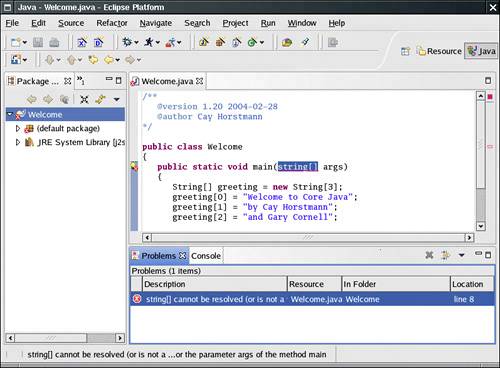 These instructions should give you a taste of working in an integrated environment. We discuss the Eclipse debugger in Chapter 11. |
 |

EAN: 2147483647
Pages: 132