Updating ClickOnce Applications
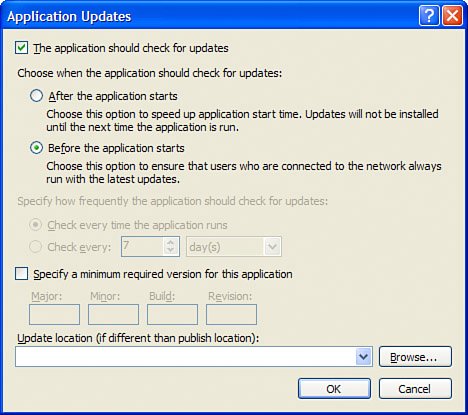
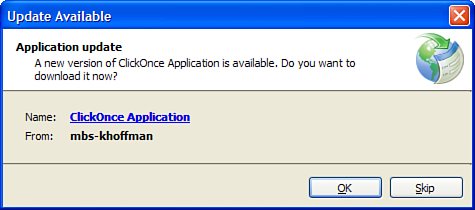
| After your application has been published and customers have downloaded it and are using it, new releases will always be necessary. Bug fixes need to make it out to clients as well as new releases that contain new functionality. With previous versions of the .NET Framework, the basic model was to issue a new Windows Installer image. Customers would then have to obtain the new installer image and run that, which would completely remove the previous version of the application and then create a fresh installation containing the new version. Any dynamic update support within a .NET Framework application in previous versions was developed entirely by hand by developers or using the Automatic Update Application Building Block from Microsoft. When you publish an application, you have the option of automatically incrementing the publish version with every publication. This can be a handy feature, but it can occasionally cause problems. The publish version is a completely arbitrary number that is not directly related to any assembly version. This means that you can publish version 2.0 of your application and you may still be using several version 1.0 assemblies. This is deliberate because a lot of companies follow this model and do not increase version numbers of assemblies unless the assembly changes. The separation of publish version and assembly version provides maximum flexibility for the developer. To see the options available for ClickOnce updates, go to the Publish tab of the Project Settings editor and click the Updates button. The dialog box shown in Figure 39.4 shows the options available for automatic updates. If your application does automatically check for updates, it can check either before the application starts or it can check after. Delaying the update check until after startup allows for a faster start time for the application, but new updates will not be applied until the application is shut down and started again. Figure 39.4. ClickOnce automatic update configuration. To see how updates work with ClickOnce, make some changes to the main form that are easy to catch, such as changing the background color, removing controls, adding new ones, and so on. Then, increase the assembly version on both the ClickOnce1 and FormLibrary assemblies to version 2.0.0.0. Then, without running the publication wizard, change the publish version to 2.0.0.0 and click the Publish Now button. After the publication takes place and the publication is verified, the destination directory hosted by IIS should look like the one shown in Figure 39.5. Figure 39.5. Multiple versions exposed for ClickOnce.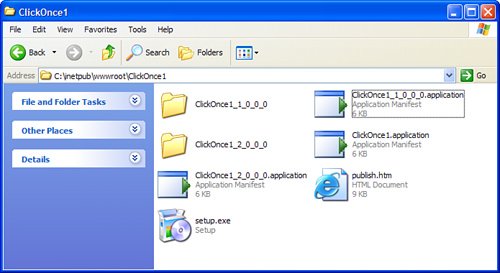 Before downloading the new version of the application, the end user receives a confirmation prompt asking if she wants to download the new version, as shown in Figure 39.6. Figure 39.6. Download ClickOnce update dialog. After you have downloaded the new update, your application should show up with the appropriate version number (2.0.0.0) and any GUI changes that you made to the application will appear. Any change that you made, code or otherwise, is associated with that specific publish version of the application. Although we developers don't like to admit it, patches sometimes have their own bugs. In fact, developers often encounter situations in which a patch causes problems worse than the ones for which the patch was intended. This isn't always the developer's faultenvironmental factors such as the client system, configuration, and OS can often cause patches and updates to fail. If this happens, the user is far from helpless. If the user had installed using a Windows Installer package, he would have to uninstall the application and try to find a copy of the previous version. With ClickOnce, all the user has to do is click the Change/Remove button next to the ClickOnce application. The user will then be prompted if he wants to restore the application to its previous state or uninstall it. Restoring the application to its previous state can undo any damage caused by the last update, restoring the user to a known working condition until she can get help from support. Note Keep in mind that this system will only undo the most recent update to the application. If you upgrade that version, and then upgrade again, you will not be able to automatically go back two versions. In that case, you would have to uninstall and start over. Every time a user gets an update, they should make sure it works, and if not, immediately undo the update and contact the application vendor. |

EAN: 2147483647
Pages: 298