Changing Your Login Screen
|
| < Day Day Up > |
|
On the art.gnome site, you may have noticed that there is a link for something called Login Manager. The Login Manager is your login screen, also known as a greeter — the screen where you type in your username and user password when you first log in to your system. The Login Manager is another thing that you can customize, but you have to have root privileges in order to do so. In addition, any changes you make will be system-wide, not just for you, so whatever Login Manager theme you install and choose will be the Login Manager theme that everyone else using your computer will see when they use the machine. Of course, if you are the only one using your machine, this point is moot.
Downloading a Login Manager Theme
In order to try customizing the Login Manager, go to the http://art.gnome.org site and click the Login Manager link. Once you’ve done this, browse through the various themes and download one or two that you want; I’m giving you free rein this time around. As with the other files you’ve downloaded thus far, be sure to download these to your Thematics folder.
Installing Your New Login Manager Theme
Once you’ve downloaded a theme or two of your liking, you need to open the Login Screen Setup window. To do this, go to the Main menu and then select System Settings > Login Screen. A dialog box asking for your root password will then open. Type in your root password, click OK, and the Login Screen Setup window will then soon appear (see Figure 5-14).
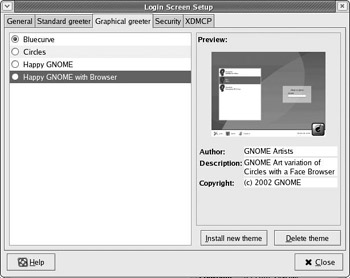
Figure 5-14: Customizing the Login Manager
Click the Graphical greeter tab at the top of the window. You will then see a list of the greeters that are included by default in your system, and you can click each one to see a thumbnail preview.
You can add the greeters you just downloaded to this list, but, unfortunately, you cannot install them by just dragging them here. Instead, you have to click the Install new theme button, but that is hardly a gargantuan task.
Once you click Install new theme, a window will open up from which you can locate your new file. Remember, the file should be located in /home/username/ Thematics. After you’ve selected your file, click OK, and it will immediately appear in the list of greeters.
To select the greeter you wish to use, just click its name in the list in the Login Screen Setup window, and then click the Close button. Of course, to see your greeter in action, you will have to log out first so you can log back in, but you needn’t restart or shut down the machine.
|
| < Day Day Up > |
|

EAN: 2147483647
Pages: 188