|
|
|
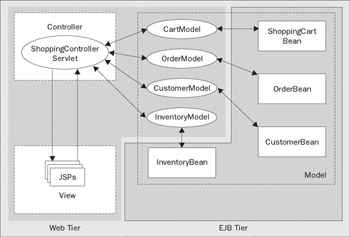
The Plants-By-WebSphere application
We will therefore create an EJB corresponding to each of the model objects. The model objects implement the following interfaces:
/** * CartModel represents a simple shopping cart. **/ public interface CartModel { /** * add a StoreItem to the Shopping Cart */ public void addItem(StoreItem si); /** * get the list of StoreItem in the Shopping Cart */ public Vector getItems(); }
/** * OrderModel represents an order placed by a customer. **/ public interface OrderModel { /** * Create an order for the list of StoreItemsrequested * by the specified customer. Return the order ID. */ public String addOrder(CustomerInfo c, Vector orderItems); } /** * InventoryModel represents an item in the store's inventory. **/ public interface InventoryModel { /** * find all Inventory items in the specified category */ public Collection findByCategory(String category); /** * find the Inventory item with the specified ID */ public StoreItem findById(String id); }
/** * CustomerModel represents a customer making an order through our system. **/ public interface CustomerModel { /** * Add a new customer */ public void addCustomer(CustomerInfo i); /** * Retrieve an existing customer */ public CustomerInfo getCustomer(String key); }
We will build four primary EJBs:
ShoppingCart
Order
Inventory
Customer
ShoppingCart
will contain temporary state while the customer
|
|
|
|
|
|
To implement our business logic with EJBs using WebSphere Studio, we will take the following steps:
Create a new EJB Project
Create the ShoppingCart stateful session bean
Create the Order CMP entity bean
Create the subordinate OrderItem CMP entity bean
Create the utility OrderIdGenerator CMP entity bean
Create a container-managed-relationship (CMR) between Order and OrderItem
Create the
Inventory
CMP entity bean and define its customer finder
Create the Customer CMP entity bean
Create ancillary session beans required by future chapters
Map the CMP entity beans to a relational database
Specify J2EE references to EJBs and resources required by the EJBs
Integrate EJBs with web module model objects
To add an EJB project to our existing Plants-By-WebSphere application, select menu option File New EJB Project . This will take you to the first dialog in a series that will step you through EJB project creation. The first dialog window enables you to choose the specification level of your EJB project:
WebSphere Studio version 5.0 supports both the EJB 1.1 and 2.0 standards. We have to choose one now, so we'll choose to create a 2.0 EJB project, because we want to use the EJB 2.0 features such as CMR and EJB Query Language later on. Click
We'll need to
EJB project are part of an enterprise application project, so we can either create a new enterprise application or add it to an existing one. Since we already have our PlantsbyWebSphereEAR enterprise application, we'll add our EJB project to that.
Click the Finish button to create the EJB project:
Now that we have our EJB project, we're ready to create our first EJB. Select menu option
File New Enterprise Bean
. This will take you to the first dialog in a series that will step you through enterprise bean creation. The first dialog window enables you to
Choose the PlantsByWebSphereEJB . Click the Next button to continue. Next choose the type of 2.0 enterprise bean that we want to create. We can choose any of the available EJB 2.0 EJB types:
The message-driven Bean (MDB) type, introduced in EJB 2.0 is a new type of EJB that is assigned to a Java Message Service (JMS) message queue. When a message arrives on the queue, the MDB is dispatched to process the message. MDBs are useful for performing asynchronous processing. We won't use an MDB for this part of the Plants-By-WebSphere development. However, in Chapter 7, we will take you through the construction of an MDB.
Naturally, session and BMP entity beans are available choices. We will be using session beans in Plants-By-WebSphere. BMP beans, unlike CMP beans, manage their own persistence, which is necessary whenever the requirements for managing an entity's persistent state exceed the capabilities of available tooling. WebSphere Studio includes powerful relational mapping tools for building CMP entity beans, but it does not address every need. Non-relational data stores and complex mappings demand a BMP approach.
With a CMP entity bean, you have two choices: either CMP 1.1 or CMP 2.0 bean style. The component models of these two specification levels are dissimilar. The 1.1 style places the CMP fields directly in the bean itself and business logic may
On the Create an Enterprise Bean dialog, select Session bean , specify the Bean name ShoppingCart and Default package com.ibm.pbw.ejb . Click Next to continue:
On the
WebSphere offers two models for stateful session beans. The first model is
This dialog also gives us the choice of local or remote interfaces for our session bean. We could have either or both. As you would expect, declaring a remote interface enables our session bean to be accessed from another process or machine. A local interface may be accessed only from
within
the application server. While offering more limited access, the local interface offers an important performance advantage. Methods on remote interfaces must support a costly pass-
We will specify only a local interface for our
ShoppingCart
session bean. When you choose only a local interface, you are making a design decision that affects the distribution capability of your components. In our case, since the Plants-By-WebSphere web components will interact with our EJBs through the local Java model objects, we are constraining our web and EJB
OK, that was a bit of a side trip! The remainder of the work for us to do on this dialog is to specify the names of our EJB artifacts: bean class, its local interface, and the local home interface. You'll notice that WebSphere Studio suggests
At this point, let's switch our view from the J2EE Navigator to the J2EE Hierarchy. This view more clearly shows the organization of our components in their containing modules, which is consistent with packaging terminology described in the EJB specification. By expanding our
ShoppingCart
EJB, we can see its
Now that we've created the basic parts that compose our ShoppingCart stateful session bean, let's add in our business methods. Business methods, as the name suggests, are those methods that provide client access to the business logic encapsulated in the bean. Business methods may provide varied degrees of functionality; for instance, methods that:
Enable a client to manipulate the state of the EJB; such as adding an item to a shopping cart.
Perform transformations against the state of the EJB; such as calculating a purchase total based on the items in the shopping cart.
Apply business rules to the EJB, possibly involving interaction with other EJBs. For example, although not a part of our design, implementing a business rule that requires maintaining a statistic of the 10 most frequently selected shopping items.
Methods declared on any of the remote home, local home, remote interface, or local interface
Each interface pair: remote and local home interface, and remote and local interface, may declare the same or different methods. As depicted in the preceding diagram, uniquely named interface methods, such as create() , and createLocal() on the remote and local home interfaces, respectively, map to correspondingly unique implementation methods in the bean class. However, if the same method is declared on both interfaces of an interface pair, such as addItem() on the remote and local interfaces, then both method instances map to the same named implementation method in the bean class.
In the case of our ShoppingCart , we have no methods on our local home, and only the addItem() and getItems() methods for our local interface. These were the ones introduced on the CartModel , as described earlier in this chapter. To add our methods, we'll need a code editor. We'll do the local interface first. From the J2EE Hierarchy view, double-click the ShoppingCart local interface to open a code window:
Next, add the method signatures for addItem() and getItem() :
public interface ShoppingCart extends javax.ejb.EJBLocalObject {
public void addItem(StoreItem si);
public Vector getItems();
}
We'll also need the
import
statements necessary to resolve the types we reference. Add an
import
for
java.util.Vector
. We also need to resolve the reference to
StoreItem
, but this class
StoreItem is a simple helper object that represents a simple, non-persistent view of a single inventory item in our Plants-By-WebSphere store. CustomerInfo provides the same function for customers. They were introduced in the presentation logic back in Chapter 4 as part of the model layer so there would be insulation between the presentation and business logic, enabling the two to be developed independently of one another. These two helper classes end up being shared between J2EE modules – between our web and EJB modules.
Since we introduced these helper classes in our web module, we now have a visibility problem between our web and EJB modules. We expected our web module to reference our EJB module, but not the other way around. This would create a circular dependency, which detracts from our ability to use business logic in another application – an application with a different presentation, for instance. This dependency would force us to drag our web module along with our EJB module as its shadow. This is not something we want to have happen. We'll fix this now by moving StoreItem and CustomerInfo from the web module to our EJB module. We will also change the package name from com.ibm.pbw.war to com.ibm.pbw.ejb to be consistent with the packaging rules we've been applying thus far in our Plants-By-WebSphere development.
Relocating
StoreItem
and
CustomerInfo
from the
PlantsbyWebSphereWAR
module to the
PlantsbyWebSphereEJB
module will leave behind a number of
To update project properties, select the project in the J2EE Hierarchy, right-click, then select
Properties
from the pop-up menu. This will bring up a dialog that contains options for a number of project-
OK then, to fix our
StoreItem
and
CustomerInfo
visibility problem, we need to update the Java Build
Then to move the two model classes, in the J2EE Navigator view simply select
com.ibm.pbw.war.StoreItem
and
com.ibm.pbw.war.CustomerInfo
from under the
Java source
folder and drag-and-drop them into the
com.ibm.pbw.ejb
folder of the
PlantsByWebSphereEJB
project. Studio can automatically correct all the references on your
You will also need to update the JSP files manually to change any references to StoreItem or CustomerInfo to be fully qualified with their new package structure. For example, on product.jsp :
com.ibm.pbw.ejb. StoreItem item = model.findById(id);
With our build problems
In the J2EE Hierarchy view, find and double-click ShoppingCartBean to open the bean class in a code window. A good way to get started with in the bean class is to cut and paste the imports and method signatures from the local interface.
Since the local interface methods
The items variable requires initialization. Nothing special, let's just assign a new Vector instance to the variable in the ShoppingCartBean ejbCreate() method, since that will receive control each time a new ShoppingCart bean is created:
package com.ibm.pbw.ejb; import java.util.Vector; public class ShoppingCartBean implements javax.ejb.SessionBean { private Vector items = null; public void ejbCreate() throws CreateException { items = new Vector(); }
To finish out our work on this bean, we need to add the
/** * Add an item to the cart. * * @param new_item Item to add to the cart. */ public void addItem(StoreItem new_item) { boolean added = false; StoreItem old_item; // If the same item is already in the cart, just increase the quantity. for (int i = 0; i < items.size (); i++) { old_item = (StoreItem) items.elementAt(i); if (new_item.equals(old_item)) { old_item.setQuantity(old_item.getQuantity() + new_item.getQuantity()); added = true; break; } } // Add this item to shopping cart, if it is a brand new item. if (! added) items.addElement(new_item); } /** * Get the items in the shopping cart. * * @return A Vector of StoreItems. */ public Vector getItems() { return items; }
The OrderModel contains only a single method:
public class OrderModel { public String addOrder(CustomerInfo
info
, Vector orderItems) { return "123"; } }
Since an order is actually a collection of order items (the things being ordered) and some additional information about the order itself, such as name/address of customer and shipping name/address, we'll have to design a scheme for handling the list of items contained in the order. When we only had EJB 1.1, we might have done something like represent the item list as a serializable object and would have mapped it to a BLOB field in the database. While that approach would work, it makes it difficult to fully exploit the strengths of the database, with regard to queries over the order items.
The EJB 2.0 specification offers additional capabilities that are useful for modeling master-detail type business abstractions, such as order-orderItem. Container-managed-relationships (CMR) and EJB query language (EJB QL) are two EJB 2.0 features that are helpful in these cases. We will use both of these before we are finished with the Order EJB.
So while building our
Order
EJB, we'll create an additional CMP EJB, which we'll call
OrderItem
, to model the detail portion of the
Order
abstraction. Entity beans are key-referenced persistent objects. We'll need a way to generate key values for our
Order
EJB. Order
We'll start by creating the Order EJB itself. Select menu option File New Enterprise Bean to bring up the Create an Enterprise Bean dialog again. This time we'll create a 2.0 CMP entity bean, and name it Order :
Click
Next
to continue. For the same reason we outlined for
ShoppingCart
, we'll define only local interfaces for our
Order
CMP bean. We could always add a remote interface to our
Order
implementation if requirements demanded such a thing in the future. For now, we'll stick with local. Again, let's remove the
Since EJBs are keyed objects, we'll need a key class. WebSphere Studio suggests a default key class, OrderKey , which is fine, so we'll stick with it.
As per the EJB specification, entity beans have container-managed fields, and possibly container-managed relationships. These are defined in the entity bean's deployment descriptor. There are three ways we can define CMP fields:
Through the EJB creation dialog
Through WebSphere Studio's Deployment Descriptor editor
By directly editing the ejb-jar.xml deployment descriptor file
We'll add our CMP fields through the creation dialog. We can always go into the Deployment Descriptor editor later if we need to add, change, or delete anything. We'll leave the direct editing the
ejb-jar.xml
file to those of you who prefer wilderness survival and
Adding CMP fields through the dialog is easy, just click the Add button on the Create Enterprise Bean dialog and add the fields through the following dialog:
Enter field name and field type. We must also consider the following options and check any that apply:
Array – check this box if the field is not a single item, but rather an array of items of the same type
Key Field – check this box if the field is the key for this EJB or a part of the key
Promote getter/setter methods to remote interface – check this box if a getter and setter should appear in the remote interface for this EJB
Promote getter/setter methods local interface – same as previous option, except it applies to the local interface.
The Order EJB comprises the following fields:
|
Field Name |
Field Type |
Additional Options |
|---|---|---|
|
orderId |
java.lang.String |
key field |
|
sellDate |
java.lang.String |
|
|
customerId |
java.lang.String |
|
|
billName |
java.lang.String |
|
|
billAddr1 |
java.lang.String |
|
|
billAddr2 |
java.lang.String |
|
|
billCity |
java.lang.String |
|
|
billState |
java.lang.String |
|
|
billZip |
java.lang.String |
|
|
billPhone |
java.lang.String |
|
|
shipName |
java.lang.String |
|
|
shipAddr1 |
java.lang.String |
|
|
shipAddr2 |
java.lang.String |
|
|
shipCity |
java.lang.String |
|
|
shipState |
java.lang.String |
|
|
shipZip |
java.lang.String |
|
|
shipPhone |
java.lang.String |
|
|
creditCard |
java.lang.String |
|
|
ccNum |
java.lang.String |
|
|
ccExpireMonth |
java.lang.String |
|
|
ccExpireYear |
java.lang.String |
|
|
cardholder |
java.lang.String |
|
|
shippingMethod |
int |
|
|
profit |
float |
We can enter each field in
| Note |
The pre-release version of WebSphere Studio we used to build this application failed to generate the OrderKey class that we specified when we initially created this EJB. Because we specified only a single key field, Studio generated the signature of the default create and finder methods on the local home interface implementation using only the same type as the key field:
public Order findByPrimaryKey( String orderID ) throws javax.ejb.FinderException; public Order create( String orderID ) throws javax.ejb.CreateException; rather than:
public Order findByPrimaryKey( OrderKey pKey ) throws javax.ejb.FinderException; public Order create( OrderKey pKey ) throws javax.ejb.CreateException; This small oversight should be addressed in WebSphere Studio by the time you are reading this book, since the general release version of Studio will be out by that time. However, if for any reason you find yourself using a level of Studio that exhibits this same key construction behavior, you can apply the following technique to get Studio to do what you want. In the Deployment Descriptor editor, you will find the following set of controls on the Bean tab:
These controls allow you to configure the primary key. To force Studio to build the key class that we specified, simply add an additional field to the primary key, for example sellDate . Studio will then build our specified key class, OrderKey , and rebuild the default create and finder methods. Then simply remove sellDate from the primary key. Studio will then rebuild the OrderKey class – this time based only on our remaining key attribute, orderId . Voila! We have our key class. |
While we're thinking about primary keys and home methods, we should add a custom
create()
method to
OrderHome
to enable us to create a new
Order
, passing all necessary values required to have a fully
public Order create(String customerID, String billName, String billAddr1, String billAddr2, String billCity, String billState, String billZip, String billPhone, String shipName, String shipAddr1, String shipAddr2, String shipCity, String shipState, String shipZip, String shipPhone, String creditCard, String ccNum, String ccExpireMonth, String ccExpireYear, String cardHolder, int shippingMethod, java.util.Vector items) throws javax.ejb.CreateException;
Following the same basic steps that we took to create the Order bean, create the OrderItem and OrderIdGenerator 2.0 CMP EJBs.
OrderItem has the following attributes:
|
General Attributes |
|
|---|---|
|
Bean class |
com.ibm.pbw.ejb.OrderItemBean |
|
JNDI Name |
plantsby/OrderItemHome |
|
Local home interface |
com.ibm.pbw.ejb.OrderItemHome |
|
Local interface |
com.ibm.pbw.ejb.OrderItem |
|
Key class |
com.ibm.pbw.ejb.OrderItemKey |
|
CMP Attributes |
|
|
indx (primary key) |
int |
|
inventoryId |
java.lang.String |
|
name |
java.lang.String |
|
pkgInfo |
java.lang.String |
|
price |
float |
|
cost |
float |
|
quantity |
int |
|
category |
int |
|
sellDate |
java.lang.String |
We'll also need the following custom create() method on the OrderItemHome interface:
public OrderItem create(Order order, OrderKey orderKey, String inventoryID, String name, String pkgInfo, float price, float cost, int quantity, int category, String sellDate, int indx ) throws javax.ejb.CreateException;
OrderIdGenerator has the following attributes:
|
General Attributes |
|
|---|---|
|
Bean class |
com.ibm.pbw.ejb.OrderIdGeneratorBean |
|
JNDI Name |
plantsby/OrderIdGeneratorHome |
|
Local home interface |
com.ibm.pbw.ejb.OrderIdGeneratorHome |
|
Local interface |
com.ibm.pbw.ejb.OrderIdGenerator |
|
Key class |
com.ibm.pbw.ejb.OrderItemKey |
|
CMP Attributes |
|
|
pKey (primary key) |
int |
|
orderId |
int |
The container-managed relationship, or CMR, support specified by the EJB 2.0 specification is a very useful capability for use in modeling and generating the implementation code for relationships between 2.0 CMP EJBs. The specification supports one-to-one, one-to-many, and many-to-many relationships. The way it works is that the related bean(s) is exposed as a CMR field – in the same spirit as a CMP field – in the source bean. WebSphere Studio automatically generates a getter and setter for the CMR field. A get or set on the CMR field triggers all necessary underlying events on the related bean(s) to either load it into the container or establish it as part of the relationship with the source bean. This saves us writing a bunch of code by hand.
To define a CMR, open the EJB Deployment Descriptor editor. Switch to Overview tab, if not already there. Scroll down until the area labeled Relationships 2.0 is in view. Click the Add button to open the Relationship definition dialog:
Select Order on the left – this is the "from" side of the relationship. Choose OrderItem on the right – this is the "to" side of the relationship. Click the Next button to continue:
Select Many as the multiplicity for OrderItem . Note that this makes the CMR field type in Order into a collection. Click Finish .
Our
This requires that we make the relationship part of the key. This is done in the EJB Deployment Descriptor editor:
Select the Order relationship and click the Add to Key button. While this may not seem entirely intuitive, it will define the foreign key from OrderItem back to Order as part of the primary key of OrderItem . This is exactly what we want. This will become clearer once we do the data mapping for our CMP EJBs. We'll do this a little further on in this chapter.
At this level of our Plants-By-WebSphere design, there is no special business logic, no particular business rules, that we require from our Order EJB. We need only the business abstraction itself – a functioning order object. We already introduced the create method signatures for our Order and OrderItem EJBs. Now we just need to provide the implementations. As we have an EJB relationship (CMR) between these two EJBs, we need to add some additional code in their create methods in order to actually connect the Order to its related OrderItems .
The basic logic goes like this:
Order
Get an OrderId
Store create parameters in CMP fields
Create OrderItem collection from StoreItem vector
Store OrderItem collection in CMR field
OrderItem
Store Order in CMR field
Since our
Order
and
OrderItem
hold a reference to one another, and we have
Let's consider the following object interaction diagram, in order to get a better understanding of the logic flow:
Order 's ejbCreate() is driven by the EJB container in response to a call on OrderHome.create(…) . In Order.ejbCreate() , we get a new orderId from the OrderIdGenerator . Order 's ejbPostCreate() is similarly driven by the EJB container. In Order.ejbPostCreate() , we create the OrderItem collection. The EJB container calls ejbCreate() and ejbPostCreate() on each OrderItem we create. In OrderItem.ejbPostCreate() , we update the CMR field with our Order reference. Lastly, we update Order 's CMR field with the fully-formed OrderItem collection.
This code is straightforward and predictable. It simply does three things:
Stores input parameters in CMP fields, using CMP field setter methods
Calls the OrderIdGenerator bean to get the next order ID
Builds and returns an OrderKey
public OrderKey ejbCreate(String customerID, String billName, String billAddr1, String billAddr2, String billCity, String billState, String billZip, String billPhone, String shipName, String shipAddr1, String shipAddr2, String shipCity, String shipState, String shipZip, String shipPhone, String creditCard, String ccNum, String ccExpireMonth, String ccExpireYear, String cardHolder, int shippingMethod, java.util.Vector items) throws CreateException { setCustomerID(customerId); setBillName(billName); setBillAddr1(billAddr1); setBillAddr2(billAddr2); setBillCity(billCity); setBillState(billState); setBillZip(billZip); setBillPhone(billPhone); setShipName(shipName); setShipAddr1(shipAddr1); setShipAddr2(shipAddr2); setShipCity(shipCity); setShipState(shipState); setShipZip(shipZip); setShipPhone(shipPhone); setCreditCard(creditCard); setCcNum(ccNum); setCcExpireMonth(ccExpireMonth); setCcExpireYear(ccExpireYear); setCardholder(cardHolder); setShippingMethod(shippingMethod); String sellDate = Long.toString(System.currentTimeMillis()); //Pad it to 14characters to sorting works properly if (sellDate.length() < 14) { StringBuffer sb = new StringBuffer(Util.ZERO_14); sb.replace((14 – sellDate.length()), 14, sellDate); sellDate = sb.toString(); } setSellDate(sellDate); int orderInt = OrderIdGeneratorHelper.nextId(); String orderID = Integer.toString(orderInt); setOrderId(orderID); OrderKey orderKey = new OrderKey(orderID); return orderKey; }
The OrderIdGenerator EJB is mapped to a relational database table consisting of only a single row. The primary key value of this single row is "1". The OrderIdGeneratorHelper class is a simple class that encapsulates the details of accessing the OrderIdGenerator EJB and getting the next order ID. This class handles the JNDI lookup on the OrderIdGeneratorHome , executes a findByPrimaryKey() method on that home to locate the one and only OrderIdGenerator EJB instance, then invokes the nextId() method on the OrderIdGenerator interface to acquire the next available order ID:
package com.ibm.pbw.ejb; public class OrderIdGeneratorHelper { static int nextId() { int i; try { javax.naming.InitialContext ctx = new javax.naming.InitialContext(); OrderIdGeneratorHome orderGeneratorHome = (OrderIdGeneratorHome) ctx.lookup("java:comp/env/ejb/OrderIdGeneratorHome"); OrderIdGenerator orderIdGenerator = orderGeneratorHome.findByPrimaryKey(new OrderIdGeneratorKey(1)); i = orderIdGenerator.nextId(); return i; } catch(Exception e) { e.printStackTrace(); throw new RuntimeException(); } } }
This requires us to add the nextId() method to the OrderIdGenerator EJB:
public int nextId() { int i = getOrderId(); i++; setOrderId(i); return i; }
This method is where we create the OrderItem EJBs, aggregate them into a collection, then assign the collection to the Order EJB's CMR field. Naturally, we do a JNDI lookup to access the OrderItem EJB home and drive its create() method to create each OrderItem EJB:
public void ejbPostCreate(String customerID, String billName, String billAddr1, String billAddr2, String billCity, String billState, String billZip, String billPhone, String shipName, String shipAddr1, String shipAddr2, String shipCity, String shipState, String shipZip, String shipPhone, String creditCard, String ccNum, String ccExpireMonth, String ccExpireYear, String cardHolder, int shippingMethod, Vector items) throws CreateException { this.items = (Vector) items.clone(); Vector orderItems = new Vector(); OrderKey orderKey = (OrderKey) this.myEntityCtx.getPrimaryKey(); try { javax.naming.InitialContext ctx= new javax.naming.InitialContext(); OrderItemHome orderItemHome= (OrderItemHome) ctx.lookup("java:comp/env/ejb/OrderItemHome"); for (int i = 0; i < items.size(); i++) { StoreItem si; si = (StoreItem) items.elementAt(i); OrderItem item= orderItemHome.create( (Order) this.myEntityCtx.getEJBLocalObject(), orderKey, si.getId(), si.getName(), si.getPkgInfo(), si.getPrice(), si.getCost() si.getQuantity(), si.getCategory(), si.getSellDate(), i); orderItems.add(item); } setOrderitem(orderItems); } catch (Exception e) { throw new EJBException(e); } }
This method is straightforward; it simply uses the input parameters to set the
OrderItem
bean's CMP fields. Remember that the
OrderItem
key is
public OrderItemKey ejbCreate(Order order, OrderKey orderKey, java.lang.String inventoryID, java.lang.String name, java.lang.String pkgInfo, float price, float cost, int quantity, int category, java.lang.String sellDate, int indx ) throws javax.ejb.CreateException { setInventoryId(inventoryID); setName(name); setPkgInfo(pkgInfo); setPrice(price); setQuantity(quantity); setCategory(category); setSellDate(sellDate); setIndx(indx); this.setOrder_orderId(orderKey.orderId); return null; }
This method's purpose is only to store the input Order EJB in OrderItem 's CMR field.
public void ejbPostCreate(Order order, OrderKey orderKey, java.lang.String inventoryID, java.lang.String name, java.lang.String pkgInfo, float price, float cost, int quantity, int category, java.lang.String sellDate, int indx ) throws javax.ejb.CreateException { this.setOrder(order); }
Where there are shopping carts and orders, inventory cannot be far behind. We will build an Inventory EJB as our next business abstraction. We can follow the same basic steps as we did for our other 2.0 CMP EJBs, earlier in this chapter. The following attributes describe the essential characteristics of the Inventory EJB:
|
General Attributes |
|
|---|---|
|
Bean class |
com.ibm.pbw.ejb.InventoryBean |
|
JNDI Name |
plantsby/InventoryHome |
|
Local home interface |
com.ibm.pbw.ejb.InventoryHome |
|
Local interface |
com.ibm.pbw.ejb.Inventory |
|
Key class |
com.ibm.pbw.ejb.InventoryKey |
|
CMP Attributes |
|
|
inventoryId (primary key) |
java.lang.String |
|
name |
java.lang.String |
|
description |
java.lang.String |
|
pkgInfo |
java.lang.String |
|
image |
java.lang.String |
|
imgBytes |
byte Array field (dimension = 1) |
|
price |
float |
|
cost |
float |
|
category |
int |
|
quantity |
int |
The InventoryHome interface will provide the following create() method signatures:
public abstract Inventory create(InventoryKey key, String name, String desc, String pkgInfo, String image, float price, float cost, int quantity, int category) throws CreateException; public Inventory create(StoreItem item) throws javax.ejb.CreateException;
With complementary ejbCreate() and ejbPostCreate() methods like so (these are straightforward because there is no CMR relationship to manage):
public InventoryKey ejbCreate(InventoryKey key, String name, String desc, String pkgInfo, String image, float price, float cost, int quantity, int category) throws CreateException { setInventoryId(key.inventoryId); setName(name); setDescription(desc); setPkgInfo(pkginfo); setImage(image); setPrice(price); setCost(cost); setQuantity(quantity); setCategory(category); return null; } public void ejbPostCreate(InventoryKey key, String name, String desc, String pkgInfo, String image, float price, float cost, int quantity, int category) throws CreateException { } public InventoryKey ejbCreate(StoreItem item) throws javax.ejb.CreateException { setInventoryId(item.getId()); setName(item.getName()); setDescription(item.getDescr()); setPkgInfo(item.getPkgInfo()); setImage(item.getImageLocation()); setPrice(item.getPrice()); setCost(item.getCost()); setQuantity(item.getQuantity()); setCategory(item.getCategory()); return null; } public void ejbPostCreate(StoreItem item) throws CreateException {}
Now that we have an actual inventory representation, we can wire up the StoreItem bean to get its data from an Inventory EJB through a new constructor:
public StoreItem(Inventory inv) { this.id = inv.getInventoryId(); this.name = inv.getName(); this.imageLocation = inv.getImage(); this.price = inv.getPrice(); this.pkgInfo = inv.getPkgInfo(); this.descr = inv.getDescription(); this.quantity = inv.getQuantity(); this.category = inv.getCategory(); this.cost = inv.getCost(); }
The design requirements for the
Inventory
EJB allow us to get a closer look at another EJB 2.0 feature: the EJB Query Language. The EJB Query language, or EJB QL for short, is a SQL-like language for
Our Plants-By-WebSphere design requires the following custom finders:
public abstract Collection findByCategory(int category) throws FinderException; public abstract Collectin findByNameLikeness(java.lang.String name) throws FinderException;
To implement a custom finder an a 2.0 CMP, you must first add a query. Open to the Bean tab of the EJB Deployment Descriptor editor, scroll down to find Queries and click the Add button to open the query creation dialog:
Specify this is a new local find method named findByCategory that takes an integer parameter, which will represent the category selection, and returns a collection. Click the Next button to continue.
In the next dialog window we can compose the EJB QL statement that will form the basis of this finder's implementation. Enter the appropriate EJB QL statement and click the Finish button to complete the custom finder:
While we're defining custom finders, add this additional finder to Inventory :
Finally, our Inventory bean contains some constants for determining the store category that the inventory item belongs to:
public static int FLOWERS = 0; public static int FRUIT = 1; public static int TREES = 2; public static int ACCESSORIES = 3;
We'll see these in use later in the chapter when we connect our EJBs up to the web application.
The Customer EJB introduces no new concepts. We can simply build this EJB using the techniques we have already utilized in this chapter to build this additional CMP entity according to the following table of attributes:
|
General Attributes |
|
|---|---|
|
Bean class |
com.ibm.pbw.ejb.CustomerBean |
|
JNDI Name |
plantsby/CustomerHome |
|
Local home interface |
com.ibm.pbw.ejb.CustomerHome |
|
Local interface |
com.ibm.pbw.ejb.Customer |
|
Key class |
com.ibm.pbw.ejb.CustomerKey |
|
CMP Attributes |
|
|
customerId (primary key) |
java.lang.String |
|
password |
java.lang.String |
|
firstName |
java.lang.String |
|
lastName |
java.lang.String |
|
addr1 |
java.lang.String |
|
addr2 |
java.lang.String |
|
city |
java.lang.String |
|
state |
java.lang.String |
|
zip |
java.lang.String |
|
phone |
java.lang.String |
As with the Inventory bean, we'll create customer constructors for the create methods:
public Customer create(CustomerKey key, String password, String firstName, String lastName, String addr1, String addr2, String addrCity, String addrState, String addrZip, String phone) throws CreateException; public CustomerKey ejbCreate(CustomerKey key, String password, String firstName, String lastName, String addr1, String addr2, String addrCity, String addrState, String addrZip, String phone) throws CreateException { setCustomerId(key.customerId); setPassword(password); setFirstName(firstName); setLastName(lastName); setAddr1(addr1); setAddr2(addr2); setCity(addrCity); setState(addrState); setZip(addrZip); setPhone(phone); return null; } public void ejbPostCreate(CustomerKey key, String password, String firstName, String lastName, String addr1, String addr2, String addrCity, String addrState, String addrZip, String phone) { }
There's also an additional business method that will allow a customer's details to be updated:
public void update(String firstName, String lastName, String addr1, String addr2, String addrCity, String addrState, String addrZip, String phone) { setFirstName(firstName); setLastName(lastName); setAddr1(addr1); setAddr2(addr2); setCity(addrCity); setState(addrState); setZip(addrZip); setPhone(phone); }
We will also need to add a constructor to our CustomerInfo model to load our model with data from the Customer EJB:
public CustomerInfo(Customer customer) { email = customer.getCustomerID(); firsName = customer.getFirstName(); lastName = customer.getLastName(); addr1 = customer.getAddr1(); addr2 = customer.getAddr2(); city = customer.getCity(); state = customer.getState();zipcode = customer.getZip(); phone = customer.getPhone(); }
This completes the work on our Customer EJB, which was the last EJB we needed to develop in order to satisfy the model requirements of our Plants-By-WebSphere application MVC design, as described at the start of this chapter.
While this chapter has focused primarily on the EJBs required to implement the models introduced in Chapter 4, there is an additional session bean, Catalog , which provides a remote, additional abstraction over the Inventory entity bean, providing a catalog metaphor. This bean is used in later chapters, such as the web services chapter.
As this bean is just a session abstraction we won't detail the coverage of it here. Its remote interface merely looks like this:
package com.ibm.pbw.ejb; import java.rmi.RemoteException; import java.util.Vector; public interface Catalog extends javax.ejb.EJBObject { public StoreItem[] getItems() throws RemoteException; public StoreItem[] getItemsByCategory(int category) throws RemoteException; public StoreItem[] getItemsLikeName(String name) throws RemoteException; public StoreItem getItem(String inventoryID) throws RemoteException; public boolean addItem(StoreItem item) throws RemoteException; public boolean deleteItem(String inventoryID) throws RemoteException; public void setItemName(String inventoryID, String name) throws RemoteException; public void setItemDescription(String inventoryID, String desc) throws RemoteException; public void setItemPkginfo(String inventoryID, String pkginfo) throws RemoteException; public void setItemCategory(String inventoryID, int category) throws RemoteException; public void setItemImageFileName(String inventoryID, String imageName) throws RemoteException; public byte[] getItemImageBytes(String inventoryID) throws RemoteException; public void setItemImageBytes(String inventoryID, byte[] imgbytes) throws RemoteException; public float getItemPrice(String inventoryID) throws RemoteException; public void setItemPrice(String inventoryID, float price) throws RemoteException; public void setItemCost(String inventoryID, float cost) throws RemoteException; public void setItemQuantity(String inventoryID, int amount) throws RemoteException; }
As you can see it has getters and setters that map to those on the Inventory model.
You can find the complete code for this bean in the source code bundle for this chapter on one of the
CMP entity beans, by their very nature, are designed as persistent objects. That means their state is
For our application, we will use the bundled Cloudscape relational database. Cloudscape is a simple relational database that uses the file system as a backing store.
Relational schema mapping is all about specifying which EJB CMP fields map to which relational database table fields. The mapping process will result in generated code, containing SQL statements, which the EJB container will use to perform database operations on the EJB. There are three mapping models from which to choose:
Top-down
A top-down mapping creates an EJB-to-table mapping that assumes the EJB name is the table name and that the CMP field names and types are the names and types of the table
Meet-in-middle
A meet-in-middle mapping allows CMP fields to be mapped to existing database tables. The mapping tools allow individual CMP fields to be mapped to individual table columns. The names do not need to match, type conversions are possible through the use of special converter classes, and mapping an EJB to multiple database tables is possible.
Bottom-up
A bottom-up mapping creates an EJB and its CMP field names and types based on the definition of an existing database table.
For Plants-By-WebSphere, we will do a top-down mapping, since our tables are new and our mapping is straightforward.
Right-click on the PlantsByWebSphereEJB project, then select Generate EJB to RDB Mapping … from the menu:
Since this is our first database mapping, our only choice is to create a new backend folder. Click the Next button to continue.
Next choose Top Down as our mapping approach, as we just discussed. Click Next .
The next dialog window allows us to choose the type of database for which we are generating a mapping. We also specify the database and schema name. Schema name, in case you know it by another term, is the table qualifier that
You can create multiple mappings for your EJBs – one for each database you intend to use. For example, you might use Cloudscape for unit testing, and DB2 for production. WebSphere supports a number of relational databases, including:
DB2
Cloudscape
Informix
Sybase
Oracle
SQL Server
On this window you may also choose to have DDL generated, which you can use to create the target database tables for your EJBs.
For our purposes, we will map to a Cloudscape database named PLANTSDB . Specify NULLID as the schema name. This is a reserved keyword in WebSphere Studio that means there is to be no schema name used in the table reference of the generated SQL statements. Click Finish to generate the mapping.
At this point, a confession is in order: we actually have an existing
PLANTDB
database (provided on the CD), which was created through an earlier Plants-By-WebSphere effort. It was created through a top-down mapping process and is ready and primed with inventory data for our use. We'll leverage that database here, so we don't have to repeat the table creation and
In the J2EE Navigator view, you will find a back-end folder for our nearly created Cloudscape mapping. The folder includes the table definitions that were generated by the mapping process. Double-click a table name to open an editor:
In the editor, change the table name from ORDER1 to ORDERINFO to match our existing PLANTSDB database. Also change the ORDERIDGENERATOR table to ORDERID and ORDERITEM to ORDERITEMS (note the " S " at the end).
Change the name of columns CITY , STATE , and ZIP in the CUSTOMER table to ADDRCITY , ADDRSTATE , and ADDRZIP respectively.
Lastly, change the name of the foreign key field in the ORDERITEMS table from ORDER_ORDERID to just ORDERID .
The next necessary step is to define the EJB references. As per the EJB specification, EJB references are the declarative mechanism by which an EJB developer makes it known that one EJB depends on another. Such a dependency requires the dependent EJB gain access to its provider EJB's local or remote home interface. This access is achieved through a JNDI lookup. The EJB reference serves two purposes then:
Informs the application assembler or deployer what other EJBs are required to deploy a particular EJB.
Provides a level of indirection by enabling the bean developer to specify and use a symbolic JNDI lookup name in their EJB, which is resolved lazily during application assembly or installation.
While building the business logic, we'll only declare the external dependencies that our components have. Resolving these dependencies is an application assembly and installation activity, which we will
To declare an EJB reference, let's go to the References tab of the EJB Deployment Descriptor editor. Select the referencing EJB and click the Add button. Let's add the Order EJB's references first.
The Add Reference dialog first asks what kind of reference we want to declare. In the case of the Order EJB, it has references to both the OrderItem and OrderIdGenerator EJBs. As these two EJBs have only local interfaces, we clearly want to use a local EJB reference:
In fact, we would probably always prefer local EJB interfaces – even if remote interfaces are available on the target EJB – because local interfaces always perform better than remote. Local interfaces are perfectly fine as long as our design requirements allow the referencing and referenced EJBs to be co-located in the same application server. If the design requires that these EJBs be distributable across separate application servers, then we would have to specify a remote interface reference. Click the Next button to continue.
The final step in declaring an EJB reference is to identity the EJB type to which we are making reference. The Order bean references OrderIdGenerator bean. We will complete the reference declaration on the following dialog window:
Specify:
Name
:
ejb/OrderIdGeneratorHome
This is the local name by which the
Order
bean will look up the
OrderIdGenerator
bean's home in JNDI.
Type
:
Entity
This specifies the EJB type to which this reference refers. It is an assembly hint.
Local
:
com.ibm.pbw.ejb.OrderIdGenerator
This specifies the bean type to which this reference refers. This is another assembly hint.
Local home
:
com.ibm.pbw.ejb.OrderIdGeneratorHome
This specifies the bean home type to which this reference refers. This is the final assembly hint.
Click the Finish button to complete this EJB reference declaration.
Add additional local EJB references to our PlantsByWebSphereEJB module according to the summary table below:
|
Bean |
Name |
Local |
LocalHome |
|---|---|---|---|
|
Order |
ejb/Order
|
com.ibm.pbw.ejb.OrderItem |
com.ibm.pbw.ejb.OrderItemHome |
|
OrderItem |
ejb/Order |
com.ibm.pbw.ejb.Order |
com.ibm.pbw.ejb.OrderHome |
|
|
|