WebSphere Studio Overview
|
The WebSphere Studio family consists of a series of products, with increasing capability for the creation of WebSphere applications. A more detailed description of each product is provided later, but in addition to being built on Eclipse, each edition shares a number of common features and design principles. The different editions offer additional perspectives that provide a role-based development experience. They are:
-
Site Developer
This edition is intended for professional developers of dynamic web applications and sites. It delivers integrated support for open web standards, including servlets, JSP pages, XML, and web services tools. It includes a highly integrated WebSphere Application Server test environment and deployment automation tools. -
Application Developer
This includes all of the function of Site Developer and adds support for programmers working on business logic (including advanced web services and EJBs). It also adds support for tracing application execution (even across multiple machines), and sophisticated profiling and performance analysis. -
Application Developer Integration Edition
This includes all the functions of Application Developer, and adds a fully service-oriented development environment for business and enterprise application integration. It provides tools for the creation of micro-flows (which are short lived sequences of different application and function invocations) and macro-flows (which are long running, persistent, and restartable sequences of different application and function invocations). Finally a visual builder is provided to assemble the various flows, and choreograph the complete application. -
Enterprise Developer
This includes all the functions of Application Developer Integration Edition, and adds tools to aid in the creation of new EIS applications. This includes support for remote editing/compiling/debugging of COBOL and PL/1 applications, and RAD (Rapid Application Development) tools that allow the graphical creation and generation of integrated web applications.
The diagram below shows how all the editions are inter-related:
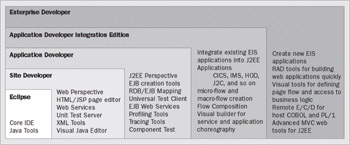
All editions embody the same basic design principles, and all are a proper superset of the preceding product. Eclipse, and by extension WebSphere Studio, stores its resources in the file system, and not in a proprietary repository as VisualAge for Java did. WebSphere Studio extends this model to the metadata that is used to define the various J2EE artifacts as well.
There are multiple editors for manipulating documents, such as web and EJB deployment descriptors, relational schema descriptions, WebSphere server configuration files, and others, but the underlying data is represented as a file. The location and content of the J2EE-defined files is exactly as required by the J2EE specification, meaning that you can go back to the Navigator view at any time, and edit the files with a simple text editor if desired.
WebSphere Studio has been designed with the goal of producing server-side applications, which require a pre-defined specification. What you see on the screen (and in the file system) matches the format required by the applicable specification, and is automatically maintained in the correct structure required for execution on the server.
There are several examples of this, the most obvious being that every J2EE module (WAR/JAR/EAR) is represented as a distinct project in WebSphere Studio. There is a single folder within each such project that represents the contents of the module as required on the server, and specification-required directories (such as /META-INF for EJBs, and /WEB-INF for WARs) are nested in them and populated automatically.
This means that there is no magic required when a project is exported; files need not be moved to a different location, every file that is contained in the folder is exported. The result is an extremely clear distinction of which files should be contained in the resulting application, without the overhead of having to maintain an inclusion or exclusion list. There are typically many more files that are associated with a server-side module than you wish to physically include. Source code, design documents, and test cases are but a few examples of other files that can be easily stored as part of the project as a result of the WebSphere Studio design, with no risk of their accidental inclusion in the resulting application.
Transitioning to a new server version can take some time to implement across your company. WebSphere Studio version 5.0 now includes the ability to work with two versions of WebSphere, version 4.0 and version 5.0. This support ripples across all the tools in WebSphere Studio and will be described in detail below, but the net effect is that you will be prompted for the desired version of the artifacts as you create them. Both J2EE 1.2 and 1.3 project types can exist concurrently in your workbench.
WebSphere Studio User Interface
When you first start WebSphere Studio, you will see a screen that appears very similar to that seen with the base Eclipse. This highlights the fact that Studio is built on top of Eclipse, and every view and function that is available within Eclipse is also available within Studio. Of course, there are many additional functions that are only available as part of Studio, but we will start by introducing the basic Eclipse user interface. The opening screen will appear similar to this:
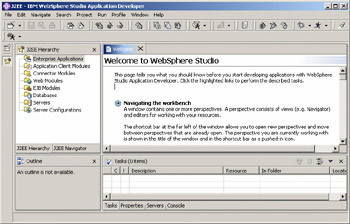
The WebSphere Studio window is both context sensitive and user configurable, but there are some core pieces present in almost every situation. In the top-left is a Navigator view, showing the physical resources in your projects. Each project, contained folder, and resource in the Navigator view represents a directory or file in the file system. There are other views that provide a simplified rendering of the resources, but if you need to see what is really there, the Navigator view will show you.
In the top-right pane is the editor area, although the actual editor that will be used is dependent on the resource. Multiple resources can be edited concurrently, and the filenames will appear in tabs at the top of the Editor view.
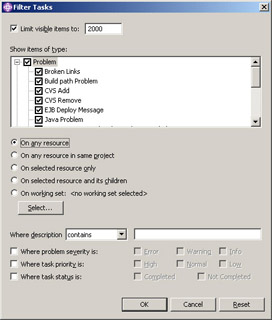
In the lower-right pane is the Tasks view. An Eclipse "task" is something that is pending to be done. Most tasks are created by Studio for you, and indicate problems in the code that you will need to correct; examples include compilation errors, warnings, and validation messages. You can also add your own tasks on any resource, as reminders of things that still need to be completed. Tasks are associated with a specific file and line number (optionally), so you can double-click on a task and the appropriate editor will be opened. For a large set of projects, the task list can grow quite long, so there is a filtering mechanism available. Clicking on the arrows icon in the title bar of the tasks pane will display the tasks filtering dialog, allowing the tasks that appear in the view to be restricted to those you select:
Finally, in the lower-left pane is the Outline view. This can be used to provide a quick overview of the resource being edited. Depending on the editor in question, you can actually navigate the resource from the Outline view, and in some cases make changes as well.
As mentioned earlier, the actual organization of the different panes and views is quite configurable. Each pane can be moved or closed, and different organizations can be saved and reopened. The overall grouping of a set of views, and the actions that are available in that view, is called a perspective. The perspective concept allows common views to be easily available, and pre-positioned for a particular set of tasks, or role. The filtering of actions is a useful way to limit the size of menus to only those actions required.
A new perspective can open automatically when you create new resources, or you can manually select a new perspective from the menu in the window. You can have multiple perspectives open at the same time. An icon on the left side of the overall window represents each perspective; here you can quickly switch between them simply by clicking on the appropriate icon.
Source-Code Management
Eclipse provides a pluggable team support mechanism, allowing the use of any Source-Code Management (SCM) system as your underlying repository. Using the defined plug-in points, the normal suite of WebSphere Studio editors can be used without requiring any special team support integration. Since the files that compose a project exist on the file system, catching up with other streams of code, and checking data in and out is easy. The fact that WebSphere Studio uses only textual (and specification-defined) metadata files is also a benefit, as it greatly simplifies the task of comparing multiple versions of the files.
Many SCM vendors are participating in the Eclipse effort, and have compliant plug-ins available that allow use of their system with the product. A complete list of Eclipse-enabled SCM vendors is available at http://www.eclipse.org/community, and the list includes PVCS from Merant, MKS Source Integrity, and Interwoven TeamSite.
However, one SCM is actually included with WebSphere Studio: Rational ClearCase LT, which provides outstanding support for parallel development, and is fully integrated with WebSphere Studio. With automatic branching and snapshot views, ClearCase LT enables multiple developers to efficiently design, code, test, and enhance software from a common code base.
The other SCM that is supported out of the box, is the open source CVS. All aspects of CVS usage are available via the integrated WebSphere Studio team structure. Eclipse supports CVS server version 1.11.1p1 or higher, running on a Linux or UNIX server. Accessing CVS from a Windows client is fully supported, but Eclipse does not officially support running CVSNT on a Windows server (although varied degrees of success have been achieved). In this case, CVSNT version 1.11.1.1 or higher must be used.
The Java Perspective
To highlight the configurability of the user interface, let us examine the Java perspective, which is designed for the developer working on Java code, such as a client-side application. The Java tools are also reused in Web and EJB projects, so everything described here is also applicable to those project types. The Java perspective replaces the Navigator view with a Java packages view, in which the nested directories that are used to represent packages in the file system are shown as a single object representing each package. The Editor view is unchanged, but the Java editor (which is available from any perspective when editing Java files) is shown in the following screenshot. The Java editor includes many advanced features, including code assist, syntax highlighting, refactoring, and formatting support:
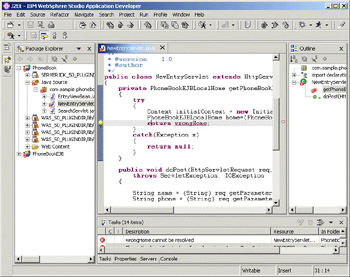
In the screenshot, a syntax error has been shown, which the incremental Java compiler has detected. An x appears in the Packages view on the offending file and in the editor on the offending line, and the Tasks view lists the actual error.
The Outline view is moved to the right of the Editor view in the Java perspective, and an outline of the source file being edited is presented. This makes navigation within the file easy, and several actions (such as searching for references to a method) are available from the Outline view.
Debugger
The Java perspective includes an integrated debugger, allowing you to set breakpoints using the Java editor. All common debugger operations are available, such as the ability to view the call stack, step over or into statements, and view and modify variables. The Studio embedded Unit Test Environment (described later) uses the standard debugger view. You can seamlessly debug client-side or server-side Java applications, even if the application is running on a remote server.
|

EAN: N/A
Pages: 135