Section 5.5. Advanced Configuration
|
5.5. Advanced ConfigurationIn Chapter 2, I walked you through the essential configuration changes that you should make when you first start using Firefox, and in Appendix B, I cover the rest of your configuration choices in detail. In both cases, you use Tools
5.5.1. The Secret OptionsTo access a wealth of options, simply type the following in Firefox's Location Bar and either press Enter on your keyboard or the Go button (make sure you include the colon): about:configOnce you do so, your Firefox window should display an enormous list resembling that in [click here].
If you double-click on some lines, you instantly toggle the data listed in the Value column. For instance, double-clicking on accessibility:browsewithcarat changes it from "false" to "true." In other instances, as with accessibility:typeaheadfind:timeout, double-clicking opens up a small window in which you can enter new values. In every case, changing a value causes the line to become bold and the Status to change to "user set," so that when you open up about:config, it's obvious which settings are the defaults and which have been manually changed (whether through Tools To find all preferences containing a certain name, enter the character or word you're looking for in the Filter box, and the page will instantly change to show only preferences matching your search. To see the full list again, empty the Filter text box or press the Show All button on the far right of the line. I'm going to walk you though one change; if you're interested in finding out about additional changes you can make using about:config, consult the Section 1.9 at the end of this chapter. Animated GIF images can be a real annoyance on the Web. If you've ever been to a web site and seen a little animation that says "Email me!" and then metamorphoses into an envelope that zooms off to the left, over and over and over again, you've been the victim of an animated GIF. Or perhaps you've seen a little man running in place, or a cat swishing its tail, or dripping blood on a Halloween sitein each case, the object does its thing, and then immediately does it again, and again, ad infinitum. When someone creates an animated GIF, she can specify how many times it is supposed to loop. The choices are never (so it does its thing once only and then stops), a number (5, for example, which literally means loop five times and then cease), or infinity (lather, rinse, repeat). Unfortunately, a lot of folks choose infinity, forgetting that what seems sort of cute once grows horrifically annoying the 43rd time you see it. I don't know about you, but I find it next to impossible to concentrate on reading text on a web page while an email icon keeps jumping around in the corner. Movement is distractingwhy can't web developers remember that? It's time to take back some control over these animated GIFs! In the Filter text box, enter the following: image.animation_modeThat should filter out all the other options except the one you entered. Once it's visible, double-click on it so that the Enter String Value window opens. In the text box, enter once and press OK. You've just told Firefox to display the animations of any animated GIFs it runs across once and once only, so you get to "enjoy" the show and then get on with reading the page's text. If you want to see the animation again, reload the page.
To test your change, head over to http://www.hampsterdance.com/hampsterdanceredux.html, the location of the world-famous Hampsterdance web page (yes, I know it's misspelled) that swept the Internet in 1999. If the hamsters dance but once, you're good to go; if the hamsters dance the night away, try, try again. I'm sorry, but this tip won't help with the annoying music, which will keep on looping and looping and...
5.5.2. Tweaking the Firefox InterfaceAnd now for the most advanced technique of all, one that really requires that you know CSS (Cascading Style Sheets) to get the most out of it. If you don't know CSS, you can follow along, but things might be a bit confusing for you, as you won't understand why these methods work. Firefox is a web browser, designed to process web technologies such as HTML, CSS, and JavaScript and display the results for users. The developers of Firefox decided to walk the walk as well as talk the talk, so they made it possible for users to change the interface of Firefox (the "chrome")both the GUI interface itself and the ways in which Firefox displays web pagesusing those same technologies. That's right: if you know some HTML and CSS, you can actually change the way your web browser looks and behaves.
The easiest way to edit the Firefox files that govern the user interface (UI) is to first install the ChromEdit extension, which provides you with a way to edit those files without having to first locate them on your PC. To install ChromEdit, use Tools
ChromEdit allows you to edit the following files:
The possibilities for editing these files are almost endless, so once again I'm just going to show you one change you can make in userChrome.css and in userContent.css and provide further directions for your research in Section 1.9 at the end of this chapter. Make a change in userChome.css, and you've changed how Firefox appears to you. Here's a simple change that many readers may find useful. If you find Firefox's menus (File, Edit, View, and so on) hard to read, you can change virtually any aspect of the fonts those menus use. Choose userChrome.css in ChromEdit and carefully enter the following lines at the top of the file: /* Make menus more readable */ menubutton, menulist, menu, menuitem { font-size: 125% !important; }Press Save at the bottom of ChromEdit, close it, and restart Firefox, and you'll see that the text used in Firefox's menus is now much larger, as shown in [click here].
Feel free to change 125% to any percentage that works for you. If you want to make the font even easier to see, change userChrome.css in ChromEdit as follows: /* Make menus more readable */ menubutton, menulist, menu, menuitem { font-size: 125% !important; font-weight: bold !important; }Once again, save your work in ChromEdit, close it, and restart Firefox. [click here] shows the results. Your menus will certainly show up now!
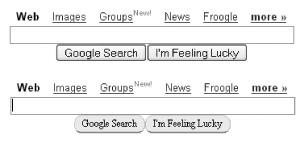
Now let's edit userContent.css, which will change how web pages look in Firefox. This next change is purely cosmetic, but it's also fun. I credit Jon Hicks, in his "Tweaking Firefox with CSS" post on his blog, with this idea. In ChromEdit, choose userContent.css and add the following code: /* make form buttons prettier */ input[type="button"], input[type="submit"] { font-size: 12px !important; font-family: 'Lucida Grande' !important; background: #eee !important; -moz-border-radius: 18px !important; padding: 1px 6px !important; border: 1px solid #ccc !important; border-bottom: 2px solid #999 !important; }Press Save in ChromEdit, close it, restart Firefox, and go to http://www.google.com. The Google Search and I'm Feeling Lucky buttons should look very different, as the before and after (top and bottom) pictures in [click here] show.
The changes to userContent.css have changed the form buttons on every web page, so they're rounder, bigger, and easier to read (not to mention more fun). If you decide you don't like the new look, just delete the lines from userContent.css and restart Firefox, and things will be back to normal. ChromEdit is an invaluable tool, as it gives you easy access to the advanced configuration files that Firefox uses. It's not an exaggeration to say that you can change virtually every aspect of Firefox using ChromEdit, some knowledge of HTML and CSS, and the contributions of thousands of smart, dedicated Firefox users all over the world. Go forth and tweak! |
 Options to access those choices. Firefox, however, contains within it a window to every possible configuration choice possible in the browserI'm talking hundreds of possibilities now, far more than are visible in the Options window. Firefox even allows you to customize the browser's appearance and how it handles web pages, once you know where to look.


|

EAN: N/A
Pages: 93