Flylib.com

Books Software


Using the Clone and Align Tool


Using the Clone and Align Tool

Imagine you're working on a production team and the modeler assigned to the project says he needs some more time to make the building columns "something special." Just as you prepare to give him the "deadlines don't die" speech, you remember the Clone and Align tool. Using this tool, you can place proxy objects where the detailed ones are supposed to go. Then, when the detailed object is ready, the Clone and Align tool lets you clone the detailed object and place it where all the proxies are positioned. This, of course, makes the modeler happy and doesn't disrupt your workflow. Another production team victory.

Aligning source objects to destination objects

Before selecting the Tools image from book Clone and Align tool, you need to select the detailed object that you want to place. This object is referred to as the source object . Selecting the Clone and Align tool opens a dialog box, shown in Figure 9.11. From this dialog box, you can pick the proxy objects that are positioned where the source objects are supposed to go. These proxy objects are referred to as destination objects . The dialog box shows the number of source and destination objects that are selected.
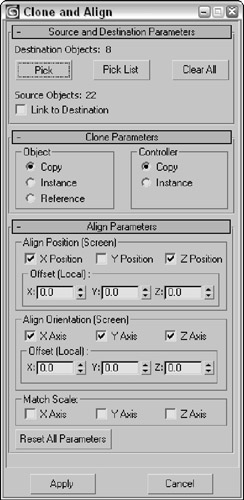
image from book
Figure 9.11: The Clone and Align dialog box lets you choose which objects mark the place where the source object should go.

The Clone and Align dialog box also lets you select whether source objects are cloned as copies, instances, or references. In the Align Parameters rollout, you can specify the object's position and orientation using the same controls that are used to align objects, including any Offset values.

As you make changes in the Clone and Align dialog box, the objects are updated in the viewports, but these changes don't become permanent until you click the Apply button.

Tutorial: Cloning and aligning objects

To practice using the Clone and Align tool, you'll open a beach scene with a single set of grouped trees. Several other box objects have been positioned and rotated about the scene. The trees will be the source object and the box objects will be the destinations.

To position and orient several high-res trees using the Clone and Align tool, follow these steps:

  1. Open the image from book  Trees on beach.max file from the Chap 09 directory on the DVD. This file includes a beach scene created by Viewpoint Datalabs.

  2. Select the tree objects that have been grouped together, and open the Clone and Align dialog box by selecting the Tools image from book Clone and Align menu command.

  3. In the Clone and Align dialog box, click the Pick button and select each of the box objects in the scene.

  4. In the Align Parameters rollout, enable the X, Y, and Z axes for both Position and Orientation. Then click the Apply button.

Figure 9.12 shows the simple results. Notice that the destination objects have not been replaced and are still there.
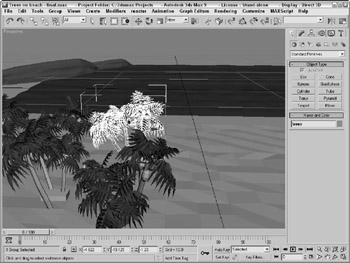
image from book
Figure 9.12: Using the Clone and Align dialog box, you can place these trees to match the stand-in objects' position and orientation.


Creating Arrays of Objects

Now that you've probably figured out how to create arrays of objects by hand with the Shift-clone method, the Array command multiplies the fun by making it easy to create many copies instantaneously. The Array dialog box lets you specify the array dimensions, offsets, and transformation values. These parameters enable you to create an array of objects easily.

image from book Access the Array dialog box by selecting an object and choosing Tools image from book Array or by clicking the Array button on the Extras toolbar. Figure 9.13 shows the Array dialog box. The top of the Array dialog box displays the coordinate system and the center about which the transformations are performed.

image from book
Figure 9.13: The Array dialog box defines the number of elements and transformation offsets in an array.

The Array dialog box is persistent , meaning that, after being applied, the settings remain until they are changed. You can reset all the values at once by clicking the Reset All Parameters button. You can also preview the current array settings without actually creating an array of objects using the Preview button. The Display as Box option lets you see the array as a bounding box to give you an idea of how large the array will be.

Linear arrays

Linear arrays are arrays in which the objects form straight lines, such as rows and columns . Using the Array dialog box, you can specify an offset along the X-, Y-, and Z-axes at the top of the dialog box and define this offset as an incremental amount or as a total amount. To change between incremental values and total values, click the arrows to the left and right of the Move, Rotate, and Scale labels. For example, an array with 10 elements and an incremental value of 5 will position each successive object a distance of 5 units from the previous one. An array with 5 elements and a total value of 100 will position each element a distance of 20 units from the previous one.

The Move row values represent units as specified in the Units Setup dialog box. The Rotate row values represent degrees, and the Scale row values are a percentage of the selected object. All values can be either positive or negative values.

Clicking the Re- Orient check box causes the coordinate system to be reoriented after each rotation is made. If this check box isn't enabled, then the objects in the array do not successively rotate. Clicking the Uniform check box to the right of the Scale row values disables the Y and Z Scale value columns and forces the scaling transformations to be uniform. To perform non-uniform scaling, simply deselect the Uniform check box.

The Type of Object section lets you define whether the new objects are copies, instances, or references. If you plan on modeling all the objects in a similar manner, then you will want to select the Instance or Reference options.

In the Array Dimensions section, you can specify the number of objects to copy along three different dimensions. You can also define incremental offsets for each individual row.

Caution 

You can use the Array dialog box to create a large number of objects. If your array of objects is too large, your system may crash.

Tutorial: Building a white picket fence

To start with a simple example, we create a white picket fence. Because a fence repeats, we need only to create a single slat; then we use the Array command to duplicate it consistently.

To create a picket fence, follow these steps:

  1. Open the image from book  White picket fence.max file from the Chap 09 directory on the DVD.

  2. With the single fence board selected, choose Tools image from book Array or click on the Array button on the Extras toolbar to open the Array dialog box.

  3. In the Array dialog box, click the Reset All Parameters button to start with a clean slate. Then enter a value of 50 in the X column's Move row under the Incremental section. (This is the incremental value for spacing each successive picket.) Next , enter 20 in the Array Dimensions section next to the 1D radio button. (This is the number of objects to include in the array.) Click OK to create the objects.

    Note 

    Don't worry if you don't get the values right the first time. The most recent values you entered into the Array dialog box stay around until you exit Max.

  4. Click the Zoom Extents All button (or press Shift+Ctrl+Z) in the lower-right corner of the Max window to see the entire fence in the viewports.

Figure 9.14 shows the completed fence.

image from book
Figure 9.14: Tom Sawyer would be pleased to see this white picket fence, created easily with the Array dialog box.

Circular arrays

image from book You can use the Array dialog box for creating more than just linear arrays. All transformations are done relative to a center point. You can change the center point about which transformations are performed using the Use Selection Center button on the main toolbar. The three flyout options are Use Pivot Point Center, Use Selection Center, and Use Transform Coordinate Center.

CROSS-REF 

For more about how these settings affect transformations, see Chapter 8, "Transforming Objects-Translate, Rotate, and Scale."

Tutorial: Building a Ferris wheel

Ferris wheels, like most of the rides at the fair, entertain by going around and around, with the riders seated in chairs spaced around the Ferris wheel's central point. The Array dialog box can also create objects around a central point.

image from book In this example, you use the Rotate transformation along with the Use Transform Coordinate Center button to create a circular array.

To create a circular array, follow these steps:

  1. Open the image from book  Ferris wheel.max file from the Chap 09 directory on the DVD.

    This file has the Front viewport maximized to show the profile of the Ferris wheel.

  2. Click the Use Pivot Point Center button on the main toolbar, and drag down to the last icon, which is the Use Transform Coordinate Center button.

    The Use Transform Coordinate Center button becomes active. This button causes all transformations to take place about the axis in the center of the screen.

  3. Select the light blue chair object, and open the Array dialog box by choosing Tools image from book Array or by clicking the Array button on the Extras toolbar. Before entering any values into the Array dialog box, click the Reset All Parameters button.

  4. Between the Incremental and Totals sections are the labels Move, Rotate, and Scale. Click the arrow button to the right of the Rotate label. Set the Z column value of the Rotate row to 360 degrees, and make sure that the Re-Orient option is disabled.

    A value of 360 degrees defines one complete revolution. Disabling the Re-Orient option keeps each chair object from gradually turning upside down.

  5. In the Array Dimensions section, set the 1D spinner Count value to 8 and click the OK button to create the array.

  6. Next select the green strut, and open the Array dialog box again with the Tools image from book Array command. Select the Re-Orient option, and leave the rest of the settings as they are. Click the OK button to create the array.

Figure 9.15 shows the resulting Ferris wheel. You can click the Min/Max toggle in the lower-right corner to view all four viewports again.

image from book
Figure 9.15: A circular array created by rotating objects about the Transform Coordinate Center

Working with a ring array

You can find the Ring Array system by opening the Create panel and selecting the Systems category. Clicking the Ring Array button opens a Parameters rollout. In this rollout are parameters for the ring's Radius, Amplitude, Cycles, Phase, and the Number of elements to include.

You create the actual array by clicking and dragging in one of the viewports. Initially, all elements are simple box objects surrounding a green dummy object.

The Amplitude, Cycles, and Phase values define the sinusoidal nature of the circle. The Amplitude is the maximum distance that you can position the objects from the horizontal plane. If the Amplitude is set to 0, then all objects lie in the same horizontal plane. The Cycles value is the number of waves that occur around the entire circle. The Phase determines which position along the circle starts in the up position.

Tutorial: Using Ring Array to create a carousel

Continuing with the theme park attractions motif, this example creates a carousel. The horse model comes from Poser but was simplified using the MultiRes modifier.

To use a Ring Array system to create a carousel, follow these steps.

  1. Open the image from book  Carousel.max file from the Chap 09 directory on the DVD.

    This file includes a carousel structure made from primitives along with a carousel horse.

  2. Open the Create panel, select the Systems category, and click the Ring Array button. Drag in the Top viewport from the center of the carousel to create a ring array. Then enter a Radius value of 250 , an Amplitude of 20 , a Cycles value of 3 , and a Number value of 6 .

  3. Select the Dummy object in the Left viewport, and drag it upward with the Select and Move tool until all the box objects are positioned between the carousel base and the top cone.

  4. Select the horse object, and click on the Mini Curve Editor button to the left of the Track Bar. This opens the Track View to the horse object. Scroll downward in the Track View to the Object (Editable Mesh) track, and select it. Then right-click and select the Copy command from the popup menu.

  5. Click one of the Ring Array dummy objects, and the Track View locates the Box object that is part of the Ring Array. Then right-click and select the Paste command from the pop-up menu. This opens the Paste dialog box, shown in Figure 9.16. Select Instance and the Replace all Instances option, and click OK.

image from book
Figure 9.16: This Paste dialog box lets you replace all instances.

Figure 9.17 shows the finished carousel. Notice that each horse is at a different height.

image from book
Figure 9.17: The horses in the carousel were created using a Ring Array system.