Flylib.com

Books Software


Liquify Reality


Liquify Reality

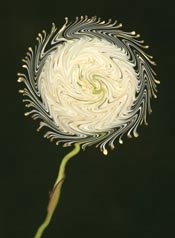
Salvador Dali, the 20 th century's best-known surrealist artist, is famous for his painting of melting clocks. Those melting clocks were the inspiration for this lesson. As you'll see, you can use the Liquify filter (Filter > Liquify) to melt objects in a photograph for a surrealistic look.

Before I turn up the heat and start the melting, however, I'd like to share with you a more practical use of the Liquify filter: making a subject in a picture look thinner and more fit. Some folks call the following technique the "Photoshop Diet," which usually gets a few laughs at Photoshop World (a bi-annual gathering of Photoshop pros and fans). In reality, however, it's a practical effect that fashion photography retouchers use to make even top models look better.

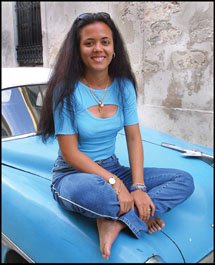
To illustrate the technique, I'll use a picture I took of a young woman in Cuba, who didn't need to go on a diet ( Figure 3.93 ).

Figure 3.93.

Tech info : Canon EOS D30, Canon 70-200mm lens @ 100mm. Exposure: 1/250 sec. @ f/5.6. ISO 200.


When you select the Liquify filter (press Shift-Command-X: Mac or Shift-Ctrl-X: Win), you get the Liquify dialog box, which includes a Preview window and Liquify tools and controls ( Figure 3.94 ). At the upper left of the Tool Bar is the Forward Warp tool, which is the default. This tool lets you liquify pixelsmelting them, twirling them, bending them, and stretching them. In this screenshot, I've circled the brush I used to reduce the woman's waistline; I did this by clicking her waistline, holding down my right mouse button, and moving the brush inward.

Figure 3.94.
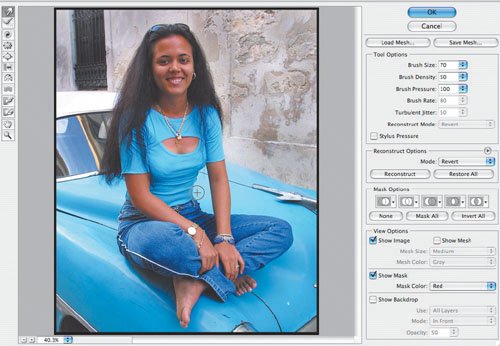

Here's the effect of applying the Photoshop Diet to the woman's waist, arms, legs, and neck ( Figure 3.95 ).

Figure 3.95.


OK, let's get to the melting effect.

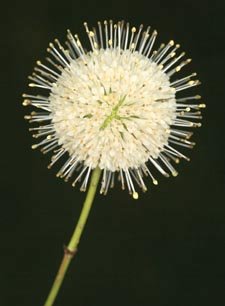
I'll use a picture of a flower I took in my backyard ( Figure 3.96 ). In the Liquify dialog box, I moved the Forward Warp tool in a circular motion around the flower and then in a back-and-forth motion on the flower's stem ( Figure 3.97 ). Here you can see the result of those quick mouse movements ( Figure 3.98 ).

Figure 3.96.

Tech info : Canon EOS 1D, Canon 50mm Macro lens, Canon Macro Ring Lite MR-14EX. Exposure: 1/60 sec. @ f/22. ISO 100.


Figure 3.97.
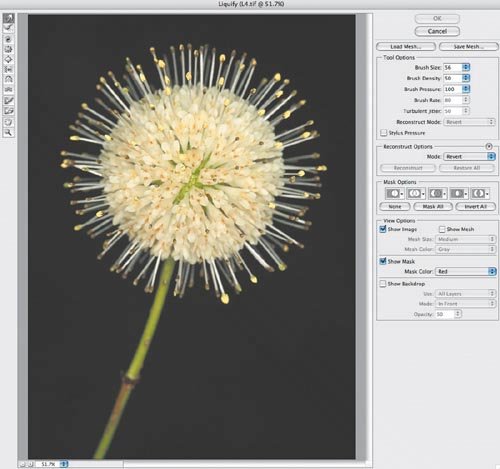

Figure 3.98.


Talk about melting! In the next example, I used the Liquify filter to melt a hotel sign in Miami's South Beach, which is "hot, hot, hot" even in the winter due to the wild nightlife ( Figures 3.99 and 3.100 ).

Figure 3.99.

Tech info : Canon EOS 1D, Canon 16-35mm lens @ 20mm. Exposure: 1/125 sec. @ f/8. ISO 400.


Figure 3.100.

Tech info : Canon EOS 1D, Canon 16-35mm lens @ 20mm. Exposure: 1/125 sec. @ f/8. ISO 400.


Reflecting on an Image

"It's all done with mirrors" is a popular saying among professional magicians. These days, digital photography artists are using mirrors, of sorts, to create magical effects on their computer monitors . In a mirror image, one side of a frame is perfectly mirrored (reflected) on the opposite side of the frameside to side or top to bottom. Here's how to do it.

Start with a visually strong picture. Actually, you have to start with a visionan idea of how a subject will look when mirrored, or reflected, against itself. For this lesson, I'll use a picture I took in the desert of Rajasthan, India ( Figure 3.101 ).

Figure 3.101.

Tech info : Canon EOS 1v, Canon 70-200mm zoom @ 200mm. Exposure: 1/250 sec. @ f/11. ISO 100.


My first step was to select the entire image. I chose Select > All (press Command-A: Mac or Ctrl-A: Win) and then Edit > Copy (press Command-C: Mac or Ctrl-C: Win). That placed the image in my computer's memory.

Next , I chose File > New (press Command-N: Mac or Ctrl-N: Win) and clicked OK. A new, empty file exactly the same size as the original image was created. (Your image may look larger or smaller due to the percentage at which you're viewing your original picture. The viewing percentage is shown at the bottom left of the document window.) I chose Edit > Paste (press Command-V: Mac or Ctrl-V: Win) to paste my original picture into the new document ( Figure 3.102 ).

Figure 3.102.


While working with the newly created document, I went to Image > Rotate Canvas > Flip Vertically to create the reflection portion of what would be my final image ( Figure 3.103 ).

Figure 3.103.


I went back to my original image and chose Image > Canvas Size to open the Canvas Size dialog box. To create the reflection, I doubled the height of the Canvas; to make things easy, I rounded up the height from 4.288 inches to 9 inches ( Figures 3.104 and 3.105 ). Here you can see that the Canvas size is a little more than doubled in height ( Figure 3.106 ).

Figure 3.104.


Figure 3.105.


Figure 3.106.


I made sure I was viewing both images at the same magnification percentage. I clicked the upside-down image and dragged it into the newly created white space in the original image until the images were aligned ( Figure 3.107 ). Next, I used the Crop tool (press C: Mac or Win) to crop out the white space at the bottom of the image ( Figure 3.108 ). The upside-down image was on its own layer ( Figure 3.109 ). That made the next step easy. With the top layer (the upside-down image) activated (shown in blue here and activated by clicking it), I went to Filter > Distort > Ocean Ripple ( Figure 3.110 ) and played around with the Ripple Size and Ripple Magnitude sliders until I was pleased with the result.

Figure 3.107.


Figure 3.108.


Figure 3.109.


Figure 3.110.


Here's the final imagea perfect reflection ( Figure 3.111 ).

Figure 3.111.


Of course, you need to work with an original picture that will make a nice reflection image. On the next page are two more examples that use the reflection techniqueone a tightly cropped vertical shot and one created horizontally ( Figures 3.112 and 3.113 ).

Figure 3.112.

Tech info : Canon EOS 1v, Canon 70-200mm zoom @ 200mm. Exposure: 1/250 sec. @ f/22. ISO 200.


Figure 3.113.

Tech info : Canon EOS 1D, Canon 50mm Macro lens, Canon Macro Ring Lite MR-14EX. Exposure: 1/60 sec. @ f/22. ISO 100.