Message Formats: HTML Versus Text
GroupWise allows you to send and receive both "plain-text" messages (messages
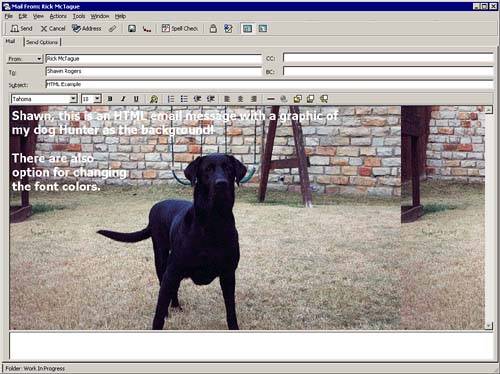
Figure 3.3. GroupWise allows you to send Web page content inside of HTML messages.
To create an HTML message, click File, New, Mail. From the New Mail Message screen, click View, HTML. You can retrieve an HTML file into a new email message by using File, Retrieve and selecting the HTML file. Working with URLs
You can easily embed Web page addresses (URLs) in both the subject line and message body area of an email. These URL links become "live." In other words, with a click of the mouse on these links, your computer's Web browser will
NOTE This option is available in both the plain-text and HTML views. |
Alternate Email Views
Views
are display formats for GroupWise messages and interface
NOTE
Using alternate views does not prevent you from using all the GroupWise features. In alternate views, you may not see certain shortcut (right-click or Toolbar)
The Simple Mail view provides a
Figure 3.4. The Simple Mail view offers the basics of an email message.
|
Sending Messages
The GroupWise dialog box for sending messages is very easy to use. The Message dialog box is
To send a message, you must enter someone's email address. This might be an Internet email message, such as jimbo@shicktools.com, or another GroupWise
TIP Any name or address field in GroupWise will use Name Completion. Perhaps the most common method is to use the Address Book or Address Selector to enter one or more user addresses. (Chapter 4, "The Address Book and the Address Selector," covers the Address Book in depth.) Figure 3.5 shows the new email message screen. Figure 3.5. Sending a new email is as easy as filling out a form.
To send an email message, follow these steps:
NOTE The Send Options tab is for adding additional features to the message, such as high priority. These are discussed in Chapter 8 .
The recipients listed in the To field are the primary recipients of the message. Recipients listed in the CC field are the carbon copy recipients, and the BC field holds blind copy recipients. Recipients in each of these fields can see the recipients listed in the To and CC fields. However, none of the recipients can see recipients listed in the BC field; even blind copy recipients
If you want to send a message to multiple people, but you don't want any of them to know who else received the message, make them all blind copy recipients. For example, you could use this technique to
Attaching a File to a MessageYou can share documents, spreadsheets, database files, and other types of files by sending them to other users as file attachments to a GroupWise message. You can attach files to any GroupWise message, even if the message type does not include a file attachment field in the dialog box. To attach a file to an email message, follow these steps:
TIP
Instead of using the dialog box method described previously for attaching a file, you can attach files using Windows Explorer. Open Windows Explorer;
You can also attach document references and object linking and embedding (OLE) objects, such as
The object you either selected or created is displayed as an icon in the attachments area of the new message. The attached file or object
The From Drop-down List
One thing you might notice in the new message screen is a drop-down list (selection list) on the From field. This allows you to change who you are sending the message as. For example, if your manager has given you proxy rights to send messages on his or her
If you have access to multiple email accounts, your other accounts will also be listed as possible "From" candidates. Using Internet AddressesEntering an Internet recipient's email address in the To, CC, or BC field is as simple as typing it in directly or selecting it from the Address Book. If you have an entry in the Address Book for an Internet recipient, you can also enter the "display name" (usually first name/last name) until Name Completion finishes the name. This method avoids forcing you to type out the sometimes cumbersome Internet email addresses. Saving Draft Messages in the Work In Progress Folder
As you compose a message, you might find a need to save your work and resume your message later. You can save messages you are working on in the Work In Progress folder. This is
To save a message in the Work In Progress folder, follow these steps:
TIP An alternative way to save a message in the Work In Progress folderwhen you decide you need to work on a message lateris to click the Cancel button or press the Escape key on your keyboard. You are prompted to save the message. Choose Yes, and save the message in the Work In Progress folder. To resume working on a draft message, follow these steps:
A message can be saved as a draft message at any point during its composition. You can also attach files to a message; they are saved along with the message in the Work In Progress folder.
NOTE If you modify a file that is attached to a message in the Work In Progress folder, be sure you delete the file attachment icon and reattach the message. Otherwise, the file's original version is sent. |