Functionality
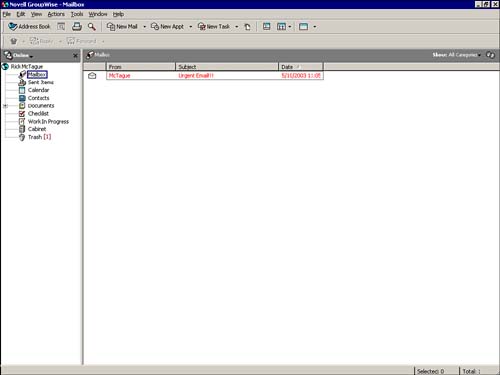
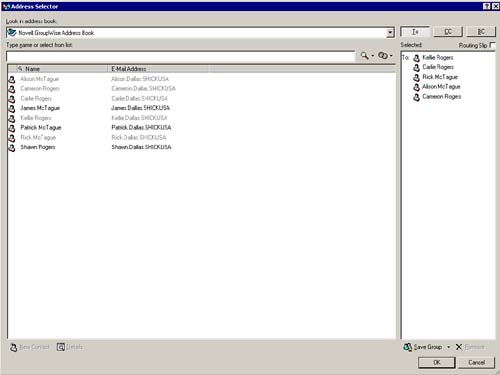
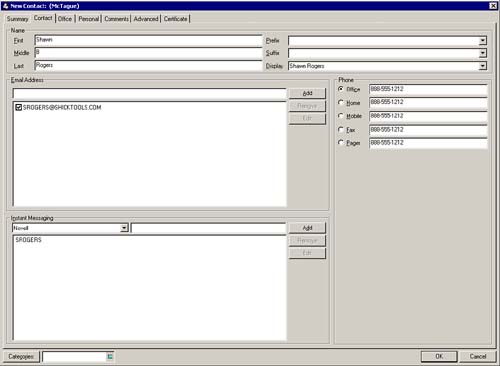
| This group of new features in GroupWise 6.5 adds capabilities not available in earlier versions of the program. These features provide more collaboration and information-management capabilities; Novell listened to what users wanted and responded with these very powerful new capabilities. CategoriesCategories (discussed more fully in Chapter 5) provide the ability to color -code messages, allowing you to group messages with common importance, action, or meaning. For example, a default category is Urgent , signified by the message in a folder being displayed in red instead of black (see Figure 2.7). Figure 2.7. An Urgent category is used to mark a message needing immediate attention. Categories display in different colors in GroupWise. You can create as many categories as you want. To change a message's category, or to add more categories, right-click any message, select Categories from the pop-up list, and then click the category or choose the "More " option. My SubjectMy Subject is an interesting new feature that allows you to change the subject of any message you've received to one that might make more sense or assist you in message management (such as changing the subject to one that will activate a rule). NOTE My Subject is discussed in Chapter 8 . To change the subject of an email message, double-click the message and select the Personalize tab. Then enter a new subject and click the Close button. The From Drop-down ListBecause GroupWise allows access to multiple mailboxes (your corporate mailbox and a personal Internet mailbox, for example), the From feature was added, which allows you to easily select which mailbox you want the recipient to see as the message being sent from (Chapter 3 provides more detail on how to do this). Address SelectorThe Address Selector was added to allow quick access to addresses while composing a new message. When you click the Address button of a new message, the Address Selector is launched (see Figure 2.8). Figure 2.8. The Address Selector is used to quickly find message recipients. This is the same information in your address books, but it's accessed much quicker than launching the full Address Book. Address Book EnhancementsMany enhancements have been made to the GroupWise 6.5 Address Book, which is covered in detail in Chapter 4. The Address Book now sports a folder list, much like the main window of GroupWise itself, providing quick access to different address books. The headers and toolbars provide quick access to often-used functions, such as the Name Completion feature and adding new Address Book contacts, groups, or resources. Adding a new contact opens a much more detailed and information-packed contact-management dialog box, as shown in Figure 2.9. Figure 2.9. The GroupWise 6.5 New Contact dialog box has several fields for contact management. It is now possible to track much more information about a particular contact, such as personal information, comments, and advanced security information (certificates), than was previously available. NOTE You can use categories for your contacts by selecting the Categories button at the bottom of the New Contact dialog box. Security EnhancementsAdditional security is available in GroupWise 6.5 in the form of encryption and digital signatures. (These topics are discussed in more detail in Chapter 8.) The use of certificates and public/private keys is required for this feature, which essentially allows you to send encrypted messages over the Internet. The digital signature feature allows a recipient to ensure the message came from the purported sender. GroupWise 6.5 provides access to certificates from within the Address Book. Junk Mail HandlingWith the massive increase in "spam" email (unwanted or unsolicited messages sent to thousands of recipients over the Internet), a significant need for dealing with these messages exists. Beyond the capabilities on the "server" side of the system, where the messages come in, GroupWise 6.5 provides a Junk Mail folder and a set of customizable rules that determines what is placed in that folder and what happens to the messages once placed there (see Chapter 8). From the Tools menu, click Junk Mail Handling to configure this feature. iCal Internet AppointmentsiCal is an Internet standard for appointments, and GroupWise 6.5 provides the ability to send appointments to Internet recipients in this format. If the receiving system is also "iCal aware," the appointment should be added to its calendar system as an actual appointment. Systems that are not iCal capable will simply display the appointment as an email with the appointment information (date, time, and so on). We will discuss this feature in more detail in Chapter 7, "Group Calendaring and Task Management." |

EAN: 2147483647
Pages: 191