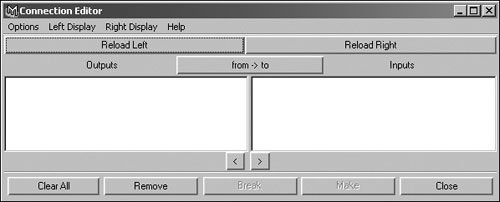
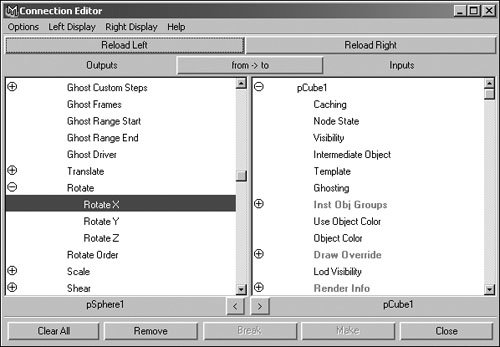
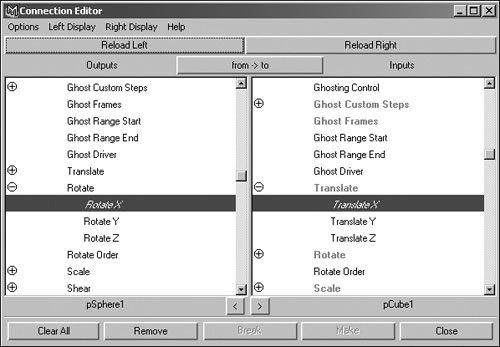
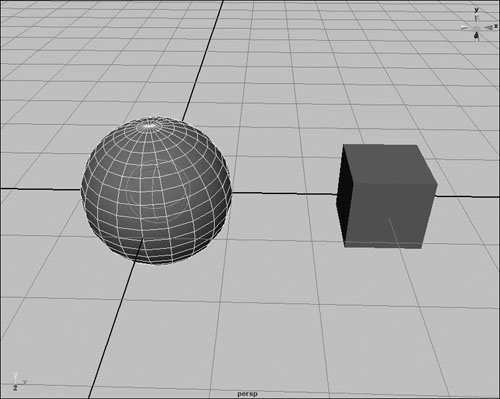
The Connection EditorSimilar to constraints, the Connection Editor is another way to link attributes together. It sets up direct relationships between any two attributes, and you can use the translation values of one object to drive the translation values of another. Although connections can form a broader variety of relationships than constraints, they can't be turned on and off as constraints can.
The Connection Editor also supports linking of non-similar attributes. Translation values can be linked to
To link two attributes with the Connection Editor:
|
Basic Rigging
Models alone can be difficult to pose. They often have too many
A rig is usually
Additional elements are often brought into the rig, such as NURBS curves. These curves are then linked to the rest of the rig and used by the animator to pose the model. These curves are often referred to as
controls
. Using controls, you simplify the number of objects you must move to pose the character. Also, since you are not manipulating the joints directly, you can hide the skeleton of the character to avoid
One common use of a rig is to automate behavior that you don't wish to animate, such as the movement of machine parts. You can use constraints and connections to ensure accurate driven motion, such as on the wheels of a locomotive. To rig a drive shaft:
Character skeletons can become very complex, consisting of hundreds of bones. For instance, the spine of a character may include several bones to ensure a smooth bendbut rotating each bone individually would be
To rig an FK spine:
Legs can be very complicated to rig. The motion of the leg can pivot on the ball of the foot or the heel, and it's important to have control over the placement of the knee. Because the leg is often pinned to the ground, most legs are rigged using IK by default. Doing so allows the foot to be placed easily when animating and lets the rest of the body move without
To rig an IK leg:
About Full Body IK
Full Body IK, a new feature in Maya 7.0, is a character rig designed for bipeds and quadrupeds. Full Body IK (FBIK) utilizes pinnable IK handles and a fully
Figure 10.66. The FBIK skeleton and its
|
|
1. |
Choose Skeleton > Full Body IK > Get FBIK example.
Figure 10.68. The Visor contains a prerigged biped and quadruped skeleton.
|
|
2. |
With the middle mouse button, drag the example you want into your view.
|
To use FBIK, you must create a properly named skeleton. FBIK uses the
To create a skeleton for your character, you need to ensure it has a proper hierarchy as well as joints in all the places you need it to bend.
To create a skeleton for your character:
|
1. |
Start with the character model you wish to rig (Figure 10.69).
Figure 10.69. If you intend to use FBIK, you should model your character in the appropriate T pose.
|
|
2. |
From the Side view, and starting at the hips of the character, insert a four-bone spine (Figure 10.70).
Figure 10.70. It
|
|
3. |
From the Front view, build a three-bone arm with joints at the shoulder,
Figure 10.71. The arms should line up from both views, and the bones should face straight away from the body.
Make sure the bones line up from the Top view as well. |
|
4. |
From the Side view, build a four-bone leg with joints at the hip, knee, ankle and toe (Figure 10.72).
Figure 10.72. Keep the legs straight, and try not to have the knee bend backward;
|
|
5. |
Select the hip joint,
Figure 10.73. When parented correctly, a new bone should appear to connect the two joints.
|
|
6. |
Select joint4,
|
|
7. |
Select the shoulder joint, and choose Skeleton > Mirror Joint.
|
|
8. |
Select the hip joint, and choose Skeleton > Mirror Joint.
|
|
9. |
Choose Skeleton > Joint Tool. From the Side view, click joint5, and then build a head and neck for your character (Figure 10.74).
Figure 10.74. Everything is mirrored and ready to go. This skeleton contains the bare minimum for an FBIK setup.
Now you have a skeleton with a suitable hierarchy for FBIK or another type of rig. |
To label your skeleton:
|
1. |
Start with the skeleton you prepared in the previous task.
|
|
2. |
Select joint1, and choose Skeleton > Joint Labelling > FBIK Labels > Label Root.
|
|
3. |
Choose Skeleton > Joint Labelling > Show All Labels.
Figure 10.75. Joint labels clearly show the role of each joint as part of the heads up display.
|
|
4. |
One at a time, select the rest of the joints of the spine, and choose Skeleton > Joint Labelling > FBIK Labels > Label Spine (Figure 10.76).
Figure 10.76. Label each spine bone individually, stopping at the neck.
|
|
5. |
Select the shoulder joint, and choose Skeleton > Joint Labelling > FBIK Labels > Label Arm.
|
|
6. |
With the shoulder still selected, choose Skeleton > Joint Labelling > FBIK Labels > Label Left (Figure 10.77).
Figure 10.77. Labeling the arm saves you the trouble of naming each bone within the arm.
Now the arm is completely labeled, including designations for left and right. Characters are always labeled relative to the character, not how the character is oriented in relation to the |
|
7. |
Select the hip joint, label it
Leg
, and then label it
Left
.
|
|
8. |
Repeat steps 5-7 on the right side of the body, labeling the arm and leg
Right
.
|
|
9. |
Select the neck joint or joints, and label them
Neck
.
|
|
10. |
Select the head joint, and label it
Head
.
Figure 10.78. Once everything is labeled, the rig can be applied. FBIK uses the joint names or labels to build its rig, so
|
{% if main.adsdop %}{% include 'adsenceinline.tpl' %}{% endif %}
Tip
To tidy up your joint names, you can choose Skeleton > Joint Labelling > "Rename joints from labels". Doing so gives all your joints names equal to their labels, making it easier to keep track of them.
Once your character is properly prepared, the placement of the rig is entirely automated. Maya creates controls called effectors, which you can position like IK handles to move the character around or pin in space to pose the rest of the character.
Effectors can have four states (Figure 10.79):
Unpinned Displayed as a sphere, an unpinned effector can be influenced by any other adjustment to the body.
Translation
(
). Displayed as a cube, an effector pinned on translation attempts to maintain its position in space, although the joint may still rotate
Rotation
(
. Displayed as a half-circle, pinned rotation
Fully Pinned
Displayed as a box with a half-circle under it, a fully pinned control doesn't move at all. This function is effective if you have a character whose hands are gripping or resting on an
To add FBIK to a skeleton:
|
1. |
Start with the skeleton from the previous task. Select the root joint.
|
|
2. |
Select the option box next to Skeleton > Full Body IK > Add Full Body IK.
|
|
3. |
Ensure that By Label and Biped are selected, and click Apply (Figure 10.80).
Figure 10.80. Set the options you wish to use.
Maya adds the constraints and effectors to your skeleton automatically. Your character is now rigged (Figure 10.81)! Figure 10.81. The effectors appear on your model in the appropriate spots. Take a moment to double-check that all the effectors you wanted were added, and that they are in the correct places.
|
|
4. |
Select a hand effector, and set Pinning to unpinned in the Channel Box (Figure 10.82).
Figure 10.82. Setting the hand to unpinned
|
|
5. |
Select the other hand, and translate it around in the view.
Figure 10.83. The body adjusts itself to reach the hand properly.
|
|
6. |
Select a hand, and press
|
|
7. |
Drag the body around using the hips effector.
Figure 10.84. Pinning both translation and rotation is ideal for posing characters who are gripping, climbing, or walking.
|