| There are several commands in Maya that you can use to turn curves into surfaces. They include Revolve, Loft, Planar, Extrude, Birail, and Boundary. To revolve a curve to make a vase: 1. | In the Front view, draw a curve for the shape of the vase's profile (Figure 7.51).
Figure 7.51. A profile curve illustrates the outline of the object used for revolving. 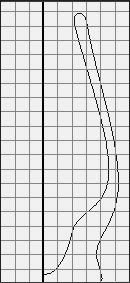
| 2. | Select the curve in object mode.
| 3. | In the Surfaces menu select the box next to Revolve (Figure 7.52).
Figure 7.52. From the Surfaces menu select the box next to Revolve to open the Revolve Options window. 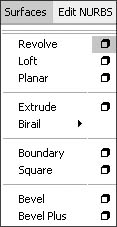
The Revolve Options window opens.
| 4. | Select the axis you want the object to revolve around (Figure 7.53). We'll use the Y axis for our illustration.
Figure 7.53. The revolve axis is very important to the look of the final surface. You want to choose the axis that goes through the middle of the final surface. 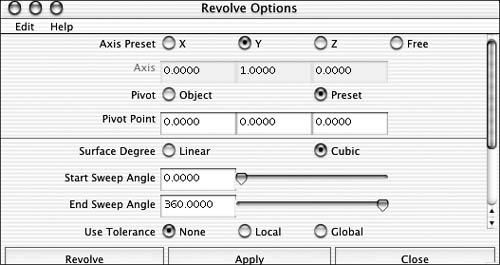
| 5. | Click Revolve to create the surface of the vase.
If you get unexpected results, you may have the object revolving around the wrong axis.
| 6. | Press  to increase the smoothness to see the full surface (Figure 7.54). to increase the smoothness to see the full surface (Figure 7.54).
Figure 7.54. Increasing surface smoothness helps clarify where the actual revolved surface lies. 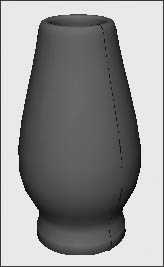
|
 Tips Tips
You can adjust Start Sweep Angle and End Sweep Angle in Revolve Options to create a revolved surface that is not a complete 360 degrees. To interactively change the shape of a revolved surface by changing the angle of the axis revolution, you can use the Show Manipulator tool.
One of the best ways to create a surface from multiple curves is by using the Loft command. The Loft command creates a surface that extends from one selected curve to the next until each curve is covered with a surface. Each of the isoparms on the final surface is derived from the edit point placement on each curve. As a general rule, you want to have the same amount of edit points on each curve. To loft across multiple curves: 1. | Create two or more curves with which to create a surface (Figure 7.55).
Figure 7.55. When creating curves to loft across, you must consider each curve describing the contour of the final surface. 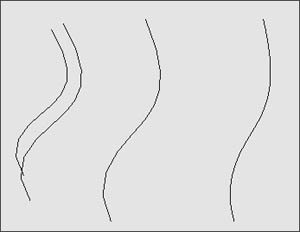
| 2. |  -select each curve in the order in which you would like the surface to loft across them. -select each curve in the order in which you would like the surface to loft across them.
The order in which you select curves is important. The surface will start at the first selected curve and cover each additional curve in the order you select them.
| 3. | With all the curves selected, choose Surfaces > Loft to create a surface over the curves (Figure 7.56).
Figure 7.56. A lofted surface maintains a connection to the original curves, so that you can edit them in the future using the original curves. 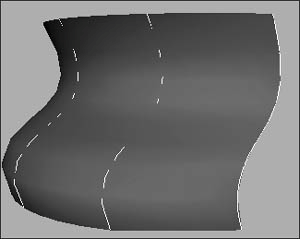
|
Tip
The Extrude command creates a surface by sweeping one curve (the profile) along another curve (the path). The Extrude command is often used to add depth to text and create long, tubelike objects such as power cords. To extrude a curve: 1. | Create a profile curve that is the shape you'd like the final extruded surface to be. For example, if you want to extrude a tube, you could create a circle (Figure 7.57).
Figure 7.57. Any curve shape can be used for an extrudefor example, if you're looking for a tubelike shape, you could use a closed curve. 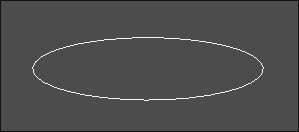
| 2. | Starting from the already created curve, create a CV curve the length of the final surface you want to create (Figure 7.58).
Figure 7.58. The second curve you create for an extrude is used for the path and length of the extruded surface. 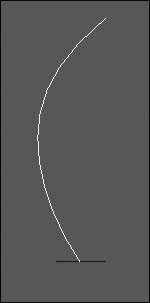
This is referred to as the path curve.
| 3. | Select the circle, then -select the path curve.
| 4. | From the Surfaces menu, select Extrude to sweep the profile curve along the path curve.
A new extruded surface is created (Figure 7.59).
Figure 7.59. A surface is created from the extrude that follows the angle of the profile curve. 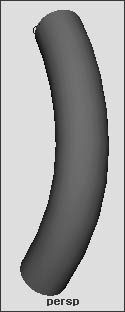
|
Tip By default, the new surface starts at the angle of the profile curve and mimics its angles. With this default setting, the extruded surface only follows the path curve if the profile curve is perpendicular to the path curve. To ignore the angle of the profile curve and have the curve follow the path curve, select At Path in the Extrude Options window.
The Make Planar command is used to make a flat surface out of a curve. An example of its use would be to create the flat top of a guitar (that is, the part with the hole in it) (Figure 7.60). You could create the outline of the guitar's body with a curve, and then use the Make Planar command to complete the flat surface. Figure 7.60. The Make Planar command works well for any closed, flat curve out of which you would like to make a flat surface. 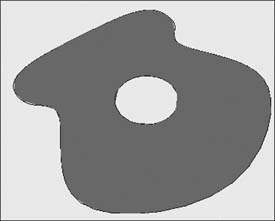
To make a curve planar: 1. | Create a closed curve with all the CVs on the same axis (Figure 7.61).
Figure 7.61. This closed curve will determine the outline of the surface. Use grid snap to be sure that all of the points of the curve lie on the same plane. 
| 2. | From the Surfaces menu select Planar.
A planar surface is created from the curve (Figure 7.62).
Figure 7.62. A flat surface is created, with the curve used as the border of the surface. 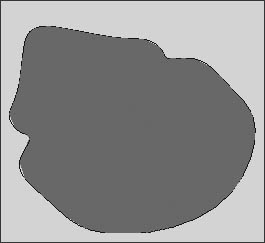
|
Tips The curve must be closed or self-intersecting for the Planar command to work. All CVs must lie on the same axis for the command to work. To ensure that this is the case, you can grid-snap each CV to a grid plane.
The Birail tool is similar to Extrude, except that instead of having one path curve and one profile curve, it has two path curves (rails) and any number of profile curves. The hull of a boat provides a good example: Two path curves can determine the hull's outline, and profile curves can determine its depth and shape (Figure 7.63). Figure 7.63. The hull of a boat can be created from a few profile curves and two rail curves. 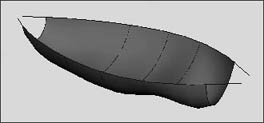
To create a birail surface: 1. | Draw two curves to use for the rails of the surface (Figure 7.64).
Figure 7.64. You always use two curves for the rails. 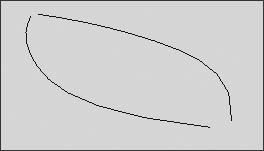
| 2. | Draw a new curve that extends from the first curve to the second curve using curve snap (hold down  and click and drag on the rail curve) for the first and last points (Figure 7.65). and click and drag on the rail curve) for the first and last points (Figure 7.65).
Figure 7.65. For the command to function correctly, your must curve-snap the ends of each profile curve to the rails. 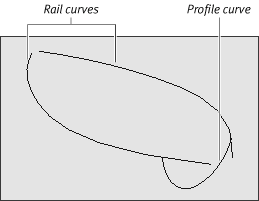
The curves must touch each other for the operation to work. Curve snap helps ensure that the profile curve touches both rails.
| 3. | From the Surfaces menu select Birail > Birail 1 Tool (Figure 7.66).
Figure 7.66. From the Surfaces menu select Birail > Birail 1 Tool. 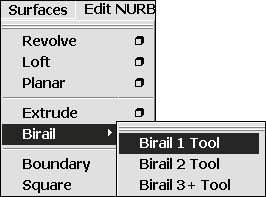
Use Birail 2 Tool if you have two profile curves. Use Birail 3+ if you are using three or more profile curves.
| 4. | Click the profile curves, and then click the rail curves (Figure 7.67).
Figure 7.67. A surface is created from the three curves using the Birail tool. 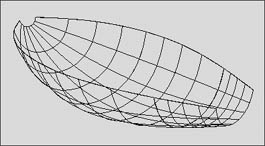
The birail surface is created.
|
The Boundary command requires three or four curves that intersect or meet at each other's ends. One use for a boundary surface would be when you have three surfaces connecting at a corner and you want to use three of the edges to complete a rounded corner between the surfaces (Figure 7.68). Figure 7.68. The gap between these surfaces would be a good candidate for filling via the Boundary command. 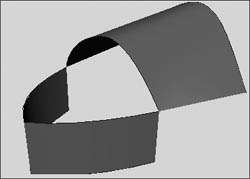
To create a boundary surface: 1. | Draw three or four curves with intersecting ends (Figure 7.69).
Figure 7.69. With boundary surfaces, as with birail surfaces, it is essential to curve-snap each end point. 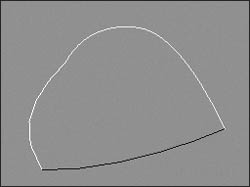
You can make sure the ends intersect by curve-snapping the first and last CVs to the other curves.
| 2. | Select all the curves that complete the boundary (Figure 7.70).
Figure 7.70. You can select curves or isoparms on which to use the Boundary command. 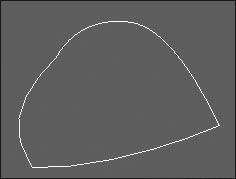
| 3. | From the Surfaces menu, select Boundary.
The boundary surface is created (Figure 7.71).
Figure 7.71. A surface is created across the three curves. 
|
To create beveled text: 1. | From the Create menu, select the box next to Text.
The Text Curves Options dialog box opens.
| 2. | In the Text field, type the text you want.
| 3. | Select a font for the text.
| 4. | Select Curves for Type.
| 5. | Click Create (Figure 7.72).
Figure 7.72. In the Text Curves Options dialog box set the Text, Font, and Type options, and then click Create. 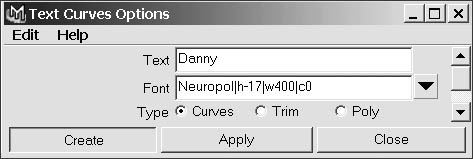
| 6. | From the Surfaces menu, select Bevel (Figure 7.73).
Figure 7.73. From the Surfaces menu select Bevel. 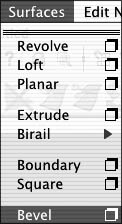
The text bevel can be edited with the Inputs node afterward or in the Text Curves Options dialog box before creation.
The text now appears with a bevel (Figure 7.74).
Figure 7.74. The curves that outlined the letters have been turned into beveled surfaces. 
|
Tip
To draw a curve directly on a surface, you must make the surface live. Once a surface is live, a curve can be created and edited directly on the surface itself. To make a surface live: 1. | Select a surface (Figure 7.75).
Figure 7.75. The sphere has been selected to make it live so that a curve can be drawn on it. Any surface can be made live. 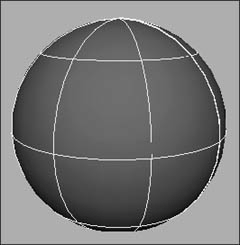
| 2. | From the Modify menu, select Make Live or click  . .
The surface wireframe turns green to indicate that it is a live surface (Figure 7.76).
Figure 7.76. When the surface is live, the wireframe turns green. 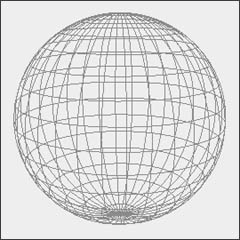
|
Tip
To draw a curve on a live surface: 1. | Make the surface live.
| 2. | From the Create menu, select CV Curve Tool (Figure 7.77).
Figure 7.77. From the Create menu, select CV Curve Tool. 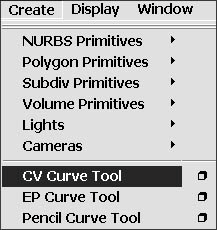
| 3. | Click points on the surface where you want to create the curve (Figure 7.78).
Figure 7.78. It's helpful to tumble your view around the surface to get a straight look at where you want to place each CV. 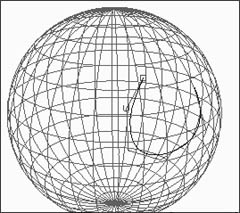
| 4. | Press  to complete the curve. to complete the curve.
A curve is created on the surface.
| 5. | From the Modify menu, select Make Not Live to bring the surface back into normal mode (Figure 7.79).
Figure 7.79. From the Modify menu select Make Not Live to return to normal mode. 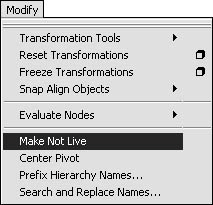
|
Tip
When you project a curve, it creates a new curve on the selected surface. Imagine projecting the image of a curve at an object from a slide projector. The shape of the object may warp the image of the curve. Likewise, when you project a curve in Maya, the resulting curve projected on an object's surface is warped to some degree. A pumpkin's eyes provide a good example of this: You can draw the shape of the eyes you want to cut out of a pumpkin in the Front view, and project these curves onto the pumpkin shape so that you can later trim them out of the surface (Figure 7.80). The trim function is often used after projecting a curve onto a surface to cut out the curve shape. Figure 7.80. Curves on surfaces work well when you want to later trim out part of a surface, as with this pumpkin. 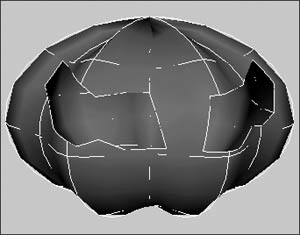
To project a curve onto a surface: 1. | Create a surface for the curve to be projected ontoa primitive sphere, for example.
| 2. | In the Front view, create a curve to project onto the surface; in this example, we'll use a primitive circle (Figure 7.81).
Figure 7.81. This circle will be projected onto the surface of the sphere. 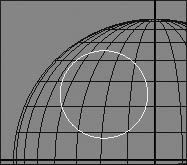
| 3. | Select the curve to be projected, and the surface (Figure 7.82).
Figure 7.82. Both the curve and the surface must be selected for the projection to work. 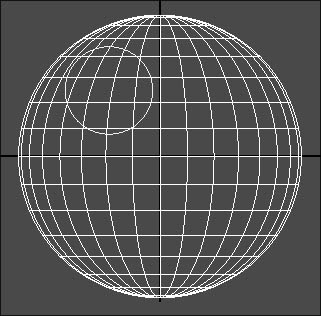
| 4. | With the Front view active, select Edit NURBS > Project Curve on Surface (Figure 7.83).
Figure 7.83. The active view becomes the angle from which the curve is projected. 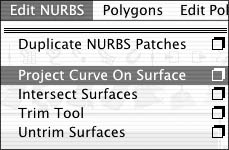
The curve becomes projected on both sides of the sphere's surface (Figure 7.84).
Figure 7.84. The curve is projected on both sides of the object. 
|
To trim out a hole in a surface: 1. | Follow the steps outlined in the previous task, "To project a curve onto a surface."
| 2. | From the Edit NURBS menu, select Trim Tool.
| 3. | Click the sphere.
The object becomes transparent and the lines turn white to indicate that you're in the Trim tool (Figure 7.85).
Figure 7.85. The object becomes transparent and each area that has an option to trim is filled with a grid. 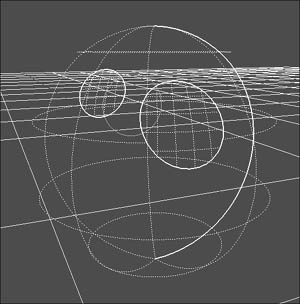
| 4. | Click in an area you want to keepnot the area in which you want a hole.
A yellow diamond indicates the area you want to retain (Figure 7.86).
Figure 7.86. The small, yellow diamond indicates that the region will be kept intact. 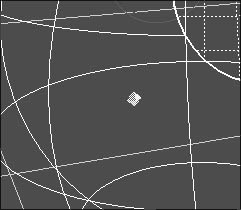
| 5. | Click to trim the surface.
Because the curve was projected on both sides of the sphere, there are now two holes in the surface (Figure 7.87).
Figure 7.87. The surface now includes two holes where the original curve originally appeared on the surface. 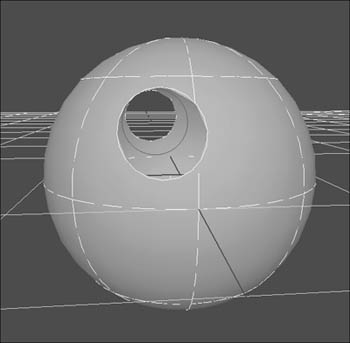
|
Tip
Keep Originals Many of the curve and surface manipulation and rebuild commands have a Keep Originals option. When you rebuild a curve using a command such as Detach, the Keep Originals option lets you retain the original curve in addition to creating the new curve(s) as a result of the specific rebuild command. Be aware that you may not notice that the original curve or surface is still present because the new curves or surfaces will sit directly on top of the original. |
|
