Getting the Most Out of Help
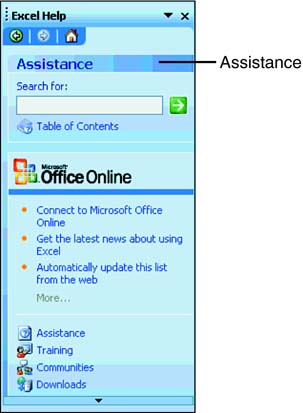
| Besides having this book as a reference, you can get extensive onscreen help from Excel. Built directly into the program is a Help system that provides answers and support for most of your Excel questions. Before you can use online Help, you must have access to the Web from your computer. Getting Assistance When You Need ItMicrosoft has redesigned the look of Help and has changed the way Help works in Excel and all other Office 2003 products. Excel Help now provides online assistance in the Help task pane, which you invoke with one of the following methods :
To move the Help task pane, drag it by its Title bar with the mouse and drop it to the desired location. To resize the Help task pane, move the mouse pointer to any border of the pane, and a two-headed arrow appears. Click and drag the border to change the size of the pane. If the Help task pane takes up too much real estate on the screen, you can hide it by clicking the Close button in the corner of the pane. To Do: Work with the Help Task Pane
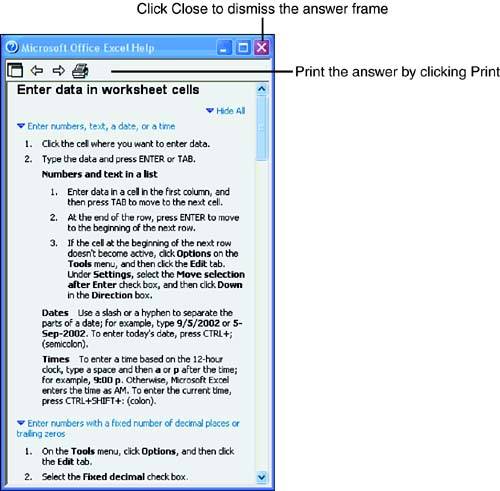
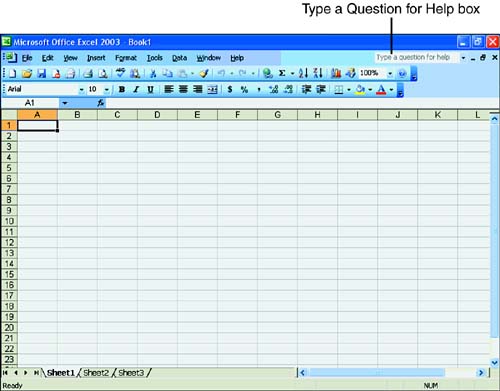
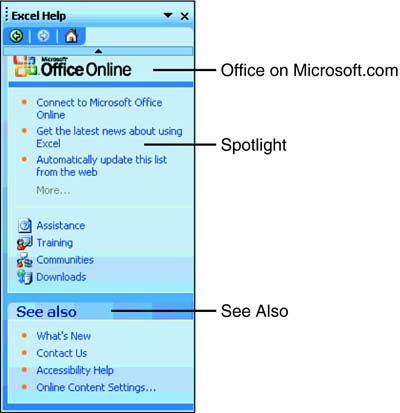
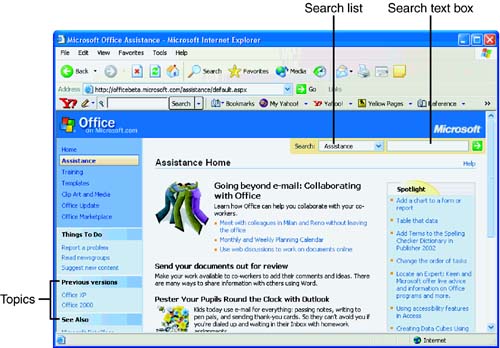
Looking Up Help with the Table of ContentsWhen you know the general category of a topic but not the specifics, you can look up Help in the Table of Contents. You use the Table of Contents in Excel Help as you would a table of contents at the front of a book. On the Help task pane, beneath the Search box, click the Table of Contents link. Excel displays a list of topics. Select the topic you want, and Excel displays additional topics. Continue selecting topics until you find the information you want. Obtaining Help with the Type a Question for Help BoxWhen you know the specific category of the topic in question, Help is no further away than the Type a Question for Help box. The box is located at the far right end of the menu bar. You can type a free-form question, or a keyword such as copy, print , or save , in the Type a Question for Help box. To do so, click the box that contains the text Type a question for help (see Figure 1.13) and type your question. For example, type How do I create a formula? and press Enter. Excel responds by displaying the Help task pane with a list of related topics. Click a topic to obtain information on creating a formula. Figure 1.13. The Type a Question for Help Box waits for your question or keyword. As you enter questions and keywords in the Type a Question for Help box, Excel adds them to the Type a Question for Help list. When you click the Type a Question for Help box arrow, Excel displays a list of previously asked questions and keywords. Turning to the Web for More AnswersOne of Excel 2003's most exciting features is its extensive use of Internet features. Before you can visit the Web, you must have access to the Web from your computer. If you're using Excel at the office or school, check with your network administrator to find out whether you have an established connection. If you're using Excel at home, you need a modem and an account with an Internet service provider, DSL, or a cable modem. If you ask a question that requires a more detailed explanation than Help can provide, you can click a link in the Help task pane to find the answer on the Web. The links are located in two sections in the Help task pane: Microsoft Office Online and See Also, as shown in Figure 1.14. Click the down arrow at the bottom of the Help task pane to view all the See Also links. Of course, you must be connected to the Internet before you begin. Figure 1.14. Turn to the Web for answers. For example, click the Assistance link in the Microsoft Office Online section. Excel opens your browser and displays the Assistance Home page the browser, as shown in Figure 1.15. From here, you can click a topic in the left pane, or select a topic in the Search drop-down list and then type a keyword in the Search text box. Figure 1.15. Search for an answer on the Assistance Home page. |

EAN: 2147483647
Pages: 279