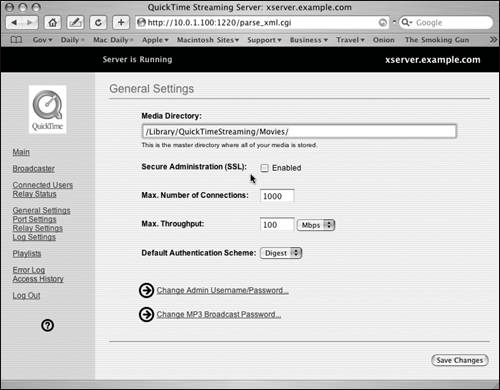
Another way to administer QTSS is through the use of a browser, such as Safari. Server Admin can be fine for the task of administration, but if you've installed the Darwin Streaming Server on another operating system or Mac OS X Client, you should be aware of Web-based administration.
When Web-based administration is enabled, you have access to the same settings found in Server Admin and QuickTime Streaming Server Publisher combined.
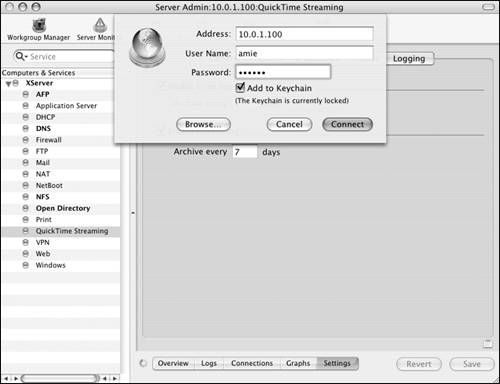
1. | Launch the Server Admin tool from within /Applications/Server, and authenticate as the administrator (Figure 12.19).
|
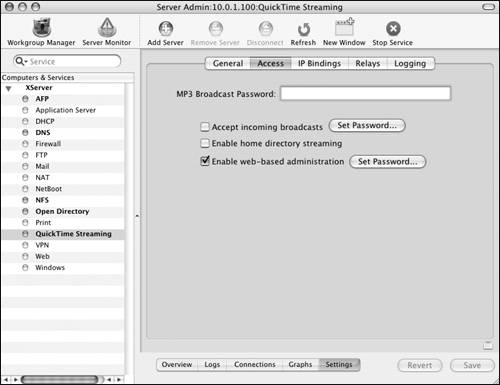
2. | Click the QuickTime Streaming service, click the Settings tab, and then click the Access tab (Figure 12.20).
|
3. | Select the "Enable web-based administration" check box.
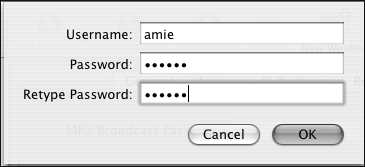
A dialog drops down in which you can set a user name and password for this task (Figure 12.21). You may need to click the Set Password button  if this has been done once before. if this has been done once before.
|
4. | Click the Save button  to save your changes. to save your changes.
|
5. | For security reasons discussed later in this chapter, launch a Web browser of your choice on the server, type in the IP address of the server followed by a colon and the number 1220, and press the Return key (Figure 12.22).

This represents the port number over which the QTSS Web-based administration tool runs.
|
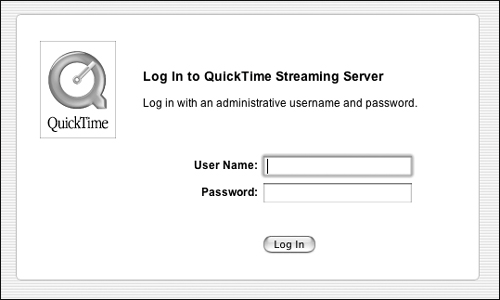
6. | In the initial Web page that appears, enter the user name and password that you entered in step 3, and click the Log In button (Figure 12.23).
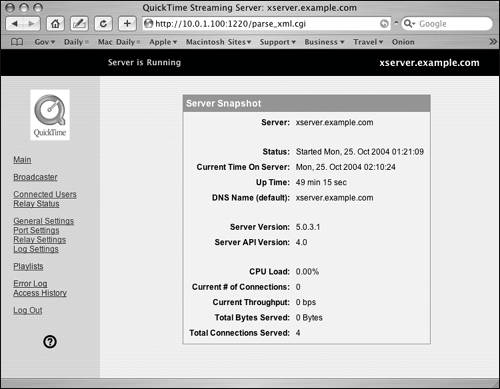
You can now manage the QTSS using the Web-based administration tool (Figures 12.24).
|
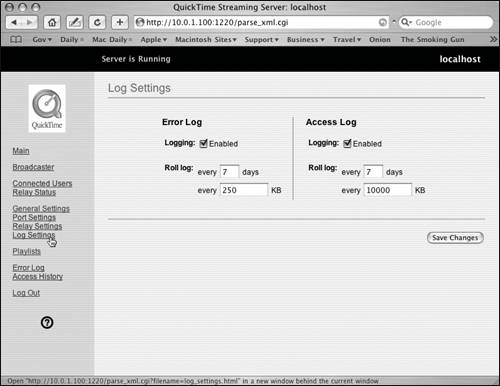
7. | Click any link on the left to view various parameters of your QTSS (Figure 12.25).
Once you're finished changing settings, always log back out so you see the initial login screen (Figure 12.26).
|
 Tip
Tip