Mac OS X Client supports many types of printers, including network and directly connected printers. This section, however, focuses specifically on using the Printer Setup Utility to add printers shared from a Mac OS X Server. These printers are available to all users on the client.
1. | On a client, launch the Printer Setup Utility located in /Applications/Utilities.
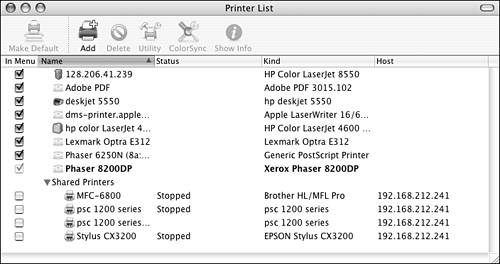
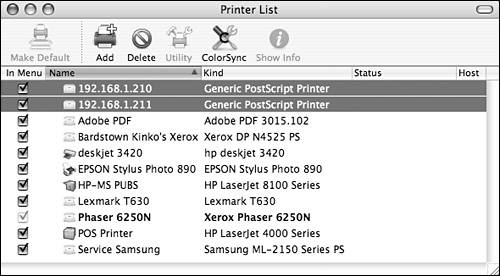
The Printer List window appears (Figure 7.25).
|
2. | Click the Add Printer button  on the Toolbar. on the Toolbar.
The Add Printer dialog drops from the title bar.
|
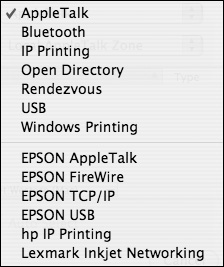
3. | Click the Printer pop-up menu at the top of the dialog, and select one of the following options (Figure 7.26):
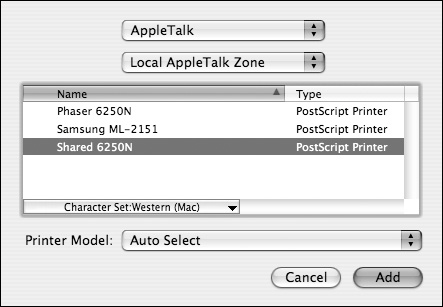
AppleTalk If your AppleTalk network is configured with multiple zones, select the appropriate zone from the pop-up menu. In either case, AppleTalk printers automatically populate in the list. Select the printer from the list, and click Add  (Figure 7.27). (Figure 7.27).
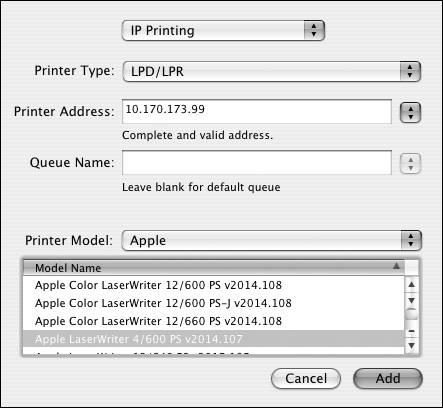
IP Printing/LPR From the Printer Type pop-up menu, choose LPD/LPR. Enter the server's address and, optionally, the queue name. If you want to specify a printer driver other than the Generic driver, you may do so by selecting it from the Printer Model pop-up menu. When you're done making changes, click Add (Figure 7.28).
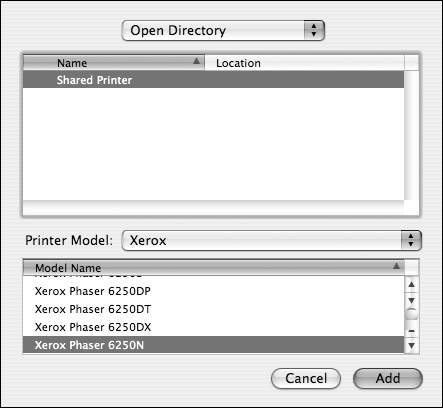
Open Directory You can use this option if your client is configured for Open Directory and you've added printer records to your master Open Directory server. See the task "To configure a printer in Open Directory," earlier in this chapter, for more information. Otherwise, select the printer from the list, and click Add (Figure 7.29).
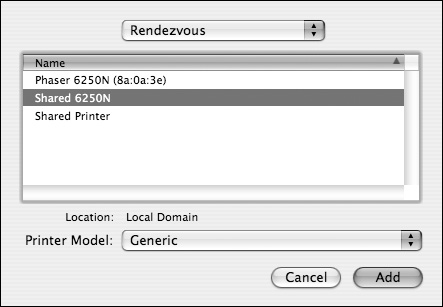
Rendezvous If your server and client are on the same subnet, you can use Rendezvous to discover printers. Printers or shared queues configured with Rendezvous automatically populate in the list. Select the printer from the list, and click Add (Figure 7.30).
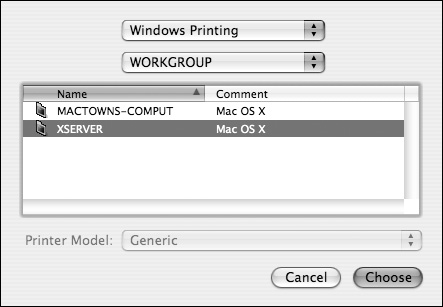
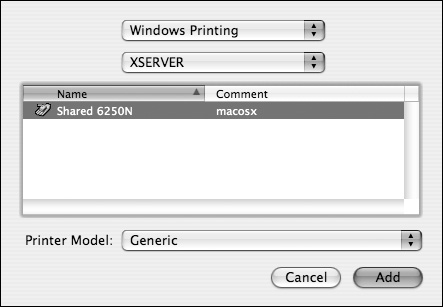
Windows Printing If your Windows network is configured with multiple workgroups, select the appropriate workgroup from the pop-up menu. Initially you'll be presented with computers running Windows (SMB) printer sharing. Select a computer from the list, and click the Choose  button (Figure 7.31). You'll have to authenticate with a user account (Figure 7.32). Then, select the printer from the list, and click Add (Figure 7.33). button (Figure 7.31). You'll have to authenticate with a user account (Figure 7.32). Then, select the printer from the list, and click Add (Figure 7.33).

USB With USB printing, plugging in the USB printer is usually enough. You may need to install the printer drivers and printer description files if a CD is included with your printer. Consult the directions and CD that came with your USB printer in that case.
|
4. | Verify that the printer you just selected has been added to your Printer List window (Figure 7.34).
Remember to quit the Printer Setup Utility when you're finished.
|
 Tips
Tips on the Printer List Toolbar.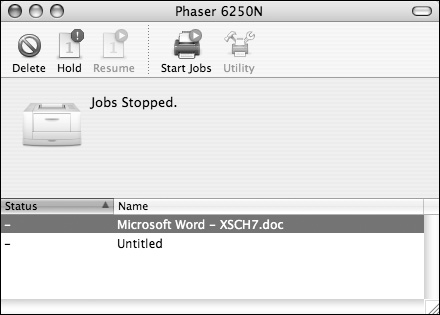

 .
.