5.3 Functionality: rich versus reach or premium and basic
|
| < Day Day Up > |
|
Browsers that support the XML, XSL, DHTML, and HTTP-DAV protocols have the largest available OWA feature set. All Microsoft browsers since IE5 (including IE5 for UNIX) support these protocols, and you will probably have these browsers in place on many desktops purely because they are part of the operating system. Any desktop that runs Windows XP automatically has IE6, for example. Note that IE6 is required if you want to run OWA in some languages (Hebrew or Arabic, for example). Check with Microsoft to determine the latest status on language support if you are unsure whether you need IE6 in your own environment. There have been many security attacks against IE, and the best advice is to use the most up-to-date version and keep a close eye out for any updates that Microsoft releases.
If you do not use the latest version of IE, possibly because you have made a decision to use browser technology from another company (such as Opera or the Netscape browser), you will find that basic messaging and calendaring functionality work quite well on all downstream browsers. You do not have to replace every browser just to take advantage of the extra stability and performance delivered by OWA. Indeed, even downstream browsers benefit from some of the architectural changes that Microsoft began to make in Exchange 2000, because OWA uses less frames, script, and applets to build the user interface, so performance is snappier. Using less scripted code has another benefit in that there is less chance of OWA encountering compatibility problems with different browsers. In terms of OWA, we define a downstream browser to be any browser that does not support the protocols built into IE5 or later. Any browser shipped after IE5 should be able to exploit the full set of OWA features, but you do need to test to confirm that this is the case for any particular browser.
Over time, Microsoft has used different terms to describe the various types of browsers that OWA can support. The original terms were rich and reach, with rich meaning that the browser is capable of supporting the full OWA feature set. Reach indicates that the browser cannot support all of the OWA features for some reason, usually protocol support. If you look at the OWA logon screen that allows users to select the type of client they want to use, you see that Microsoft uses premium and basic to describe the client types. These terms reflect the way that ASPs price OWA connectivity to users, so they are reasonably logical. Note that the support of feature segmentation makes it easier for ASPs to differentiate service delivery, even if you connect with an advanced browser.
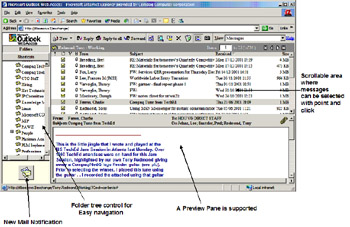
Figure 5.3: Outlook Web Access and IE6 (Exchange 2000).
While the words have changed, they mean the same thing. The concept of a reach browser means that even basic browsers can connect to Exchange to read and send messages, but you will only get limited functionality in browsers that cannot support extended protocols such as rich DHTML behaviors and XML-HTTP. Even relatively recent browsers such as IE4 fall into the reach category, because they do not support the extended protocol set. All current versions of Netscape Navigator fall into the same category. In one way, you can think of the feature set for the reach client as the lowest common denominator for a browser. Even with this caveat, the feature set supported by the reach client is impressive when you compare it with other browser-based email systems such as the Squirrel Mail client.
IE5[3] was the first "rich-level" browser, meaning that the browser is capable of processing many user interface operations without reference to the server. Figure 5.3 shows the kind of environment you can expect when you combine IE6 with OWA from Exchange 2000, while Figure 5.4 demonstrates the improvement in user interface design and implementation that Microsoft achieved in Exchange 2003. It is obvious what kind of impact a couple of extra years' development can make on a user interface when coupled with a huge amount of user feedback. By offloading the processing of views, rich clients reduce load on servers. A server is therefore capable of supporting more concurrent browser connections, and performance tends to be higher because the OWA architecture eliminates the server to browser time lag for all but the initial download of data.
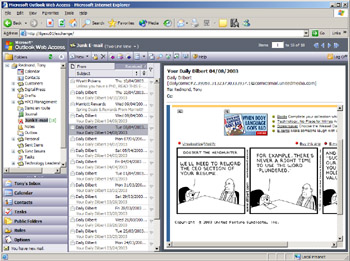
Figure 5.4: Outlook Web Access and IE6 (Exchange 2003).
The goal for OWA is to create a user interface that is as close as possible to the full-function Outlook client, and this is possible only with rich browsers. Each release builds on the last to move toward the goal, and Microsoft is very close to it with Exchange 2003, which boasts a more attractive and streamlined user interface. Aside from the new user interface, Microsoft learned from its experience with Exchange 2000 and tweaked browser-server communications to make OWA more responsive. For example, if you delete an item in a folder with OWA 2000, the browser requests the server to perform a folder refresh, including a check for any new items that might have arrived in a folder such as the Inbox. With Exchange 2003, OWA does not refresh a message list until you delete more than 20 percent of the list's content (based on the user's own determination for the number of items on a page), so item deletion is more responsive. For example, if you set OWA to display 50 items per page, it will not refresh until after you delete 11 items.
OWA makes use of IE "behaviors" to build part of the user interface. Behaviors are a way of making DHTML pages easier to build by separating the code that implements the user interface from the data. The separation of code and data makes HTML pages more manageable and the user interface more predictable. The code that defines behaviors is typically shipped in an .htc file. A number of .htc files used by OWA are located in the \exchsrvr\exchweb\controls directory. Examples include features such as "drop- menu" (which defines how to respond to the right mouse button when it is clicked by displaying a drop-down menu), and you can find the hierarchical tree control to display folders in a mailbox or public folder hierarchy in the same directory.
IE uses behaviors to extend the functionality of an HTML element by adding new attributes, methods, and events for the element. For example, you can define behavior to control how a LIST element expands and collapses or how a command button changes color when the mouse passes over it. Outlook clients make extensive use of lists or views that collapse and expand, so it is easy to see the attraction of this feature from an OWA developer's view.
Because their main function is to display data pushed down by a server, browsers often just handle static displays. Microsoft has attempted to mitigate some of the static nature of browsers by forcing updates of screen content when an application creates new items. For example, if you create a new appointment, OWA knows that it has to refresh the view and does so automatically to show the new item in your calendar. It is easy for a browser to know that a refresh is required when Exchange has added a new item to a folder, but new mail notifications are a different matter because you never know when new mail will arrive. To solve the problem, OWA (Exchange 2000 SP2 onward) uses the HTTP-DAV SUBSCRIBE and POLL methods to enable new mail and calendar notifications. The feature works by subscribing to the Inbox and calendar folders when OWA initializes, and then polling for new email or upcoming appointments every two minutes.
The set of features supported by rich browsers includes:
-
Point-and-click selection of objects from a scrollable list.
-
Drag and drop from one folder to another. Unlike Outlook, you cannot drag and drop files from the Windows Explorer to an OWA 2000 message to add an attachment to a message or drag a file and drop it into a folder to copy it to the folder, but you can with OWA 2003 after you install the S/MIME control. In addition, you cannot drag and drop an item from the Inbox to the Contacts folder and expect to create a new contact, since this functionality is not yet available.[4] Drag-and-drop support does include resizing calendar appointments to fit a time slot.
-
OWA supplies context-sensitive toolbars for different folders. For example, a different toolbar is displayed when the Inbox is active than when the calendar is displayed. In addition, context-sensitive menus are available. For example, if you right-click on the Deleted Items folder, you see an option to empty the folder.
-
As with Outlook, OWA supports grouped views such as "Group by Conversation Topic" to allow items to be collapsed and expanded according to the criteria defined for the view.
-
Sort folders by different attributes, such as date, author, subject, and so on.
-
View the first bodypart of a message through the reading pane. In addition, the Exchange 2003 version of OWA allows you to position the reading pane to the right, bottom, or delete it from the screen, just like Outlook 2003.
-
Calendar and contact items can now be stored in other folders, including public folders. This offers some interesting possibilities for group calendars or group contact folders. Personal contacts are now used to validate email addresses.
-
A rich text editor is available to generate HTML content. However, unlike Outlook, you cannot call Word for Windows and use it to edit the content of messages.
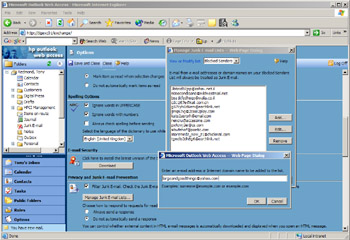
Figure 5.5: Setting up a Blocked Senders list with OWA. -
You can set server-side rules (but only when connected to an Exchange 2003 server).
-
OWA supports the server-side processing of junk mail, but it does not download messages and review content to detect spam in the same way as Outlook 2003 does. However, you cannot import or export the Blocked or Safe Sender lists as you can with Outlook. Exchange holds these lists as mailbox properties on the server. The maximum size of the lists is 512 KB, so you can add roughly 1,024 safe senders and 1,024 blocked senders to the list (Figure 5.5).
-
OWA includes a logoff button (from Exchange 2000 SP2 onward) to close off the browser session. This option does not remove any temporary files that you may create on the PC during an OWA session, but Exchange 2003 will flush the browser password cache when you log off. Apart from implementing session timeouts through the forms authentication feature, OWA has no method to force a user to log off, leading to a situation where someone might leave a browser connected to his or her mailbox when he or she leaves. Third-party solutions provide other options that you might like to investigate.[5]
-
OWA supports the CTRL/K keystroke to resolve the names entered in message headers. OWA displays any ambiguous matches to the user when it checks addresses. OWA 2003 makes the display of unrecognized and ambiguous addresses easier for users to resolve and supports more keyboard shortcuts to speed up email processing. You can use these shortcuts when you position the cursor in the list of messages. The shortcuts are:
-
New message (or post for public folders): Ctrl+N
-
Reply to selected message: Ctrl+R
-
Reply all to selected message: Ctrl+Shift+R
-
Forward selected message: Ctrl+Shift+F
-
Mark selected messages as read: Ctrl+Q
-
Mark selected messages as unread: Ctrl+U
-
-
OWA supports spell checking from Exchange 2003 onward. This feature imposes a certain load on the server because OWA must upload the message text and check it on the server, but this is unlikely to cause any performance concerns for modern servers. The spell checker is not too good when asked to deal with Shakespearean sonnets, but it is as capable as the Outlook spell checker is and supports six languages (English, French, Italian, German, Spanish, and Korean).
-
OWA performs a check for password expiration after the initial connection and notifies users if a password change is required soon (within 14 days).
In addition, if you run IE6 (SP2 or later) and connect to an Exchange 2003 server, data passed between the client and server can be compressed using the GZip compression algorithm.
If you run IE6 on Windows 2000 or Windows XP workstations, you can also create, read, and sign S/MIME encoded messages using a control that you have to download to the browser.[6] The control is specific to a PC, so you must download the control to every PC where you use OWA and plan to sign messages or encrypt messages. OWA signs and encrypts messages according to the S/MIME V3 standard, but it can also read S/ MIME V2 encrypted messages. Options to control whether OWA signs and/or encrypts messages by default are available along with the other OWA options, and you can opt to sign or encrypt a message on an individual basis in much the same way as with Outlook. However, OWA does support S/MIME encoded read receipts. Figure 5.6 illustrates some of the OWA encryption and signing features in action. The top screen shows a signed and encrypted message, which you can recognize by the presence of the padlock (encrypted) and rosette (signature) on the right-hand side. The bottom screen shows the GAL properties for one of the recipients, where we can see that AD holds a valid digital ID (certificate) for this user.
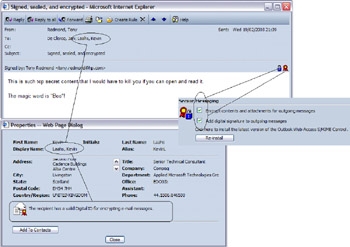
Figure 5.6: Signed and encrypted OWA email.
Before you can start using message encryption with OWA, you have to deploy a public-key infrastructure. You can use the Windows Certificate Server to issue certificates to users or use those issued by other certification authorities such as Verisign. In either case, you have to arrange for users to get the certificates and perform administrative operations such as key revocation through other tools, because OWA only makes use of certificates; it includes no functionality to control, manage, or otherwise work with certificates. Exchange 2003 performs all certificate validation (e.g., to determine that certificates are still valid and are not on a revocation list). The certificate can be in any location accessible to the Windows CryptoAPI, including the local certificate store and smart cards. If you attempt to sign or encrypt a message and OWA cannot find a valid certificate, it prompts you to provide a key by inserting a hardware-based device. In addition to your own certificate, recipients must possess certificates that Windows can access before OWA can generate signed or encrypted messages. The certificates can be attributes of user AD objects, or you can store certificates along with other contact information. In either case, if OWA cannot find the certificate for a recipient, it will warn you that the recipient may not be able to read the message if you continue to send it.
You may decide not to download the S/MIME control on the basis that you do not want to send or encrypt messages, but, in fact, the control also enables more sophisticated message handling. For example, after you load the control, you can:
-
Click on the attachment icon in the toolbar and attach files without going through the normal two-step attach and post dialog.
-
Drag and drop messages from one folder to another. However, if you drag a message to the calendar folder, OWA does not populate the necessary attributes to create a new appointment and you cannot see the item in the calendar views.
-
Drag and drop messages onto new messages.
-
Drag and drop files from Windows Explorer to a message to become an attachment. If you make a mistake, you can right-click on an attachment to remove it.
-
Use all of the fonts installed on a PC istead of the default five.
On the surface, you may find it hard to understand why OWA links the S/MIME control to additional message handling functionality, but it has to do with security. With the control added, OWA deems you to have a more secure browser, so it allows you to work with local files more easily and the PC can compose the message rather than dispatching components to the server for assembly and dispatch. For example, you can drag and drop attachments into a send message window rather than going through the more extended (but safer) process of opening a separate "Select Attachment" window to select the attachment you want to send. Assuming that everyone has access to keys and has downloaded the S/MIME control, you can force users to encrypt and/or sign messages by creating two new registry values, as follows:
HKLM\System\CurrentControlSet\Services\MSExchange\OWA\ AlwaysSign HKLM\System\CurrentControlSet\Services\MSExchange\OWA\ AlwaysEncrypt
Set these DWORD values to 1 to force signing and encryption. The default is 0, which allows users to choose. It is unwise to force these settings unless you are sure that users have the S/MIME control installed and understand how to use digital signatures and message encryption. For example, they need to know that they can sign messages addressed to anyone, but they need to have access to a recipient's public keys before they can encrypt an outgoing message.
5.3.1 Updating slowly
It is great to know that IE supports all the protocols necessary to implement the full OWA feature set, but Microsoft cannot expect everyone to upgrade to the latest version of IE overnight. It is a nice dream, but it will not happen. Backward compatibility is necessary, yet the challenge exists to upgrade and improve the performance of reach browsers when they connect to Exchange without using any of the new protocols. OWA does this by reducing the amount of data downloaded from the server, cleaning up the script code in the ASP pages, simplifying the user interface to use a smaller number of frames, and taking advantage of the additional performance delivered by the new architecture.
Almost all of the basic messaging functionality available to rich browsers is available to reach browsers, but there are some major differences in the user interface. For example, OWA provides references to objects as hot links, so you have to select an item and then double-click it before activating the item. Rich browsers use the same point-and-click, scrollable, multi- select model used by Win32 clients. Figure 5.7 provides a good view of the user interface of a reach browser connected to Exchange 2003. A quick comparison with the rich interface shown in Figure 5.4 demonstrates the difference between the two interfaces. You can see the effect immediately, since the user interface is much flatter and the advanced features such as the reading pane are not available. In addition, extended features such as spell checking and S/MIME support are only available to rich browsers.
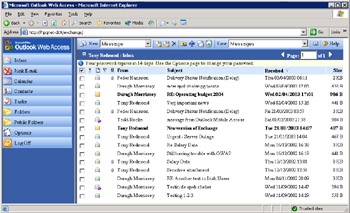
Figure 5.7: IE6 runs the reach interface (Exchange 2003).
However, the difference is only truly obvious when you attempt to use the reach interface after using the rich interface for a while. It is an unfair comparison, because there is no way that the reach interface can approach the usability of an interface that Microsoft has worked on for many years. Today's rich browser client is streamlined and attractive, whereas the reach client is clunky and dated. Still, if you need the reach client to access your Inbox or are forced to use it in a situation such as a public kiosk, it is more than capable of delivering.
There are instances when you may want to opt selectively to use the reach interface-for example, when you connect across a slow link and want to check email quickly. The Exchange 2003 version of OWA allows you to use the reach client even if you have the latest version of IE installed. However, once you have experienced the rich OWA client, you will not want to go downstream again.
5.3.2 Limiting richness
Sometimes, you may want to limit the abilities of clients and force them to connect in reach mode, perhaps to achieve consistency across all desktops and ease support and training requirements. Another reason is that some firewalls may not support the transmission of HTTP-DAV verbs. Microsoft built the ability for administrators to selectively downgrade, even for a short period, into Exchange 2003. You cannot apply a selective downgrade, since it affects every client that connects to a server as long as the downgrade is in effect.
You can control OWA downgrading by setting the registry value:
HKLM\SYSTEM\CurrentControlSet\Services\MSExchangeWEB\ OWA\ForceClientsDownLevel
The default value is 0, meaning that OWA decides if a browser can support the rich client. Set the value to 1 to force Exchange to offer down-level support only. You do not need to restart the Store or IIS to make the change effective, since it kicks in the next time a client connects. In a front-end/ back-end configuration, you have to make this change on the back-end servers, because these servers control the user interface that clients see.
5.3.3 Spell checking
OWA spell checking works as an ISAPI extension[7] that links to the relevant language library found in the same folder. When a client requests Exchange to spell check a message, it uses a POST verb to send the text to the ISAPI extension. Exchange checks the text against its dictionaries and generates an XML document that contains all possible corrections. Exchange then sends the XML document down to the client, which displays the text and corrections to the user through the interface shown in Figure 5.8. After the user has selected whatever corrections he or she wants to accept, OWA makes the amended text into the message body. This mechanism is effective, but it limits you to checking the entire text of a message rather than being able to check selected areas. As with Outlook, users can select options to control how to perform spell checking (language, ignore uppercase words, ignore words with numbers). Exchange stores these options as mailbox properties to ensure that users can move from PC to PC and retain their preferences.
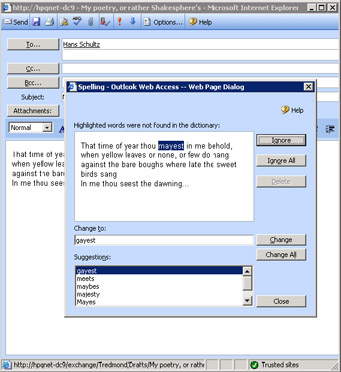
Figure 5.8: OWA spell checking.
It is conceivable that spell checking could affect overall server performance, but only if the server is already experiencing performance problems and is literally "on the edge" and unable to accept any further load. If this happens, you can throttle back the resources that users can consume with spell checking with a number of registry values at:
HKLM\System\CurrentControlSet\Services\MSExchangeWEB\OWA
Table 5.1 describes the available values.
| Value | Meaning |
|---|---|
| MaxSpellDocumentSize | The maximum size (in KB) of a document that an OWA client can send to Exchange for spell checking. If a user sends a larger document, Exchange returns an error. |
| MaxSpellErrors | The maximum number of errors that Exchange will generate in a document, after which spell checking ceases. If too many errors exist in a document, Exchange spell checks until it meets the limit set, then returns the document to the user and notes that it is only partially checked. |
| MaxUniqueSpellErrors | The maximum number of unique errors that Exchange will generate in a document, after which spell checking ceases. The same error can exist multiple times, in which case it counts against MaxSpellErrors. In this case, Exchange looks for unique errors and counts each instance once. After a document exceeds the limit, Exchange returns it to the user and notes that it is only partially checked. |
| DisableSpellCheckOnSend | DWORD value set to 1 if you want to prevent users from spell checking messages before sending. The default allows users to use this feature. |
| MaxSpellRequests | The maximum number of spell checking operations that Exchange will accept from OWA clients at one time. If the server exceeds this limit, OWA clients that subsequently attempt to check a document see a dialog saying that the spell check server is busy and they should try again later. |
5.3.4 Subscriptions
OWA clients use subscriptions to enable notifications for new mail and the calendar. When OWA initializes, it uses the SUBSCRIBE method to the URL for whatever folders the user has enabled reminders for (through OWA Options-see Figure 5.9). If you want email notifications, you take out a subscription for the Inbox folder, but if you want calendar notifications, a subscription is taken out for the Calendar folder.
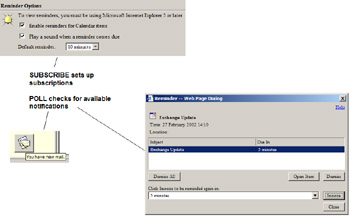
Figure 5.9: OWA subscriptions.
The subscription specifies the type of reminder that the user wants. For example, a simplified form of the HTTP message sent to the server to enable new mail notification for my account is:
SUBSCRIBE/Exchange/TRedmond/Inbox HTTP/1.1 Notification-Type: pragma/<http://schemas.microsoft.com/ exchange/newmail> Host: Server-name
The request asks for a subscription on the Inbox folder that watches for new mail arriving. In response, the server replies with an OK and gives the client a subscription identifier and a subscription lifetime (in seconds). The client must renew the subscription before it expires if it wishes to continue receiving notifications-all OWA subscriptions have a default lifetime of one hour. It is the responsibility of the client to poll the server to receive subscription updates. The POLL command is very simple and passes the folder and subscription identifier:
POLL /Exchange/TRedmond/Inbox Subscription-Id: 1099 Host: Server-name
The response is a stream of XML data that contains reminder information. New mail notifications are straightforward-a simple indication that new mail has arrived. Calendar notifications include information about the meetings or appointments and may include multiple reminders. OWA uses this data to show the user the calendar reminder dialog shown in Figure 5.9.
By default, OWA checks for new mail every 2 minutes and checks for new calendar reminders every 15 minutes. You can set different default intervals on the server by updating the system registry at the following key:
HKLM/System/CurrentControlSet/Services/MSExchangeWeb/OWA
Change the values (in minutes) of NewMailNotificationInterval (new mail) and ReminderPollingInterval (calendar) to whatever settings you desire. Note that the default reminder time stated here is different from the time shown in the OWA Options dialog; OWA uses this value to create reminder times for new appointments and meetings. However, remember that increasing poll activity generates more work for the server, so do not change the intervals unless you are sure that this will accomplish a well- defined goal.
5.3.5 Forms or cookie authentication
Exchange 2003 supports a logon security feature called "forms-based authentication" (also known as cookie authentication) to enable secure connectivity for browsers. The typical configuration is a front-end/backend deployment (it is also possible to deploy forms authentication in a pure back-end or normal server configuration) to host connections from browsers running in kiosk-type environments. In this case, the form we refer to is the OWA logon form (owalogon.asp), which you can find in the language-specific folder under the \exchweb root. The logon page gathers user credentials. Behind the scenes, OWA uses cookies to gather the credentials and then attach them back to HTTP requests issued by the browser. An ISAPI filter and ISAPI extension check the incoming HTTP requests and validate that the credentials are correct before they permit any access to Exchange. IIS reroutes any HTTP request that does not contain the necessary credentials back to the logon form to maintain session security. Forms-based authentication increases the level of security within the OWA client by:
-
Disabling the ability for users to instruct the browsers to remember their passwords
-
Enabling a session inactivity timer, so that users must reauthenticate themselves if they are inactive for more than a specified period
-
Causing the logout button to return users to the logon screen and disabling their ability to use the browser "back" button to return to their mailbox without reauthentication
-
Allowing users to select between the rich and reach client interfaces during the OWA logon procedure
-
Forcing an SSL connection-forms authentication only works on HTTPS traffic
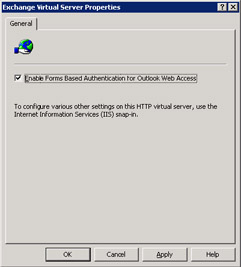
Figure 5.10: Enabling forms- based authentication.
When you configure a system to be a front-end Exchange 2003 server, it means that you want IIS to take any incoming HTTP requests for Exchange and proxy them onward to the back-end server that hosts the user's mailbox. Behind the scenes, Exchange switches the ISAPI extension for the "Exchange" Web application from DAVEX.DLL to EXPROX.DLL to replace direct Store access with proxying. In addition, integrated Windows authentication is replaced by basic authentication to allow IIS to forward requests to back-end servers. We can then proceed to enable forms- based authentication. Because forms authentication changes the way that OWA works, Exchange disables it by default. However, you can enable it by:
-
Enabling SSL on the front- and back-end Exchange 2003 servers that host the mailboxes you want to access through forms-based authentication
-
Using ESM to enable the feature for the Exchange virtual server (navigate through the Protocols node to select the HTTP Protocol, and then click on the properties of the Exchange virtual server, as shown in Figure 5.10)
Once again, Exchange has to make a number of changes to its Web application to make forms-based authentication work. It registers a new extension (OWAAUTH.DLL) to handle processing of user credentials, changes the default domain for the virtual directories to "\" to allow users to pass UPNs when they log on, enables the \exchweb\bin\auth virtual directory and sets its default document to be OWALOGON.ASP (Figure 5.11), and enables anonymous access to the directory.
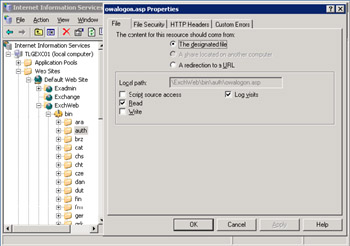
Figure 5.11: OWALOGON.ASP properties.
Once everything is in place, processing works like this:
-
To access his or her Exchange mailbox, the user enters a URL pointing to the Exchange application on the front-end server-for example, https://front-end/exchange. Note that the filter only traps SSL requests.
-
The ISAPI filter intercepts the request and attempts to extract the user's logon credentials from a cookie that it looks for in the request.
-
The user has not yet provided any credentials, so the ISAPI filter forwards the request to the Exchange Web application.
-
Exchange will not allow the user to access a mailbox without credentials, so it responds with a "401" (unauthorized access to page) error. The ISAPI filter redirects the connection to display the OWA logon page to collect user credentials.
-
After the user enters his or her credentials, the logon page sends a POST request to the OWAAUTH extension, which creates an encrypted cookie and redirects processing back to the URL that the user originally entered. At this point, IIS needs to be able to interact with a domain controller to validate the credentials that the user entered, so if the front-end server is in a DMZ and the controller is behind a firewall, you need to open the necessary ports to allow RPCs between IIS and the controller.
-
The ISAPI filter is now able to extract a cookie, so it attempts to decrypt its content using a set of symmetric keys that Exchange regularly generates. Exchange keeps the current key and the last two previous keys to ensure that we do not encounter a situation where keys become invalid because of a change in a time boundary. If the credentials exist, the ISAPI filter attaches them to the HTTP request and forwards the request to Exchange.
-
Exchange recognizes the credentials and grants access to the mailbox, and normal OWA processing begins.
-
To speed matters up, OWA prepopulates a hidden frame by downloading toolbars and other graphics as a user goes through the authentication process, so that it can display its user interface as quickly as possible after authentication occurs.
You can configure the session inactivity timer (in minutes), which controls how often Exchange generates the symmetric keys used to encrypt the cookie contents, by setting the DWORD registry value KeyInterval at:
HKLM\System\CurrentControlSet\Services\MSExchangeWeb\OWA\
The maximum value you can set is 1,440, or 24 hours. While you might put in a value such as 20 to indicate a 20-minute timeout, OWA cannot implement timeouts with such exactness. The browser does not constantly poll the server to know what the value is. Instead, the value represents a root value to determine the maximum and minimum inactivity time. OWA calculates the maximum and minimum values by multiplying the key interval by three and two, respectively. For example, if you set the key interval to 5, the maximum inactivity period is 15 minutes and the minimum is 10. Thus, the time when OWA requires reauthentication may occur any time after 10 to 15 minutes of inactivity.
Implementing forms-based authentication secures OWA access for kiosk-style environments but has some problems in intranet access. For example, single sign-on no longer works. In addition, you configure ISAPI filters on a per-virtual server basis, so after you set things up to support forms-based authentication, the effect is to channel all HTTP traffic for the server through the filter and not just the traffic for Exchange.
5.3.6 Some missing features in OWA
Even when you use OWA with a rich browser, some features are still missing. Microsoft has been adding new features through service packs, so you will attain maximum functionality if you connect to OWA on a server that has the latest service pack installed. Even so, working offline is notable for its absence and there is no way to access personal folder files (PSTs).
With Exchange 2000, you cannot set server-side rules through OWA, although the server will honor any rules set through an Outlook client. Microsoft implemented item type processing for Tasks in OWA 2003, but OWA does not support the Journal. You can use OWA to create new items in the Journal folder, but OWA does not include the client-side processing that makes these items function as journal entries.
With Exchange 2003, you can use the rich OWA client to work with server-side rules (Figure 5.12) and process S/MIME messages, as well as use other features missing in Exchange 2000, such as auto-signatures, search folders, support for tasks, attachment blocking, and content filtering. Tasks, auto-signatures, and attachment blocking are now also available to reach clients. However, do not expect to recall a message, set up a new public folder or set permissions on a folder, or maintain distribution lists, because those options are still missing from the OWA user interface.
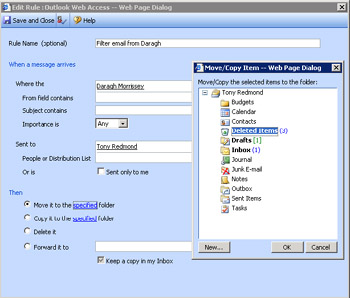
Figure 5.12: Working with rules in OWA 2003.
Providing some mechanism to allow working offline is possibly the hardest problem to crack, at least from a philosophical point of view. Remember that Microsoft designed OWA as a "stateless client," with no need to deposit or keep user-specific data on a desktop. How does this goal measure up with the storage required to facilitate working offline? Once an application downloads local data onto a PC, you run into problems of people moving around using multiple PCs. This does not usually affect personal email systems such as those offered by the free email providers, because a single PC tends to be used by one person or shared within a family; but it is certainly an issue in corporate environments, when a PC might be used first by a senior manager and later by a relatively junior employee. The prospect of someone discovering sensitive or confidential information accidentally is enough to remove any interest in this feature. Outlook solves the problem in some respect by restricting access to offline stores to the mailbox and profile that created the store, but the extent of the problem can be seen if people deliver messages to personal folders (PST files), which can be accessed by anyone who cares to browse a disk.
Access to the GAL works well, but because OWA uses LDAP instead of MAPI and does not support address list views, the access is less smooth than in Outlook and you cannot browse the GAL to locate a recipient. This is not surprising, because LDAP is a search rather than a browse protocol, so it delivers the results of the searches you execute as discrete operations. MAPI incorporates the concept of cursor locations within a data set, allowing you to browse forward and back from any particular point in the GAL. In addition, OWA does not permit users to update the contents of distribution groups, so you have to pass on this work either to people who use Outlook or to administrators.
Given Microsoft's track record in adding new features with each release of OWA, some of the missing features should appear in the future, but don't hold your breath waiting for anything that might compromise the stateless nature of the client or the ability of OWA to support multiple platforms.
5.3.7 Password updates
New Exchange 2003 servers do not allow OWA users to change their passwords, but servers upgraded from Exchange 2000 do. The logic here is that system administrators had to perform several steps on Exchange 2000 servers before users could change their passwords, so it was easiest to disable password changes in Exchange 2003. Microsoft says that this avoids end- user confusion, but I am not so sure. In any case, Microsoft Knowledge Base article 327134 explains the steps that you have to take to enable password changes for OWA users in Exchange 2000.
As with so many things in Exchange, a registry value controls how this feature works. The DWORD value is at the key:
HKLM\System\CurrentControlSet\Services\MSExchangeWEB\OWA
The value is DisablePassword. The default value is 1, meaning that users cannot set passwords. To enable this feature, set the value to 0. The upgrade procedure maintains settings on Exchange 2000 servers during the upgrade to Exchange 2003.
[3] . IE5 is available on the Sun Solaris and HP-UX platforms. If you connect to Exchange 2000, you can use the rich OWA client, but Exchange 2003 restricts you to the reach client.
[4] . Some of the reasons why a file can't be dragged and dropped into a folder lie in the way that browsers deal with files. RFC 1836 specifies how a browser uploads files to a server for storages and the mechanism that OWA uses to transmit files to Exchange. Uploading in this manner is designed to be secure rather than support user interface features such as drag and drop and explains why drag-and-drop support in OWA 2003 is linked to the S/MIME control.
[5] . For example, SecureLogOff for OWA from MessageWare http://www.messageware.com/.
[6] . Two DLLs are downloaded: EXSMIME.DLL and MIMECTL.DLL.
[7] . exchweb/bin/spell/owaspell.dll.
|
| < Day Day Up > |
|

EAN: 2147483647
Pages: 188