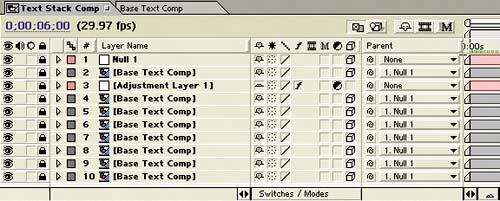
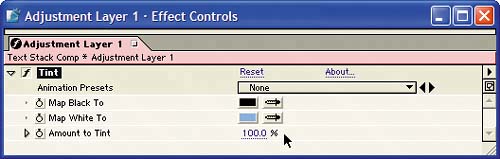
Now you'll pull the project elements together in a master composition. You'll animate a new
slogan
with the Raining Characters Out preset and use the resulting animation as a faint background:
|
1.
|
Create a comp named Master Comp, using the NTSC D1 Square Pix, 720x540 preset, with Duration 15;00 seconds.
|
|
2.
|
Select the Horizontal Type tool, and set the following in the Character and Paragraph palettes:
Font Family: Arial Black
Font Size: 24px
Alignment: Center Text
|
|
3.
|
At time 0;00, create a new layer in the middle of the Composition window by choosing Layer > New > Text. Type
MANAGE THE FUTURE
on one line, press Enter or Return on your keyboard, and type
OF YOUR BUSINESS
on the
next
line.
The new text slogan
|
|
4.
|
Still at time 0;00, apply Animation > Apply Animation Preset >Text > Animate Out > Raining Characters Out to the text layer.
Note
When you choose Animation > Apply Animation Preset, After Effects should
open
the
Presets
folder. If it doesn't, you can locate that folder by navigating to the
After Effects application folder > Support Files > Presets > Text
.
|
|
5.
|
Go to time 0;00, and add a Scale keyframe of 1000, 1000% and a 0% Opacity keyframe to the text layer.
|
|
6.
|
Go to time 1;00, and change Scale to 100, 100% and Opacity to 100%.
These keyframes are timed to fade in the slogan just as the Text Stack Comp animation starts to rain in the
letters
in the text
From Dreams to Ideas to Business Solutions
.
|
|
7.
|
At time 4;00, press Alt + ] (Windows) or Option + ] (Mac OS) to trim the layer's Out point.
|
|
8.
|
Go to time 0;00, and add the Text Stack Comp from the Project window to the Timeline.
|
|
9.
|
Go to time 7;00, and add the Text Stack Comp to the Master Comp Timeline againbut below the MANAGE THE FUTURE text layer. Now the Timeline has a Text Stack Comp starting at time 0;00 and another copy starting at time 7;00.
|
|
10.
|
Set the Opacity of the bottom Text Stack Comp (located at time 7;00) to 30%, and don't add a keyframe.
The Master Comp Timeline
At time 0;07, the slogan
MANAGE THE FUTURE
fades in.
At time 1;14, the
MANAGE…
text rains out of the scene as the other text rains in.
|
You'll add another slogan to the project and animate it by using the Raining Characters In preset again. (Presets don't do all the necessary work for you, but they're
mighty
handy, aren't they?) Even though you used the same preset for the wall of text that you created in an earlier section, the results will look unique after you scale the text and assemble the sequences:
|
1.
|
Select the Horizontal Type tool, and make sure the properties in the Character and Paragraph palettes are still set as
follows
:
Text Size: 24px
Font Family: Arial Black
Alignment: Center Text
|
|
2.
|
Go to time 6;00, and choose Layer > New > Text to create a text layer in the middle of the Composition window. Type
TURNING IDEAS
on one line and
INTO SUCCESS
on the next.
The TURNING… text layer at time 6;00
|
|
3.
|
With the new text layer selected, choose Animation > Recent Animation Presets > Raining Characters In.
|
|
4.
|
Add a Scale keyframe of 40, 40% at time 6;00, and change the Scale to 100, 100% at time 8;00.
|
|
5.
|
With the TURNING… text layer selected, press U on your keyboard to reveal the layer's keyframes. Move the layer's Offset keyframe at time 7;00 to time 6;00 and its Offset keyframe at time 9;15 to time 8;00.
Tip
Press Shift as you drag a keyframe to snap it to a particular point in time.
|
|
6.
|
Move the TURNING… layer in the Timeline's layer stack so it's layer 2. Now the TURNING… layer comes in
beneath
the text in the topmost Text Stack Comp as the composition's text fades out.
The Master Comp Timeline
The white text of the TURNING… layer begins to appear at time 7;00 behind the blue text.
|