| < Day Day Up > |
mask an image
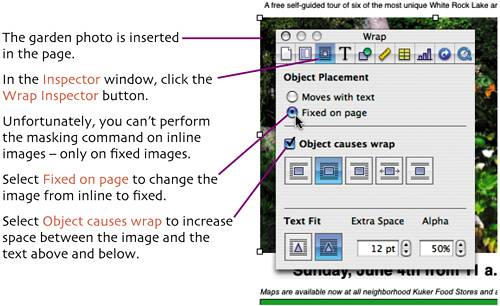
Next we'll import a photo into our file and mask out or hide
Select
Insert > Choose
(
Navigate to the Assets folder . Select the file garden.jpg and click Insert .
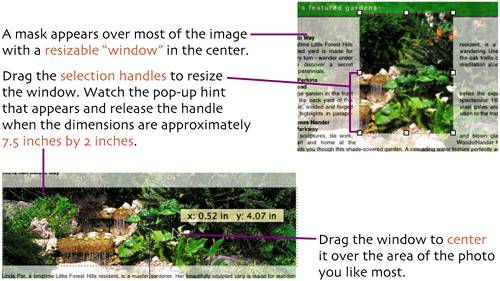
Select
Format > Mask
(
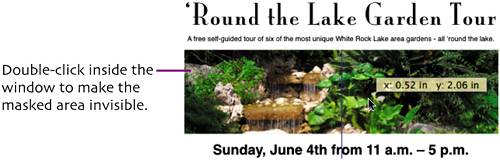
The photo is out of position now. You can drag it into place or use the arrow keys to reposition it. |
| < Day Day Up > |
| < Day Day Up > |
modify page layout
So far in our projects we've only worked with single column layouts. For the list of
Select
View > Show Layout
(
The home listing shifts down creating too much space between it and the rectangle above.
The layout is converted to two columns, and the homes list automatically reflows into the
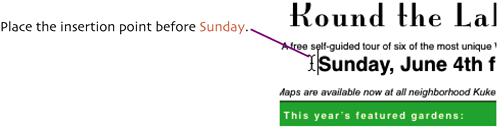
For better symmetry in our design, we'd like for the James T. Kirk listing to start at the top of the second column. To accomplish that, place the insertion point before James T. Kirk . Choose Insert > Column Break .
|
| < Day Day Up > |
| < Day Day Up > |
text wrappingWe witnessed some text wrapping around our garden image when the text moved below and above it. Now we'll adjust the wrapping of text around an image to create an interesting visual effect.
|
| < Day Day Up > |
| < Day Day Up > |
sample
|
| < Day Day Up > |
| < Day Day Up > |
save colors
To make the
Click in the color well and drag downward. When the cursor is over the row of empty color wells at the bottom of the window, release the mouse - dropping the color into a color well. Select the other rectangle in the document. In the Colors window, click and drag the blue color from the well at the bottom of the window.
|
| < Day Day Up > |
| < Day Day Up > |
add drop shadowsAs the final visual touch to our flyer, we'll apply drop shadows to the photo and the title text.
Stop when you hit upon a combination of settings that you like, keeping in mind that the shadow shouldn't extend too far on either side of the photo or it will get cut off when you print the flyer. |
| < Day Day Up > |