Staying Out of Trouble
| < Day Day Up > |
| Whether you're writing applications that only you will use, that your coworkers will use, or that a client has hired you to build, the best thing to do with trouble is to avoid it. When we think of software bugs , we think of users or developers cursing the foibles of machines and wishing that "the software (or the tools) just worked better." The truth is, the overwhelming majority of problems in software are caused by human mistakes, and often those humans are programmers. So, clearly, as programmers, we should avoid making mistakes! Let's look at some typical sources of programmer mistakes. Understand Software RequirementsOn the one hand, the need to understand requirements might seem obvious, and on another it might seem a bit far afield from this chapter's topic, but as far as preventing software error, understanding requirements is at the top of the food chain. If you don't know what the software you're writing is supposed to do, it's very unlikely that it will work correctly. Oh, it may work correctly from a technical perspective; it won't necessarily crash, or scramble data. But from a user 's perspective it'll be just as bad. If you misunderstood how your client calculates mortgage futures , then from her perspective, the software is broken. So know what the program is supposed to do . " Sort of" knowing isn't good enough, and guessing is even worse . There's often pressure ”sometimes severe ”to "just get started," even if all the requirements haven't been fully explored. Do not give in! FileMaker is a wonderful rapid application development (RAD) tool. It's terrifically easy in FileMaker to sit down and just start banging out screens and scripts, and it gives a wonderful feeling and appearance of productivity. But if you haven't fully understood what you're doing, this feeling is an illusion. Sometimes it's not possible or advisable to try to scope out all the requirements of a project before getting started. If you determine that your project is of this type, you need a different approach. In this case we recommend you explore and familiarize yourself with some of the latest thinking on what software engineers call agile development , which is the art of developing a complex piece of software in small, incremental stages, or iterations . One popular school of agile development is called "Extreme Programming." We give some references to works on this topic in Appendix A, "Additional Resources." The basic theory of Extreme Programming (or XP) is to break the work up into small pieces that meet two criteria. In the first place, each piece needs to be complete; that is, it needs to be large enough and inclusive enough that it constitutes a working piece of software in its own right. Think of a big program for a real estate management firm. Perhaps a portion of their requirements is a module that calculates different types of mortgages. Can this module be separated from the rest of the system and made independent? If so, you can build that module as a unit and then worry about what to build next . The second requirement for such a unit is, of course, that it be small enough that it is possible to nail down all the requirements! If you can break a project up into pieces that are each complete, comprehensible, and as mutually independent as possible, you'll greatly increase your chances of success. This book isn't intended to be a primer on software development methodologies, so for further information, refer to the readings in Appendix A. But remember this essential point: If you feel you don't quite understand what your program is supposed to do, please stop working and find out! Otherwise you're priming the pump for a later flood of software defects. Avoid Unclear CodeAs a programmer or software developer, relatively little of your time will be spent in writing new programs. Most of your time will be spent maintaining and extending old ones. This being the case, it's imperative that the programs you write be easy to extend and maintain. As much as possible, your programs should be both readable and modular . Have you ever returned to a script you wrote six months ago, and find you have no idea what it does or how it does it? Of course you have; so have we all. And when we do this, we're in immediate violation of the "know what you're doing" rule. You don't know what you're doing, and you have to relearn it. You'd better have a good memory! Much better is to write your program in a way that makes its functioning clear to whomever reads it, be that you or someone else. Two things in particular are important: giving descriptive names to the different components of your program (databases, tables, fields, layouts, and scripts, to name a few), and using comments liberally throughout your program. Choosing Good NamesAs much as possible, the names you choose should be descriptive and follow clear conventions where possible. We'll offer some suggestions, but they should be taken as just that: suggestions. Think of them more as examples on which you could base your own naming conventions. The most important thing here is consistency: Try to adopt clear rules for naming things, and do your best to stick to them. Databases and TablesEach database file (a collection of tables) should be named for its overall function. If one file contains all the tables for an invoicing module, call the database Invoicing , not Module A. For tables, we recommend that you name the table according to the type of thing that it stores. For intermediate "join" tables, you should give thought to the function of the table and then decide what "thing" it represents. So a join table between Student and Class could be called StudentClass, but is better called Registration. A join table between Magazine and Customer is called Subscription, a join table between Book and Library is Holding, and so forth. TIP Additionally, we like our table names to be in the singular. So a table of customers is called Customer, a table of pets is called Pet, and so forth. Some join tables don't really evoke a natural function, in which case you may need to fall back on the less descriptive name that just incorporates the names of each file: ProjectEmployee, for example, or OrderPayment. Some tables are naturally "line item" files. The children of other files, which are generally accessed through portals, are characteristic of certain kinds of business documents. Order line items and invoice line items are common examples. Calling these OrderLine or InvoiceLine seems to make sense.
When it comes to field naming conventions, the debates among FileMaker developers often assume the character of holy wars (much like the arguments about bracing style among C programmers). We're not going to inject ourselves here and make any strong pronouncements ”we'll just offer a few thinking points. FieldsOne of the main issues with "fields" in FileMaker is that they're a superset of what we normally think of as database fields. FileMaker fields include, of course, the classic "fields," which are those that store static data, generally entered by users. But they also include fields with global storage, which are not data fields at all, but programming variables . They include calculation fields, which are in fact small functions, units of programming logic. And they include summary fields, which are actually aggregating instructions intended for display in reports . You, as a developer, need to decide what things you need to be able to distinguish quickly in this thicket of "fields," and devise a suitable naming scheme. Generally, we like to be able to pick out the following database elements quickly:
Distinguishing globals and keys is easy. One common practice is to prefix global field names with a g , and keys with a k , plus another letter to describe the type of key: kp for primary keys, kf for foreign keys. When you sort your field list alphabetically , all the key names clump together and you have easy access to your fundamental structural elements. Making a broad distinction between user fields and developer fields is harder. Those that try to do this generally adopt some kind of overall field name prefix. It's not uncommon to see a scheme where all developer fields are prefixed with an additional z . This puts them all together at the end of the field list, and uses an uncommon letter that's unlikely to overlap with the first letter of a user field (well, except ZIP code, which is common, but you can fudge this by calling the ZIP a "postal code" instead). In a z-based scheme, globals might be prefixed with zg and keys with zkp or zkf . There are those that swear by such naming schemes, and an equal number that swear at them. Even the authors of this book are somewhat divided! I personally recommend that you think very carefully before deciding you don't need some kind of field naming scheme. Admittedly, such a scheme takes discipline to keep up. You should choose a scheme that at least makes certain things such as keys and globals clear; then you can decide whether you need more. Again, no matter which convention you choose, consistency is the important thing. LayoutsWith naming layouts, again, we'd advocate that you have some clear naming scheme to distinguish between layouts your users interact with directly and those that you build for behind-the-scenes use. One general rule is to prefix the names of all "developer" layouts with Dev_ or a similar tag.
ScriptsWith scripts, it's hard to provide any clear guidelines, especially because ”unlike the Create Database field listing ”script names can't be sorted, and so you can't take great advantage of any clever naming scheme. You should try to keep your scripts grouped, using dummy "divider" scripts to create the groups. Other organizational tricks include adding prefixes to scripts, such as Btn: for scripts intended to be called by pressing a button, Nav: for scripts whose function is navigational, and so on. In some ways the script organization problem is more daunting in FileMaker 7 because scripts that used to live in multiple files might all now live in one single file. Other ElementsThere are, of course, still other areas where improper names can sow confusion, such as the naming of value lists, extended privileges, and custom functions. Function and parameter naming are especially important, so we'll touch on that area as well. It pays to take care when naming custom functions, custom function parameters, and also the temporary "local" variables you create in a Let statement. A few simple choices here can greatly add to the clarity of your code or greatly detract from it. Suppose you have a custom function intended to compute a sales commission, with a single parameter, intended to represent a salesperson's gross sales for the month. To be fully descriptive, you should call this parameter something like grossMonthlySales . That might seem like a lot to type, but if you call it something short and efficient like "gms" you'll be scratching your head over it in a few months' time. The longer name will stay descriptive. NOTE Notice the capitalization. For custom function parameters and Let variables, we like to use a style called "camel case," popular among Java programmers, in which the first letter of the first word is lowercase and all other words in the name begin with uppercase. We don't use this convention for field names by the way ”there we prefer title case. Using Comments WiselyA comment is a note that you, the programmer, insert into the logic of your program to clarify the intent or meaning of some piece of it. You can use comments many different ways, but we strongly suggest you find ways that work for you, and use them.
To add a comment to a field, just type your note into the Comment box in the field definition dialog. To view comments, you need to toggle the Comments/Options column of the field list ”the list can display comments or options, but not both at once. Comments can be useful for almost any field. They can be used to clarify the business significance of user data fields, or to add clarity to the use of global and summary fields. Figure 17.1 shows a field list with comments liberally applied. Figure 17.1. Adding comments to your field definitions can provide useful clarification .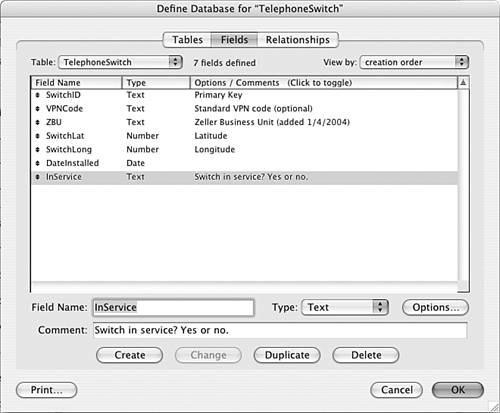
Finally, FileMaker enables you to add comments to your scripts. Some developers have elaborate script commenting disciplines. They may create an entire "header" of comments with space for the names of everyone who's worked on it, the creation date, and even a full modification history. Figure 17.2 shows an example of such a commenting style. Figure 17.2. Using script comments to keep a copious revision history for a script.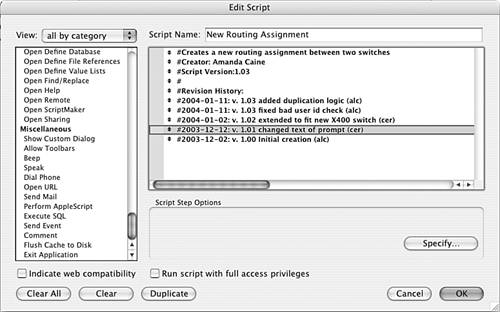 Other developers use script comments more sparingly, reserving them for places where the flow of the script is less than self-explanatory, or for guiding the reader through the different cases of a complex logic flow. Short, pointed comments throughout a lengthy script can add a great deal to its clarity. Some developers scorn comments altogether, swearing that they can instantly understand their own programs even if they come back to them cold six months or a year later. Well, even if that were true (it surely is for some people), it ignores the fact that you need to write programs to be read not only by you, but by anyone who comes after you. Someday, someone else will probably have to maintain and extend what you wrote. Of course, if they can't make heads or tails of it, they're much more likely just to conclude that it's simpler to scrap it and rewrite it. TIP Commenting increases the longevity of your code, and we recommend you learn about the different commenting options that FileMaker allows. Writing Modular Code"Modularity" is one of those popular buzzwords for which it seems every programmer has a different interpretation. To us, a modular program is one that avoids unnecessary duplication of effort. Much as the concept of database normalization encourages that each piece of information be stored once and only once in a database, you should try to program in such a way that you avoid (as much as possible) writing multiple routines that do the same or similar things. Try instead to write that routine or piece of logic once and then draw on it in many places. Modularity in ScriptsAs a simple example, let's say you're working with a system that prints a lot of reports. Many of the reports need to be printed to a special printer, on legal- size paper, with certain paper-handling options specific to the printer. Well, naturally, you'll have scripts to print each of the reports, and you could simply have a Print Setup step in each script that sets up the printer and page handling correctly. But there are two problems with this. In the first place, you'll have to set up those print options for each and every script in which you want to use them. The more times you do this, the greater the odds that you'll make a mistake. Further, if you ever need to change those options, you need to track down every place you've set them up and change them there. A better practice would be to write a single script called "Print Setup Report Legal" or something to that effect. All the script does is set the print options ”nothing more. When you need to call up that set of print options, call the script. When you need to change the options, change the script. This way you have to write the logic once, and you only ever need to change it in one place.
Like other areas in FileMaker, even seasoned developers can disagree on the best way thing to do things. Some developers use custom functions more aggressively, some less so. To finish off this section let's look at an example of the aggressive use of custom functions to make code more abstract. Modularity Using Custom FunctionsLet's say we're dealing with a simple problem: We have a system that deals with billing of some kind, and our client has asked that bills that are more than 30 days old appear with their date written in a red color in the billing list. FileMaker's new text formatting calculations make that a snap. Let's say the table has a field called DueDate and another called DueDateDisplay . If the DueDate is less than 30 days ago, the DueDateDisplay field contains the date in a black color; otherwise it contains the date in a red color. It's easy enough to write a calculation for DueDateDisplay that does all these things: Case( Get(CurrentDate) - DueDate <= 30; GetAsText(DueDate); TextColor (GetAsText(DueDate); Well, that works, but there are things that could be better about it. For one thing, it hard-codes quite a number of different elements: What if the rules change so that "Past Due" happens at 45 days? What if they want the color to be a different shade of red? If those things are being used in multiple places, you'll have to hunt them all down and change them. The second problem with this setup is that it works only for the specific field called DueDate . If you wanted to perform similar logic elsewhere, you'd have some duplication to do. Let's tackle these issues one at a time, using custom functions. Chapter 14, "Specialized Calculation Functions," discusses the possibility of using custom functions for "system constants" to abstract out hard-coded values. That's a good place to start. Define one custom function, called getOverDueLimit . That function takes no parameters, and always returns 30. The next thing is to define another custom calc called getOverdueHighlight , and define it to always return RGB(255;0;0) . So far, so good. This abstracts out some of the hard-coded values. Next, you need a generic way to determine whether a record is overdue. You could write a custom function called isOverdue(dateValue) , defined as follows : Case( dateValue + getOverdueLimit < Get(CurrentDate); 0; 1) This function takes a dateValue , compares it to the current date and the value from getOverdueLimit , and returns a 0 or 1 depending on whether or not the date is overdue. The next function is called colorIfOverdue( dateValue, textValue, rgbColor) . This function's job is to take a date, a piece of text, and a color, and apply the color to the text if the date is overdue. The definition looks like this: Case( not IsOverdue ( dateValue ); textValue; TextColor ( textValue ; rgbColor) ) // last parameter needs to be an RGB color value, i.e. the result of RGB(x,y,z) (Notice, by the way, that this function uses a comment to clarify the data type of the third parameter.) This function draws on the previously created isOverdue function to do its work. Notice also that this function doesn't assume anything about the color to apply to the text, or even what the text is ”it just applies a color to a text string based on a date. With these custom functions created, it's finally time to do some work based on actual fields. So the DueDateDisplay field can now be redefined very simply as colorIfOverdue ( GetAsText(DueDate); DueDate, getOverdueHighlight() ) It might seem like that was a lot of work, but look at the advantages. If you decide you want a different color for all your overdue highlights, you need to change only the definition of getOverdueHighlight . If you decide to let bills go 45 days instead of 30, you need to change only the definition of isOverdue() . And if you need additional fields to highlight according to whether a record is overdue, you don't need to replicate any of the core logic; just create another display field like DueDateDisplay that references a different base field, and you're in business. That's an example of what we'd call fairly aggressive use of custom functions to achieve a high degree of modularity and flexibility. As with any technique, it's possible to overdo it. As a general rule of thumb, try to abstract out those elements of the logic that seem to have the most potential to change or be duplicated . As another general rule of thumb, additional layers of abstraction can make a program harder to understand at first glance. Make sure you provide sufficient comments for later readers to understand your elegant abstraction. |

 For additional discussion of field naming conventions,
  RGB ( 255 ; 0 ; 0 ) ))
 | < Day Day Up > |
