Flylib.com

Books Software


Formatting the Task Usage View

 <  Day Day Up  >  

Formatting the Task Usage View

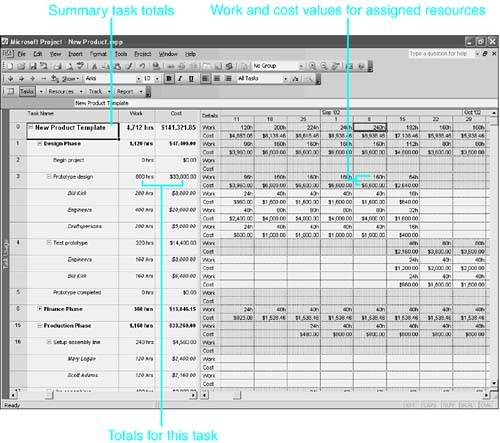
The options for formatting the Task Usage view are identical to those for the Resource Usage view. The main difference between these two views is the focus. Whereas the Resource Usage view looks at the information from the perspective of the resource, the Task Usage view looks at each task, providing totals for various details and then a breakdown by each resource that is assigned to work on the task. As shown in Figure 20.42, the Prototype Design task has three resources assigned, and each resource has his own hours and costs. Work and cost totals for the task, the related summary task, and the project are also shown.

Figure 20.42. Hours of work and costs for those work hours can provide useful information when you're making decisions about a project.

graphics/20fig42.jpg

 <  Day Day Up  >  
 <  Day Day Up  >  

Formatting the Sheet Views

The Task and Resource Sheet views display tables of field values for the list of tasks or resources. The columns that are displayed on sheet views depend on the table applied to the sheet. The Format menu for both the sheet views includes only options for changing font, gridlines, and text styles. The Project menu has options for sorting, filtering, and grouping, and the Insert menu offers a choice for inserting page breaks. (These features are discussed previously in this chapter.)

For more information on displaying table columns, see "Using and Creating Tables," p. 840 .


 <  Day Day Up  >  
 <  Day Day Up  >  

Troubleshooting

Missing Outline Symbols

graphics/note_icon.jpg

I'm working on a project that has an outline, but my outline symbols on the formatting toolbar are grayed out. Why can't I use them?

The Show Summary Tasks option has been turned off. The outlining tools will display again if you select Show Summary Tasks from the View tab in the Options dialog box.

Configuring Timescale Spacing

I have set up my timescale exactly the way I like it, but the labels look a little crowded. Is there anything I can do to fix this, without changing the setup?

Yes, simply change the 100% in the Size text box on the Format, Timescale dialog box to a larger number. You might have to play with the number until you get the size right. Likewise, if your timescale is a little too big, change the Size number to 85% or 90% or whatever number gets the look you're after.

Adding Text to Taskbars

I want to add text to the taskbars, but there's not enough room.

Add the text to a different row. You don't have to have a bar on the row; you can use it for text only.

To add the text to a different row, open the Bar Styles dialog box. Insert a row under the task type where you'd like to display text, such as under Normal, Noncritical. For Appearance, make the Start, Middle, and End shapes blank. In the Row column, choose or type 2 . Then, under the Text tab, set the text position as Inside and select the field to be printed.

Formatting the Taskbar

I would rather have information around the taskbars than in columns on the left. Can I make that work?

Yes. Add the text around the bars, as discussed in the section "Placing Text in a Bar Chart." Then create and apply a table that has only one column in it, or position the vertical divider bar on the Gantt Chart view so that only the leftmost column is visible. You have to print at least one column, but the information in the other columns can be placed around the taskbars and covered by the divider bar.

 <  Day Day Up  >