Adobe GoLive CS2 Tips and Tricks The 250 Best
Authors: Pratt A. Grillo L.
Published year: 2005
Pages: 223-225/301
Buy this book on amazon.com >>

TIP 207: Finding Site Assets

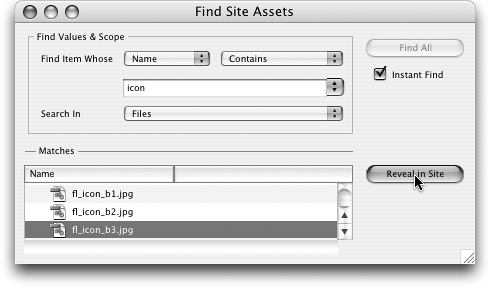
Let's say you know you have a certain file somewhere in your site, but you couldn't find it for a million bucks. Instead of wading through all the folders and subfolders in your site, choose Edit > Find > Find Site Assets. Type your search criteria in the Find Site Assets dialog and choose what part of the site you want to search in Figure 207 . Searching for assets in the Files tab is the most common use, but you can also search in the Collections, Colors, Errors, External, Extras, and Font Sets tabs of the Site window.

Figure 207. Enter your search criteria and click Find All to quickly locate site assets.


Enabling Instant Find

To see the results of your search as an instantaneous filter, make sure the Instant Find option is enabled, and you don't even have to click the Find All button.


After you get the search results, you can select any file in the list of matches at the bottom and click the Reveal in Site button. Now that the file is selected in the Site window, you can open the In & Out Links palette (see Tip 201) to see what files, if any, are referencing the found file.

Bonus Tip

See Tip 28 to learn about using Quicksearch to locate files directly from the Site window.


TIP 208:Finding File Differences

Whether you're troubleshooting an obscure coding problem, experimenting with different solutions to a CSS problem, or just looking for text changes, the ability to compare the source code of two files side by side can be very helpful. GoLive has a file-differencing command that is activated by selecting Edit > Find > Find Differences. Use the Point and Shoot tools in the Find Differences dialog to select the two files to compare and click OK ( Figure 208a ).

Figure 208a. Select Edit > Find > Find Differences and choose two files to compare.


Hiding Identical Lines

If the differences between two files are very slight , you should turn on the Hide Identical Lines option. Now you see just the differences instead of wading through all the common lines of code.


Find Differences in Text Only

The Find Differences command only works on markup files such as HTML and CSS, which are really text files. It doesn't work on binary files such as GIFs, JPEGs, or PDFs.


The next dialog shows a side-by-side code view of the two files and highlights any differences for you ( Figure 208b ). To make sure the two files scroll together, leave the Synchronize Scrolling option enabled. All the differences between the two files are listed at the bottom of the dialog where you can click on an entry to jump to the correct line of the pages.

Figure 208b. The Find Differences dialog lets you navigate and compare and code differences between two files.


TIP 209: Running Site Reports with Queries

Search for XMP Metadata with Queries

New in GoLive CS2 is the ability to create queries that search for XMP metadata (see Tip 27). This makes it very easy to search for images with a specific caption, copyright, or keyword.


GoLive CS2 has a powerful search feature called queries , which give you the ability to search through your site for files based on a variety of criteria. A query can be run on a whole site, on selected files in a site, or on the results of another query.

You define queries in the Query Editor. To get to the Query Editor, first select Edit > Queries ( Figure 209a ). Click the New Query button to define a brand new query or select an existing query in the list and click the Edit Query button. Either way, the Query Editor will open ( Figure 209b ).

Figure 209a. Choosing Run Query from the Edit menu opens the Query dialog.


Figure 209b. Choosing New Query or Edit Query opens the Query Editor.


Finding Default Page Titles

Included with the built-in queries is a criterion for errors, which includes an option to find any page that still has the default page title. Run this query to quickly gather up those pages and change their titles to something appropriate for your page. Remember, most search engines rely on page titles to properly index Web pages. The more precise the page title, the better.


Click the double- facing arrow where it says Find What? to reveal a pull-down menu of search criteria. When a criterion is selected, its options are shown in the lower portion of the Query Editor. Make the appropriate selections for your search from those options.

To add additional criteria, click the small round button containing an arrow . From there you can select another criterion with Boolean options such as and, or , and not . Use the round button to the right of the Find What menu to delete a criterion.

When your query is ready to go, click the Test Query button to see how the Query works. After the query is complete, you can save the results as a collection or use the results as the basis of another query, syntax check, or find operation. When you close the Query Editor, you'll be asked if you'd like to save your query. If you do, then go ahead and name and save it into your Site folder.

Adobe GoLive CS2 Tips and Tricks The 250 Best
Authors: Pratt A. Grillo L.
Published year: 2005
Pages: 223-225/301
Buy this book on amazon.com >>

Similar books