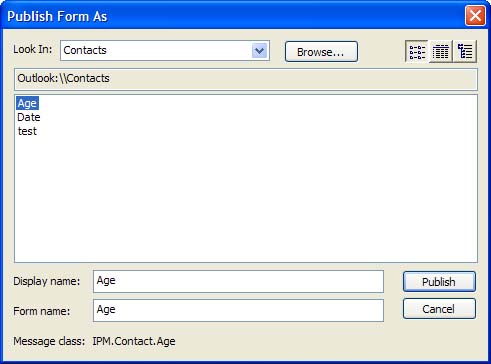
Publishing Custom FormsAfter the form is completed, you obviously need to save it somewhere. In most cases, the preferred method is publishing it to an Outlook folder or library. It's also good practice to save the form as a template to your file system so that you have a backup copy. Use F ile, Save A s, and select Outlook Template (*.oft) as the file type. Use the T ools, F orms, Publish F orm menu selection to bring up the Publish Form As dialog (see Figure 20.10). Select the folder the form will be published in from the Look In list. Use the Browse button to select folders that aren't listed.
Figure 20.10. Use the Publish Form dialog to publish forms to your Outlook folders. Type a display name and Outlook enters it into the Form
|
|
|
Publish forms to the folder you're planning to use them in, such as the Age form to the Contacts folder, and you can select the form from the bottom of the Actions menu after opening the folder. |
When you're using Exchange Server, you can publish to the Organizational Forms library if your administrator allows it. When forms are in the Organizational Forms library,
Using TemplatesA template is a custom form you save in your Windows file system, instead of publishing it to an Outlook folder. A template can be used for everything that a form is used for. Create a custom form, and then choose File, Save As, Outlook Template instead of publishing it to a folder.
You can also create a template without entering Design mode by choosing
F
ile, Save
A
s, Outlook Template (*.oft) from any form. Use this method when you're creating a template with fields filled in or a message that contains
Many users find templates easier to work with than forms for several reasons. You can copy templates to a folder in Outlook and double-click to use them. When you no longer need a template, it's easy to delete it. You can create toolbar
When you use scripting in your form, you'll have to publish the form to avoid Outlook's security features or use ClickYes (http://www.express-soft.com/mailmate/clickyes.html) to avoid the security prompts.
|
Managing Published FormsAfter you've published a form, you might want to always use it when you create an item in your folders, convert all existing items to use the new form, or delete old forms that you no longer use.
As I mentioned previously, when the form is published to a folder, it's listed in the Actions folder when you
When you want the new form set as your default, select a folder, right-click on it, and choose Properties (see Figure 20.11). Select the new form from the When P osting to This Folder, Use drop-down list. To test it, drag a message to the folder. It should use your new form. Figure 20.11. Use the Properties dialog to manage your custom forms. Set the default form for the folder from the General tab and manage your forms from the Forms tab.
If your form wasn't published in this folder, you'll have to copy it to the folder.
Use the P roperties button to look at and edit the properties of the selected form. If you didn't enter categories, contact, or description information before you published the form, you can add the information using the Form Manager. The description displays on the Forms Manager dialog and in the description field on the Forms tab. Choose Clear C a che to delete the forms cache file and create a fresh one. Changing existing items to use the new form requires VBA code or a utility to change the old MessageClass to the new MessageClass. I use Change Forms, a utility included in the Office 2000 Resource Kit. It was written for Outlook 2000 and works well with Outlook 2003, although you'll have to unzip ChangeForms.exe and run Changeforms.msi to install it.
After installed, select an item you want to change to use the new MessageClass, and run Change Forms from the Tools, Forms, Change Forms menu. Type the
Another utility is Omsgclas, which is available from Microsoft's Knowledge Base Article 201089. It changes all items in the folder to the new message class. As a result, when you run Omsgclas on a Contacts folder, it destroys all distribution lists in the folder. You can use Omsgclas to identify the different message classes you have in a folder, and then use Change Forms to change specific message classes.
|