5.5. Three Ways to Trim a Clip Trimming out the deadwood from your clips, so that you're left with only the very best shots from the very best scenes, is the heart of iMovieand video editing. Here are three more clip-trimming techniques that aren't quite as direct as the edge-dragging business described earlier; they've been left in iMovie for the benefit of veterans who grew up in the era of Early iMovie, when edge-dragging wasn't available. But these, too, are nondestructive techniques. For example, after you've shortened a clip by hacking a piece off the right end, you can later change your mind, even if you've emptied the Trash and let a year go by. You can restore some or all of the missing footage just by dragging the clip's right edge to the right in the Timeline Viewer. 5.5.1. Highlighting Footage iMovie works just like other Mac programs: You highlight some footage, then use the Cut, Copy, or Paste commands to move it around. All three of the following footage-trimming techniques, for example, begin with highlighting , or selecting, a portion of your footage. Here's how you go about it: -
Click a clip to select it . The clip can be either in the Clips pane or the Movie Track. -
Position your cursor just beneath the Scrubber bar . See Figure 5-6. -
Drag horizontally until the triangle handles surround the footage you want to keep . As soon as you push the mouse button down, the selection triangles jump to the position of your cursor. One remains where you clicked; the other follows your cursor as you drag. (In other words, don't waste time by dragging them painstakingly from the left edge of the Scrubber bar.) The Monitor window behaves as though you're scrolling the movie, so that you can see where you are as you drag the movable triangle. Also as you drag, the portion of the Scrubber bar between your handles turns yellow to show that it's highlighted. Whatever Edit menu command you use now (such as Cut, Copy, Clear, or Crop) affects only the yellow portion.
Tip: Here's a quick trick for highlighting only the first portion of a selected clip: Shift-click within the Scrubber bar at the point where you'd like the selection to end . Instantly, iMovie highlights everything from the left end of the clip to the position of your click.
Figure 5-6. Carefully drag horizontally until the triangles enclose only the scene you want to keep. Finally, when you choose the Edit  Crop command, everything outside of these handles is trimmed away. Crop command, everything outside of these handles is trimmed away. 
After you've just dragged or clicked a handle, the arrow-key skills you picked up by reading Section 5.1.5 come in extremely handy. You can let go of the mouse and, just by pressing the left and right arrow keys, fine-tune the position of the triangle handle on a frame-by-frame basis. (You can tell which triangle handle you'll be moving. It's darker , and it's marked by the Playhead, as shown in Figure 5-6. To move the other triangle handle, click it first.) Continue tapping the left and right arrow keys until the Monitor shows the precise frame you wantthe first or last frame you'll want to keep in the clip. Remember, too, that if you press Shift -right or -left arrow, you move the triangle handle 10 frames at a time. Between the 10-frame and one-frame keystrokes, you should find it fairly easy to home in on the exact frame where you want to trim the clip.
Tip: After you've highlighted a stretch of the Scrubber bar, you can adjust the selected portionmake it bigger or smallerby clicking or dragging again beneath any unhighlighted portion of the Scrubber bar (to the right or left of the selected region). Either way, the end of the yellow bar jumps to your cursor as though attracted by a magnet . And either way, you avoid having to redo the entire selection, since one of your two endpoints remains in place.
As you drag the triangle handles, keep your eye on two readouts. First, your precise position within the clip or assembled movie appears just above your cursor, in seconds:frames format. Second, a notation appears beneath the Movie Track that identifies the amount of footage between the handles. It might say, for example, "Frames selected 0:03:15 of 6:00:02 total." That is, you've selected 3.5 seconds of a 6-minute movie. Being able to see exactly how much footage you're about to cut (or preserve) can be extremely useful when the timing of your movie is important, as when editing it to accompany a music track or when creating a movie that must be, for example, exactly 30 seconds long.
Tip: If you've really made a mess of your selection, click just below the Scrubber bar, on the brushed aluminum iMovie background. The program deselects your footage so you can try again.
5.5.2. Snipping Off One End of a Clip Having mastered the art of selecting a portion of a clip, as described in the previous section, you're ready to put it to work. Suppose, for example, that you want to shave off some footage from only one end of your clip: -
Highlight the footage you want to delete (at the beginning or end of the Scrubber bar) . The arrangement should look like Figure 5-7. Figure 5-7. To trim footage from one end of the clip, just highlight that much, using the triangle handles. The Monitor window shows you where you are in the footage as you drag the triangles. And once again, you can use the arrow keys to fine-tune the position of the triangle you've most recently clicked. 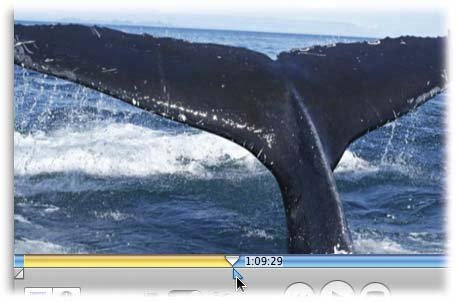 -
Choose Edit Cut . iMovie promptly trims away whatever was highlighted between the triangles. As a bonus, your invisible Clipboard now contains the snipped piece, which you're welcome to paste right back into the Clips pane or Movie Track using the Edit Paste command, in case you might need it again.
Tip: You can also press the Delete key, or choose Edit Clear, to get rid of the selected video. The difference is that the Delete key and Clear command dont put the cut material onto your invisible Clipboard, ready for pasting, as the Cut command does. On the other hand, the Delete/Clear command doesn't replace what's already on the Clipboard, unlike the Cut command.
5.5.3. Cropping Out the Ends of a Clip If you want to trim some footage off both ends of a clip, it's quicker to highlight the part in the middle that you want to keep . That is, highlight the part you want, and then choose Edit Crop (or press -K). When you use this command, all of your signposts disappear, including the two triangle handles and the yellow part of the Scrubber bar. What used to be the yellow part of the Scrubber bar has now, in effect, expanded to fill the entire Scrubber bar. Your clip is shorter now, as a tap on the Space bar will prove . 5.5.4. Chopping Out the Middle of a Clip In this technique, you eliminate the middle part of a clip, leaving only the ends of it in your project. The flexibility offered by this technique means that you can be less fussy when you're importing clips. You can import longer chunks of footage, for example, secure in the knowledge that you can always hack out the boring stuff that happens to fall in between two priceless moments. Just select the footage you want to delete, and then choose Edit Cut (or Edit Clear), or press the Delete key. If you're not prepared for it, the results of this technique can be startling. Since you cut a chunk out of the middle of the clip, iMovie throws back at you the two end pieces as two separate clips, side by side on the Clips pane or the Movie Track. If the original clip was called "Cut Me Out," the new, split-off clip is called "Cut Me Out/1."
Tip: Just a reminder: Whenever you cut material out of a clip, you can always restore it. Once the clip is placed in the Timeline, just tug outward on the edge where the cut occurred. iMovie smoothly "un-hides" the footage you had cut away.
 |
