Section 1.1. Broadband Connections (Fast)
1.1. Broadband Connections (Fast)A broadband connection delivers songs, videos , and digital photos to your computer in minutes instead of hours. We're talking at least 20 times faster than a dial-up modem. Complex Web pages that take almost a minute to appear in your browser with a standard modem will pop up almost immediately with a cable modem or DSL. And that's not the only reason about half of all Internetters have signed up for broadband service. Here are some of the other perks:
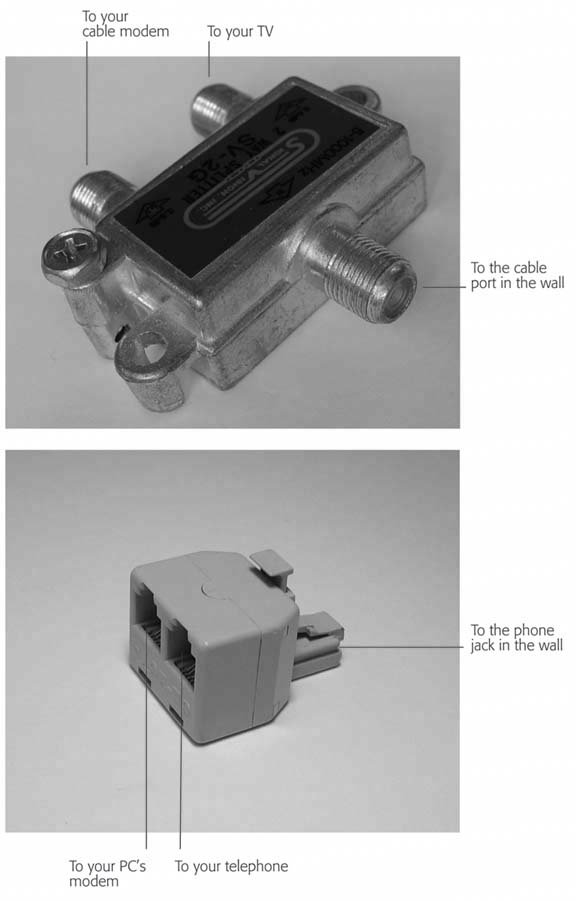
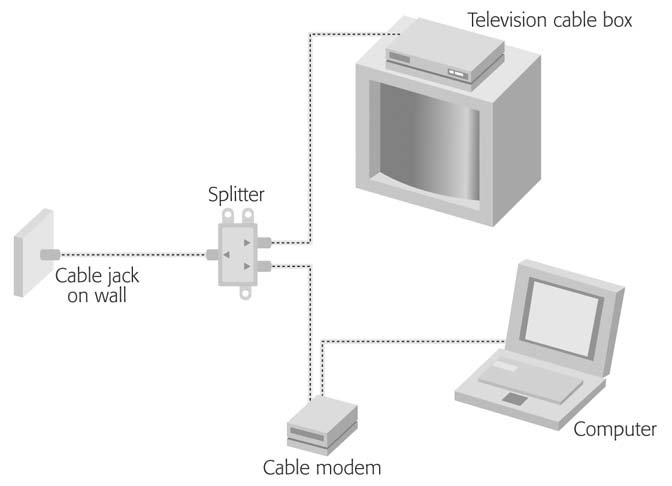
Broadband connections usually come in the form of a cable modem or DSL box (digital subscriber line). (In some remote areas, you can also get broadband satellite service. But this method is slow, expensive, and rare in residential areas.) As the name suggests, a cable modem (Figure 1-1) uses your cable-TV company's network of wires to pipe data into your house, right alongside Comedy Central and HBO. DSL, on the other hand, uses your existing telephone lines to carry its signal. You usually sign up for DSL service through your phone company. Figure 1-1. External broadband modems, like this Motorola model for cable Internet service, connect to the back of the computer with an Ethernet or USB cord. Most modems also need their own power supply, so pick a spot within reach of an electrical outlet. Some broadband modems can even connect to your computer wirelessly , but ask your Internet provider about the system requirements.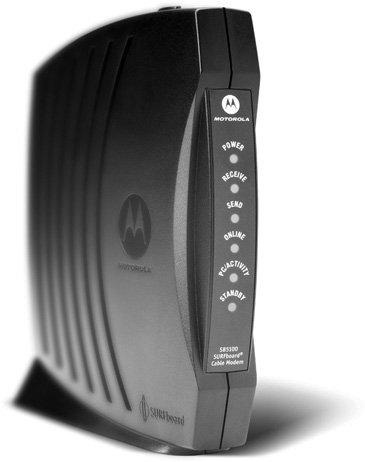 Note: Cable modems are often slightly more expensiveand slightly fasterthan DSL. Broadband connections generally require a computer with an Ethernet jack .It looks like a telephone jack, but slightly fatter. This jack's an indication that your computer contains a network card , used for creating a wired connection to a home network, office network, cable modem, or DSL box. Most computers sold since about 2001 have such a jack. Tip: Your computer may even have both a modem jack (described later in this chapter) and an Ethernet jack. The two jacks look very similar and accept the same sort of plastic plug on the end of the connecting cord, but the network jack is slightly wider. Using a flashlight, magnifying glass, and small childif necessarylook for tiny identifying icons on each jack; a tiny telephone handset icon denotes the modem jack. If your computer doesn't have a network card, you can add one, as an internal card that you install inside; a metal, credit card- size card that fits into a laptop card slot; or an external box that dangles from the computer's USB connector. 1.1.1. The Broadband SetupIf you've ordered cable-modem or DSL service, a technician may come to your house to do all the necessary wiring and configuration for you. All you have to do is be home to let the technician in. In some cases, howeverespecially if you already have cable TV or phone serviceyou may be offered a self-installation kit. As thanks for doing the cable person's job, a tasty discount is usually part of this arrangement. If you opt for the self-installation route, your kit probably contains the modem itself, a software CD, an Ethernet or USB cable to connect to your computer, a splitter box (Figure 1-2, top) to divide your incoming cable line into two, and paperwork containing account names , numbers , and passwords. Note: If you've opted for a DSL box, your kit may also include several plastic DSL filters. You're supposed to attach them to all your active phone lines except the one the computer's using. (DSL works by maximizing the amount of data that your regular old copper phone wires can carry, but doing so makes the line noisier than a teenage girls ' slumber party. The filters you attach to your telephone, fax machine, or other working phone lines screen out the data noise and let you use the phone to order pizza, even as you're downloading a big video file from the Web.) Figure 1-2. One-eyed jacks are fine for cards, but splitters like these convert one cable or telephone connection into two so you can share your cable or phone line with your computer. You can buy either of these for a few dollars at places like Radio Shack or computer stores. |
| WORKAROUND WORKSHOP Manual Mac Settings |
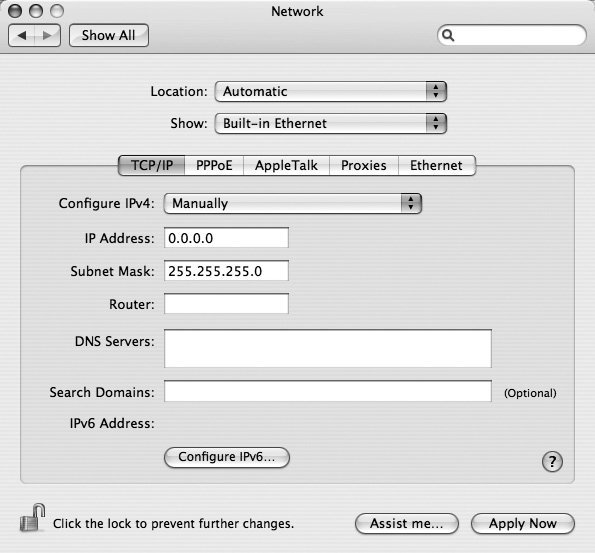
| If, for some reason, you're not able to surf the Web or check email the first time you try, it's remotely conceivable that your broadband modem doesn't offer DHCP. In that case, you may have to fiddle with the Network pane of System Preferences, preferably with a customer-support rep from your broadband provider on the phone. On the Network pane, from the Show pop-up menu, choose either AirPort or Built-in Ethernet, depending on how your Mac's connected to the broadband modem. Now you see something like what's shown in Figure 1-4. The next step is to make a selection from the Configure pop-up menu. Only your service provider can tell you exactly which settings to use, but you'll probably be asked to choose Manually. That is, your cable or phone company will tell you precisely which IP address (Internet address) to type in here. The bad news: You'll also have to fill in all the other boxes hereSubnet Mask, Router, and so onwith cryptic numbers separated by periods. That's all the setup you'll have to worry aboutclick Apply Now. If your settings are correct, you're online, now and forever. You never have to worry about connecting or disconnecting. |
Figure 1-4. Some broadband modems and ISPs require that you type specific settings into the Mac's Network configuration box in order to get online with your new broadband service. To get to this box, choose 
 System Preferences Network. In the Show menu, select either Built-in Ethernet (for a wired connection to your modem) or AirPort (for a wireless connection). If your ISPs this persnickety about the settings you use, odds are you need to select Manually from the Configure menu and then type in the numbers and other information they gave you when you signed upor that their tech team gave you when you called to complain that you couldn't get online.
Note: You can also opt for a wireless router, which lets you share the broadband computer with all the wireless computers in your house. See Section 1.2.
Powerline networking , where your house's existing electrical system is converted into a discreet home network, is another way to get your computers connected without having to string the house with Ethernet cables.
For an in-depth look at setting up your own home network, check out Home Networking: The Missing Manual , which shows you how to make a wired, wireless, or mixed network out of PCs, Macs, or Macs and PCs.

EAN: 2147483647
Pages: 147