Overview of Outlook 2007 Capabilities
Outlook 2007 provides a broad range of capabilities to help you manage your entire workday. In fact, a growing number of Microsoft Office system users work in Outlook more than 60 percent of the time. An understanding of the Outlook 2007 capabilities and features is important not only for using the Microsoft Office system effectively but also for managing your time and projects. The following sections will help you learn to use the features in Outlook 2007 to simplify your workday and enhance your productivity.
Messaging
One of the key features Outlook 2007 offers is messaging. You can use Outlook 2007 as a client to send and receive e-mail through a variety of services. Outlook 2007 offers integrated support for the e-mail services covered in the sections that follow.
| Note | A client application is one that uses a service provided by another computer, typically a server. |
Exchange Server
Outlook 2007 integrates tightly with Microsoft Exchange Server, which means that you can take advantage of workgroup scheduling, collaboration, instant messaging, and other features offered through Exchange Server that aren’t available with other clients. For example, you can use any POP3 e-mail client, such as Microsoft Outlook 2007 Express or Microsoft Windows Mail (the Windows Vista incarnation of Outlook Express), to connect to a computer running Exchange Server (assuming that the Exchange Server administrator has configured the server to allow POP), but you’re limited to e-mail only. Advanced workgroup and other special features-being able to recall a message before it is read, use public folders, view group schedules, and use managed folders for archiving and retention, for example-require Outlook 2007.
Internet E-Mail
Outlook 2007 provides full support for Internet e-mail servers, which means that you can use Outlook 2007 to send and receive e-mail through mail servers that support Internet-based standards, such as POP3 and IMAP What’s more, you can integrate Internet mail accounts with other accounts, such as an Exchange Server account, in order to send and receive messages through multiple servers. For example, you might maintain an account on Exchange Server for interoffice correspondence and use a local Internet service provider (ISP) or other Internet-based e-mail service for messages outside your network. Or perhaps you want to monitor your personal e-mail along with your work-related e-mail. In that situation, you would simply add your personal e-mail account to your Outlook 2007 profile and work with both simultaneously. You can then use rules and custom folders to help separate your messages.
For more information about messaging protocols such as POP3 and IMAP, see “Understanding Messaging Protocols” on page 654.
HTTP-Based E-Mail
Outlook 2007 supports Hypertext Transfer Protocol (HTTP)-based e-mail services, such as Microsoft Hotmail. HTTP is the protocol used to request and transmit Web pages. This means that you can use Outlook 2007 to send and receive e-mail through Hotmail and other HTTP-based mail servers that would otherwise require you to use a Web browser to access your e-mail, as shown in Figure 22–9. In addition, you can download your messages to your local Inbox and process them offline, rather than remaining connected to your ISP while you process messages. Another advantage is that you can keep your messages as long as you want-most HTTP-based messaging services, including Hotmail, purge read messages after a given period of time. Plus, HTTP support in Outlook 2007 lets you keep all your e-mail in a single application. Currently, Outlook 2007 directly supports Hotmail. Check with your e-mail service to determine whether your mail server is Outlook 2007-compatible.
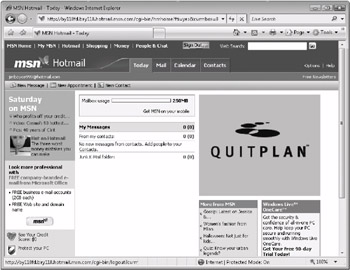
Figure 22–9: HTTP-based mail servers such as Hotmail have traditionally required access through a Web browser.
| Note | You can use Outlook 2007 with your Hotmail account only if you have a paid Hotmail account, such as MSN Hotmail Plus or MSN Premium. You can’t use Outlook 2007 to access a free Hotmail account |
Fax Send and Receive
Outlook 2007 includes a Fax Mail Transport provider, which allows you to send faxes from Outlook 2007 using a fax modem. In addition, third-party developers can provide Messaging Application Programming Interface (MAPI) integration with their fax applications, allowing you to use Outlook 2007 as the front end for those applications to send and receive faxes. Both Microsoft Windows 2000 and Microsoft Windows XP include built-in fax services that support sending and receiving faxes. The Fax Service in Windows 2000 also supports MAPI and Inbox integration with Outlook 2007 and is the only Microsoft-supplied fax service supported by Microsoft on the client side for Outlook 2007. The Windows 2000 Fax Service can deliver incoming faxes to an Outlook 2007 Inbox, as well as print them and deliver a copy to a file folder. The Windows XP Fax Service can deliver incoming faxes to a file folder or print them, but it does not support delivery to an Outlook 2007 Inbox.
Windows 2000 Fax Service is now the only fax support offered for Windows. Windows XP users need to purchase a third-party fax application
Extensible E-Mail Support
The Outlook 2007 design allows developers to support third-party e-mail services in Outlook 2007. Whatever your e-mail server type, Outlook 2007 provides a comprehensive set of tools for composing, receiving, and replying to messages. Outlook 2007 provides support for rich-text and HTML formatting, which allows you to create and receive messages that contain much more than just text, as shown in Figure 22–10. For example, you can send a Web page as a mail message or integrate sound, video, and graphics in mail messages. Outlook 2007 support for multiple address books, multiple e-mail accounts, and even multiple e-mail services makes it an excellent messaging client, even if you forgo the application’s many other features and capabilities.
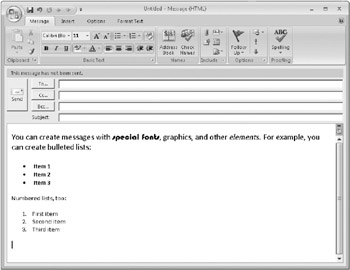
Figure 22–10: Use Outlook 2007 to create rich-text and multimedia messages.
Scheduling
Scheduling is another important feature in Outlook 2007. You can use Outlook 2007 to track both personal and work-related meetings and appointments, as shown in Figure 22–11, whether you are at home or in the office-a useful feature even on a stand-alone computer.
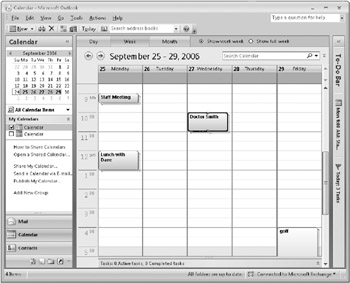
Figure 22–11: Track your personal and work schedules with Outlook 2007.
Where the Outlook 2007 scheduling capabilities really shine, however, is in group scheduling. When you use Outlook 2007 to set up meetings and appointments with others, you can view the schedules of your invitees, which makes it easy to find a time when everyone can attend. You can schedule both one-time and recurring appointments. All appointments and meetings can include a reminder with a lead time that you specify, and Outlook 2007 will notify you of the event at the specified time. You can process multiple reminders at one time, a useful feature if you’ve been out of the office for a while.
Organizing your schedule is also one of Outlook 2007’s strong suits. You can use categories and types to categorize appointments, events, and meetings; to control the way they appear in Outlook 2007; and to perform automatic processing. Color labels allow you to identify quickly and visually different types of events on your calendar.
In addition to managing your own schedule, you can delegate control of the schedule to someone else, such as your assistant. The assistant can modify your schedule, request meetings, respond to meeting invitations, and otherwise act on your behalf regarding your calendar. Not only can others view your schedule to plan meetings and appointments (with the exception of items marked personal), but also you can publish your schedule to the Web to allow others to view it over an intranet or the Internet, as shown in Figure 22–12.
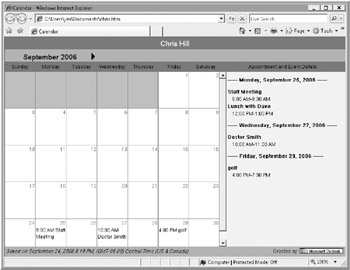
Figure 22–12: You can easily publish your schedule to the Web.
Contact Management
Being able to manage contact information-names, addresses, and phone numbers-is critical to other aspects of Outlook 2007, such as scheduling and messaging. Outlook 2007 makes it easy to manage contacts and offers flexibility in the type of information you maintain. In addition to basic information, you can also store a contact’s fax number, cell phone number, pager number, Web page URL, and more, as shown in Figure 22–13. You can even include a picture for the contact.
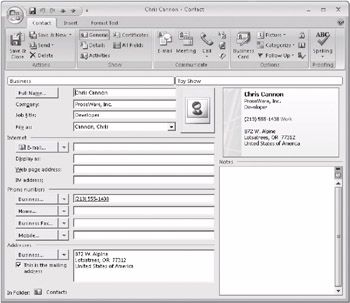
Figure 22–13: You can manage a wealth of information about each contact with Outlook 2007.
In addition to using contact information to address e-mail messages, you can initiate phone calls using the contacts list, track calls to contacts in the journal, add notes for each contact, use the contacts list to create mail merge documents, and perform other tasks. The Contacts folder also provides a means for storing a contact’s digital certificate, which you can use to exchange encrypted messages for security. Adding a contact’s certificate is easy-when you receive a digitally signed message from the contact, Outlook 2007 adds the certificate to the contact’s entry. You can also import a certificate from a file provided by the contact.
For details about digital signatures and encryption, see “Message Encryption” on page 662.
Task Management
Managing your workday usually includes keeping track of the tasks you need to perform and assigning tasks to others. Outlook 2007 makes it easy to manage your task list. You assign a due date, start date, priority, category, and other properties to each task, which makes it easier for you to manage those tasks, as shown in Figure 22–14. As with meetings and appointments, Outlook 2007 keeps you informed and on track by issuing reminders for each task. You control whether the reminder is used and the time and date it’s generated, along with an optional, audible notification. You can designate a task as personal, preventing others from viewing the task in your schedule-just as you can with meetings and appointments. Tasks can be one-time or recurring events.
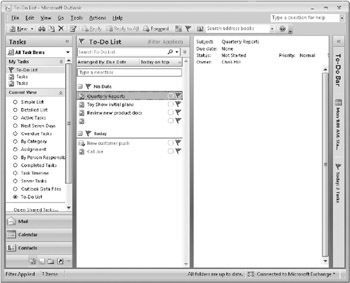
Figure 22–14: Use Outlook 2007 to manage tasks.
If you manage other people, Outlook 2007 makes it easy to assign tasks to other Outlook 2007 users. When you create a task, simply click Assign Task, and Outlook 2007 prompts you for the assignee’s e-mail address. You can choose to keep a copy of the updated task in your own task list and receive a status report when the task is complete.
Tracking with the Outlook Journal
Keeping track of events is an important part of managing your workday, and the Outlook 2007 journal makes it simple. The journal folder allows you to keep track of the contacts you make (phone calls, e-mail messages, and so on), meeting actions, task requests and responses, and other actions for selected contacts, as shown in Figure 22–15. You can also use the journal to track your work in other Microsoft Office system applications, giving you a way to track the time you spend on various documents and their associated projects. You can have Outlook 2007 add journal items automatically based on settings that you specify, and you can also add items manually to your journal.
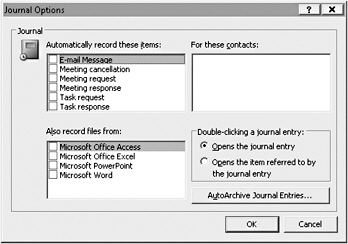
Figure 22–15: Configure your journal using the Outlook 2007 options.
When you view the journal, you can double-click a journal entry to either open the entry or open the items referred to by the entry, depending on how you have configured the journal. You can also configure the journal to automatically archive items in the default archive folder or in a folder you choose, or you can have Outlook 2007 regularly delete items from the journal, cleaning out items that are older than a specified length of time. Outlook 2007 can use group policies to control the retention of journal entries, allowing administrators to manage journaling and data retention consistently throughout an organization.
Organizing Your Thoughts with Notes
With Outlook 2007, you can keep track of your thoughts and tasks by using the Notes folder. Each note can function as a stand-alone window, allowing you to view notes on your desktop outside Outlook 2007, as shown in Figure 22–16. Notes exist as individual message files, so you can copy or move them to other folders, including your desktop, or easily share them with others through network sharing or e-mail. You can also incorporate the contents of notes into other applications or other Outlook 2007 folders by using the Clipboard. For example, you might copy a note regarding a contact to that person’s contact entry. As you can with other Outlook 2007 items, you can assign categories to notes to help you organize and view them.
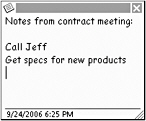
Figure 22–16: Use notes to keep track of miscellaneous information.

EAN: 2147483647
Pages: 299