Flylib.com

Books Software


Using Lingo for Animated Cursors


Using Lingo for Animated Cursors

If you've created an animated cursor cast member (covered in Chapter 4, "Animating Sprites"), you can activate it by using the cursor command in a handler.

The following example assumes that you want an animated cursor to replace the normal cursor when the mouse pointer rolls over a particular sprite (which we'll call the rollover target ), and that you want the normal cursor to return when the mouse pointer leaves the sprite. Once you see how the cursor command works, you can include it in other scripts that use different event handlers.

To activate an animated cursor on rollover:

  1. Create an animated cursor.

    (For details, see "To create an animated cursor" in Chapter 4.)

  2. In the Cast window, name the animated cursor cast member.

    You can name it whatever you like, but in this example, it will be named myCursor. (Although a cast member name can be more than one word, it's a good idea to make it a single word if you're going to use the name in a Lingo script.)

  3. In the Score or on the Stage, select a sprite to be the rollover target.

  4. Choose New Behavior from the Behaviors pop-up menu on the Sprite toolbar.

    A Script window opens.

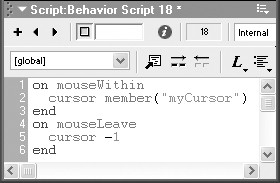
  5. Type the following scriptconsisting of two handlersin the Script window, changing Director's default text where necessary ( Figure 15.62 ):

    Figure 15.62. This script causes the normal cursor to be replaced by a cursor cast member when the mouse pointer rolls over the sprite to which the script is attached.

    graphics/15fig62.gif

    on mouseWithin
    
       cursor (member "myCursor")
    
    end
    
    on mouseLeave
    
       cursor -1
    
    end
    

    (If your cursor cast member is named something other than myCursor, change the script accordingly .) The command cursor -1 restores the default arrow cursor.

  6. Close the Script window.

  7. Rewind and test the movie.

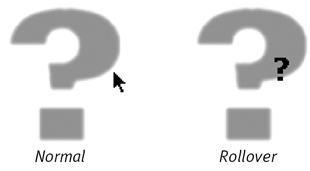
    Whenever the mouse pointer moves onto the rollover target, the animated cursor appears; when it leaves the rollover target, the normal cursor returns ( Figure 15.63 ).

    Figure 15.63. The cursor changes when it rolls over the sprite.

    graphics/15fig63.gif

graphics/tick.gif Tip

  • The cursor command works with nonanimated cursors as well. Any 1-bit cast member can be made into a cursor by means of the cursor command, so long as it's no larger than 16 pixels square.


Chapter 16. Creating a Projector

Up to this point, whenever you've created a movie in Director, you've played it back in Director. In the real world, however, you can't expect everybody to have Director installed on his or her computer, and you don't want to limit your audience to those who do.

For this reason, Director has the capability to create a projector , which is a stand-alone, self-running version of one or more Director movies ( Figure 16.1 ). A projector reproduces the action on the Stage, including all interactive elements, just as it looks and sounds in Director. (Of course, the Score, Cast window, and other features of the authoring environment are not included in the projector.) The only serious drawback to using projectors is that the Macintosh version of Director can only create projectors that run on a Macintosh, and the Windows version of Director can only create projectors that run in Windows. (See the "Platform Politics" sidebar for more information.)

Figure 16.1. A projector file allows users to play your Director movies without having Director installed on their computers.

graphics/16fig01.gif

A projector can be distributed to users via any medium you choose: CDs, DVDs, Zip disks, email, or other means of file transfer. Projectors can even be distributed over the Web (but unlike Shockwave movies, which you'll learn about in the next chapter, they must be downloaded in their entirety before they can be played). All that's necessary to play a projector is to double-click its icon, just as you would with any Macintosh or Windows application.

This chapter covers setting projector options, creating projectors, packaging projectors and external files for distribution, and more. If you plan to include Xtras in a projector, see Chapter 19, "Using Xtras," for details.

Platform Politics

The fact that the Windows version of Director can only create Windows projectors, and the Macintosh version can only create Mac projectors, has long been a source of frustration among Director developers. Director is a relatively expensive application, and having to buy versions for both platforms makes cross-platform development unaffordable for many individuals and small businesses.

Macromedia has always claimed that the Mac-only/Windows-only restriction stems from fundamental differences between the platforms, and that it simply isn't technically feasible to allow both versions of Director to create projectors for both platforms. In response, many developers have claimed that Macromedia's motives are more mercenary than technical ”that forcing cross-platform developers to buy two copies of Director is merely a handy way for Macromedia to increase its sales.

(Interestingly, Macromedia's more recent authoring product, Flash, can create projectors for both platforms on a single computer. This evidence weighs against the mercenary argument, since Macromedia could just as easily have increased Flash sales by placing the same platform restrictions on Flash that it did on Director.)

Director movies themselves work equally well on both platforms. Therefore, if you can't afford both Mac and Windows versions of Director, you can develop your movies on just one platform. Then find a friend who runs the other version of Director, and switch offices with him or her for a day or two. With any luck, that will be enough time for you to test your movies on the other platform, make any needed adjustments, and create a projector.