Sams Teach Yourself Microsoft Office 2003 in 24 Hours
Authors: Perry G.
Published year: 2003
Pages: 156-158/272
Buy this book on amazon.com >>

Smart Tags

If you've been working with Office as you've worked through this and the earlier lessons of the book, you have probably seen smart tags as you followed along and learned the software. When you enter data in an Office program such as Word or PowerPoint, that Office program underlines the data with a purple dotted line indicating the smart tag. A smart tag is data that an Office product recognizes as data that fits within a category, such as one of these:

  • A person's name

  • A time (dates, times, even relative dates such as Last Friday)

  • Places

  • Recent Outlook recipients

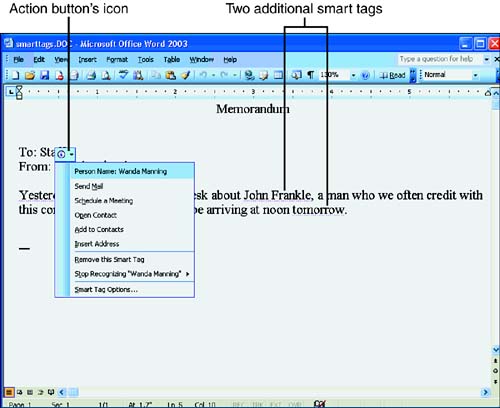
The primary purpose of smart tags is to keep you from having to leave your current program to perform a common task related to that smart tag. Outlook is the primary program in question. To clarify, suppose that you were writing a letter to a new client. When you type the client's name, Word displays or changes the name to include a smart tag underline. If you point to the name with your mouse, a smart tag action button appears as an icon above the name. Click the icon to display the menu shown in Figure 16.11.

Figure 16.11. You can perform common Outlook-related tasks from a Word document.

graphics/16fig11.jpg

The actions on the shortcut menu enable you to add the contact to your Outlook Contacts folder. If the name already resides in your Contacts folder, you can select Open Contact and the contact's window opens so that you can copy and paste information from the contact to your Word document. If the smart tag appears on a date, you can schedule a meeting or show your appointments for that date while still working inside your Word document.

graphics/bookpencil_icon.gif

Without smart tags, you normally have to leave your document to open Outlook, locate the contact, and then copy and paste the contact's information to your document. The smart tags save you some steps in this process. Although you still must work in Outlook's Contact windows , you are still closer to your Word document than you would otherwise be without smart tags.


You can modify the behavior of smart tags by selecting Tools, AutoCorrect and clicking the Smart Tags tab from your Word document. From the dialog box, you can turn off smart tagging, modify the smart tags that are currently active, and download additional smart tags from the Internet.


Summary

This hour explained some of the ways you can use Outlook to check your Calendar; manage appointments, meetings, and events; track tasks ; keep notes; and explore your computer. Additionally, the journal tracks events as they happen, including incoming mail that you receive inside the Inbox. If you have used any other personal-information management program, you will really like the integration of Outlook into the Office and Windows environment.


Q&A

Q1:

How can I assign a task to a specific day?

A1:

You cannot assign tasks to days. Tasks transcend days because tasks are one-time or recurring items that you must accomplish within a certain time frame, but not on a particular day. Perhaps you are only confusing Outlook terminology. If you want to assign a particular event to a time and day, assign an appointment or meeting. Tasks are items that you must accomplish and that you can track and assign to other people, but tasks are not tied to a specific time and date.

Q2:

After I set a reminder, how does Outlook inform me of the appointment, meeting, or event?

A2:

You must continually run Outlook during your computing sessions for Outlook to monitor and remind you of things you have to do. Outlook is one program that you probably want to add to your Windows Startup folder so that Outlook always starts when you start Windows. Outlook cannot remind you of pending appointments if you are not running it.

Outlook tracks incoming and outgoing events. Also, as you learned in the previous hour , Outlook monitors your electronic mail, faxes, and network transfers and keeps an eye on your reminders to let you know when something is due. The only way Outlook can perform these tasks is if you keep it running during your work sessions.

Sams Teach Yourself Microsoft Office 2003 in 24 Hours
Authors: Perry G.
Published year: 2003
Pages: 156-158/272
Buy this book on amazon.com >>