Adding Art
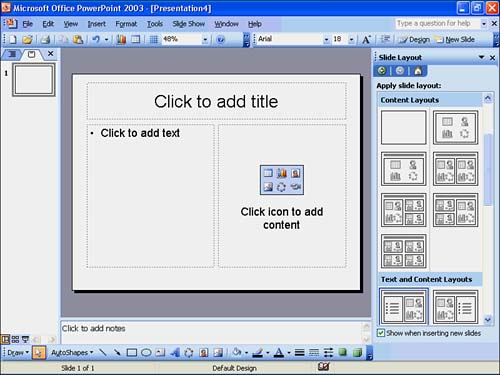
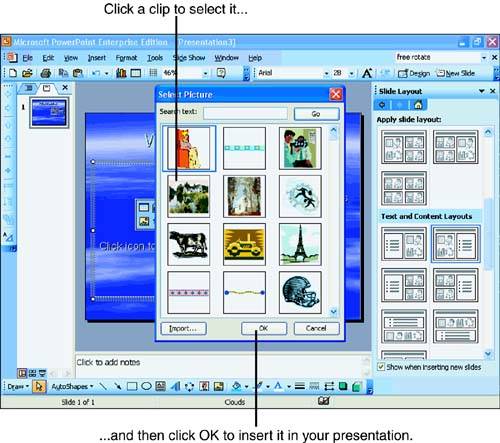
| Suppose that you select a slide layout that contains a placeholder for art. Presumably, you have an art image to place on the slide or you would have chosen a different slide layout. When you select a slide layout that includes a placeholder for art, PowerPoint indicates exactly where the art is to go. Figure 13.7 shows an applied slide layout that includes a placeholder for artwork. PowerPoint makes it easy to add the art. Follow the slide's instructions, and double-click within the placeholder to add the art. Figure 13.7. PowerPoint indicates exactly where the art is to go on the slide. When you double-click the art placeholder, PowerPoint displays art from your clip-art collection. (You learned about the clip art and other kinds of clip media files in Hour 5, "Advanced Word 2003.") Your images appear in a dialog box such as the one shown in Figure 13.8. The art can be any graphic image, in addition to other kinds of objects such as video or sound. Scroll down through the clips to see what is available. If you have not yet set up your clip-art collection in another Office product, PowerPoint will first have to locate available clips on your computer. (To add and manage your clips, click the task pane's Clip Art option.) Figure 13.8. PowerPoint indicates exactly where the art is to go on the slide.
If you want to change the slide's clip art, click the image, press Delete, and insert another one. Your slide does not need to contain a placeholder for you to insert art. The placeholder enables you to more easily manage the artwork, however, and to keep the art separated from the rest of the slide's text and art. If you work with a slide layout that contains a placeholder, you can move and resize the placeholder while you add the rest of the slide's elements. When you are ready for the art, double-click the placeholder to insert the art inside the placeholder's border. Without a placeholder, your artwork overwrites existing text and graphics that already appear on the slide. You have to move and resize the inserted art manually to make it fit with the rest of the slide.
|


EAN: 2147483647
Pages: 272