Basing One Style on Another
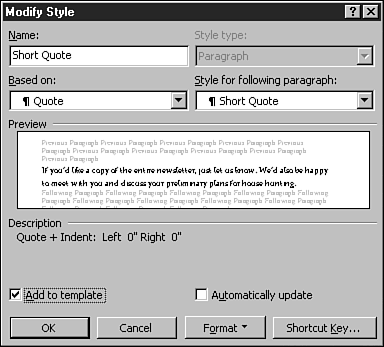
| If you're creating a style that is similar to an existing one, you can base the new style on the existing one so that it gains all the formatting in the existing style. Then all you need to do is tweak the new style a little to get the formatting exactly as you want it. To base a style on another one, you select the "based on" style in the Based On list in the New Style or Modify Style dialog box. Although this method lets you create styles rather quickly, it can cause two problems down the road. First, when you look at the description of a style that's based on another style (in the Description area of the New Style or Modify Style dialog box), it lists the "based on" style plus whatever adjustments you've made to it. For example, in Figure 7.6, the Short Quote style is based on the Quote style, so the description lists Quote plus the one modification (the indentation was removed). If you want to see all the formatting in the new style, you need to track down the content of the "based on" style ”a tedious task. And if the "based on" style is itself based on another style, reach for some coffee or chocolate to cheer yourself up. Figure 7.6. Think carefully before basing one style on another. Also, if you base several styles on a style and then modify the "based on" style, all the other styles will change accordingly . This "ripple effect" can produce some unexpected (and often unwanted) results. In conclusion, the most straightforward route is to base each style on the Normal style, so you can see exactly what formatting it contains and modify it without affecting other styles.  |

EAN: 2147483647
Pages: 474