Flylib.com

Books Software


Entering Records into the Data Source


Entering Records into the Data Source

In this third phase, you enter the records in your data source. Luckily, you have to do this only oncein the future, you can use the same data source with other main documents.

  1. The blank Data Form that appeared at the end of the previous section contains text boxes for all the fields that you defined for your data source.

  2. Enter the information for the first person in your mailing list, using the Tab key to move from field to field.

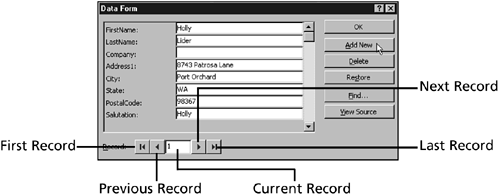
  3. Click the Add New button to add the next record (see Figure 10.4).

    Figure 10.4. Add your records one by one to your data source.

    graphics/10fig04.gif

    graphics/alarmclock_icon.gif

    Be careful not to click the OK button at this point. If you do, Word assumes you are finished entering records and closes the Data Form. If this happens, click the Edit Data Source button at the far-right end of the Mail Merge toolbar to redisplay the Data Form.


  4. Word clears the Data Form to let you enter record 2. Continue entering records.

  5. The Record arrows let you move forward and back in your data source so that you can review and revise records you've already entered.

  6. When you've finished entering all the records, click the OK button.

Your main document appears onscreen. Continue with the next section.


Completing the Main Document

In this fourth phase, you finish the main document. This entails typing and formatting the text (if you started your main document from scratch) and inserting the merge fields that tell Word where to insert the data from your data source.

Follow these steps to complete the main document:

  1. Word has displayed your main document. Notice the Mail Merge toolbar directly under the Formatting toolbar. This toolbar automatically appears in main documentsyou'll learn how to use many of its buttons in the remainder of this chapter.

  2. Type and format the text that stays the same in all the form letters , including the letterhead (unless you're using preprinted letterhead), the body of the letter, and so on. If you opened an existing document in "Starting the Main Document," confirm that you've deleted all the personal data (the name , address, salutation, and any text in the body of the letter that's specific to the recipient).

  3. Place the insertion point on the line where the address block will go, and click the Insert Merge Field button in the Mail Merge toolbar. In the list that appears, click the first field in the address block, usually Title or FirstName (see Figure 10.5).

    Figure 10.5. The Insert Merge Field button lists all the fields in the attached data source.

    graphics/10fig05.gif

  4. Word inserts the merge field surrounded by chevron brackets. Insert the remaining merge fields in the address block, pressing Enter and adding spaces and commas where necessary. If you have a salutation field, add it after Dear , and follow it with a colon or comma (see Figure 10.6).

    Figure 10.6. Add all of your merge fields to your main document.

    graphics/10fig06.gif

  5. Save the main document, and leave it open for the next section.

graphics/alarmclock_icon.gif

When you close the main document (either before or after performing the merge), Word may ask whether you want to save the data source attached to the main document. You'll see this message box if you have any unsaved changes in your data source. Click the Yes button. Otherwise, you'll lose any changes you've made to your data source (this could mean hours of typing if you've added a lot of records). If you have unsaved changes in your main document, you will then be asked to save it as well. Click Yes again.


graphics/lightbulb_icon.gif

If you later want to convert your main document back to a normal Word document, open it, choose Tools, Mail Merge. In the Mail Merge Helper dialog box, click the Create button, and choose Restore to Normal Word Document. In the message box that appears, click the Yes button, and then click the Close button in the Mail Merge Helper dialog box.