| In Day 11's lesson on XML, you looked at how XML can be used to represent nearly any type of data. You also learned how to open, read, and write to XML files through ASP.NET. There's a lot more you can do with XML, though. The next few sections will introduce some advanced techniques for manipulating XML. You'll learn how to navigate XML documents using the XPathNavigator object, which allows you to use the concepts in the following two sections: XPath queries and XSL transforms. XPath is a query language used to retrieve information from XML files, much as SQL is used to return data from databases. XSL transforms make it possible to transform an XML document into any other type of structured document, such as an HTML page. With these methods, you'll be able to control XML in any way you want. XPathNavigator  | Earlier this week, you learned how to navigate XML text documents with the XmlNode and XmlDocument objects. When you're accessing XML data, these objects create a node tree. That is, they take a look at the whole XML file and build an object-oriented, hierarchical representation of the data. Basically, the XmlDocument collects an entire XML file's contents before it lets you view the data. The XPathNavigator, on the other hand, doesn't build a node tree. Rather, it only looks at one node at a time. It builds the nodes when you move to them a dynamic XmlDocument, if you will. |
XPathNavigator provides cursor-style access to an XML document. Imagine looking at an XML file on a chalkboard. You can use a pointer to point to each item in succession until you reach the end of the file. The pointer always has a position on the board, and you can always move forward or back to another element. A cursor in the XPathNavigator is similar. This cursor keeps track of where you are in the XML document, and you can use it to move through the file by calling various MoveTo methods. The XPathNavigator navigates around an XPathDocument object. This object does little other than work with an XPathNavigator, so we won't get into too much detail with it. Let's look at an example of using these new objects, as shown in Listings 12.5 12.7. Listing 12.5 shows how to create an XPathNavigator and XPathDocument. Listing 12.6 uses the various MoveTo methods to get around in the XML file, and Listing 12.7 displays the data to the user. Listing 12.5 Creating an XPathNavigator 1: <%@ Page Language="VB" %> 2: <%@ Import Namespace="System.Xml" %> 3: <%@ Import Namespace="System.Xml.XPath" %> 4: 5: <script runat="server"> 6: sub Page_Load(Sender as object, e as EventArgs) 7: ' Create a XPathDocument 8: Dim objReader as New XmlTextReader(Server.MapPath ("../day11/books.xml")) 9: 10: Dim objDoc as XPathDocument = new _ 11: XPathDocument(objReader) 12: Dim objNav as XPathNavigator = objDoc.CreateNavigator() 13: 14: DisplayNode(objNav) 15: end sub  | You create an XmlTextReader (line 8) and open the books.xml file from Day 11. Then you create an XPathDocument from the XmlTextReader on line 10, and then simply create your XPathNavigator on line 12. The CreateNavigator method is pretty much the only interesting feature of the XPathDocument object; it simply creates your XPathNavigator so you can move around the XML file. Finally, you call a custom DisplayNode method, shown in Listing 12.6. This method is responsible for looping through each element of the XML file and calling an appropriate method for displaying the data. |
Listing 12.6 Looping Through with the DocumentNavigator 16: sub DisplayNode(objNav as XPathNavigator) 17: If objNav.HasChildren then 18: objNav.MoveToFirstChild() 19: Format(objNav) 20: DisplayNode(objNav) 21: objNav.MoveToParent() 22: End If 23: 24: While objNav.MoveToNext() 25: Format(objNav) 26: DisplayNode(objNav) 27: end While 28: end sub | This is a recursive procedure. First, you determine if this node has any children. If it does, you want to display the data for each child. MovetoFirstChild moves the cursor to the first child of the current node. Format is a custom function that does the actual writing of data to the page. On line 20, you call DisplayNode again to repeat the process for this child node. This occurs over and over again until there are no more children. After you've looped through all of the children, the MoveToParent method is called, which moves the cursor up a level in the XML hierarchy. |
The second part of this method is also recursive it's responsible for moving across levels in the hierarchy that are on the same level. The MoveToNext method moves the cursor to the next node until there are no more. At that point it returns false, causing your While loop to end. Again, you call your Format method on line 25 to display the data and call DisplayMode. This process repeats until there are no more nodes in the XML document. Finally, Listing 12.7 shows the Format method, which presents the data to the user. Listing 12.7 Displaying Data with the DocumentNavigator 29: Private Sub Format(objNav As XPathNavigator) 30: If Not objNav.HasChildren then 31: if objNav.NodeType <> XmlNodeType.Text then 32: lblMessage.Text += "<<b>" & _ 33: objNav.Name & "</b>>" 34: end if 35: lblMessage.Text += " - " & objNav.Value & _ 36: "<br>" & vbCrLf 37: Else 38: Dim i As Integer 39: lblMessage.Text += "<<b>" & objNav.Name & _ 40: "</b>>" & vbCrLf 41: 42: If objNav.HasAttributes then 43: lblMessage.Text += "<br>Attributes of <" & _ 44: objNav.Name & "><br>" & vbCrLf 45: End If 46: 47: while objNav.MoveToNextAttribute() 48: 49: 50: lblMessage.Text += "<<b>" & objNav.Name & _ 51: "</b>> " & objNav.Value & " " 52: 53: end while 54: lblMessage.Text += "<br>" & vbCrLf 55: End If 56: end sub 57: </script> 58: 59: <html><body> 60: <ASP:Label runat="server"/> 61: </body></html> | Don't be intimidated by this method. Much of it simply writes HTML formatting tags to the browser. The if statement on line 30 determines if this node has any children. If it doesn't, you simply want to display the name and value of the node if it's not a text node. If the mode does have children, you display the name and value. The if statement on line 42 determines if there are any attributes, and it prints out a message if there are. Finally, the while loop on line 47 loops through these attributes and displays them. The MoveToNextAttribute method simply moves to the next attribute in the current element. If there are no more attributes, this method returns false, and your while loop will exit. |
Figure 12.8 shows the output of this listing. Figure 12.8. Using DocumentNavigator to display XML data.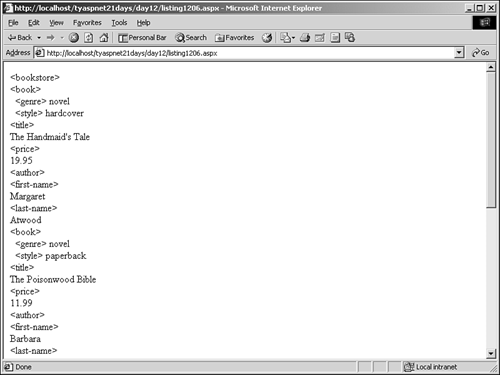
If you remember yesterday's lesson, "Using XML in ASP.NET," you'll see that most of the methods you've used here are exactly the same as the ones you used for the XmlDocument object. The XPathNavigator and XmlDocument are similar because they both inherit from the same place the XML Document Object Model. This means you can use the same series of Insert and Create methods to build and edit your XML documents. Then why should you use XPathNavigator instead of XmlDocument? For one thing, XPathNavigator doesn't use as much memory because it doesn't create the entire node tree in the beginning. It creates the tree dynamically as you move through the file. XPathNavigator also supports two things the XmlDocument doesn't: XPath queries and XslTransforms. XPath XPath is the World Wide Web Consortium's (W3C) language specification for accessing parts of an XML file. It allows you to query XML data just as you would query a traditional database with SQL statements. This language can get fairly complex, so you won't learn its syntax today. Instead, you'll learn how to use these queries for actual XML documents. XPath queries are strings consisting of keywords that represent parts of an XML file. These queries are executed by the Select method of XPathNavigator. Using your books.xml file, you could specify the following: objNav.Select("descendant::*") This query returns all of the child elements, their child elements, and so on. Literally, it means select all of the descendants (children, their children, and so on). The following query returns just the price of the last book in the list: objNav.Select("//book[last()]/price/text()") Listing 12.8 shows how to create a simple page that takes an XPath query from the user and displays the returned data. Listing 12.8 Using XPath Queries to Return XML Data 1: <%@ Page Language="VB" %> 2: <%@ Import Namespace="System.Xml" %> 3: <%@ Import Namespace="System.Xml.XPath" %> 4: 5: <script runat="server"> 6: sub SelectData(Sender as Object, e as EventArgs) 7: Dim objReader as New XmlTextReader(Server.MapPath ("../day11/books.xml")) 8: 9: Dim objDoc as XPathDocument = new _ 10: XPathDocument(objReader) 11: Dim objNav as XPathNavigator = objDoc.CreateNavigator() 12: 13: lblMessage.Text = "" 14: 15: try 16: dim objIterator as XPathNodeIterator = objNav.Select(tbQuery.Text) 17: 18: While objIterator.MoveNext() 19: Format(objIterator.Current) 20: end while 21: catch ex As Exception 22: lblMessage.Text = ex.Message 23: end try 24: 25: objReader.Close() 26: end sub 27: 28: Private Sub Format(objNav As XPathNavigator) 29: Dim strValue As String 30: Dim strName As String 31: 32: If objNav.HasChildren then 33: strName = objNav.Name 34: objNav.MoveToFirstChild() 35: 36: strValue = objNav.Value 37: Else 38: strValue = objNav.Value 39: strName = objNav.Name 40: End If 41: 42: lblMessage.Text += "<<b>" & strName & _ 43: "</b>>" & strValue & "<br>" 44: End Sub 45: </script> 46: 47: <html><body> 48: <form runat=server> 49: <asp:Textbox runat=server/> 50: <asp:Button text="Submit" 51: runat=server OnClick="SelectData"/><BR> 52: <asp:Label runat=server/> 53: </form> 54: </body></html> | Much of the work happens in the SelectData method, which is the event handler for the button control shown on line 50. Lines 7 11 should look familiar here's where you create your XmlDocument and XPathNavigator objects. Your try block on line 15 is where the real fun begins. You use the Select method supplied with the query entered in the text box to return the XML data. The Select method returns an object of type XPathNodeIterator, which simply provides a recordset-type collection of elements that meet your query conditions. The only members of the XPathNodeIterator that we're interested in are MoveNext, which moves to the next node returned from the query, and Current, which returns an XPathNavigator object that represents an individual node returned from your query (remember that nodes can have children). The code on lines 18 20 essentially loops through the returned results from your XPath query until there are no more, and then passes each individual node from the results to the Format method. |
The Format method, beginning on line 28, is similar to the same method in Listing 12.6 just toned down a bit. Try this page out by viewing it in your browser and entering the following XPath query: descendant::* If the listing worked correctly, no results should have been returned. What happened? This is where XML namespaces come into play. Assuming that you are using the well-formatted books.xml file we created yesterday, you'll have the xmlns namespace value specified. Because of this, all elements in books.xml belong to the xmlns namespace, but your XPath query doesn't know that. By default, it searches for elements that don't belong in any namespace, and in our case, there are none. There are two ways to solve this. First, you can simply remove the xmlns definition from your XML file, but this is obviously not desirable. The better way to do this is to let your XPath query know which namespaces to expect. For that we'll need to introduce a couple of new classes. An XPathExpression class is to an XPath query as a stored procedure is to a SQL statement. This class takes an XPath query and compiles it for faster execution. It also allows namespaces to be specified, which is exactly what we want. In general, you'll want to use the XPathExpression object when querying your XML files. The second object is the XmlNamespaceManager, which does exactly what its name implies: manages XML namespaces. Using this object, you'll specify any namespaces used in your XML file. Add the following code to Listing 12.8 immediately after line 15: Dim expr as XPathExpression = objNav.Compile(tbQuery.Text) Dim mngr as XmlNamespaceManager = new XmlNamespaceManager (objReader.NameTable) mngr.AddNamespace("","x-schema:books.xdr") expr.SetContext(mngr) The first line simply creates your new XPathExpression object from the query specified in the text box. The XPathNavigator.Compile object does this for you. The second line creates your namespace manager, using the XmlTextReader you created earlier as a guide. The NameTable property lets the manager know ahead of time what type of data to expect for our discussion that's all we need to know. The third line is where the namespace is added. The XmlNamespaceManager class has a method called AddNamespace that takes two parameters: the name of the namespace and its value. The first parameter here is blank, which symbolizes the default namespace. Otherwise you'd place the namespace name here. On the last line you use the SetContext method of the XPathExpression object to make your XPath query aware of the new namespace. Essentially, you are telling the query that you have some namespaces to use. Without this line, your query wouldn't know to use the appropriate namespace. Next, change the old line 16 to use your new XPathExpression object and its namespaces instead of the textbox directly: dim objIterator as XPathNodeIterator = objNav.Select(expr) Now enter your query again. This listing produces what's shown in Figure 12.9. Figure 12.9. Querying XML data with XPath.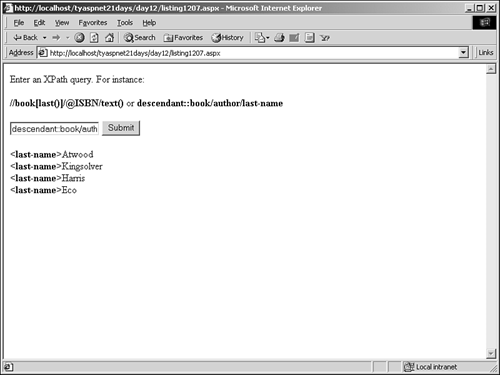
That seemed like a lot of work, but once you understand the concepts behind it, it makes a lot of sense. The XPath language provides a very robust and wonderful mechanism for retrieving XML data. Now you don't have to use a DataSet to perform these queries. For more information on XPath queries, see the W3C's online resources at http://www.w3c.org/TR/xpath. XslTransforms The Extensible Stylesheet Language (XSL) is another modeling language developed for use with XML. It works similarly to any programming language, with keywords and functions. This language allows you to convert any XML document into any other structured document, such as another XML file or an HTML file. This allows you to change your XML files into something more useful, especially for display purposes. Note that the data contained in the XML files isn't actually converted. It's simply presented in a different way. All XSL instructions are handled by an XSL transform (XslT) processor. You use XSL to create a style sheet that tells the XslT how to transform the data. Just as you use style sheets to tell HTML how to format parts of a page, you use XSL to tell the XslT how to format the XML data once it's been transformed. Figure 12.10 illustrates the process of converting one XML document into another. Figure 12.10. An XSL processor uses an XSL style sheet to transform an XML file into another structured document.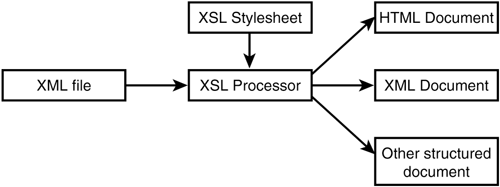
The XSL processor relies on XPath queries to return parts of an XML file, which it then formats according to the XSL style sheet. Performing a transformation is very simple in ASP.NET you only need to supply an XSL stylesheet. The XSL stylesheet uses XPath syntax to search for specific elements, and then transforms them accordingly. Listing 12.9 shows the books.xsl stylesheet. Listing 12.9 An XSL Stylesheet 1: <?xml version="1.0"?> 2: <xsl:stylesheet xmlns:xsl="http://www.w3.org/1999/XSL/Transform" 3: xmlns:op="x-schema:books.xdr" 4: version="1.0" > 5: <xsl:template match="op:bookstore"> 6: <HTML><BODY> 7: <TABLE width="450"> 8: <TR> 9: <TD><b>Title</b></TD> 10: <TD><b>Price</b></TD> 11: </TR> 12: <xsl:apply-templates select="op:book"/> 13: </TABLE> 14: </BODY></HTML> 15: </xsl:template> 16: <xsl:template match="op:book"> 17: <TR> 18: <TD><xsl:value-of select="op:title"/></TD> 19: <TD><xsl:value-of select="op:price"/></TD> 20: </TR> 21: </xsl:template> 22: </xsl:stylesheet>t | This stylesheet transforms an XML document into an HTML document. There are a couple of things to note. First, remember that in our books.xml file we declared a default namespace. This XSL stylesheet must be made aware of that namespace, or it will assume that the elements you are searching for belong to no namespace, and your transformation won't work. So, on line 3, you reference the default namespace used in your books.xml file. Note that here, however, we specify a prefix for the default namespace. Let's take a step back and examine why. |
There are three files we are concerned about here: the source XML file, the XSL stylesheet file, and the output file (which in this case will be an HTML file). If you specify a default namespace in the XSL file, it will be used for the output file as well. However, the XSL and output files have no way of knowing what the default namespace in the source file is. Therefore, you have to define it, as shown on line 3. The catch is that you cannot define the default namespace from the source file as the default namespace in the XSL file. If you try to, then the XSL file will assume the namespace belongs to the output file, and not the source file. The XPath queries will similarly assume that the elements they are searching for belong to no namespace at all, and your transformation won't work. It boils down to this: If you want your output file to have a default namespace, specify it in the XSL stylesheet as the default namespace. If, however, you want to use your default namespace from your source file, you'll have to use a prefix in the XSL file (we used "op" in this case). One more thing to note is that if you reference a schema file in your XSL stylesheet, it must be in the same directory as the stylesheet. Thus, you must copy the books.xdr file from yesterday into the /day12 directory as well. The xsl:template tags specify how to format a particular section of the XML document. For instance, line 20 formats any nodes that are named op:book (here we see the prefix of the source file's default namespace). xsl:apply-templates essentially means, "Insert this xsl:template element here." The xsl:value-of tags insert the specified element values (again, notice the op prefix on lines 18 19. Finally, in our file, anything other than these three tags are considered literal values. You've chosen to format the XML file as an HTML file here, which explains the HTML and Table tags. You could easily transform into another XML file it's only a matter of the tags you supply. Listing 12.10 uses this stylesheet to produce the HTML document from the books.xml file you created in Day 11. Listing 12.10 Using an XSL Stylesheet and XslT to Produce an HTML Document from an XML File 1: <%@ Page Language="VB" %> 2: <%@ Import Namespace="System.Xml" %> 3: <%@ Import Namespace="System.Xml.XPath" %> 4: <%@ Import Namespace="System.Xml.Xsl" %> 5: 6: <script runat="server"> 7: sub Page_Load(Sender as Object, e as EventArgs) 8: Dim objReader as New XmlTextReader(Server.MapPath ("../day11/books.xml")) 9: 10: Dim objDoc as XPathDocument = new _ 11: XPathDocument(objReader) 12: 13: Dim objXSLT As XslTransform = New XslTransform() 14: dim objWriter as XmlTextWriter = new XmlTextWriter _ 15: (Server.MapPath("output.html"), nothing) 16: 17: try 18: objXSLT.Load(Server.MapPath("books.xsl")) 19: objXSLT.Transform(objDoc, nothing, objWriter) 20: 21: lblMessage.Text = "File written successfully" 22: catch ex As Exception 23: lblMessage.Text = ex.Message 24: finally 25: objReader.Close 26: objWriter.Close 27: end try 28: end sub 29: </script> 30: 31: <html><body> 32: <asp:Label runat="server" 33: maintainstate=false/> 34: </body></html> | The first thing you should notice is the additional namespace, System.Xml.Xsl. Lines 8 11 again perform standard procedures: creating an XmlDocument and XPathNavigator. On line 13, you create your XslTransform object, and on line 14, you create an XmlTextWriter object to write the transformed document into an HTML file named output.html. |
Inside your try block, you load the XSL file into your XslTransform object, which will use the style sheet as the schema to format your new HTML document. You then call the Transform method on the XslTransform object to convert your document according to the XSL stylesheet. The first parameter is the content of the XML file you want to transform (represented by the XPathDocument), the second parameter represents any additional parameters you want to supply to the XSL file (none in this case), and the final parameter is the XmlTextWriter to place the transformed contents. Finally, you close your writer and write a simple message to the user. You should now have an output.html file in the same directory as this listing. It contains the content from the XML file, as shown in Figure 12.11. Figure 12.11. The HTML output from your XSL transform.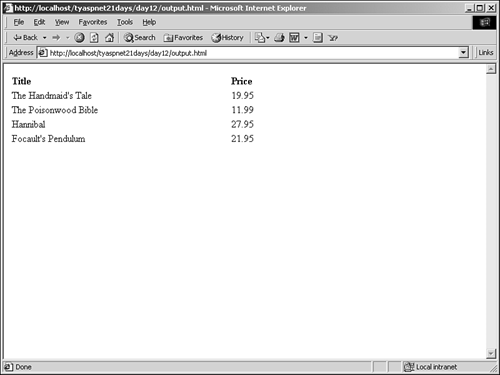
You also could have loaded the transformed contents into an XmlReader to display immediately by replacing line 19 with the following: objReader = objXslT.Transform(objNav, nothing) Here, objReader is the XmlReader. That's all there is to it. Listing 12.11 shows a full example of using an XmlReader instead of an XmlTextWriter. Listing 12.11 Displaying Transformed XML Data with an XmlReader 1: <%@ Page Language="VB" %> 2: <%@ Import Namespace="System.Xml" %> 3: <%@ Import Namespace="System.Xml.XPath" %> 4: <%@ Import Namespace="System.Xml.Xsl" %> 5: 6: <script runat="server"> 7: sub Page_Load(Sender as Object, e as EventArgs) 8: Dim objReader as New XmlTextReader(Server.MapPath ("../day11/books.xml")) 9: 10: Dim objDoc as XPathDocument = new _ 11: XPathDocument(objReader) 12: 13: Dim objXSLT As XslTransform = New XslTransform() 14: dim objWriter as XmlTextWriter = new XmlTextWriter _ 15: (Server.MapPath("output.html"), nothing) 16: 17: try 18: objXSLT.Load(Server.MapPath("books.xsl")) 19: dim objReader2 as XmlReader = objXslT.Transform (objDoc, nothing) 20: While objReader2.Read() 21: Response.Write("<b>" & objReader2.Name & "</b> " & _ 22: objReader2.Value & "<br>") 23: End While 24: 25: lblMessage.Text = "File written successfully" 26: catch ex As Exception 27: lblMessage.Text = ex.Message 28: finally 29: objReader.Close 30: objWriter.Close 31: end try 32: end sub 33: </script> 34: 35: <html><body> 36: <asp:Label runat="server" 37: maintainstate=false/> 38: </body></html> This listing is exactly the same as Listing 12.10, except that you're using an XmlReader instead of an XmlTextWriter. Therefore, content isn't sent to an output file. On lines 18 21, you use a while loop and the Read method to loop through and display the data. The XmlTransform object only has two methods, Load and Transform, so it's fairly easy to use. As you'll recall, XslTs rely on XPath queries. The XSL file specifies node names that need to be transformed. The XmlTransform object uses XPath queries to retrieve these named nodes without you ever knowing it. You could have used these queries to retrieve data and format them yourself, but why bother when you have the XmlTransform object to do it for you? For more information on XSL, see the W3C's online resources at http://www.w3c.org/TR/xsl and http://www.w3c.org/TR/xslt. | 
